Tracking users’ true last logon time is one of the most important tasks in Active Directory management. It helps identify inactive user accounts, clean up stale users, improve security, and maintain a healthy AD environment. However, Active Directory provides multiple last logon-related attributes, which often makes it difficult to identify the most accurate last logon for a user account.
As result, retrieving the true last logon time of Active Directory users is not always straightforward, especially in domain with multiple domain controllers.
To overcome this challenge, we’ve created a PowerShell script that retrieves the most accurate last logon details for Active Directory users. In this blog, we’ll explore how the script works and how it simplifies the Active Directory last logon reporting process.
How to Find Active Directory Users’ True Last Logon Time
Generally, Active Directory provides multiple attributes to track a user’s last logon activity. However, these attributes can often display different values for the same user account due to differences in replication behaviour. Therefore, understanding how each attribute works is essential to accurately determine a user’s true last logon time.
- lastLogon – Provides the most accurate and real-time logon information. However, this attribute is stored only on the domain controller where the authentication occurs and is not immediately replicated across other domain controllers.
- lastLogonTimestamp – Replicates the last logon value across all domain controllers approximately every 9 to 14 days. This value remains consistent across all domain controllers, but it may not reflect the recent user logon activity.
- LastLogondate – A human-readable PowerShell version of lastLogonTimestamp that is easier to query but has the same replication delay limitations.
Therefore, to determine the true last logon time of an Active Directory users, admins need to query the lastLogon value on each domain controller in the domain and compare the results. Since each DC stores its own logon data when a user authenticates to it, the most recent value among them represents the user’s true last logon time.
Now that we understand how to identify the true last logon, let’s explore the methods to retrieve it.
Different Ways to Retrieve Active Directory Users Last Logon Time
Active Directory provides several built-in ways to retrieve a user’s last logon information. However, these methods come with certain limitations and challenges when it comes to identifying the true last logon time. Let’s explore the common approaches used to retrieve Active Directory users’ last logon details and the challenges associated with them.
1. Active Directory Users and Computers (ADUC)
The Active Directory Users and Computers (ADUC) is the most common tool to view users’ properties in Active Directory. In ADUC, double-click the required user to open the “Properties” window, then navigate to the Attribute Editor tab. Here, scroll through the attributes to locate the lastLogon attribute. This shows the last time the user authenticated or logged in to the DC.
However, this method requires querying each user across all domain controllers to identify the most recent logon value. This becomes time-consuming and difficult to manage in larger environments.
2. Active Directory Event Viewer
Event Viewer can also be used to track user logon activity by reviewing successful authentication events in the Security logs on domain controllers. In particular, Event ID 4624 records successful logons and includes details such as the username, logon time, authentication type, and source machine.
Although Event Viewer provides detailed and accurate logon data, it is not ideal for bulk reporting. Admins often need to filter and review logs across multiple domain controllers for each user, which can quickly become time-consuming in large environments.
3. Active Directory PowerShell
PowerShell is one of the most efficient and scalable methods to retrieve AD users’ last logon details. Using cmdlets like Get-ADUser from the Active Directory PowerShell module, admins can query the lastLogon attribute for individual users or bulk users across the domain.
However, identifying the true last logon time still requires querying multiple domain controllers and comparing the results. This often involves using multiple filters and cmdlets, which can make the process complex and error prone.
To overcome the limitations of these methods, we developed a PowerShell script that queries users, last logon across all domain controller and compares the lastlogon values. It then generates a consolidated report with the most recent last logon date and time for each user in Active Directory.
Next, we’ll walk through how the script works and the parameters it supports.
Download Script: ADUsersLastLogonReport.ps1
Script Highlights
- Finds the true last logon time by querying across all domain controllers in a domain.
- Exports the last logon date and time for all Active Directory users.
- Retrieves the last logon details of enabled Active Directory users.
- Gets the last logon time for sign-in disabled users in Active Directory.
- Generates last logon reports for AD users in a specific OU.
- Automatically prompts to install the Active Directory module if it is not available.
- This script is scheduler friendly.
Active Directory Users’ Last Logon Time Report – Sample Output:
Once executed, the script exports the true last logon details for Active Directory users in a CSV file as shown below.

The report includes key details such as user account status, user principal name, last logon time, OU path, department, creation date.
Script Execution Methods – Generate Active Directory Users’ Last Logon Reports
Follow the steps below to execute the Active Directory user last logon time script:
- Download the PowerShell script and save it locally.
- Select any of the methods provided to execute the script.
Method 1: Execute the User’s Last Logon Script Interactively
Open Windows PowerShell and navigate to the script location. Then, run the following cmdlet as follows to generate the Active Directory users last logon time report.
|
1 |
./ADUsersLastLogonReport.ps1 |
This method allows admins to run the script interactively and retrieve the last logon details of all Active Directory users. After execution, it exports a CSV file containing key information such as username, last logon time, and account status.
The report is automatically saved in the defined location of the script. Once the export is complete, users are prompted to choose whether to open the report immediately. If selected, the report opens automatically; otherwise, it can be accessed later from the saved output location.
Method 2: Schedule the Active Directory Users’ Last Logon Script
You can automate the script using Windows Task Scheduler to generate Active Directory last logon reports at regular intervals. This helps admins continuously track user activity without manually running the script each time.
While scheduling the script in Task Scheduler, set the script path in Actions section and include the following argument to run the script in non-interactive mode.
|
1 |
.\ADUsersLastLogonReport.ps1 -SuppressReportOpen |
The -SuppressReportOpen disables the prompt that asks whether to open the report after execution, making the script ideal for unattended scheduling scenarios.
After execution, the script automatically exports the last logon report to the C:\Windows\System32 directory.
To ensure successful execution, ensure the account configured in Task Scheduler have required permission to read Active Directory across all domain controllers and the “Log on as a batch job” right on the system.
Note: This script does not run on Windows Home editions, as RSAT is not supported.
Export Active Directory Users’ Last Logon Report: Get the Most from the Script
The script includes built-in filters that allow you to customize the output based on your requirements and focus on specific users or reporting scenarios. Here are some practical use cases:
- Get accurate last logon time for all Active Directory enabled accounts
- Export the true last logon details for all disabled users in Active Directory
- Track last logon for Active Directory users in a specific OU
- Generate granular Active Directory last logon time reports
Get Accurate Last Logon Time for All Active Directory Enabled Accounts
In Active Directory environments, active user accounts can authenticate and access domain resources. Therefore, admins often need to verify last logon activity to ensure proper account usage and improve security.
To get the last logon of all enabled users in Active Directory, run the script as follows:
|
1 |
.\ADUsersLastLogonReport.ps1 -EnabledUsersOnly |
Once you run the script, it generates a unified report of last logon details for all sign-in enabled users in the environment.

Output Report:

Export Last Logon Details for All Disabled Users in Active Directory
To retrieve last logon date and time of all sign-in disabled uses in an AD domain, run the script as follows.
|
1 |
.\ADUsersLastLogonReport.ps1 -DisabledUsersOnly |

Output Report:

Track Last Logon for Active Directory Users in a Specific Organizational Unit
Users in Active Directory are often organized into Organizational Units (OUs) based on departments, roles, or hierarchical levels. Therefore, it is required to review last logon activity at the OU level to identify inactive users within a specific department and perform targeted cleanup or auditing.
To find last logon time of users in a specific OU, replace <DistinguishedNameOU> with the distinguished name of the required OU and run the script as follows.
|
1 |
.\ADUsersLastLogonReport.ps1 -OU "<DistinguishedNameOU>" |

This format export the true last logon of all users within the selected OU, including those in nested sub-OUs.
Output Report:

Generate Granular Active Directory Last Logon Time Reports
By default, this PowerShell script includes multiple filtering options to help generate tailored last logon reports. You can also combine multiple filters based on your reporting needs.
For example, if you want to retrieve the last logon details for enabled users in a specific OU, you can use the -EnabledUsersOnly and -OU parameters while running the script, as shown below.
|
1 |
.\ADUsersLastLogonReport.ps1 -OU "<DistinguishedNameOU>" -EnabledUsersOnly |
You can combine parameters such as -OU, –EnabledUsersOnly, -DisabledUsersOnly, and -SuppressReportOpen while running the script to generate more targeted reports based on your requirements.
Note: The –EnabledUsersOnly and -DisabledUsersOnly parameters are mutually exclusive, meaning only one can be used at a time during script execution.
Get Clear Visibility into Active Directory User Last Logon Activity for Free with AdminDroid
The PowerShell script we covered above already simplifies the process of retrieving accurate Active Directory last logon details. But what if you could access the same insights instantly through a visual interface—without manually running scripts or handling complex queries every time?
Sounds easier, right?
That’s exactly what AdminDroid delivers. Its free Active Directory reporting tool helps you instantly identify the true last logon time of users across single or multiple domains through a centralized dashboard. With just a few clicks, you can view and export reports in formats like CSV, PDF, HTML, Excel, RAW, and more.
It also includes built-in filtering options that help you quickly narrow down reports based on:
- Enabled or disabled users
- Organizational Units (OUs)
- Departments
- Inactive users
- User creation date
- Last logon period and more
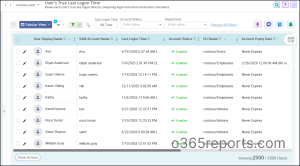
And it doesn’t stop with last logon reporting. You also get access to detailed logon auditing reports such as:
- All user logon activities
- Successful and failed logons
- Explicit credential logons
- Group member logons
- Daily first logons
- Daily and monthly logon summaries
- Special logon activities and much more
Beyond logon tracking, AdminDroid’s Active Directory Companion offers 450+ Active Directory reports, 10+ dashboards, and 60+ management actions to simplify day-to-day Active Directory administration.
If you’re looking for a faster and more centralized way to monitor, audit, and manage your Active Directory environment, AdminDroid is worth exploring. Download AdminDroid today and start your 15-day free trial.
We hope this guide helped you understand how to get the user’s last logon report interactively. Have questions or feedback? Feel free to leave a comment below!