When employees leave, contracts end, or project testing is completed, dormant user accounts often remain in Active Directory. If left unmanaged, these inactive accounts can become security risks by retaining unnecessary access and increasing your organization’s attack surface. While regular cleanup is essential, manually identifying inactive accounts and performing cleanup actions is time-consuming and prone to errors.
To simplify this process, we’ve developed a PowerShell script that accurately identifies inactive users and automate clean up through a single, controlled workflow. So, in this blog, we’ll walk you through how to clean up inactive Active Directory users using PowerShell.
How to Clean Up Inactive User Accounts in Active Directory
Most organizations follow a staged cleanup process for inactive user accounts. Administrators typically disable inactive accounts first, move them to a dedicated OU, and permanently delete them after a defined retention period.
However, carrying out this process manually with native tools can be time-consuming and error-prone. While PowerShell allows admins to combine the Search-ADAccount -AccountInactive with Disable-ADAccount cmdlets, it relies on the replicated lastLogonTimestamp attribute.
Since lastLogonTimestamp can be delayed by up to 14 days, it may not always reflect the user’s most recent activity. This means admins often need additional checks before performing cleanup actions using these cmdlets.
To streamline inactive account management, this PowerShell script identifies inactive users based on their true last logon time and supports cleanup actions such as disabling, moving, or deleting accounts. It also allows admins to combine multiple cleanup actions in a single execution.
Download script: CleanupInactiveUsers.ps1
Script Highlights:
- Lists inactive AD user accounts using the true last logon time by querying all domain controllers for preview before cleanup.
- Supports multiple cleanup actions in a single execution, including disabling, moving, and deleting inactive user accounts.
- Allows to filter inactive users by OU, account status, and never-logged-in state during cleanup.
- Prompts for explicit confirmation before permanently deleting user accounts.
- Automatically detects and installs the required Active Directory PowerShell module if it’s unavailable on the system.
- Exports a CSV report with the execution results of the cleanup actions performed for auditing and review.
- The script is scheduler-friendly, making it easy to automate inactive user cleanup.
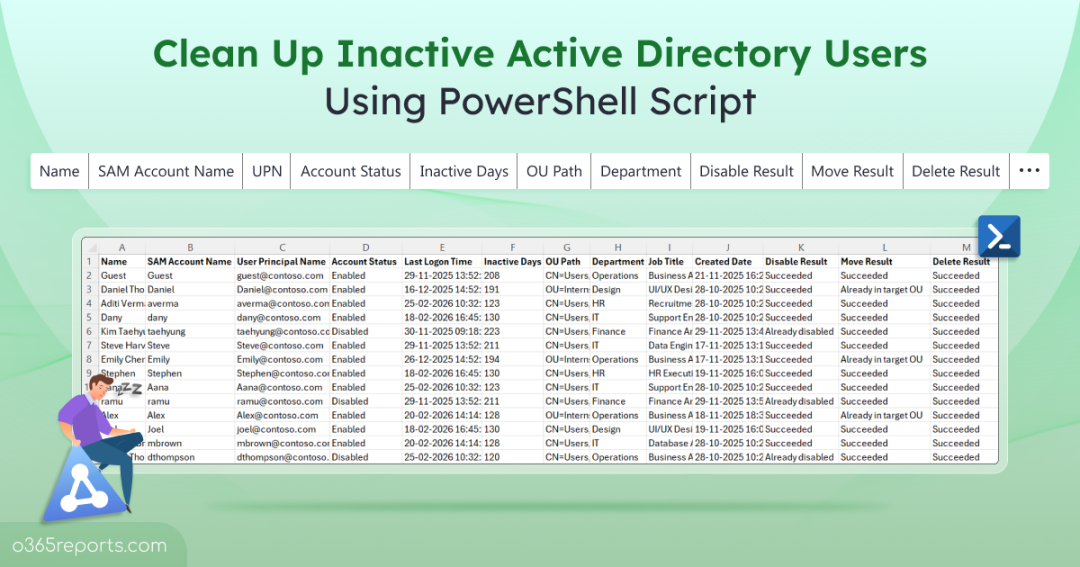
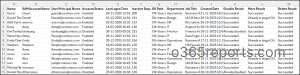
Inactive Active Directory User Account Cleanup Report – Sample Output
The script generates a CSV file that records the execution results of the cleanup actions performed. It shows whether each inactive user account was successfully disabled, moved to the specified OU, or permanently deleted.
The report also includes inactive user details such as name, SAM account name, UPN, account status, last logon time, inactive days, OU path, department, job title, and account creation date.
Script Execution Methods –Active Directory Inactive User Account Cleanup
Follow the steps below to execute the Active Directory dormant user cleanup PowerShell script.
- Download the PowerShell script and save it to your local machine.
- Choose one of the following execution methods.
Method 1: Run the Inactive User Cleanup Script Interactively
Open Windows PowerShell, navigate to the folder where the script is saved, and execute the following command:
|
1 |
.\CleanupInactiveUsers.ps1 |
The script runs interactively and prompts for the required inputs, allowing you to review the inactive user report before performing any cleanup actions.
Method 2: Automate Active Directory Inactive User Account Cleanup
To automate inactive account cleanup, you can schedule the script using Windows Task Scheduler and execute it with the required parameters. For example, the following command identifies users inactive for 90 days, disables their accounts, and runs without interactive prompts. This helps admins avoid the need to manually check and disable inactive user accounts by automating regular reviews and cleanup tasks.
|
1 |
.\CleanupInactiveUsers.ps1 -InactiveDays 90 -DisableUsers -Unattended |
The -Unattended parameter suppresses interactive prompts, allowing the script to run seamlessly as a scheduled task. After execution, the cleanup results are automatically exported to a CSV report and saved in the script’s current working directory.
To ensure successful execution, configure the scheduled task to run using an account with permission to read Active Directory information across all domain controllers. The account must also have permission to perform the selected cleanup actions (disable, move, or delete users) and the Log on as a batch job right on the system.
Note: This script requires a Windows edition that supports RSAT and the Active Directory PowerShell module. It is not compatible with Windows Home editions.
Automate Inactive User Account Cleanup in Active Directory
Stale user accounts are typically managed through a series of cleanup actions based on your organization’s lifecycle and retention policy. The script provides flexible built-in filters to target specific dormant accounts and perform clean up actions in bulk.
The script supports the following actions for managing inactive user accounts in Active Directory:
- Bulk disable inactive users in Active Directory
- Bulk move inactive accounts to another OU
- Disable and move inactive users to another OU
- Delete inactive user accounts in Active Directory
- Manage never logged-in Active Directory users
- Perform granular inactive user cleanup using multiple filters
1. Bulk Disable Inactive User Accounts in Active Directory
It’s always recommended to disable dormant user accounts before considering permanent removal. This helps immediately revoke access while allowing administrators to retain the account for future review or recovery.
To disable enabled users who have been inactive for 90 days, execute the following command.
|
1 |
.\CleanupInactiveUsers.ps1 -InactiveDays 90 -EnabledUsersOnly –DisableUsers |

After execution, the CSV file records the execution result of the disabled operation for each stale accounts, making it easy to review. You can also combine the command with parameters such as -ExcludeNeverLoggedInUsers to exclude users who have never signed in and refine your cleanup process.
2. Bulk Move Disabled User Accounts to Another OU in Active Directory
Instead of deleting accounts immediately, many organizations quarantine inactive users in Active Directory by moving them to another OU. This helps isolate inactive accounts while allowing admins to identify dependencies before permanent removal.
In order to move disabled users to a quarantine OU, replace <DistinguishedNameOU> with the target OU path and run the following command:
|
1 |
.\CleanupInactiveUsers.ps1 -InactiveDays 90 -DisabledUsersOnly -MoveToOU "<DistinguishedNameOU>" |

The script moves all matching inactive accounts to the specified OU and logs the action in the generated report.
3. Disable and Move Inactive Active Directory Users to Another OU
Many organizations separate users across multiple OUs based on departments, roles, or projects. During cleanup, inactive accounts from different OUs needs to be identified, disabled, and moved into a dedicated quarantine OU.
The script supports combining these actions in a single execution. It allows you to disable and move inactive users to another OU and vice versa, depending on your workflow requirements.
Replace <DistinguishedNameOU> with the target OU path and run:
|
1 |
.\CleanupInactiveUsers.ps1 -InactiveDays 90 -DisableUsers -MoveToOU "<DistinguishedNameOU>" |

This immediately removes access and moves to target OU while preserving the account for auditing, validation, or recovery if required.
4. Delete Stale User Accounts in Active Directory
After the review and retention period is complete, quarantined stale accounts can be safely removed from Active Directory in bulk using this script. This helps reclaim directory resources, simplifies identity management, and eliminates accounts that are no longer needed.
To permanently remove inactive users from a quarantine OU, specify the target OU path in <DistinguishedNameOU> and execute the command below. The -OU parameter limits the operation to the specified organizational unit, ensuring only quarantined accounts are considered for deletion.
|
1 |
.\CleanupInactiveUsers.ps1 -InactiveDays 365 -OU "<DistinguishedNameOU>" -DeleteUsers |

Before proceeding, the script displays a confirmation prompt explaining that the action is irreversible. It also requires you to type DELETE to continue, helping prevent accidental account deletions.
Recommendation: If you need to recover deleted user accounts due to accidental changes, consider enabling the Active Directory Recycle Bin, which allows you to restore deleted users and other directory objects.
5. Manage Active Directory Users Who Have Never Logged In
Some Active Directory user accounts are created but never used, often due to provisioning errors, pre-staged accounts for new hires who never joined, cancelled onboarding requests, or abandoned projects. Since these accounts have no recorded logon activity, they should be reviewed separately.
To identify never-logged-in users and move them to a designated OU after disabling their accounts, run the command below:
|
1 |
.\CleanupInactiveUsers.ps1 -ShowNeverLoggedinUsersOnly -DisableUsers -MoveToOU "<DistinguishedNameOU>" |
Replace <DistinguishedNameOU> with the target OU path before execution.

The script identifies users with no recorded logon activity, disables their accounts, moves them to the specified OU, and export the completed action details as a CSV report.
6. Perform Granular Inactive User Cleanup Using Multiple Filters
The script supports multiple filtering options to help you target specific dormant user accounts based on your organization’s cleanup policies.
For example, if you want to clean up inactive accounts only in the Sales OU, you can disable users who have been inactive for 90 days without impacting users in other departments.
|
1 |
.\CleanupInactiveUsers.ps1 -InactiveDays 90 -OU "<DistinguishedNameOU>" -DisableUsers |
Replace <DistinguishedNameOU> with the target OU path and execute the command. This helps admins safely clean up only the required accounts by applying filters based on inactivity period and OU location.
Best Practices for Cleaning Up Inactive User Accounts in Active Directory
Follow these best practices to ensure stale user cleanup is performed safely without impacting legitimate users or critical services in your Active Directory.
- Exclude critical accounts: Exclude break-glass, shared accounts, service, and other privileged accounts in Active Directory that may appear inactive but are still required for business operations.
- Reset passwords for retained/excluded accounts: If any inactive account must be retained for compliance or business reasons, reset its password to reduce the risk of unauthorized access while they remain inactive.
- Remove inactive users from all AD groups: During inactive account cleanup in Active Directory, remove inactive users from all groups to eliminate unnecessary permissions and prevent unintended access if the account is later restored or accidentally enabled.
- Set account expiration for temporary users: Configure an account expiration date when creating temporary accounts to automatically remove access after the defined period and proactively reduce the risk of inactive accounts.
- Extend cleanup beyond user accounts: Find stale computer accounts associated with inactive users periodically for cleanup and maintain a secure Active Directory environment.
Easily Automate Inactive User Cleanup and Management with AdminDroid
PowerShell scripts are great for inactive user cleanup. The only downside? They aren’t exactly a “set it and forget it” solution. As your environment evolves, you’ll likely need to revisit and update them from time to time. Looking for a simpler way?
That’s where AdminDroid comes in. Rather than relying on scripts and manual staged cleanup, AdminDroid’s Active Directory management tool lets you automate the entire process with just a few clicks.
Using AdminDroid, you can perform bulk management actions such as:
- Disable inactive users
- Move users to inactive OU
- Reset passwords
- Remove users from all groups
- Delete inactive users
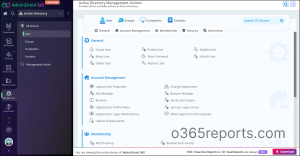
AdminDroid doesn’t just simplify cleanup actions, it streamlines your entire Active Directory management experience with advanced capabilities.
- Advanced Automation – Use disable and move pre-built or custom workflow agent to automate recurring cleanup tasks and manage inactive users.
- Multi-Stage Approval Workflows – Require approval before critical actions like user deletion to ensure only authorized changes are executed.
- Granular Delegation – Delegate inactive user management tasks to help desk teams or departmental admins without granting excess Active Directory permissions.
- Built-in Auditing – Track every management action with detailed logs showing who made the change, what was changed, and when.
Beyond this, AdminDroid serves as a comprehensive Active Directory administration tool with 450+ reports, 60+ management actions, advanced automation, alerting, scheduling, and more. It helps you simplify day-to-day AD administration by providing centralized visibility and control across your entire Active Directory environment.
Download AdminDroid today and start your 15-day free trial to experience faster, smarter, and more efficient Active Directory administration.
That’s it! We hope this blog made it easier to find and clean up dormant user accounts in Active Directory. Have questions or feedback? Feel free to leave a comment below!