In Active Directory, groups are the primary way to manage access control and organizational communication. By grouping users, computers, contacts, and other groups into manageable units, they make your life as an admin seamless.
However, when these groups aren’t managed efficiently, things quickly become chaotic. Misconfigured permissions, group sprawl, ownerless groups, outdated memberships, and circular nested groups are security risks and administrative complexities just waiting to cause trouble. Because of this, efficient group management isn’t just a “nice-to-have”; it’s the backbone of a secure and organized environment.
In this blog, let’s explore different ways to manage Active Directory groups, including a PowerShell script that makes your group management easier.
What Are the Different Tools to Manage Active Directory Groups?
Active Directory includes multiple tools to handle group administration tasks. Each method offers its own advantages and limitations depending on the size of the domain, the complexity of operations, and the level of automation required. Let’s take a look at some of the commonly used approaches for managing Active Directory groups.
1. Active Directory Users and Computers (ADUC)
The Active Directory Users and Computers console is one of the most commonly used tools for managing groups and other Active Directory objects. Using ADUC, you can create groups, modify memberships, configure group properties, and manage permissions through a graphical interface. It works well for day-to-day administrative tasks and quick changes.
However, things become difficult when bulk group management is involved. Imagine adding hundreds of users to multiple groups manually — opening each group, switching to the Members tab, adding users one by one, and repeating the same process again and again until your wrist starts hurting.
2. Active Directory Administrative Center (ADAC)
Active Directory Administrative Center provides a more modern and web-like interface for managing Active Directory objects. One of its notable advantages is that it exposes the PowerShell commands running behind each action. With ADAC, you can restore deleted groups, update memberships, and configure other group settings.
Unlike ADUC, where you often switch between multiple tabs for each task, ADAC presents group properties in a more streamlined single-view layout. However, it can feel slower than ADUC in many environments.
Bulk management operations are still not ideal, and the interface can sometimes feel cluttered, making simple administrative tasks more complicated than they need to be.
3. Active Directory PowerShell
PowerShell is one of the most efficient ways to manage Active Directory groups, especially in large environments. Unlike graphical tools, PowerShell supports bulk management and allows you to automate repetitive tasks easily. Using Active Directory PowerShell cmdlets such as New-ADGroup, Set-ADGroup, and more, you can create groups, modify group properties, and perform bulk operations with significantly less manual effort.
However, effective group management with PowerShell often requires handling multiple filters, validations, and logging processes carefully. Even a small mistake in a bulk operation can impact multiple groups if proper checks are not in place.
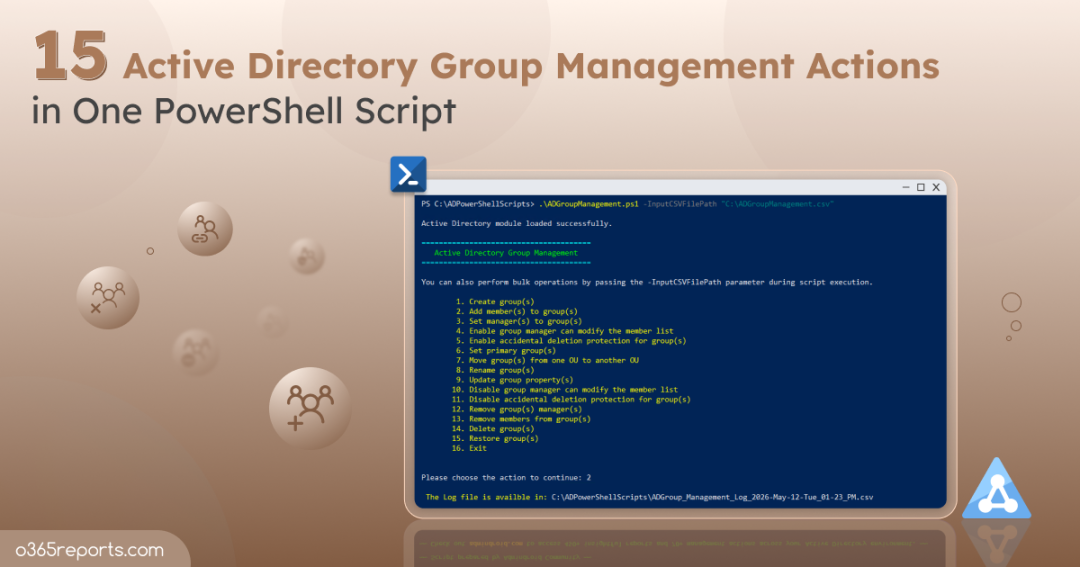
To overcome the limitations of the above methods, we developed a PowerShell script that helps you manage multiple Active Directory groups efficiently in bulk with minimal effort. In the following sections, let’s explore how the script works and the different group management actions it supports.
Download Script: ADGroupManagement.ps1
Script Highlights
- Performs 16 actions to manage Active Directory groups.
- Allows you to perform specific group management actions directly.
- Enables bulk group management for all actions using CSV input files.
- Enables you to perform multiple actions without repeatedly running the script.
- Automatically installs the Active Directory PowerShell module if it is not already available on the system.
- Exports execution results to a CSV log file for easier tracking and analysis.
Active Directory Group Management – Script Execution Methods
Follow the steps below to run the Active Directory group management script:
- Download the PowerShell script and save it locally on your Windows.
- Open Windows PowerShell and navigate to the script location.
- Choose any of the execution methods below based on your requirements.
Method 1: Run the Group Management Script Interactively
|
1 |
.\ADGroupManagement.ps1 |
This method launches an interactive menu that displays all available Active Directory group management actions supported by the script. You can choose the required action, provide the necessary inputs, and execute it directly. After execution, the script automatically generates an output CSV file containing details such as execution status, processed groups, errors, and other relevant information.
Method 2: Run the Script for a Specific Group Management Action
If you want to perform only a specific action instead of loading the full interactive menu, you can execute the script with the -Action parameter.
|
1 |
.\ADGroupManagement.ps1 -Action 1 |
Mention the action number corresponding to the operation you want to perform to skip all other action prompts and execute the selected action immediately.
Method 3: Manage Multiple Active Directory Groups in Bulk
The script is designed to handle single-group operations during normal execution. If you want to manage multiple groups in bulk, use the -InputCSVFilePath parameter.
|
1 |
.\ADGroupManagement.ps1 -InputCSVFilePath <InputFilePath> |
Replace <InputFilePath> with the path to your input CSV file to perform bulk group management actions. When executed, the script lists all available actions and allows you to choose the required operation for the inputs specified in the CSV file.
Method 4: Execute Multiple Active Directory Group Actions in a Single Session
By default, the script session ends after completing an action. If you need to perform multiple actions without rerunning the script each time, you can use the -MultiExecutionMode parameter as shown below.
|
1 |
.\ADGroupManagement.ps1 -MultiExecutionMode |
This allows you to execute multiple group management actions sequentially within the same session without restarting the script each time.
Unlock the Full Potential of the Script: Manage Active Directory Security and Distribution Groups Using PowerShell
This PowerShell script simplifies Active Directory group management for both single and bulk operations with the following group actions.
- Create new Active Directory groups
- Add members to groups in Active Directory
- Assign managers to Active Directory groups
- Allow managers to update group membership
- Enable accidental deletion protection for groups
- Set Active Directory groups as users’ primary groups
- Move Active Directory groups between OUs
- Rename groups in Active Directory
- Update Active Directory group properties
- Disable managers from updating group membership
- Disable accidental deletion protection for groups
- Remove managers from groups in Active Directory
- Remove members from Active Directory groups
- Delete groups in Active Directory
- Restore deleted Active Directory groups
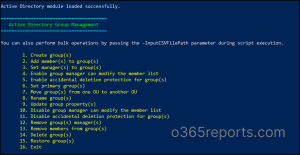
1. Create New Groups in Active Directory
This script allows you to create both security and distribution groups in Active Directory with different group scopes, including Global, Universal, and Domain Local. To create an Active Directory group using PowerShell, run the script as follows:
|
1 |
.\ADGroupManagement.ps1 -Action 1 |
Once executed, enter the required group details such as the group name, group scope, group type, and OU path where you want to create the group.
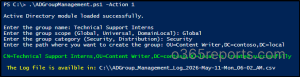
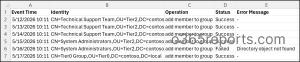
The script will then create the group with the specified type and scope in the OU. It also generates an execution log with details such as event time, identity, operation performed, status, and error messages.
Output Log:

To create multiple Active Directory groups in bulk, run the script as follows:
|
1 |
.\ADGroupManagement.ps1 -Action 1 -InputCSVFilePath <InputFilePath> |
Replace <InputFilePath> with the path to your CSV file. Ensure that the CSV file includes columns such as GroupName, GroupScope, GroupType, and OUPath.
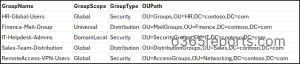
This method allows you to create multiple security and distribution groups simultaneously, simplifying bulk group provisioning and reducing manual administrative effort.
2. Add Members to Active Directory Groups
When adding a user, group, or computer to another group, it’s important to understand “Group Scopes”. If you try to add a member that isn’t supported by the group’s scope, the operation will fail. Here is a quick refresher on the group membership rules.
- Global Groups – You can only add objects like users, computers, contacts, and other Global groups from the same domain. Universal or Domain Local groups cannot be added as members of Global groups.
- Domain Local Groups – These are the most flexible group type in Active Directory. You can add accounts from any domain in the forest or even from trusted external domains. For group memberships, you can add the following groups to a Domain Local group.
- Global groups from any trusted domain.
- Universal groups from any domain in the same forest.
- Domain Local groups from the same domain.
- Universal Groups – You can add accounts, Global groups, or other Universal groups from any domain within the same forest.
To add members to an Active Directory group, run the script as follows:
|
1 |
.\ADGroupManagement.ps1 -Action 2 |
The script prompts you to enter the Distinguished Name (DN) of the target group and the DN of the object you want to add as a member.

Once the required details are entered, the script performs the membership update and generates a detailed execution log containing operation status, event details, and error messages for failed operations.
Output Log:

You can also use this PowerShell script when you need to add 100 users to one group, one user to 10 groups, or many users to many different groups. Create a CSV file with the column GroupDN and Members, containing the Distinguished Names of the groups and members as shown below.
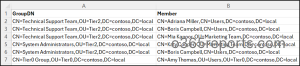
Then, run the script using the -InputCSVFilePath parameter as below.
|
1 |
.\ADGroupManagement.ps1 -Action 2 -InputCSVFilePath <InputFilePath> |
Replace <InputFilePath> with the path to your CSV file. This “Many-to-Many” capability is a massive time-saver compared to the manual “Add” button in the Active Directory GUI.
3. Assign Manager to Active Directory Groups
As an admin, you can’t be the sole authority for knowing who belongs in every single security or distribution group. By assigning owners, you empower department heads to take responsibility for their own teams, saving you countless hours of administrative guesswork.
To assign a new manager or update an existing manager for an Active Directory group, run the script as follows:
|
1 |
.\ADGroupManagement.ps1 -Action 3 |
The script will ask for the Distinguished Name (DN) of the group and the new manager. You can also choose to delegate group membership management permissions to the assigned manager during execution.

Output Log:

When you need to assign ownership across an entire OU or department, create a CSV file with the columns, such as GroupDN and Manager.

Then, execute the script as shown below to assign or update managers for multiple Active Directory groups efficiently in a single execution.
|
1 |
.\ADGroupManagement.ps1 -Action 3 -InputCSVFilePath "<InputFilePath>" |

4. Enable Manager to Update Group Membership
Assigning a manager alone does not automatically allow them to modify group memberships. If you want managers to manage group members without administrator involvement, you must explicitly delegate membership management permissions. This action is usually done via enabling the “Manager can update membership list” checkbox in ADUC.
If a group already has a manager and you simply want to grant them membership-editing rights, run the script as follows:
|
1 |
.\ADGroupManagement.ps1 -Action 4 |
The script targets the existing manager of the specified group and updates the security descriptor to allow them to add or remove members without needing to call the IT helpdesk.

Output Log:

To delegate membership management permissions for multiple groups at once, create a CSV file with the column GroupDN and run the script as follows:
|
1 |
.\ADGroupManagement.ps1 -Action 4 -InputCSVFilePath "<InputFilePath>" |

The script will iterate through the list and flip the delegation bit for every group listed, ensuring your “self-service” model is active across the organization.
Note: If a contact object is assigned as the manager, membership modification permissions cannot be delegated because contacts do not have security principals in Active Directory.
5. Enable Accidental Deletion Protection for AD Groups
A single accidental deletion of a security group can vanish critical permission paths and stop communication in its tracks. That’s why enabling accidental deletion protection is essential for highly sensitive Active Directory groups. This ensures that no user can delete the group without first explicitly unchecking this protection.
To protect an Active Directory group from accidental deletion, run the script as follows:
|
1 |
.\ADGroupManagement.ps1 -Action 5 |
You’ll be asked for the Distinguished Name (DN) of the group. Once enabled, any attempt to delete the group will trigger an “Access Denied” error, keeping your directory structure safe.

Output Log:

If you want to protect multiple privileged groups at once, prepare a CSV file with an Identity column containing the DNs of all target groups.
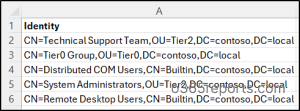
Then, replace the <InputFilePath> with the input CSV file path and execute the script as follows:
|
1 |
.\ADGroupManagement.ps1 -Action 5 -InputCSVFilePath "<InputFilepath>" |
6. Set Primary Group for Active Directory Objects
The primary group attribute is often a requirement for legacy applications, POSIX-compliant systems, or specific Mac/Unix integrations. However, AD has strict rules for this:
- The object must already be a member of the group you want to set as primary.
- Only Security Groups (Global or Universal) are supported.
When you need to update a specific user’s primary group, execute the script with the -Action parameter set to 6.
|
1 |
.\ADGroupManagement.ps1 -Action 6 |
The script prompts you to provide the object DN and the group DN. If the script detects that the object isn’t already a member of that group, it will ask if you’d like to add them to the group first before proceeding with the assignment.

Output Log:

For large-scale migrations or system integrations, you can automate this assignment using a CSV data source. Map your objects to their new primary groups using a file with two columns: ObjectDN and GroupDN.

Then run the script using the -InputCSVFilePath parameter as follows:
|
1 |
.\ADGroupManagement.ps1 -Action 6 -InputCSVFilePath "<InputFilePath>" |
7. Move Active Directory Groups Between OUs
Domain restructuring often involves shifting dozens of groups to new Organizational Units (OUs). Usually, this is a multi-step process because if a group is “Protected from Accidental Deletion,” the move will fail. This script is built to handle that frustration for you.
To relocate a group across OUs interactively, execute the script as follows:
|
1 |
.\ADGroupManagement.ps1 -Action 7 |
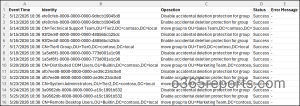
The script prompts you to enter the Group DN and the Target OU DN. If the group is protected, the script doesn’t just crash; it allows you to temporarily lift the protection, move the group, and then re-enable the protection once the move is complete.

Output Log:

If you are moving entire departments during mergers or tiered administration, don’t waste time dragging and dropping in ADUC. Simply create a CSV file with column headers GroupDN and TargetOU.
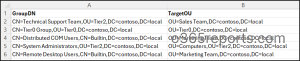
Then, run the group management script with the –InputCSVFilePath parameter.
|
1 |
.\ADGroupManagement.ps1 -Action 7 -InputCSVFilePath "<InputFilePath>" |
8. Rename Active Directory Groups
Over time, group names often need to be updated to reflect organizational changes, department renaming, or changes in business requirements. Instead of manually renaming groups one by one, this script helps streamline the process.
To change a group’s display name, execute the script as follows:
|
1 |
.\ADGroupManagement.ps1 -Action 8 |
After providing the current group DN and the new group name, the script will ask if you also want to update the sAMAccountName. This gives you the flexibility to change the display name while keeping the back-end ID the same or updating both for total consistency.
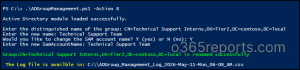
Output Log:

If you’ve recently implemented a new naming convention (like adding a GG_ or DL_ prefix to everything), you can execute hundreds of renames in seconds. Prepare a CSV file containing the columns GroupDN, NewName, and NewSamAccountName.
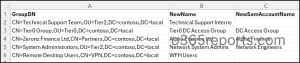
Then run the script using the -InputCSVFilePath parameter to rename multiple Active Directory groups efficiently.
|
1 |
.\ADGroupManagement.ps1 -Action 8 -InputCSVFilePath "<InputFilePath>" |
Tip:
If you want to change the Display Name but keep the old login name, just leave the newSamAccountName column empty in the input CSV file.
9. Update Active Directory Group Properties
Not all Active Directory group attributes can be modified directly using standard cmdlet parameters. Some advanced or custom attributes, like adminDisplayName, description, desktopProfile, etc, must require parameters such as Add, Remove, Replace, or Clear.
To update these Active Directory group properties, run the script as follows:
|
1 |
.\ADGroupManagement.ps1 -Action 9 |
The script prompts you to provide the DN of the target group, the operation you want to perform (Add, Remove, Replace, or Clear), the property name you want to update, and the value for the property.
Note: The property name must match the LDAP name exactly as it appears in the Attribute Editor. If the name is misspelled, the change won’t reflect in Active Directory.

Output Log:

If you need to standardize attributes across hundreds of groups, like updating the “Description” or “Notes” field, you can execute the script as follows. You can also update multiple group properties in a single script execution.
|
1 |
.\ADGroupManagement.ps1 -Action 9 -InputCSVFilePath "<InputFilePath>" |

Ensure the input CSV file contains the following column headers:
- GroupDN: The target group.
- PropertyToUpdate: The LDAP attribute name.
- Value: The new data you want to insert.
- OperationToPerform: Choose between Add, Remove, Clear, or Replace.

10. Disable Manager from Modifying Group Members
Self-service is great, but it may not be suitable for every group. If the “Manager can update membership list” flag is enabled for groups that should be strictly controlled for IT, like high-privileged security groups, you need to revoke those rights immediately.
To stop a manager from modifying the specific group’s members, execute the script as follows:
|
1 |
.\ADGroupManagement.ps1 -Action 10 |
The script targets the group’s security descriptor and removes the write permissions previously granted to the manager. The manager remains listed as the “owner” in the ManagedBy field, but they lose their ability to add or remove users.

Output Log:

If a manager owns multiple groups and you want to remove their delegated membership management permissions, you can revoke the permission in bulk. Create a CSV file with the header GroupDN and run the script as follows:
|
1 |
.\ADGroupManagement.ps1 -Action 10 -InputCSVFilePath "<InputFilePath>" |
11. Disable Accidental Deletion Protection for Active Directory Groups
During bulk cleanup, migrations, or restructuring tasks, you may need to temporarily disable accidental deletion protection for groups. The script simplifies this process by allowing you to disable the protection for Active Directory groups.
Run the script as follows and enter the Distinguished Name (DN) of the target group when prompted.
|
1 |
.\ADGroupManagement.ps1 -Action 11 |
Once executed, it disables the accidental deletion protection setting for the specified group.

Output Log:

For bulk operations, prepare a CSV file containing the Distinguished Names of all target groups under the Identity column. Then, run the script using the -InputCSVFilePath parameter to disable accidental deletion protection for multiple groups in a single execution.
|
1 |
.\ADGroupManagement.ps1 -Action 11 -InputCSVFilePath "<InputFilePath>" |
This significantly reduces manual effort during large-scale administrative operations.
12. Remove Managers from Active Directory Groups
In some situations, a group’s assigned manager may no longer be valid or required. This can happen when a manager changes departments, leaves the organization, or ownership responsibilities are transferred to another team.
In such cases, you can remove managers from Active Directory groups using the script below:
|
1 |
.\ADGroupManagement.ps1 -Action 12 |
When prompted, enter the Distinguished Name (DN) of the security or distribution group from which you want to remove the assigned manager. The script then clears the manager assignment and generates an execution log with operation status and error details if any failures occur.

Output Log:

To remove managers from multiple groups at once, prepare a CSV file containing the GroupDN column with the Distinguished Names of the target groups. Then, execute the script as shown below:
|
1 |
.\ADGroupManagement.ps1 -Action 12 -InputCSVFilePath "<InputFilePath>" |
13. Remove Members from Active Directory Groups
Over time, users, computers, contacts, and even nested groups may no longer require access to specific resources. Leaving outdated memberships unchanged can lead to unnecessary permissions, security risks, and administrative clutter. That’s why regularly reviewing and removing unnecessary group members is an important part of Active Directory management.
To remove members from an Active Directory group, run the script as follows:
|
1 |
.\ADGroupManagement.ps1 -Action 13 |
The script prompts you to enter the Group DN and Member DN, then removes the specified object from the target Active Directory group. After execution, it generates a detailed log with the operation status and any error details.
The membership removal will fail if the user is not actually a member of that group, or if the group is currently set as the user’s Primary Group.

Output Log:

Manually removing users from multiple groups is a slow, error-prone process. This script allows you to handle mass removals using a simple CSV with the headers GroupDN and Member.
Enter the Distinguished Names (DNs) of both the target groups and the members to be removed in the input file. Then, execute the script as shown below to remove multiple members from groups.
|
1 |
.\ADGroupManagement.ps1 -Action 13 -InputCSVFilePath "<InputFilePath>" |
14. Delete Active Directory Groups from a Domain
As Active Directory environments grow, outdated and unused groups gradually start piling up. Empty groups, inactive groups, temporary project groups, and legacy access groups that are no longer required can clutter search results, complicate audits, and even become security risks if left abandoned.
Regularly cleaning up unused groups helps maintain a cleaner, more secure, and better-organized Active Directory environment. To remove an Active Directory group, run the script as follows:
|
1 |
.\ADGroupManagement.ps1 -Action 14 |
When prompted, enter the Distinguished Name (DN) of the group you want to remove. If the group is protected from accidental deletion, the script automatically detects it and allows you to disable the protection before proceeding with the deletion.

Output Log:

When you have a long list of stale groups to purge, the script’s bulk execution mode can save significant administrative time. Prepare a CSV file containing the GroupDN column and add the Distinguished Names (DNs) of all target groups.
Then run the script using the -InputCSVFilePath parameter:
|
1 |
.\ADGroupManagement.ps1 -Action 14 -InputCSVFilePath "<InputFilePath>" |
The script will iterate through the list and delete the specified Active Directory groups automatically.
15. Restore Deleted Active Directory Groups
That heart-stopping moment when a group in Active Directory gets deleted accidentally is very real. Even a single group deletion can lead to permission loss, broken access assignments, application issues, and communication disruptions across the organization.
Instead of digging through the Deleted Objects container in ADUC, you can use this script to quickly restore deleted Active Directory groups. To recover a deleted Active Directory group, run the script as follows:
|
1 |
.\ADGroupManagement.ps1 -Action 15 |
The script prompts you to enter the sAMAccountName of the deleted group. It then searches the deleted objects container and restores the group to its original location, along with its memberships and other attributes.
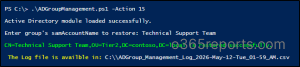
Output Log:

To restore multiple deleted groups at once, prepare a CSV file containing the samAccountName column.
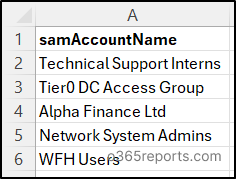
Then run the Active Directory group management script as follows:
|
1 |
.\ADGroupManagement.ps1 -Action 15 -InputCSVFilePath "<InputFilePath>" |
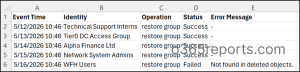
The script iterates through the list and attempts to restore each matching group from the “tombstone” state.
Note: Enable Active Directory Recycle Bin in your domain to fully restore deleted group objects and their associated attributes.
Best Practices to Manage Groups in Active Directory
Managing Active Directory groups effectively is essential for maintaining a secure, organized, and scalable environment. Without proper management, groups can quickly turn into a “permissions jungle” filled with outdated memberships, excessive access, and administrative confusion. To avoid that, it’s important to follow these industry-proven best practices.
1. Implement the Principle of Least Privilege (PoLP): Never give more access than is absolutely necessary. Users should only be members of groups that are required for their current job function. This limits the “blast radius” if an account is ever compromised.
2. Strategic Group Nesting in Active Directory: Nested groups can simplify management, but too much nesting makes troubleshooting a nightmare. Stick to the A-G-DL-P strategy:
Accounts –> Global Groups (Representing roles) –> Domain Local Groups (Representing resources) –> Permissions.
3. Choose the Right Scope and Type: Before creating a group, understand the purpose of the group scope and type. Use the appropriate scope based on your requirements and avoid using larger scopes unnecessarily.
4. Enforce a Standard Naming Convention: “New_Folder_Access” is a terrible group name. A year from now, no one will know what it does. Use a prefix-based system so you can identify groups at a glance. For example, HR-FileAccess-Global, Finance-MailGroup, etc.
5. Establish and Empower Group Owners: Groups with frequent membership changes, such as department or project, should have assigned managers. This creates a clear point of contact for audits and allows team managers to keep memberships updated regularly. Without proper ownership, groups can quickly become outdated and difficult to manage.
6. Restrict Membership in Default Security Groups: Groups like Domain Admins, Enterprise Admins, and Schema Admins should be tightly controlled. Only authorized users should be added to privileged groups, and membership should be reviewed frequently.
7. Monitor Group Changes and Permission Modifications: Even with the best scripts, manual changes can happen. Use Event Viewer to monitor whenever a security group is created, or a member is added. This is your first line of defense against internal threats.
8. Regularly Review AD Group Memberships: Permissions shouldn’t be “set and forget.” Conduct quarterly or bi-annual access reviews to remove outdated members from the Active Directory groups.
9. Purge Unused Active Directory Groups: If a group has zero members and hasn’t been used in a year, it’s a “ghost.” These groups clutter your directory and create confusion during audits. Regularly audit empty groups and delete them safely from your Active Directory domain.
Stop wasting time on manual “click-marathons” in ADUC. By leveraging this PowerShell script and following industry best practices, you can automate bulk tasks, secure your groups from accidental deletion, and maintain a cleaner, audit-ready environment. We hope this blog helps you understand how to manage Active Directory groups effectively; if you have any doubts or comments, feel free to share them below!