User passwords are the gateway to your Active Directory environment, which makes them a critical part of organizational security. But if these passwords are not properly monitored, expired passwords can cause account lockouts, non-expiring passwords may introduce security risks, and outdated credentials can indicate non-compliance with password policies.
To stay ahead of these issues, you need visibility into password last set dates, password expiration dates, expired password accounts, soon-to-expire password accounts, etc. While Active Directory stores this information, retrieving it using native tools can be tedious and time-consuming, especially in large environments. To simplify this process, we’ve created a PowerShell script to get the password expiration report for all users in Active Directory. In this blog, we’ll walk you through how to use the PowerShell script to generate Active Directory password reports and proactively monitor password expiry across your environment.
How to Get the Last Password Change and Password Expiration Dates in Active Directory
Before using the PowerShell script, let’s explore the native methods for checking users’ password last set and expiry details in Active Directory.
- Active Directory Users and Computers (ADUC): In the ADUC console, locate and right-click the user account, then go to Properties → Attribute Editor. Enable the ‘Constructed’ filter and review pwdLastSet for the last password change date and msDS-UserPasswordExpiryTimeComputed for the password expiry date. However, this requires you to check each account and manually calculate the days until password expiry, which makes it impractical when reviewing multiple accounts.
- Active Directory Administrative Center (ADAC): Similar to ADUC, you can view password expiry details by navigating to Properties → Extensions → Attribute Editor. However, this involves a complex navigation and requires manual calculation of days until password expiry, which can be time-consuming.
- Active Directory PowerShell: One of the most efficient ways to retrieve password expiration information is using Active Directory PowerShell. With the Get-ADUser cmdlet, you can fetch each user’s last password change date and password expiry details. However, determining expiry status still requires multiple cmdlets and filters, making the process complex and error-prone.
To overcome these limitations, we have designed a PowerShell script that queries each Active Directory user, retrieves the password-related information, and exports the results to a CSV report. It can also generate dedicated password reports for enabled users, users with expired passwords, accounts with never-expiring passwords, soon-to-expire passwords within <N> days, and more.
Download Script: ADUsersPasswordExpiryReport.ps1
Script Highlights
- Allows you to generate 5+ password reports.
- Retrieves the last password change date for all Active Directory users.
- Lists the password expiration date for all Active Directory users.
- Allows you to get last password change and expiry details for enabled users only.
- Allows you to filter password report for users within a specific Organizational Unit (OU).
- Helps to find all password-expired users in Active Directory.
- Gets Active Directory users whose passwords are set to never expire.
- Lists Active Directory users with soon-to-expire passwords.
- Exports output as a CSV file for further analysis and monitoring.
- Automatically installs the Active Directory (RSAT-AD) module, if it is not already present.
- This script is scheduler friendly.
Active Directory Users’ Last Password Change Date & Expiry Report – Sample Output
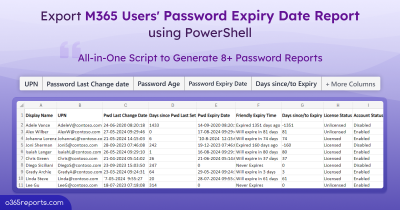
Once executed, the script exports a list of all users in Active Directory, along with their last password change time stamp, password expiry date, and other password-related details, as shown below:
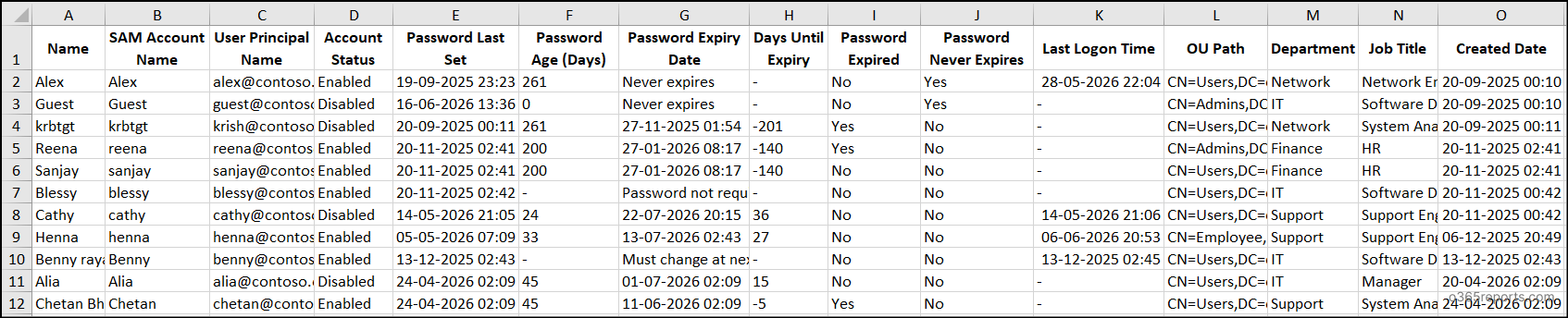
The exported CSV report include most essential attributes such as:
- Name
- SAM account name
- User principal name
- Account status
- Password last set
- Password age (days)
- Password expiry date
- Days until expiry
- Password expired
- Password never expires
- Last logon date
- OU path
- Department
- Job title
- Created date
Script Execution Methods – Active Directory User Password Expiration Report
Follow the steps below to execute the Active Directory users’ last password change and password expiry script:
- Download the script and save it to a local folder.
- Open Windows PowerShell and navigate to the location where the script is saved.
- Then, run the script as follows to generate the Active Directory password expiration report.
1./ADUsersPasswordExpiryReport.ps1
The script runs interactively and generates a report containing password details of all users. After the report is generated, you’ll be prompted to choose whether to open it immediately. If you select Yes, the report will open automatically; otherwise, it will be saved in the working directory by default.
Get Active Directory Users Password Expiration Date Report – Make the Most of the Script
The script includes several built-in filters that allow you to tailor the Active Directory user’s password report to your specific requirements. Here are the password expiry reports offered by the script:
- Get all Active Directory users with expired passwords
- Find users with password never expires in Active Directory
- Export users with soon-to-expire passwords in Active Directory
- Generate last password change and expiry report for enabled users
- Export Active Directory password report for users in a specific OU
- Generate granular Active Directory password expiration reports
- Schedule Active Directory password reports
Get All Active Directory Users with Expired Passwords
When expired passwords go unnoticed, they can lead to unexpected helpdesk tickets and operational disruptions. In addition, any scheduled tasks, services, or scripts that rely on those credentials may fail, potentially interrupting business processes. To avoid these issues, you should regularly identify and track password-expired users in Active Directory.
To retrieve all password-expired users in Active Directory using PowerShell, run the script with the -PasswordExpiredOnly parameter as below:
|
1 |
.\ADUsersPasswordExpiryReport.ps1 -PasswordExpiredOnly |
This generates a report of all Active Directory users with expired passwords, along with details such as password expiry date, last password change date, last logon date, etc. Using this information, you can quickly identify affected user accounts, and either enforce a password reset or notify users to change their passwords.
In addition, you can check the last logon time data to identify inactive and never logged-in users in Active Directory.
Find Users with Password Never Expires in Active Directory
User accounts with long-living passwords can introduce security risks by remaining valid indefinitely. If these credentials are compromised, attackers may retain unauthorized access for extended periods. Therefore, it is necessary to track all users with never-expiring passwords and force a password expiration to reduce security risks.
To get all Active Directory user accounts with passwords set to never expire using PowerShell, execute the script with the -PasswordNeverExpiresOnly parameter as below:
|
1 |
.\ADUsersPasswordExpiryReport.ps1 -PasswordNeverExpiresOnly |
Once executed, the script gets all users with password never expire in Active Directory. This report helps you identify accounts exempt from password expiration policies and review whether those exceptions are still required.
Additionally, the Password Last Set column shows when each user last changed their password, providing valuable context for identifying accounts with old passwords. You can choose to reset the password or require users to change it at the next logon to maintain compliance with password policies.
Export Users with Soon-to-Expire Passwords in Active Directory
Passwords nearing expiration can disrupt user access if they are not updated on time. By identifying users with soon-to-expire passwords, you can notify them in advance, helping prevent account lockouts and reduce helpdesk calls.
Run the PowerShell script with the – SoonToExpirePasswordsInDays parameter as below to generate soon-to-expire user passwords report.
|
1 |
.\ADUsersPasswordExpiryReport.ps1 -SoonToExpirePasswordsInDays <NumberOfDays> |
Replace <NumberOfDays> with the number of days before password expiration to monitor. For example, specifying 30 generates a report of users whose passwords will expire within the next 30 days.
After execution, the generated report lists all Active Directory users whose passwords will expire within the specified period. The Days Until Expiry column displays the number of days remaining before each password expires, enabling you to take appropriate action.
Generate Last Password Change and Expiry Date Report for Enabled Users Only
Enabled users in Active Directory are the ones actively signing in to organizational systems and accessing critical resources such as email, applications, and file shares. If their passwords expire unexpectedly, it can lead to immediate login failures, service interruptions, and helpdesk ticket spikes.
To avoid this, you should proactively monitor password reports for enabled users. This helps them notify users in advance, decide whether password changes are required, and enforce password resets if necessary.
Run the script with the -EnabledUsersOnly parameter to generate a password expiration report for enabled users.
|
1 |
.\ADUsersPasswordExpiryReport.ps1 -EnabledUsersOnly |
After execution, the script retrieves all enabled users in Active Directory along with their last password change time stamp and password expiry details.
Export Active Directory Password Expiration Report for Users in a Specific OU
Many organizations structure Active Directory into multiple Organizational Units (OUs) based on departments, locations, or user roles to simplify management. In such environments, password expiry reporting is often not required for the entire directory, but for a specific business unit.
For example, before a quarterly audit, an IT admin may need to review password expiry details only for users in the ‘Finance OU’ to ensure compliance with internal security policies. Instead of generating a report for the entire Active Directory environment, you can focus on the specific OU that requires attention.
You can execute the PowerShell script with the -OU parameter to generate a password report for users in a specific OU, as shown below:
|
1 |
.\ADUsersPasswordExpiryReport.ps1 -OU “<OUDistinguishedName>” |
Replace <OUDistinguishedName> with the distinguished name of the OU.
Upon execution, the script generates a report containing the last password change and password expiry details for all users in the specified OU.
Generate Granular Active Directory Password Expiration Reports
By default, the script supports granular execution using multiple filters. For example, to retrieve Active Directory enabled users whose passwords have been expired, you can run the script with the -EnabledUsersOnly and -PasswordExpiredOnly parameters, as shown below:
|
1 |
.\ADUsersPasswordExpiryReport.ps1 -EnabledUsersOnly -PasswordExpiredOnly |
This command exports all enabled Active Directory users along with their password expiry date, last password change date, and more. For more granular reporting, combine multiple parameters such as -PasswordNeverExpiresOnly, -OU, and -SoonToExpirePasswordsInDays to generate targeted password expiry reports.
Note: While executing the script, the parameters -PasswordNeverExpires, -PasswordExpiredOnly, and -SoonToExpirePasswordsInDays cannot be used together as they are mutually exclusive.
Schedule Active Directory Password Expiration Reports
Monitoring password expiration regularly is essential for effective password management. Instead of running the script manually each time, you can schedule it to automatically generate regular password reports.
To automate password expiry reporting, schedule the script using Windows Task Scheduler. While configuring the scheduled task, specify the script arguments in the Add arguments field as shown below:
|
1 |
<FolderPath>\ADUsersPasswordExpiryReport.ps1 -Unattended |
This suppresses interactive prompts, allowing the script to run silently in the background without requiring user input. The report is then generated and saved to C:\Windows\System32, where it can be accessed later for review. To ensure successful execution, make sure the account configured in Task Scheduler has the ‘Read’ access to Active Directory objects.
Get Complete Active Directory Password Insights for Free with AdminDroid!
The PowerShell script exports password details to a CSV report, but reviewing thousands of records can quickly become overwhelming, especially in large environments. That’s where AdminDroid makes all the difference.
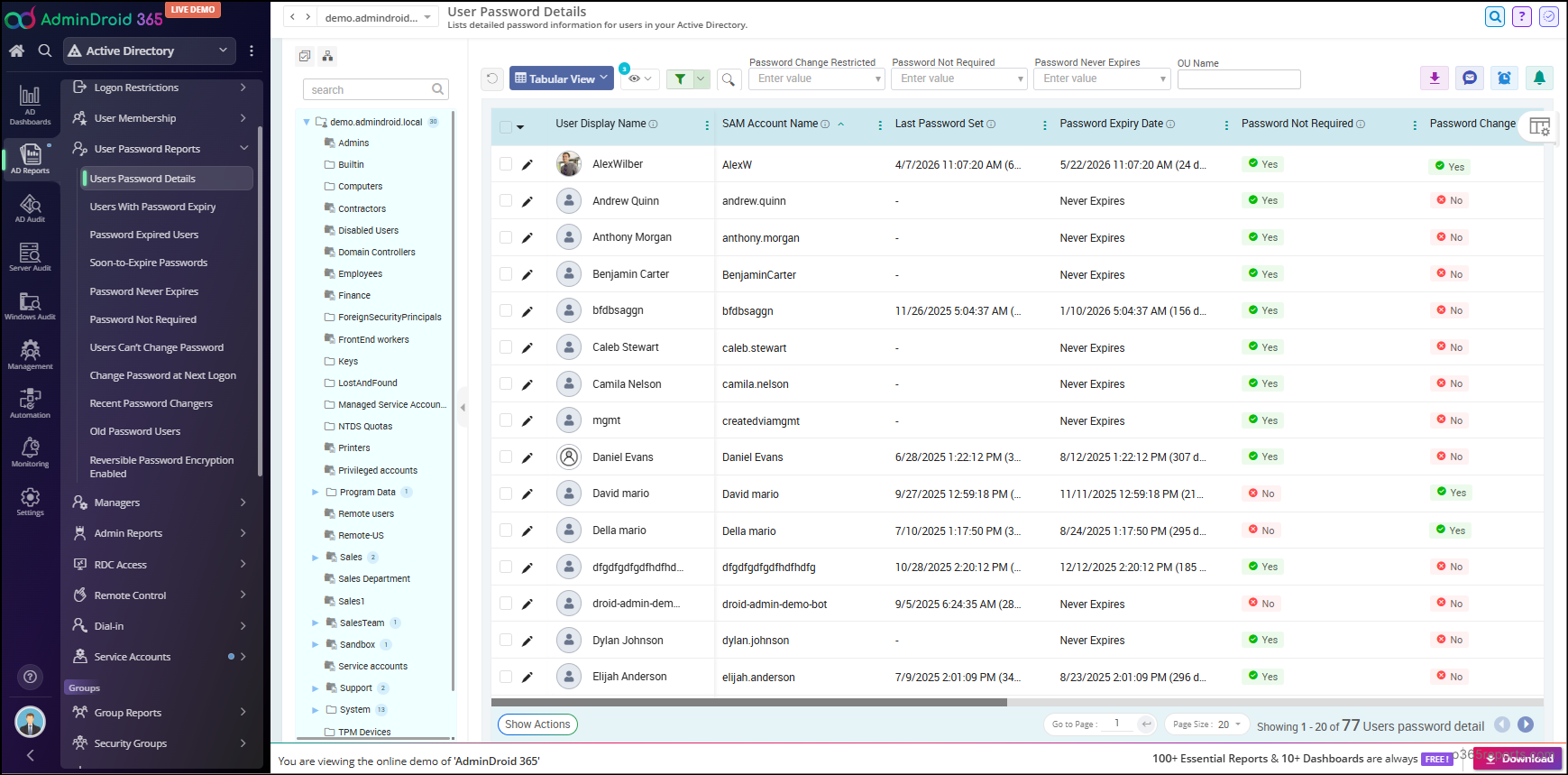
Instead of digging through spreadsheets, AdminDroid Active Directory reporting tool transforms raw password details into actionable insights through interactive dashboards and ready-to-use report. You can also export these reports in various formats such as Excel, CSV, PDF, etc., to meet your organization’s auditing needs. 🤩
Additionally, you can customize columns and apply advanced filters for deeper analysis and tailored reporting.
With AdminDroid’s free Active Directory user password reports, you get dedicated password reports like:
- Users password details
- Password expired users
- Users with soon-to-expire passwords
- Password never expires accounts
- Password not required accounts
- Users can’t change passwords
- Change passwords at next logon
- Recent password changes
- Old password users
- Reversible password encryption enabled users
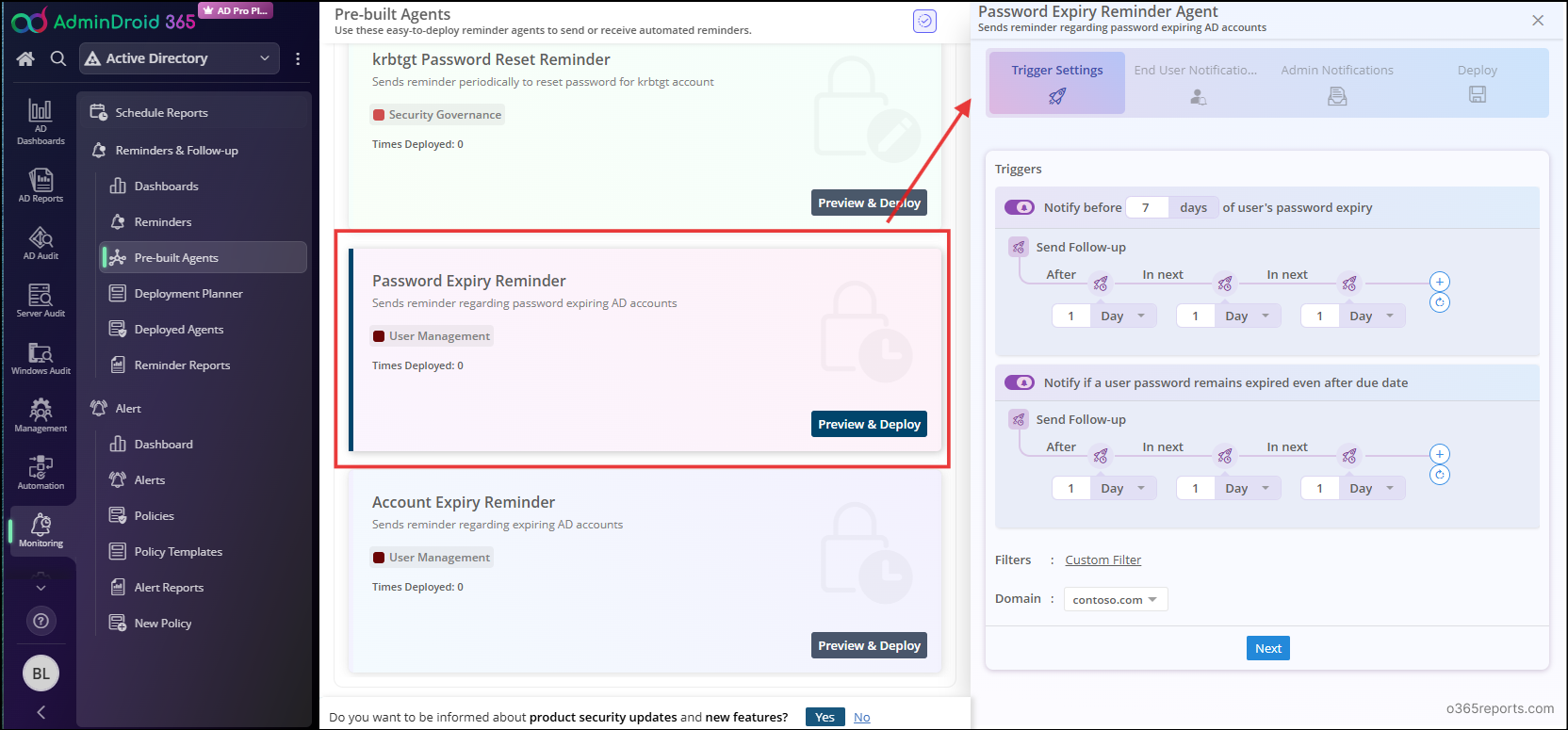
Beyond reporting, AdminDroid helps you stay ahead of password expiration issues with automated password expiry reminders. 🔔 With ready-to-use reminder templates, you can proactively notify users about upcoming password expirations and help them update their passwords, minimizing user disruptions and support requests.
Simply select the Password Expiry Reminder template, set how many days in advance you want to notify users, choose the platform (Teams or email), pick the recipients—and you’re done! AdminDroid automatically sends daily reminders until users update their passwords.
Need more insights? AdminDroid Active Directory companion goes far beyond password monitoring. It also offers 450+ Active Directory reports, 65+ management actions, automation, alerting, delegation, auditing, and deep insights to simplify your Active Directory administration.
Download AdminDroid today and start your 15-day free trial to experience smarter Active Directory management. ⭐
Wrapping Up
That’s it! We hope this blog helped you understand how to generate Active Directory users’ password expiry reports and use them effectively to monitor password compliance. If you have any questions, suggestions, or feedback, feel free to share them in the comments below. Stay tuned for more blogs!