External collaboration in Microsoft Teams is essential but managing it is often where the real headache begins. Until now, key controls like external and guest access and B2B collaboration were scattered across multiple pages in Entra and Teams admin center. 😓 So, when a client can’t access a Teams channel, you may end up hopping between tabs to check external access settings in one place, B2B settings in another, and the cycle continues. This fragmented navigation also increases security risks such as overlooked important controls, misaligned configurations, and unintended access gaps.
Now, Microsoft has addressed this by introducing a centralized and unified external collaboration settings management in Microsoft Teams admin center. This new experience brings all key external collaboration controls to manage external access, guest access, and B2B collaboration from a single location. In this blog, we’ll walk through what this section is, what settings it includes, and how it helps you manage external collaboration with ease. Let’s dive in!
Simplified External Collaboration Management in Teams Admin Center
The new external collaboration settings management in the Microsoft Teams admin center introduces a centralized interface that brings guest and external access controls together in one place. With this centralized interface, admins can manage and govern collaboration with external users more easily.
To access this feature, follow the steps below.
- Sign in to the Teams admin center.
- From the left navigation pane, expand External collaboration settings.
- Expanding this section reveals four new subsections:
- Overview (new)
- External access
- B2B guest access
- B2B member access
Note:
B2B guest access and member access pages aren’t displayed for organizations using unified policies and settings management in Teams admin center.
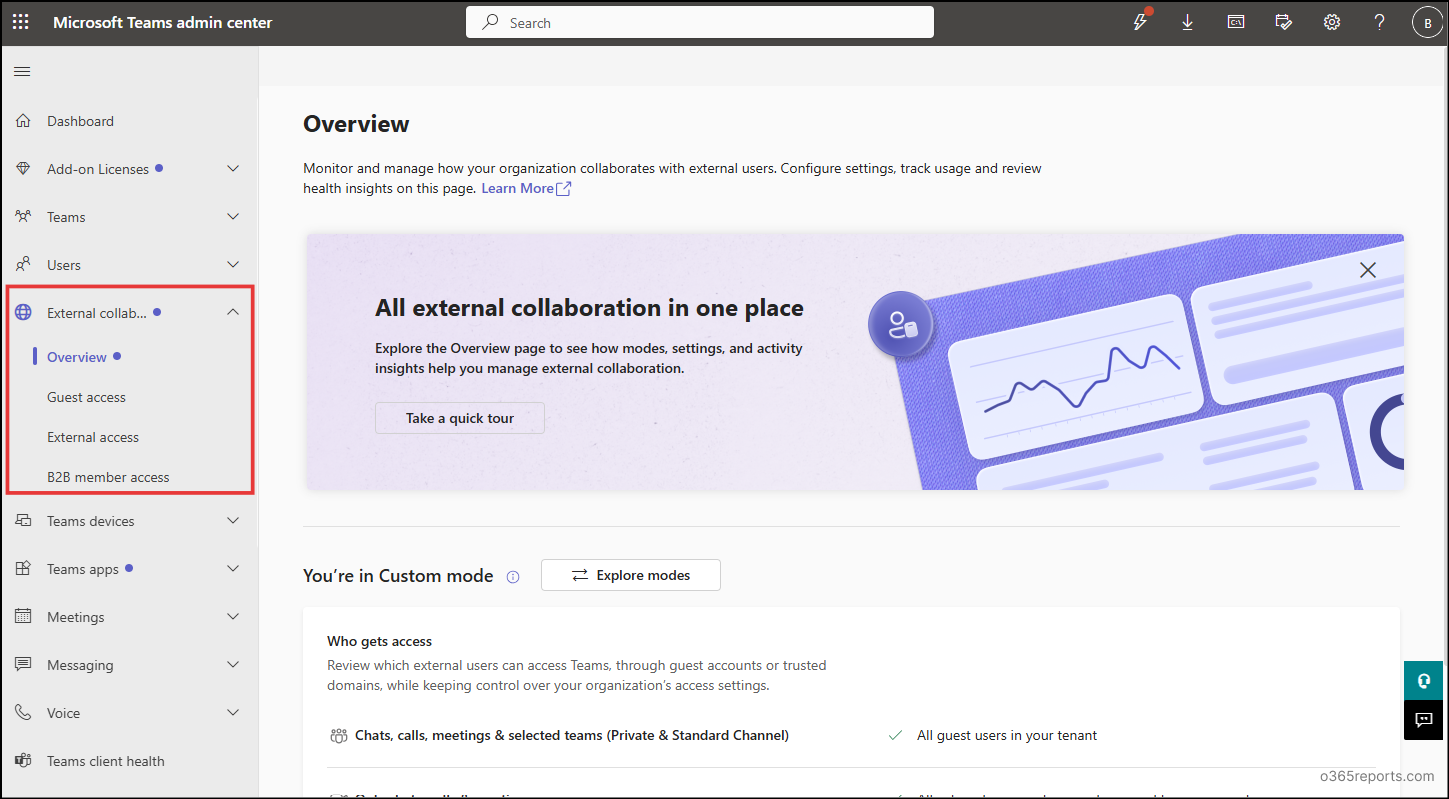
Let’s take a quick look at these sections.
- The Overview section is the latest addition to this experience, offering a high-level view of your organization’s external collaboration setup. It allows you quickly understand how external and guest collaboration is configured across the tenant.
- Then comes the key highlight of the Overview page – the Collaboration modes, which is also a new addition. There are three modes: Open, Controlled and Custom. These modes allow you to manage external collaboration at different levels of restriction. This makes it easier to align external collaboration settings with your organization’s security needs.
- The other three pages, which previously existed, have now been relocated under the Overview section for a more streamlined and intuitive management experience.
Let’s explore the new settings in detail after reviewing the prerequisites.
Prerequisites for Unified Teams External Collaboration Settings Management
You must have one of the following roles to manage the external collaboration settings.
- A Teams Administrator role can give control to view the settings and manage Teams-related configurations. However, access to B2B direct connect and selecting Open mode is restricted.
- A Global Administrator role gives you full control over all external collaboration settings and modes, including B2B configurations.
Microsoft has introduced a new role called External Collaboration Administrator that allows admins to manage external collaboration settings only through PowerShell.
Once you have the required role in place, you are ready to manage collaboration with external participants. Before diving into the Overview page settings, it is important to understand the three external collaboration modes available in the Teams admin center. By the end of this section, you’ll understand why we are introducing them first.
Three Modes of New Unified External Collaboration Settings Management
As mentioned earlier, collaboration modes are the core of the Overview page. There are 3 modes: Open, Controlled and Custom. They play a key role in defining the level of restriction for external, guest and B2B access in your organization.
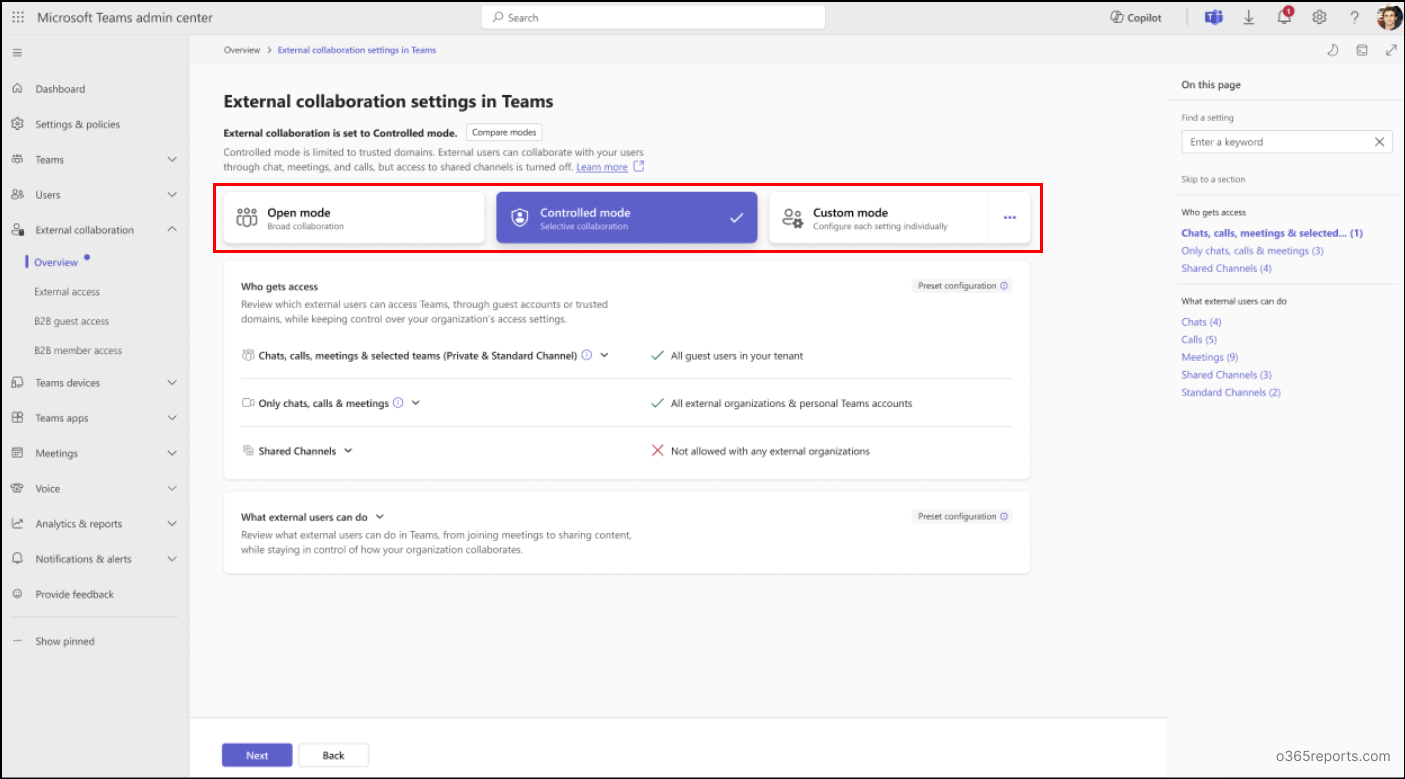
Mode 1 – Open Mode:
What it is:
This is a predefined mode that enables a broad external collaboration.
What it does: It lets your team interact with people outside your organization through chats, calls, meetings, teams, and channels, including shared channels. You can collaborate with external Teams users, personal Microsoft accounts, and partner organizations using federation, B2B, or B2B Direct Connect.
When to Choose: Choose Open collaboration mode if your organization frequently collaborates with external partners and requires a more flexible collaboration setup. This mode is best suited for environments where most external communication occurs through B2B Direct Connect and shared channels. It allows users to collaborate seamlessly with guests and partner organizations, enabling external participants to join shared channels without restrictions. Open Collaboration is ideal for organizations that prioritize frequent and unrestricted external collaboration.
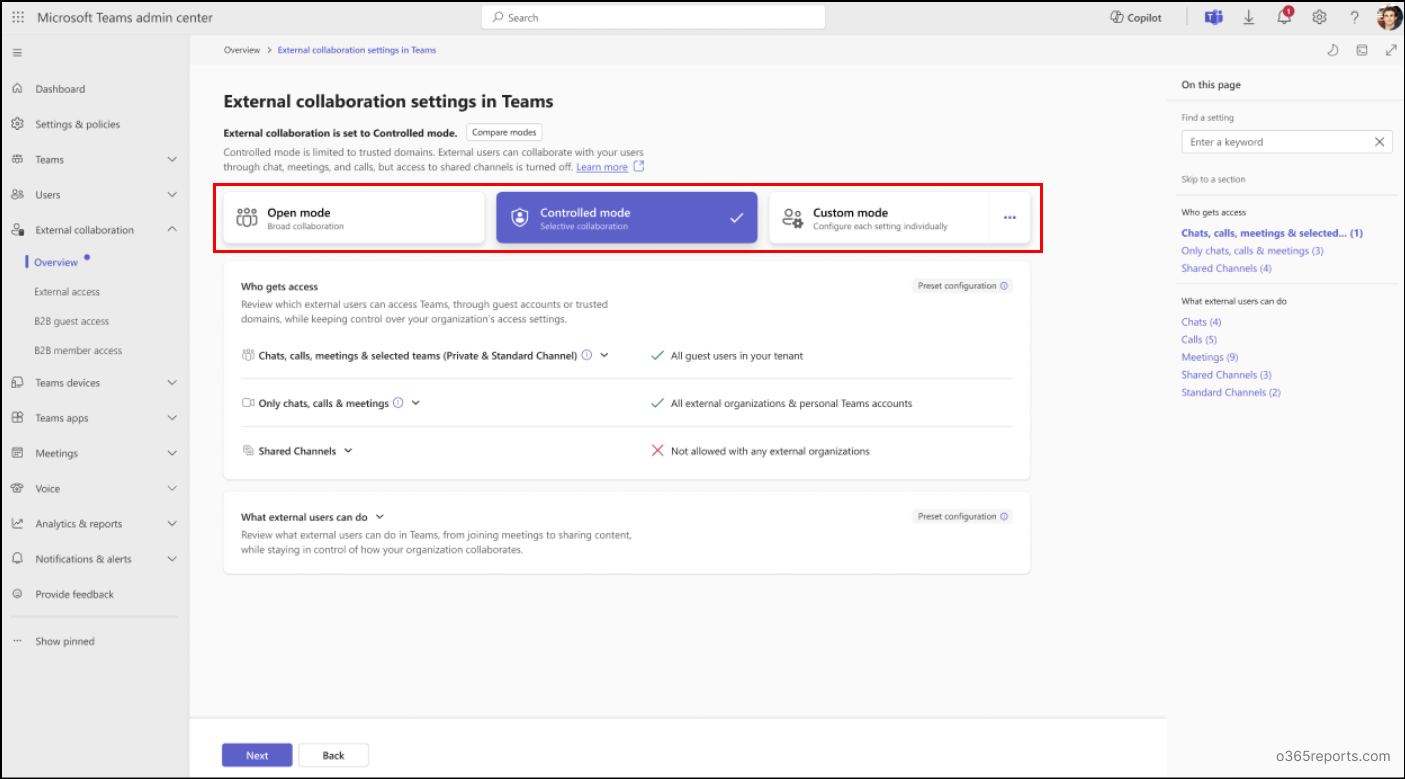
Mode 2 – Controlled Mode:
What it is:
This is also a predefined mode, and it offers a more restricted external collaboration experience. It aligns closely with the default behaviour of many Microsoft 365 enterprise and education tenants.
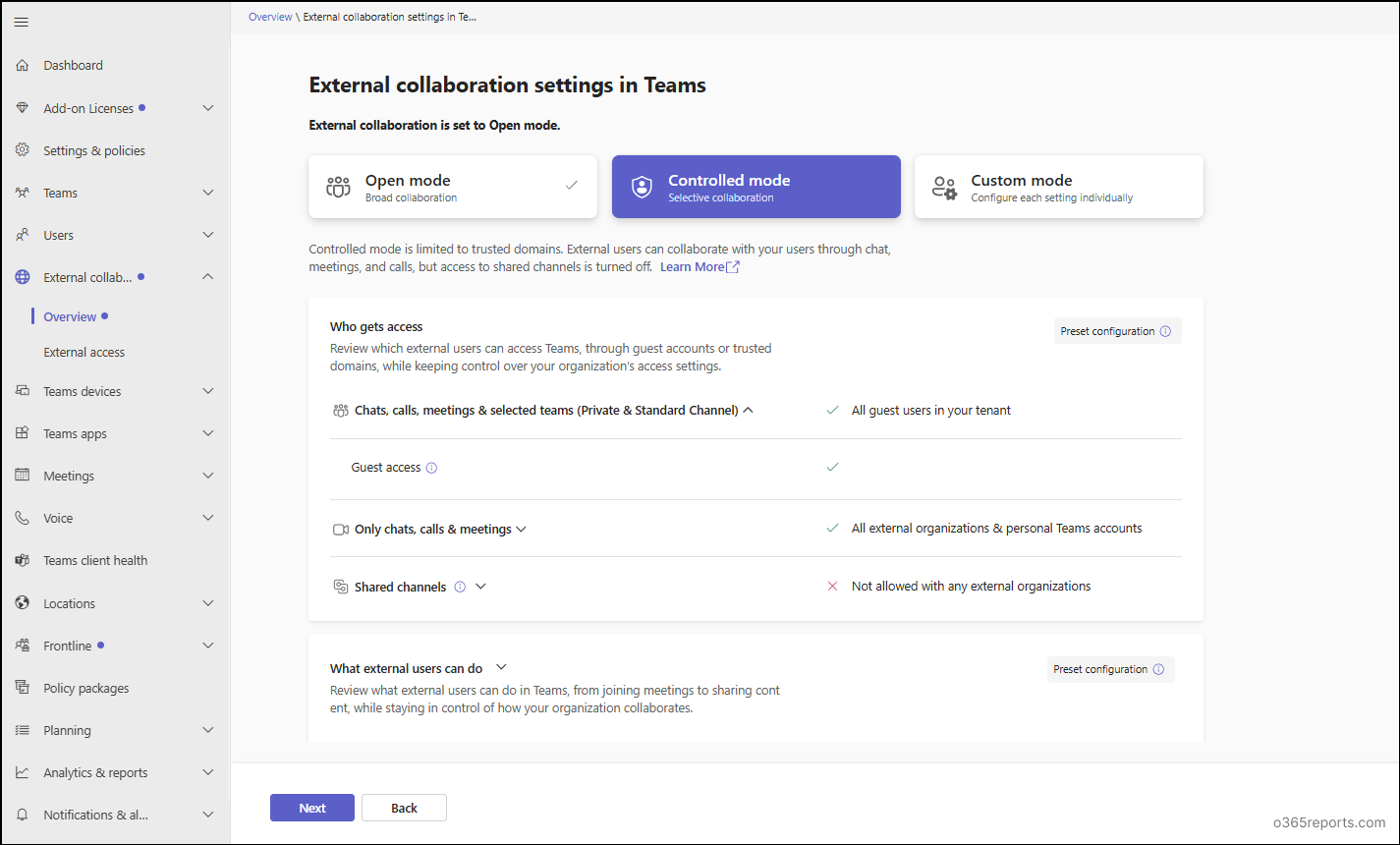
What it does: It lets you interact through chats, calls, and meetings with external domains but restricts collaboration in shared channels.
When to choose: Choose Controlled mode when your organization requires a tighter control over external and guest access. If your organization doesn’t rely on shared channels and manages external collaboration primarily through federation and external access, Controlled mode is the ideal choice.
Mode 3 – Custom Mode:
What it is:
This is a flexible mode that lets you design and control your own external collaboration setup.
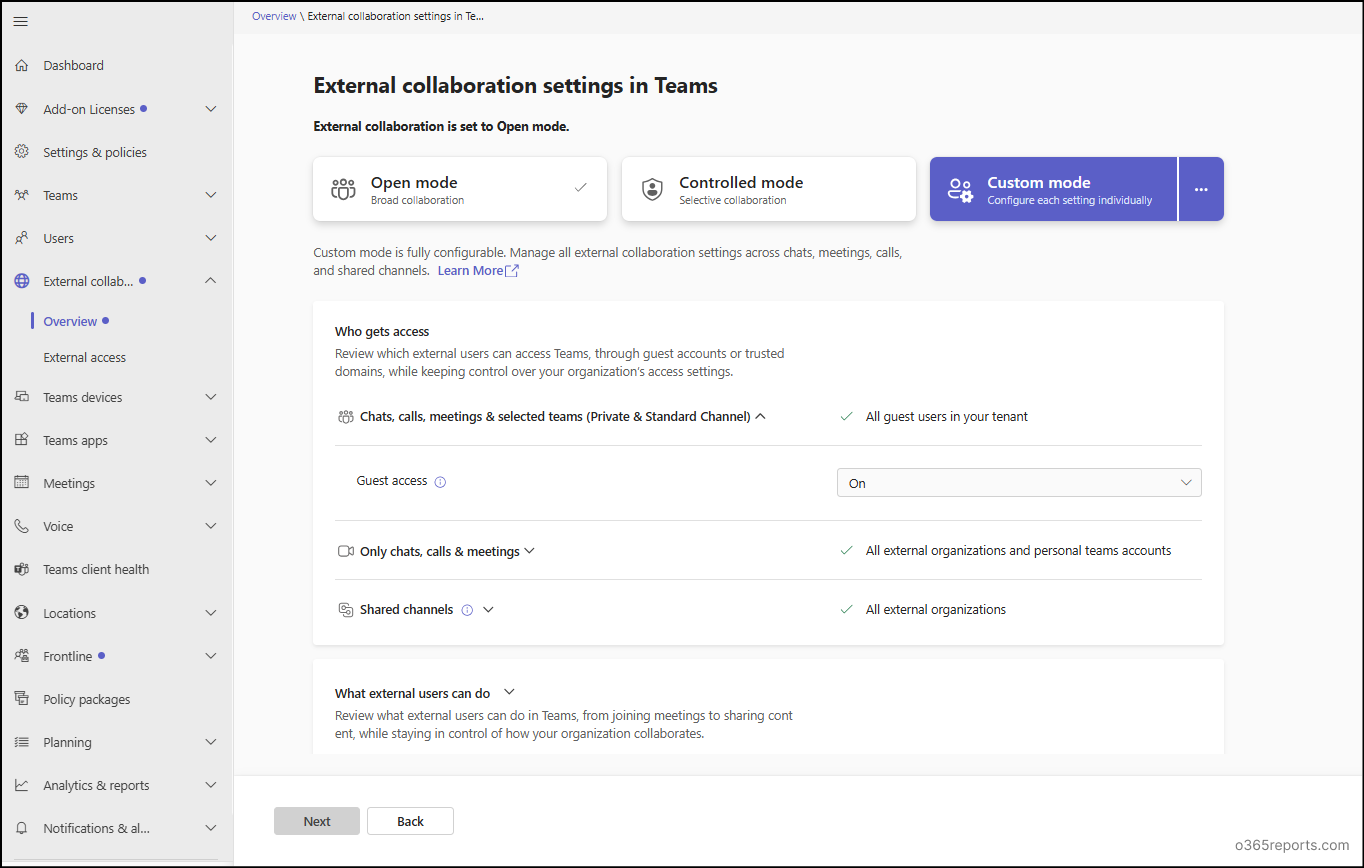
What it does: It lets you manually configure organization-wide settings for chats, calls, meetings, teams, and channels including shared channels. Also, it offers granular control over every external collaboration option.
When to Choose: Choose Custom mode when neither Open nor Controlled fits your organization’s requirements. For instance, if you want to prevent anonymous users from joining meetings or ensure that not everyone can bypass the meeting lobby, then Custom mode is the right choice. Unlike Open and Controlled modes, which have these enabled by default, Custom mode lets you explicitly configure and restrict them according to your organization’s policies.
Note: Changes made in custom mode apply only to global organization-wide settings only. The existing custom policies remain unchanged.
These modes can only be managed from the Overview page. That’s why we introduced them first. Now that you have a clear understanding of the collaboration modes, let’s move on to exploring the Overview page settings.
Breakdown of Overview Section in New External Collaboration Settings
The Overview section in the external collaboration area provides a quick snapshot of your organization’s external collaboration posture. It is designed to give you a simplified way to manage global org-wide settings, without affecting any custom user or group settings.
Here, you can see the three collaboration modes, each of which has two configurable buckets where you can define specific values. The mode you select controls how these settings are applied to the buckets. The two buckets are:
- Who gets access: The settings in this bucket determine which users in your organization can communicate with external users, and which external users are allowed to communicate with your organization.
The following table compares how these settings are configured in the Open and Controlled collaboration modes.Modality Name of the Setting Value in Open mode Value in Controlled mode Teams and channels Guest access On On Shared channels B2B direct connect inbound Allowed for all users, groups and applications Blocked for all users, groups and applications B2B direct connect outbound Allowed for all users, groups and applications Blocked for all users, groups and applications Invite external users to shared channels On On Join external shared channels On On Chats, calls, and meetings (external access) Manage external domains for this organization On On Allow or block external domains Allow all external domains Allow all external domains People in my organization can communicate with personal Teams accounts On On People in my organization can communicate with accounts in trial Teams tenant Off Off - What external users can do: This bucket defines what actions guests and external users are allowed to perform across chats, meetings, Teams, and channels.
The table below shows the default configuration of these settings in the Open and Controlled modes.Modality Name of the setting Value in Open mode Value in Controlled mode Teams and channels Tagging (Who can manage tags) Microsoft default Microsoft default Shared channels Provide a link to my support request page Off Off Calls Routing for PSTN calls Use default settings Use default settings Routing for federated calls Use default settings Use default settings Spam filtering On On Calls (for guest users) Make private calls On On Meetings Who can register for meeting Everyone Everyone Who can bypass the lobby Everyone Everyone People can join external meetings hosted by Anyone Anyone Meeting chat On for everyone On for everyone External meeting chat (When on, people can read or write messages in external meeting chats from untrusted organizations) On On Who can present Everyone Everyone External participants can give or request control Off On Participants can share content in external meeting hosted by Any Org Any Org Meetings (for guest users) Video conferencing On On Screen sharing Entire screen Entire screen Meet now in channels On On Participants can give control Off Off External participants can get control On On Meetings (for anonymous users) Anonymous users can join a meeting On On Anonymous users can interact with apps in meetings Off Off Anonymous users can join a meeting unverified On On Anonymous users can join a meeting after verifying By email code By email code Anonymous users and dial-in callers can start a meeting On On Require a verification check from Not required Not required Messaging (for guest uses) Edit sent messages On On Delete sent messages On On Users can delete messages sent by bots On On Chat On On Giphy in conversations On On Giphy content rating PG (based on the GIPHY Content Rating) PG (based on the GIPHY Content Rating) Memes in conversations On On Stickers in conversations On On Immersive reader for messages On On
How to Manage External Collaboration Modes and Settings in Microsoft Teams
Now that you have a good understanding of the Overview page and the collaboration modes, let’s consider a scenario. Suppose, your organization usually collaborates freely with external partners, but you may not need shared channels, or you may require customized settings for certain projects.
In such cases, you may need to switch modes to tighten security or control how external users can collaborate. Depending on your requirements, you can either select a different mode or fine-tune the settings using Custom mode. Let’s explore how to perform each of these actions in detail.
Switch Between External Collaboration Modes in Teams Admin Center
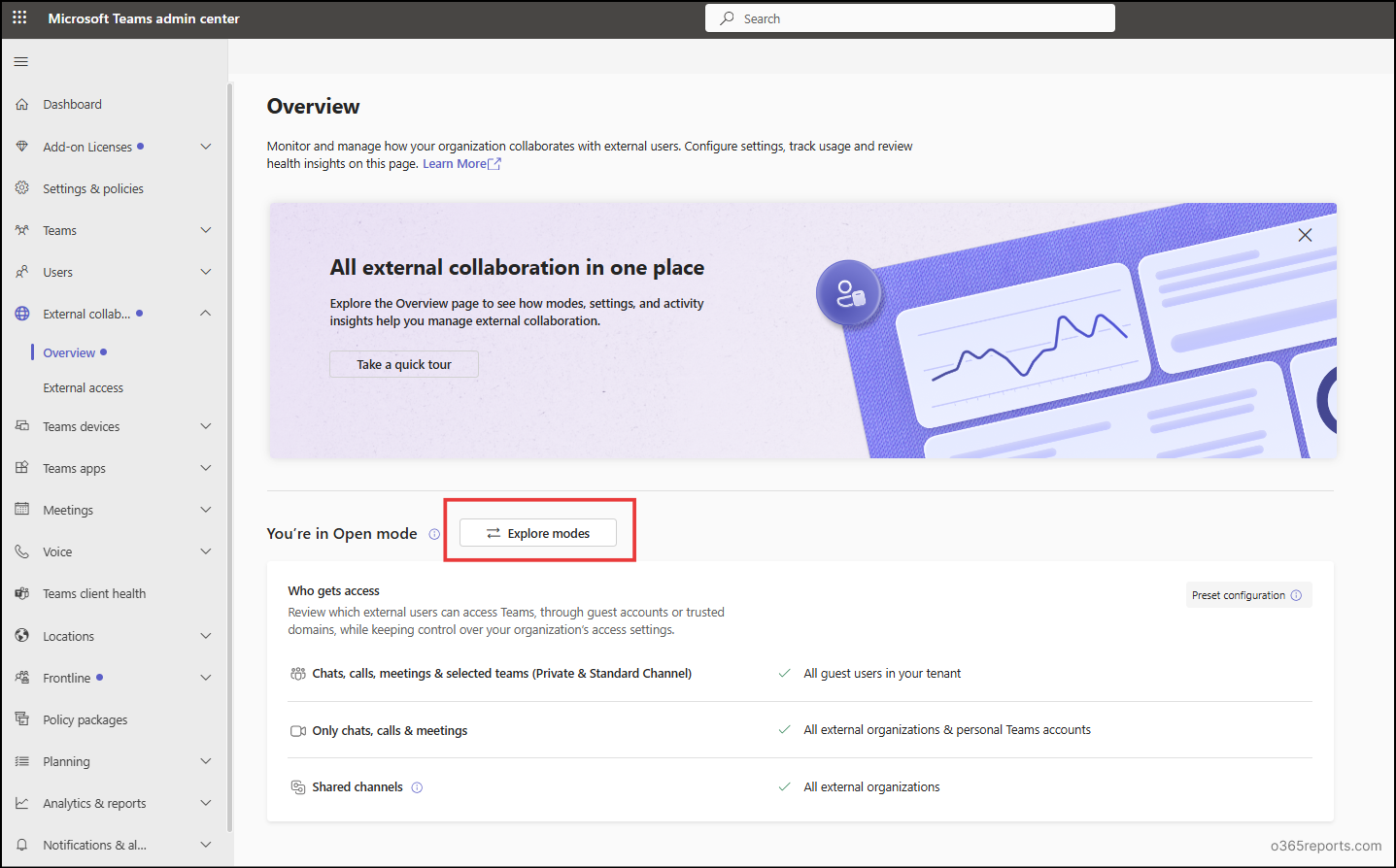
If you’ve previously chosen a collaboration mode, such as Open mode, but your current project no longer requires shared channel access, you can switch to Controlled or Custom mode as needed. To do this, select Explore mode button, select the mode based on your need, click Next and confirm the prompt. Once done, the new mode will be applied automatically across the entire tenant.
On the other hand, you may need to adjust settings such as turning off B2B outbound access or changing who can bypass the meeting lobby. In these cases, you’ll need to use Custom mode, since these changes can’t be done in the Open or Controlled mode. To do this, select Custom mode, make the required changes, select Next and click Confirm in the confirmation prompt.
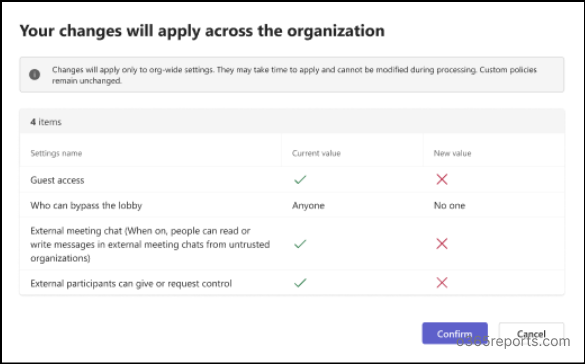
After the update, select Got it to complete the process. If any setting fails to apply or if one or more settings cannot be applied, an error message will appear.
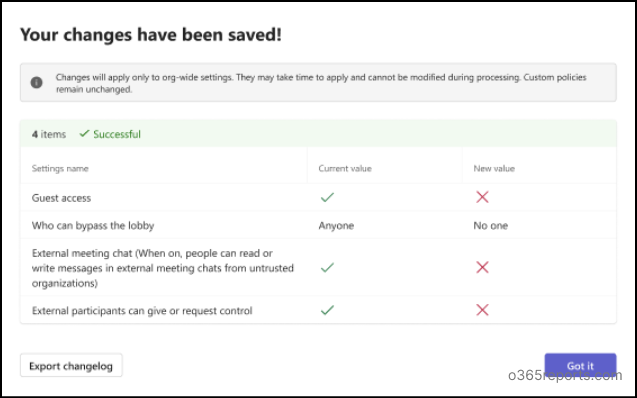
In addition, you can also export the changes using the Export changelog option.
Copy Settings from One External Collaboration Mode to Another
If Open or Controlled mode is close to your requirements but needs some adjustments, you can copy its settings into Custom mode. To do this, click the three-dot menu near the Custom mode button, choose the mode from the dropdown, and select Next.
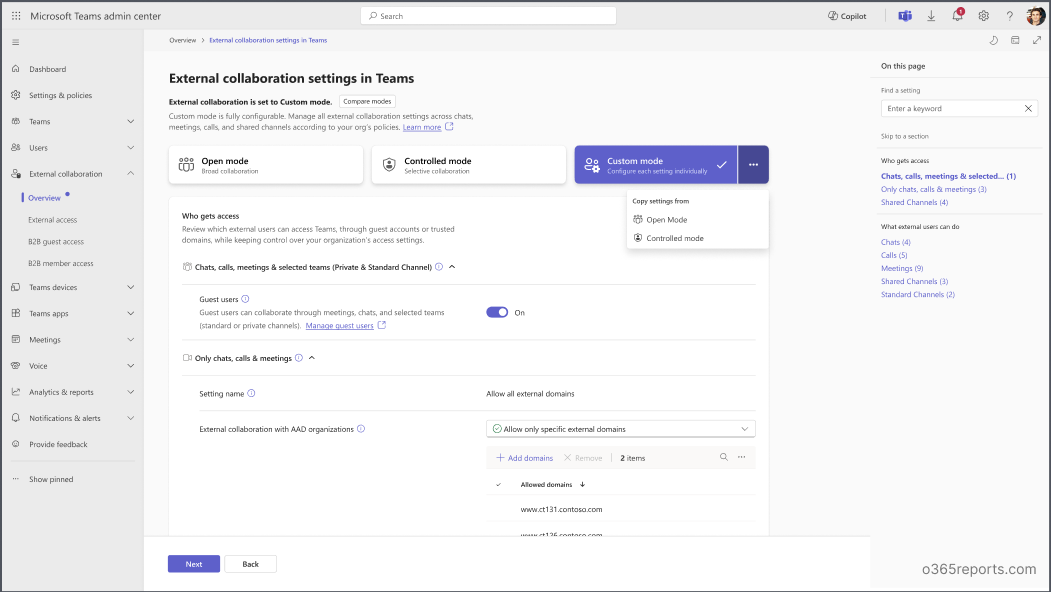
You can then make any additional changes if needed. Once done, click Confirm in the confirmation prompt and select Got it to apply the changes.
Other External Collaboration Settings in the Teams Admin Center
Now that we’ve explored the Overview page and collaboration modes, let’s look at the other settings available within the External Collaboration section. These pages help administrators manage external communication, guest access, and cross-tenant collaboration from a centralized location. Let’s explore each page in detail.
External Access Management in External Collaboration Settings
In the External Collaboration section, you’ll now find External access settings neatly organized in one place. This page allows users to communicate with external users via call, chat, and meetings.
This is not a new feature in the Teams admin center. Previously, these settings were available under Users → External access. Now, they have been moved to the External collaboration section to provide a centralized experience for managing external communication.
The External access page consists of two main tabs: Organization settings and Policies.
- Organization settings – This tab allows you to control how users in your organization can communicate with external users. You can allow or restrict communication with specific external organizations, unmanaged Teams users, and trial tenants to align with your collaboration requirements. It also enables you to prevent communication with specific external users, control interactions with Azure Communication Services users, and allow your security team to centrally manage blocked domains and users. These settings help organizations strike the right balance between seamless external collaboration and security.
- Policies – This tab lets you manage external access policies across the organization. By default, you will the find all the global organization policies like Global (org-wide default) settings, NoFederationAndPIC, FederationAndPICDefault, and FederationOnly. You can also create custom policies to provide different levels of external communication for different group of users.
Note: External access policies may be overridden by the organization-level settings.
Guest Access Settings in Unified External Collaboration Experience
The Guest access settings are also available under the External Collaboration section. This page allows you to define what guest users can do after joining your Teams environment. Instead of simply allowing guest access, you can control the collaboration experience by deciding whether guests can participate in meetings, make calls, share content, or interact with other users. This enables organizations to provide guests with the level of access they need while protecting internal resources and maintaining compliance.
Note: If you are using the unified settings and policies management experience, Guest access settings are available under External collaboration. Instead, you can continue to manage them under Settings & Policies → External collaboration → Guest access in the Teams admin center.
B2B Member Access Settings in Unified External Collaboration Experience
The B2B member access settings, available within External Collaboration section, lets you manage collaboration capabilities for Entra B2B members from external organizations. It is particularly useful for organizations that regularly work with partner companies, contractors, or subsidiaries, allowing them to control the Microsoft 365 experiences available to these external members. Currently, this page primarily governs whether eligible B2B members can access Microsoft Copilot during cross-tenant collaboration.
Note: The location of B2B member access settings also depends on your Teams admin center experience. With the unified settings and policies management experience, these settings appear under Settings & Policies → External collaboration → B2B member access. Otherwise, they remain available under External collaboration.
And that’s a wrap! We hope this blog has helped you get a clear understanding of the new unified external collaboration settings in the Teams admin center. With this approach, you can manage external collaboration more effectively while maintaining Teams security. If you have any questions, thoughts, or feedback, feel free to drop them in the comments below. We’d love to hear from you. Stay tuned for more upcoming blogs! 😊