When a Microsoft 365 service stops working, the visible symptom is often only the tip of the problem. An issue such as “Outlook cannot connect to Exchange Online” could point to DNS problem, a broken Autodiscover record, an authentication failure, an expired certificate, or a simple misconfiguration.
Administrators often need to investigate several of these possibilities across the dependency before they can determine where the failure is occurring. If the issue is eventually escalated to Microsoft Support, admins may be asked what they have already tested and what the results showed.
This is where the Microsoft Remote Connectivity Analyzer (RCA) can help administrators move from a reported symptom to a more focused diagnosis. In this blog, we’ll explore what the RCA tool is, the diagnostic tests it offers, and how administrators can use them to troubleshoot Microsoft 365 service issues.
What Is Microsoft Remote Connectivity Analyzer?
Microsoft Remote Connectivity Analyzer (RCA) is a free, web-based diagnostic tool from Microsoft, commonly accessed through the Microsoft Test Connectivity portal. It helps administrators pick a test that matches their scenario to troubleshoot Microsoft service problems. RCA runs a series of checks remotely from Microsoft’s own infrastructure rather than from the admin network.
Depending on the test, RCA evaluates areas such as account requirements, DNS and domain configuration, service endpoint accessibility, certificate and TLS configuration, and more. Each check RCA tool returns one of three results like success, warning, or failure along with built-in guidance to help you understand what the result means and what to check next.
How Does Remote Connectivity Analyzer Tool Works?
Consider an administrator who receives a support ticket stating:
“Users can sign in to Microsoft Teams, but they cannot make or receive calls.”
While Teams sign-in is working, the Teams calling issue could have several underlying causes.
Instead of manually investigating each possibility one by one, the administrator can open the Microsoft Remote Connectivity Analyzer and select the appropriate test.
In general, running any RCA test follows the same pattern. RCA then performs a series of diagnostic checks for the selected scenario. For a Teams calling-related issue, the tool runs the investigation that can be viewed conceptually as:
RCA tool Teams client
↓
DNS Test resolution → Passed / Failed
↓
Service endpoint → Passed / Failed
↓
Authentication → Passed / Failed
↓
Network connectivity → Passed / Failed
↓
Calling-related checks → Passed / Failed
Once the test is complete, admins can analyze and interpret RCA test results to identify where the issue resides.
Microsoft Services You Can Diagnose with RCA
Microsoft Remote Connectivity Analyzer provides different test scenarios for specific Microsoft services and workloads, such as:
Along with the workload-specific tests, RCA also includes a Message Header Analyzer and a Microsoft 365 Network Connectivity Test tool. Each service category contains tests designed to validate particular connectivity or configuration requirements.
Let’s dive into the diagnostic tests available under each service in detail.
Exchange Online Diagnostics Tool
Exchange Online tests help diagnose Outlook connectivity, mail flow, DNS issues, and more. The different Exchange Online tests released so far are listed below.
|
Test Name |
Test Type |
Description |
Inputs Required |
| DNSSEC and
DANE Validation Test |
Configuration | To validate your Domain Name System (DNS) and Domain’s System Security Extension certificates (DNSSEC) using DANE (DNS-Based Authentication of Named Entities) validation. |
|
| Exchange Online Custom Domains DNS Connectivity Test | Configuration | To check your domain’s external DNS settings for potential email delivery and Outlook connectivity issues with Exchange Online. |
|
| Exchange Online ActiveSync Test | Connectivity | To confirm that mobile devices can successfully connect to Exchange through Exchange ActiveSync. |
|
| Synchronization, Notification, Availability, and Automatic Replies | Connectivity | To verify Exchange Web Services operations, including synchronization, notifications, free/busy availability, and automatic replies. |
|
| Service Account Access (Developers) | Connectivity | To test whether a service account can access, create, or delete items in a specified mailbox using Exchange Web Services impersonation. |
|
| Outlook Connectivity | Connectivity | If Outlook cannot connect to the server, this test can help to simulate Outlook connectivity to Exchange and check access through RPC over HTTP and MAPI over HTTP. |
|
| Inbound SMTP Email | Connectivity | To verify that an external mail server can deliver inbound SMTP email to your domain. |
|
| Outbound SMTP Email | Connectivity | To check whether an outbound IP address meets key mail-delivery requirements, including Reverse DNS, Sender ID, and RBL checks. |
|
| POP Email | Connectivity | To connect an email client and a mailbox using the POP3 protocol and verify the connectivity path. |
|
| IMAP Email | Connectivity | To connect an email client and a mailbox using the IMAP4 protocol and verify the connectivity path. |
|
| Free/Busy | Connectivity | To verify whether a Microsoft 365 mailbox can retrieve free/busy information from an on-premises mailbox and vice versa. |
|
| Outlook Mobile Hybrid Modern Authentication Test | Connectivity | To check whether an on-premises Exchange environment is correctly configured for Hybrid Modern Authentication with Outlook for iOS and Android. |
|
| Mailbox Provisioning Test | Connectivity | To verify whether a specified email address corresponds to a valid mailbox, recipient, or user and whether it is correctly provisioned in Microsoft Entra ID and Exchange Online. |
|
It’s also important to learn about the troubleshooting options in Exchange to understand the collection of diagnostic logs for Exchange Online issues.
Exchange Server Remote Connectivity and Configuration Troubleshooting Tool
For on-premises Exchange environments, the RCA tests focus on how external clients and services reach your server. Common tests cover Exchange ActiveSync, Exchange Web Services, SMTP, and SSL. For additional Exchange Server tests and their purposes, refer to the table below.
| Test Name | Test Type | Description |
Inputs Required |
| Exchange Server ActiveSync | Connectivity | To confirm that mobile devices can successfully connect to Exchange through Exchange ActiveSync. |
|
| Synchronization, Notification, Availability, and Automatic Replies | Connectivity | To verify Exchange Web Services operations, including synchronization, notifications, free/busy availability, and automatic replies. |
|
| Service Account Access (Developers) | Connectivity | To test whether a service account can access, create, or delete items in a specified mailbox using Exchange Web Services impersonation. |
|
| Outlook Connectivity | Connectivity | To simulate Outlook connectivity to Exchange and check access through RPC over HTTP and MAPI over HTTP. |
|
| Inbound SMTP Email | Connectivity | To verify that an external mail server can deliver inbound SMTP email to your domain. |
|
| Outbound SMTP Email | Connectivity | To check whether an outbound IP address meets key mail-delivery requirements, including Reverse DNS, Sender ID, and RBL checks. |
|
| POP Email | Connectivity | To connect an email client and a mailbox using the POP3 protocol and verify the connectivity path. |
|
| IMAP Email | Connectivity | To connect an email client and a mailbox using the IMAP4 protocol and verify the connectivity path. |
|
| Exchange Server SSL Test | Connectivity | To check an SSL server endpoint for certificate validity, TLS 1.2 compatibility, supported cipher suites, and a trusted certificate chain. |
|
Microsoft Teams Connectivity and Service Troubleshooting Tool
RCA provides scenario-specific tests for Microsoft Teams rather than treating Teams as a single service. Administrators can use these tests to investigate common issues such as Teams sign-in and guest access, Exchange and calendar integration, calling and meetings, Rooms and Shared Channels, etc.
For other Teams scenarios covered by RCA, refer to the test details in the table below.
| Test Name | Test Type | Description |
Inputs Required |
| Teams DNS Connectivity Test | Connectivity | To check the external DNS settings for a custom domain used with Microsoft 365. |
|
| Teams Sign in | Connectivity | For Teams sign-in issues, this test checks whether the account meets the requirements to sign in to Microsoft Teams. |
|
| Teams Guest Sign in | Connectivity | To verify whether your account meets the requirements to sign in to Microsoft Teams as a guest. |
|
| Guest Invite to Team | Connectivity | When can’t invite guests into Teams, use this test to check whether a guest user can be invited to and added to a Microsoft Team, including tenant guest access, group settings, and team ownership. |
|
| Teams Calendar Tab | Connectivity | To check whether the Teams backend service can connect to an Exchange mailbox. |
|
| Teams PSTN Calling Dial Pad | Connectivity | To determine whether your account is configured to display the Teams dial pad and make and receive PSTN calls. |
|
| Teams Presence Based on Calendar Events | Connectivity | To check whether Teams presence can be updated based on calendar events in Outlook. |
|
| Teams Exchange Integration | Connectivity | To assess the integration between Microsoft Teams and Exchange and identify issues that may affect their interaction. |
|
| Teams Meeting Delegation | Connectivity | To determine whether your account can schedule a Teams meeting on behalf of another user. |
|
| Teams Meeting Recording | Connectivity | To check whether your account has the required configuration to record meetings in Microsoft Teams. |
|
| Teams Channel Meeting | Connectivity | To check whether your account can schedule a channel meeting and whether the associated Microsoft 365 group and Exchange configuration are valid. |
|
| Teams Voicemail | Connectivity | To assess whether your account can access voicemail and whether the Teams client can retrieve and display voicemail messages from Exchange. |
|
| Teams Android Desk Phone Sign in | Connectivity | To determine whether your account meets the requirements to sign in to a Microsoft Teams Android desk phone. |
|
| Microsoft Teams Rooms Sign in | Connectivity | To check whether your account meets the requirements to sign in to a Microsoft Teams Rooms device. |
|
| Teams Federation and Interoperability | Connectivity | To determine whether a Teams account can search for and communicate with external users through chat. |
|
| Teams Premium Details | Connectivity | To confirm that your account meets the requirements to use Microsoft Teams Premium features. |
|
| Teams Shared Channel Add Member | Connectivity | To check whether a user can be added to a Teams shared channel, including scenarios involving external participants. |
|
| Teams Internal User Search | Connectivity | To determine whether a user can search for another user within the same organization in Microsoft Teams. |
|
| Teams Meeting Add-in for Classic Outlook | Connectivity | To check whether your account meets the requirements to use the Microsoft Teams meeting add-in for classic Outlook. |
|
| External User Meeting Join | Connectivity | To assess whether external users can join Teams meetings based on policies, federation, lobby settings, identity types, and cross-tenant access. |
|
| Team Creation Troubleshooter | Connectivity | To determine whether a user can create a new team in Microsoft Teams. |
|
| Teams Virtual Events | Connectivity | To check whether your account meets the requirements to create and schedule Town Halls or Webinars in Microsoft Teams. |
|
Skype for Business Connectivity Troubleshooting Tool
If you still run an on-premises Skype for Business Server, RCA offers two remote connectivity checks:
| Test Name | Test Type | Description | Inputs Required |
| Skype for Business Server Remote Connectivity Test | Connectivity | To test remote connectivity to an on-premises Skype for Business Server. |
|
| Skype for Business Autodiscover Web Service Remote Connectivity Test | Connectivity | To verify remote connectivity from mobile devices and the Skype for Business Windows Store app to the on-premises Skype for Business Autodiscover web service through a secure HTTPS connection. |
|
Microsoft Copilot Troubleshooting Tool
For supported Microsoft Copilot scenarios, RCA can validate the conditions required for specific Copilot capabilities. The available tests cover Copilot licensing, Copilot agents in Microsoft Teams, and Copilot connectors, helping administrators investigate eligibility, functionality, and connector-related issues.
| Test Name | Test Type | Description | Inputs Required |
| Copilot License Details | Connectivity | To verify whether your account meets the licensing requirements for using Copilot features. |
|
| Copilot Agent Functionality in Microsoft Teams | Connectivity | To diagnose eligibility, availability, and configuration issues that may prevent Copilot agents from working in Microsoft Teams. |
|
| Copilot Connector Checker | Connectivity | To diagnose issues that may prevent ServiceNow connectors from working correctly. |
|
How to Troubleshoot Teams Guest Access Issues with Remote Connectivity Analyzer
Case: A Team owner can’t add a guest user to the Team
Suppose a Team owner tries to add an external guest user to a Microsoft Team, but the invitation fails. The cause could be tenant guest access settings, Microsoft 365 group settings, team ownership, or another prerequisite.
Checking each setting manually can make it difficult to isolate the exact cause. The Remote Connectivity Analyzer helps identify the problematic prerequisite by diagnosing the issue step by step. The initial investigation shows that the user can sign in to Teams, collaborate normally, and is even a Team owner, but still can’t add a guest!
For this scenario, the Guest Invite to Team test is the right test as it checks whether a guest user can be invited to a Team, including tenant guest access, group settings, and team ownership.
Before running the tool diagnostic test, it’s necessary to ensure the following requirements are satisfied.
Prerequisites to Run M365 Connectivity Analyzer
- Ensure to use supported, up-to-date browsers like Microsoft Edge, Google Chrome, or Mozilla Firefox.
- Allow the required RCA IP addresses to allow inbound connections through firewalls or network perimeters for successful diagnostics.
- RCA requires Global Admin authentication and permissions for certain service-specific tests.
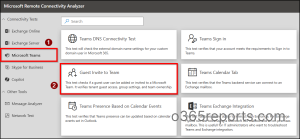
Run the ‘Guest Invite to Team’ Test in the Tool
- Open the Microsoft Test Connectivity Tool in a browser.
- Select Microsoft Teams under Connectivity Tests Category and, then choose the Guest Invite to Team test.
- Enter the required inputs such as account authentication and the link to the Team you can’t add the guest to.
- Complete the prompted security verification and acknowledgement.
- Now, click on Perform Test to run the diagnosis.
Analyze and Interpret the Test Result of Remote Connectivity Analyzer
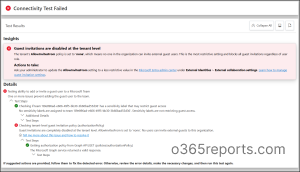
RCA performs a series of checks against the prerequisites required to invite and add a guest to the Team. Once the test completes, the results show the status of each check and highlight any areas that require attention.
If all checks are successful, the required prerequisites for adding the guest are satisfied. In this case, the administrator can continue investigating other possible causes, such as user-specific issues or recent configuration changes.
If a test passes but the issue still happens in your environment, the cause may be client-side, network-path specific, or intermittent. In that case, export the test result in HTML format and attach it when you raise a support request.
If the check is passed with warnings, then the test has been completed successfully, but RCA has identified a condition that may require attention. The administrator can review the warning details and determine whether it could affect the guest invitation.
If a check fails, follow the troubleshooting guidance to identify the configuration or prerequisite that requires attention. For example,
- If the test identifies an issue with tenant guest access, review the organization’s guest access settings.
- If it identifies an issue with Microsoft 365 group settings, investigate the settings that control guest access for groups and Teams.
As a quick reference alongside the walkthrough above, here’s a table on Configuration or Connectivity test result:
| Test Type | Test Results Interpretation | |
| Configuration | Passed | Validation Successful. |
| Did not Pass | Validation succeeded partially. | |
| Failed | Validation Failed. | |
| Connectivity | Successful | Connectivity Test Successful. |
| Failed | Connectivity Test Failed. | |
| Successful with Warnings | Review the warnings to determine whether they require corrective action or can be safely ignored. | |
Tip: Choose the troubleshooting tool based on the issue. For Teams issues, refer to Microsoft’s Admin self-help diagnostics to find the right diagnostic.
Other Microsoft Service Tests for Guest-Related Issues
Other Teams tests that may help depending on where the guest-related issue occurs. The appropriate RCA test depends on where the guest experience is failing.
- Teams Guest Sign in: Use this when the guest has already been invited but cannot sign in to Microsoft Teams.
- External User Meeting Join: Use this when the guest user has trouble joining a Teams meeting. The test checks areas such as federation, lobby settings, identity types, and cross-tenant access.
- Teams Shared Channel Add Member: Use this when the issue involves adding your guest users to a Teams shared channel.
Considerations for Remote Connectivity Analyzer Tool
- RCA is currently unavailable for Microsoft 365 Government environments such as GCC and GCC High.
- Check Microsoft 365 Service Health before running a test, to rule out known service incidents.
- Apply troubleshooting guidance only when the corresponding error or failure is reported by the RCA test.
Other Microsoft 365 Tools in Remote Connectivity Analyzer
Along with service-level diagnostics for Microsoft 365 services, Microsoft also provides diagnostic and analysis tools for email message and network troubleshooting.
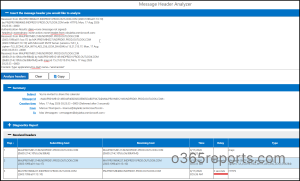
Message Header Analyzer
A Message Header Analyzer is the technical information attached to an email that records details such as the sender, recipient, mail servers, routing, and timestamps. Message Header Analyzer tool analyzes these headers. Use this tool to trace an email’s path through the mail servers it passed through, and to check whether a message that claims to be from Microsoft is genuine.
The tool breaks down mail-flow, routing, delivery, latency details and helpful for tracking down a delayed or misrouted email.
Microsoft 365 Network Connectivity Tool
This helps to identify network-level connectivity issues between your network and Microsoft 365 service endpoints that may affect access to Microsoft services.
For example, administrators can use this tool when users in a specific office location report broken page loads while accessing SharePoint sites, Outlook on the web, or Microsoft admin center pages, particularly when a network-level issue is suspected. To use it, open the Network Test tool, select the appropriate location, and run the test.
Conclusion
Thus, whether you’re troubleshooting Teams, Exchange, or other supported Microsoft services, RCAT provides a practical way to validate connectivity and configuration before escalating an issue. Admins can use the test results to identify potential issues, narrow down the cause, and gather evidence for troubleshooting or escalating to Microsoft Support.
We hope this guide helps you make better use of Remote Connectivity Analyzer whenever you need to investigate Microsoft 365 related issues. As Microsoft continues to introduce new diagnostic scenarios and tests, the tool can remain a useful first step in your troubleshooting process.