Recently, one of our readers dropped a comment on the exporting users’ password expiry date blog about an error they were hitting in PowerShell.
“InteractiveBrowserCredential authentication failed: A window handle must be configured.”
What made this particularly interesting was that the very same script was running perfectly fine on our machines. No errors. No warnings. Nothing at all. 🤔 Naturally, that sent us digging deeper. After some trial and error, and a fair amount of head-scratching, we traced that this error started appearing after Microsoft Graph PowerShell SDK v2.34.0, released in December 2025.
With this latest release, Microsoft quietly made Web Account Manager (WAM) the default authentication broker for interactive sign-ins in PowerShell, as part of its move toward stronger token protection. While the change makes sense from a security standpoint, it has unexpectedly broken interactive authentication in certain environments.
In this blog, let’s explore how to fix the “A window handle must be configured” error, so you can get back to running your scripts without the headache.
Resolve the “Connect-MgGraph : InteractiveBrowserCredential authentication failed: A window handle must be configured” Error
Once we ran into this error, we did what most of us do first: searched through official documentation, GitHub issues, and community forums. Surprisingly, there wasn’t a clear explanation for the issue or a defined fix available.
So, we rolled up our sleeves, tested multiple approaches, and narrowed it down to four methods that consistently worked for us.
- Switch to the standard PowerShell console
- Try certificate-based authentication
- Use device code authentication
- Disable the forced use of WAM
Let’s go through each of these options and see how they help resolve the issue.
1. Switch to the Standard PowerShell Console
This window handle generally occurs when running scripts from PowerShell ISE. When you connect to Microsoft Graph using a standard PowerShell console, the error doesn’t occur.
So, the easiest workaround is to open a regular PowerShell window (powershell.exe) and run your script or cmdlets. You can also switch to PowerShell 7, which works better with modern authentication flows and is generally more reliable for Microsoft Graph PowerShell.
Note: Sometimes, when signing in, authentication may appear stuck with no visible error or prompt. Microsoft explains this as follows:
“Sign in by Web Account Manager (WAM) is enabled by default on Windows. If using an embedded terminal, the interactive browser window may be hidden behind other windows.”
This means the sign-in window may open behind another window. In such cases, minimize your open windows and check whether the sign-in prompt is open in the background.
2. Set Up Certificate-Based Authentication in Microsoft 365
If you want to avoid repeated interactive sign-ins, certificate-based authentication is the best option. This method is more secure than traditional interactive authentication and requires only a one-time setup.
You can create a self-signed certificate or obtain one from a trusted certificate authority. Then follow the steps below to upload a certificate to an Entra application.
- Log in to the Microsoft Entra admin center.
- Navigate to Entra ID > App registrations.
- Click “+ New registration”, enter all required details, and click Register to register an Entra application.
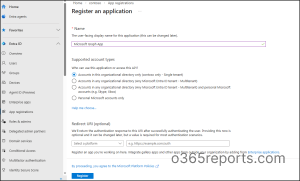
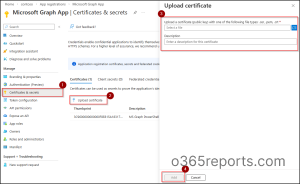
- On the application details page, click Certificates & secrets under Manage.
- Go to the Certificates tab and select Upload certificate.
- Then, browse and choose the certificate you created and click Add.
Once configured, replace all placeholders with appropriate values and run the following cmdlet to connect to MS Graph using a certificate.
|
1 |
Connect-MgGraph -TenantId <TenantId> -ClientId <ClientId> -CertificateThumbprint <CertificateThumbprint> |
This approach is ideal for automation, scheduled tasks, and production scripts.
3. Use Device Code Authentication in MS Graph PowerShell
Another quick fix for the window handle error is device code authentication, which removes the dependency on browser-based sign-in. This makes it a good option when you’re working in an embedded terminal, remote session, or any environment where interactive pop-ups don’t work reliably.
However, its availability depends on your tenant configuration. Many Microsoft 365 tenants block device code sign-in through Conditional Access policies to maintain a strong security baseline. If device code authentication is allowed in your tenant, you can connect to Microsoft Graph using the following cmdlet.
|
1 |
Connect-MgGraph -UseDeviceAuthentication |
Once you press Enter, PowerShell will display a URL and a unique code. Then, follow the steps below.
- Open the URL in any browser and enter the code.
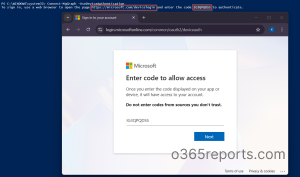
- Click Next and select the account you want to sign in with.
- Then, click Continue to complete the sign-in process.
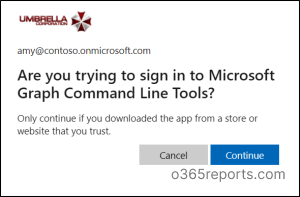
Note:
This method requires you to authenticate each time you connect, making it suited for occasional scenarios rather than daily automation.
4. Disable Windows Web Account Manager (WAM) in PowerShell
Since Windows Web Account Manager (WAM) is the root cause of this issue, disabling it can often resolve the problem. You could just disable WAM only for Microsoft Graph by running the below cmdlet.
|
1 |
Set-MgGraphOption -DisableLoginByWAM $true |
After disabling WAM, you should use a custom application (Client ID) to connect to Microsoft Graph interactively.
Note: After changing this setting, open a new PowerShell window. Continuing in the same session may not work as expected.
We hope this blog helped you resolve the interactive browser authentication failure error. If you have any questions or doubts, please share them in the comments below. We are happy to help!