SharePoint Online sites aren’t always created from the SharePoint admin center. In Microsoft 365, API and other workloads can also automatically provision SharePoint sites. As the number of sites grows, Microsoft 365 admins often need to find which service created a SharePoint Online site. This helps admins better understand how the site was provisioned and supports auditing, troubleshooting, and governance tasks.
In this blog, we’ll show you how to find the SharePoint site creation source using the SharePoint admin center.
Why Identifying SharePoint Online Site Source Matters?
Knowing which service created a SharePoint Online site helps you better understand its purpose and manage it more effectively. Whether you’re reviewing your SharePoint environment or investigating unexpected site creation, the SharePoint site creation source is very useful for administration and governance.
Identifying the creation source can help you:
- Understand how the SPO site was provisioned – Determine whether the site was created from the SharePoint admin center, Microsoft Teams, Microsoft 365 Groups, Viva Engage, or another M365 service.
- Simplify SharePoint Online site auditing – Identify the services provisioning SharePoint sites across your Microsoft 365 environment.
- Investigate unexpected SPO site growth – Find out which workload is creating new SharePoint sites when the number of sites suddenly increases.
- Support governance and lifecycle management – Make informed decisions before archiving, deleting, or retaining SharePoint sites.
- Review inactive and orphaned sites – Identify sites requiring ownership updates or lifecycle actions before cleanup.
- Improve reporting and compliance – Combine the creation source with SharePoint reports to gain better visibility into site provisioning and usage.
Although SharePoint shows who created a site, it doesn’t directly indicate which Microsoft 365 service created it. The SharePoint site creation source bridges this gap by helping admins understand how a site was provisioned, making auditing, governance, and troubleshooting much easier.
How to Find Which Service Created a Site Using SharePoint Admin Center?
The SharePoint admin center provides a built-in way to find which Microsoft 365 service created a SharePoint Online site by displaying the Created From column.
Please follow the steps below to identify the creation source for a site.
- Login to SharePoint admin center using required admin credentials.
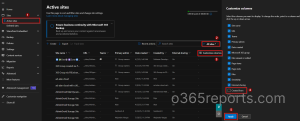
- Now, navigate to Active Sites page under Sites in the LHS panel.
- By default, only Teams-connected sites are displayed. Change the view to All sites and click Customize columns.
- Now, select the Created From column and click Apply.
You will now have the created source of each site in your Microsoft 365 environment.
What Does Each Created From Value Actually Mean?
While some CreatedFrom values clearly identify the originating Microsoft 365 service, others represent a provisioning method or initiated service. Use this reference whenever you need to interpret the Created From values displayed in the SharePoint admin center or generated by the PowerShell script.
This table helps you to identify which Microsoft 365 service created a SharePoint Online site, find SharePoint template associated with each creation source, and check the site is connected to Microsoft Teams.
| Service Creation Method | Created From Value | Template | Teams Connected | Typical Indicators |
| Unknown (All Zero GUID) | Unknown | SITEPAGEPUBLISHING#0 | No (Communication Site) | SharePoint Online (Default SharePoint Root Site) |
| SharePoint Admin Center | SharePoint admin center | STS#3,
STS#0, SITEPAGEPUBLISHING#0 |
No (Standard Site) | Standalone SharePoint site created from the SharePoint admin center.
|
| SharePoint Start Page
|
SharePoint start page
|
STS#3 | No (Standard Site) | Site created from the SharePoint start page. |
| PowerShell (SharePoint Online)
|
PowerShell | STS#3, STS#0 | No (Standard Site) | Created using New-SPOSite. |
| Template Based Site Creation and Third Party Applications | API | STS#0, STS#3,
APPCATALOG#0, SRCHCENTERLITE#0 |
No (Standard Site) | Created through SharePoint REST/CSOM/PnP/third-party tools. The originating application cannot be determined. |
| Groups (Microsoft 365, Exchange, PowerShell, Graph Explorer) | Microsoft 365 Group | GROUP#0 | Optional and Based on Group Type created (Standard Site) |
Created through Microsoft 365 Group provisioning (Graph, Exchange Online, Microsoft 365 Admin Center, Azure Portal, Graph Explorer, Entra, PowerShell, etc.). |
| Team in Microsoft Teams | Microsoft Teams | GROUP#0 | Yes (Team Site) | Team created site. Created from Team Provisioning. |
| Teams Private Channel | Microsoft Teams | TEAMCHANNEL#1 | Yes (Private Channel Site) | ChannelType = Private Channel Site. Created from Channel Provisioning. |
| Teams Shared Channel | Microsoft Teams | TEAMCHANNEL#0 | Yes (Shared
Channel Site) |
ChannelType = Shared Channel Site. Created from Channel Provisioning. |
| Planner | Planner | GROUP#0 | Depends (Standard Site) | Planner creates a Microsoft 365 Group and its associated SharePoint site. |
| Viva Engage | Viva Engage | GROUP#0 | No (Standard Site) | Community site created from Viva Engage. |
| Hub Site Registration | Hub Site | Existing Template | No (Standard Site) | Existing site later registered as a Hub Site or Hub Registration Action. |
| Migration | Migration | Varies | No (Standard Site) | Site provisioned by Microsoft migration tools. |
| Graph Explorer | Graph Explorer | SITEPAGEPUBLISHING#0 | No (Standard Site) | Creates a Microsoft 365 Group site. So, current provisioning shows “Microsoft 365 group” rather than “Graph Explorer”. |
| PnP Provisioning | PnP Provisioning | Default PnP Template | Depends | Site provisioned using PnP templates. |
| OneDrive | OneDrive (Formerly. Now Microsoft 365 Group) | GROUP#0 | No (Standard Site) | Site Provisioned from OneDrive Shared Libraries. |
| Outlook DL | Outlook (Formerly. Now Microsoft 365 Group) | GROUP#0 | No (Standard Site) | Site Provisioned from Outlook Groups. |
Important Notes on Finding the SharePoint Site Creation Source
The Created From property is incredibly useful, but there are a few things to keep in mind while interpreting the results.
- Not every source has a friendly name. Some sites may display a GUID instead of a readable service name because Microsoft doesn’t expose public mapping for every provisioning source.
- Sites created by applications are handled differently. If a site is created by an application, SharePoint stores the application’s Client ID rather than a Microsoft service GUID.
- Deleted applications can’t be resolved. When the associated Service Principal has been removed, the original identifier remains, but it can no longer be resolved to a friendly name.
- The SharePoint admin center may show simplified values. For example, a site created through Microsoft Graph might simply appear as Microsoft 365 Group, whereas the PowerShell script can identify the underlying provisioning source.
- Permanently deleted sites can’t be traced. Once a site is permanently removed, its creation source information is also removed from SharePoint’s internal records.
- Older sites may not have creation source information. The Created From metadata was introduced from October 2020, so sites created earlier may contain empty or generic values.
Note: If you encounter an unfamiliar Created From value, don’t assume it’s incorrect. Some provisioning sources are stored internally as GUIDs or application IDs and may not have a corresponding friendly name.
Thus, whether you’re reviewing a handful of sites in the SharePoint admin center or exporting creation source in bulk using PowerShell, understanding the creation source helps you make more informed decisions about governance, lifecycle management, and troubleshooting.
We hope this guide will be useful whenever you need to trace the origin of SharePoint Online sites. If you’ve discovered additional Created From values or provisioning scenarios in your environment, feel free to share them.