Each Microsoft 365 group includes a common mailbox where members can collaborate on emails, along with shared resources such as a calendar, SharePoint site, etc. As the volume of emails grows, important messages such as customer requests, notifications, and high-priority discussions become harder to find.
This is where folder and inbox rule support for Microsoft 365 groups can help. This feature allows group owners and members to automatically sort messages into folders and organize conversations based on their workflow. In this blog, we’ll walk through how to configure and manage folders and inbox rules for Microsoft 365 Groups, helping your teams manage emails in Outlook effectively.
Why Should Admins Enable Folder and Inbox Rule Support for Outlook 365 Group Mailboxes?
Before enabling folders and rules support, it is important to understand why this feature matters.
A Microsoft 365 Group mailbox, unlike a regular user mailbox, contains only two folders by default: Inbox and Deleted Items. It doesn’t provide standard folders such as Sent Items, Drafts, Junk Email, or Archive. So, every message sent to the group, including customer requests, notifications, promotional emails, and other conversations, is delivered directly to the Inbox folder. As the number of emails grows, it becomes increasingly difficult to separate important messages from less relevant ones, making mailbox management inefficient.
Although you can add a Microsoft 365 group mailbox as a shared folder in Outlook to access default folders, you still can’t create custom folders or configure inbox rules. This is because folder and inbox rule support for Microsoft 365 Groups is disabled by default at the organization level.
To enable users to organize incoming email messages, a Microsoft 365 admin must first enable folder and inbox rule feature at the organization level. After this, users in the group can create folders, subfolders, and inbox rules to manage emails more efficiently.
Note: Folder and rule support can be enabled only at the organization level. It cannot be enabled or disabled for individual Microsoft 365 group mailboxes.
📌Microsoft originally announced folder and inbox rule feature in Microsoft 365 only for Outlook on the Web (OWA). However, our testing confirms that the feature now also works in Outlook desktop clients. Microsoft has not yet explicitly updated its documentation to reflect this change.
Now that you understand the importance of this feature, let’s see how to enable folder and inbox rules for Microsoft 365 group mailboxes.
How to Enable Folders and Rules Feature in Microsoft 365 Groups in Outlook?
By default, users can’t create folders, subfolders, or configure inbox rules in Microsoft 365 Group mailboxes because these features are disabled at the organization level. To check whether folder and inbox rule support is enabled in your tenant, connect to Exchange Online PowerShell and run the cmdlet below:
|
1 |
Get-OrganizationConfig | Format-List IsGroupFoldersAndRulesEnabled |
If the IsGroupFoldersAndRulesEnabled value is set to False, folder and inbox rule support is disabled. To enable the feature, run the following cmdlet:
|
1 |
Set-OrganizationConfig -IsGroupFoldersAndRulesEnabled $true |
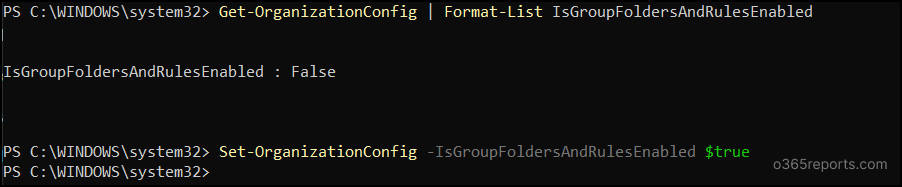
You can disable the folders and rules feature in Microsoft 365 groups at any time by setting the IsGroupFoldersAndRulesEnabled parameter to $false.
After enabling folder and rule support at the organization level, it allows only Microsoft 365 group owners to create folders and configure inbox rules for their group mailboxes. However, group members cannot use these features by default unless admins and group owners explicitly grant them the required permissions.
Allow Members to Manage Folders and Rule Feature in Outlook Microsoft 365 Groups
To allow group members to create folders and inbox rules in M365 group mailboxes, first an admin must enable member permissions at the organization level. After that, group owners must grant the required permissions at the individual group level. To do this, follow the steps below.
Step 1: Enable Folder and Inbox Rule Management for Group Members Tenant-Wide
Run the following cmdlet to enable membership permission option for managing folders, subfolders, and inbox rules:
|
1 |
Set-OrganizationConfig -IsGroupMemberAllowedToEditContent $true |
Once executed, you can verify the setting by running the cmdlet below:
|
1 |
Get-OrganizationConfig | Format-List IsGroupMemberAllowedToEditContent |
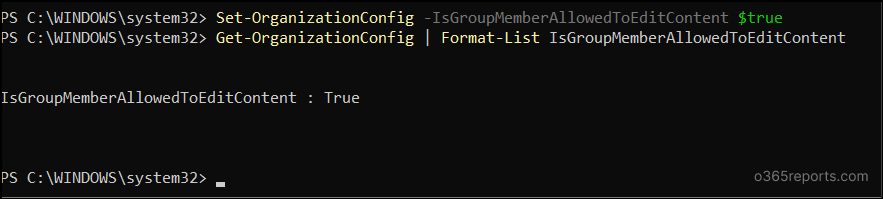
This setting only enables the member permission option across the organization. It does not automatically grant folder and inbox rule permissions to members of existing Microsoft 365 groups. Once the setting is enabled, group owners should permit members at the group level to create and manage folders and inbox rules for their group mailbox.
Step 2: Allow Members to Manage Folders and Inbox Rules as a Group Owner
Group owners can follow the steps below to allow members to create and manage folders and inbox rules in the group mailbox.
- Open Outlook on the web or the Outlook desktop app.
- Select Go to Groups and select the target Microsoft 365 group.
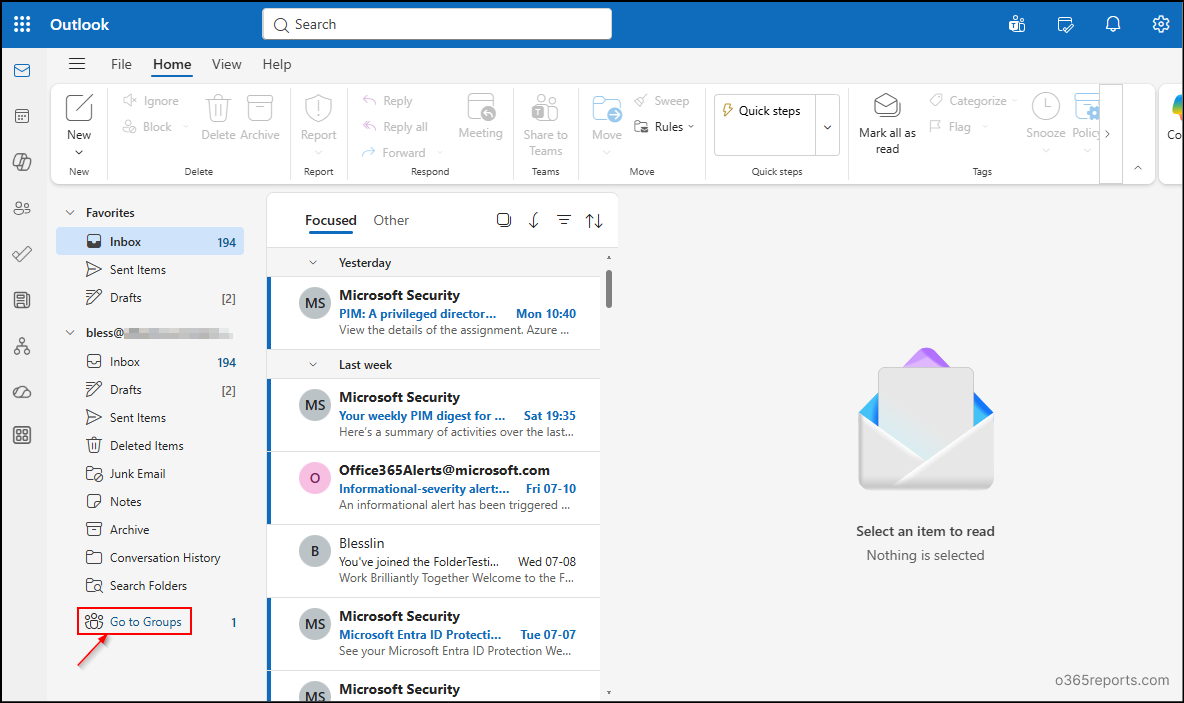
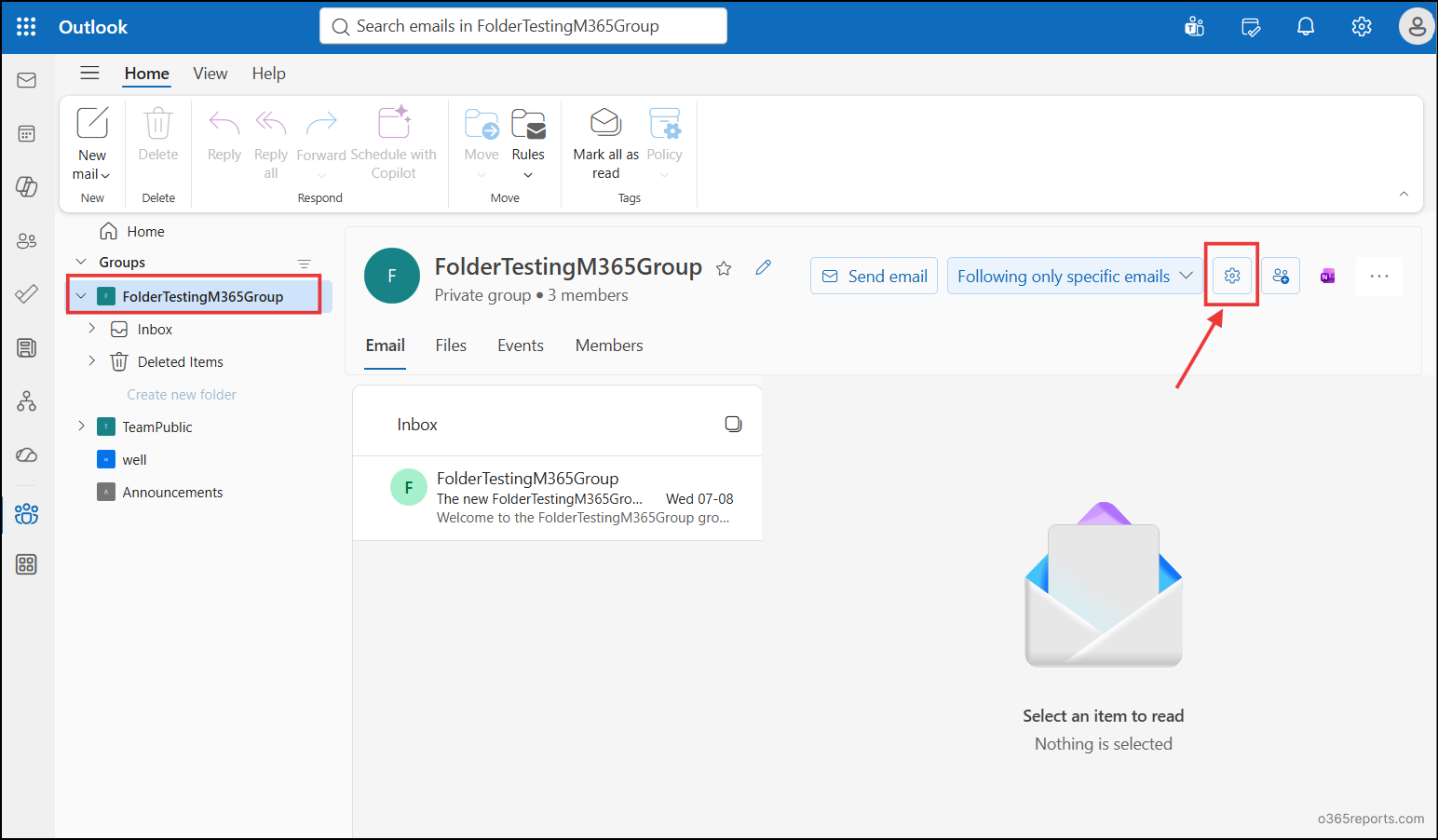
- Select the gear (⚙️) icon to open the Group Settings.
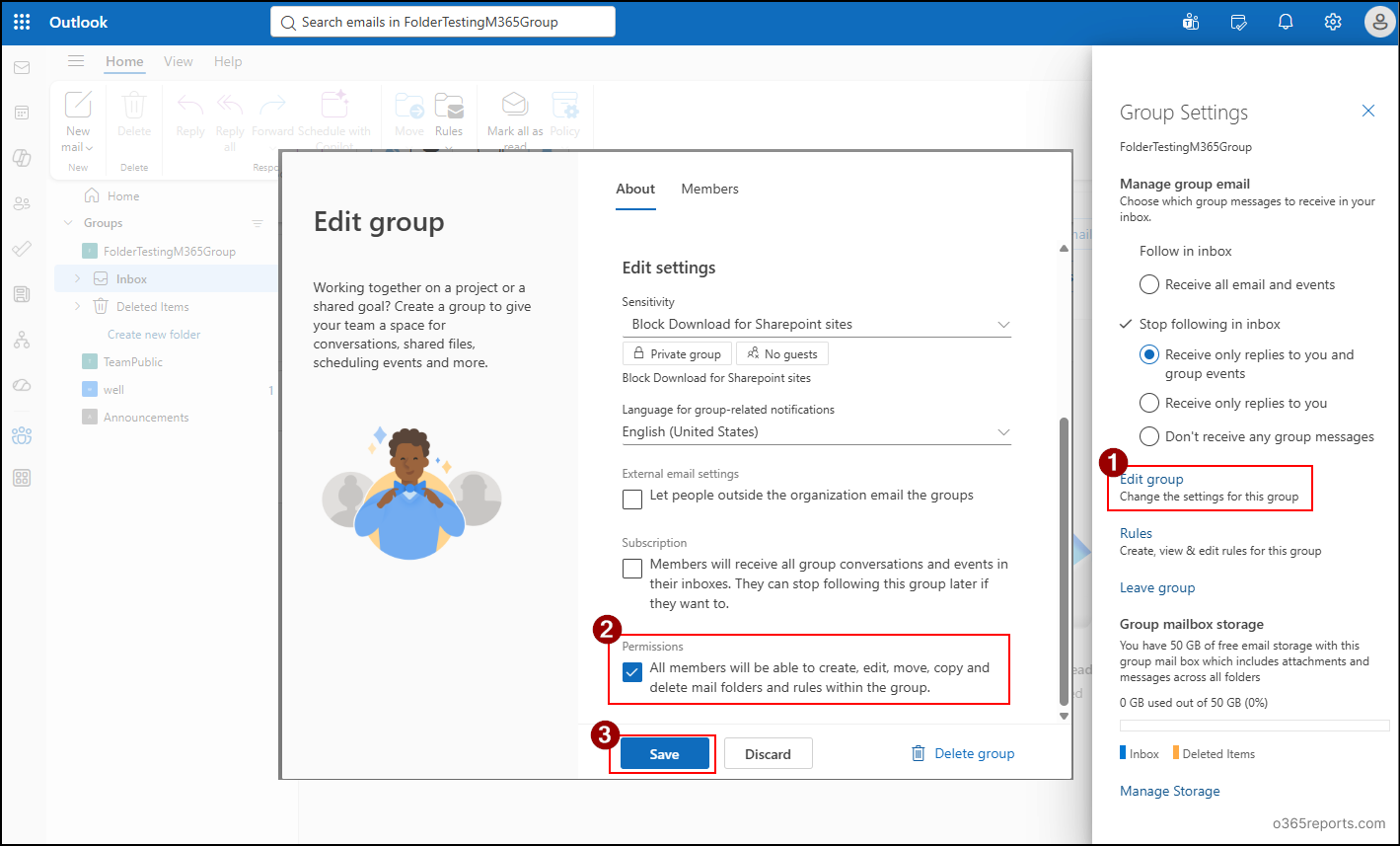
- Then click on Edit group. Under Edit settings –> Permissions, select the All members will be able to create, edit, copy and delete mail folders and rules within the group setting.
- Select Save to apply the changes.
After both the steps are completed, group members and owners can be able to manage folders, configure inbox rules, and move or copy messages within the group mailbox.
How to Use Folders and Inbox Rules in Microsoft 365 Group Mailboxes?
Once you’ve enabled the feature, group owners and members (if permitted) can organize their Microsoft 365 group mailbox directly from Outlook. They can perform the following actions to manage and organize group mailbox emails.
- Manage Microsoft 365 Group Mailbox Folders: Folders help organize group emails by separating conversations into categories as team’s workflow evolves. To manage folders, open Outlook, and expand the required Microsoft 365 group. Then, right-click the group mailbox or an existing folder and choose the appropriate option to create, rename, move, or delete a folder.
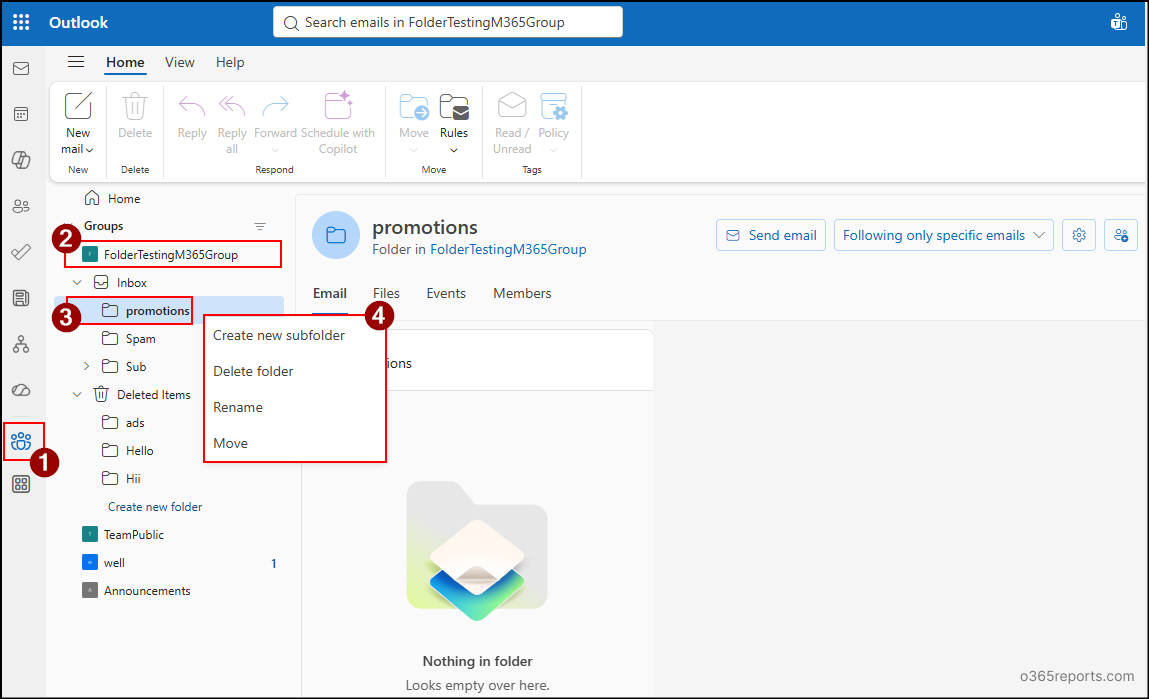 Note: You can’t delete, rename, or move the default Inbox and Deleted Items folders.
 - Manage Inbox Rule: Inbox rules help automatically organize incoming group emails based on conditions you define. To manage inbox rules, open the target Microsoft 365 group mailbox in Outlook, go to Rules –> Manage Rules. Then, perform the required action, such as creating, editing, running, reordering, or deleting a rule.
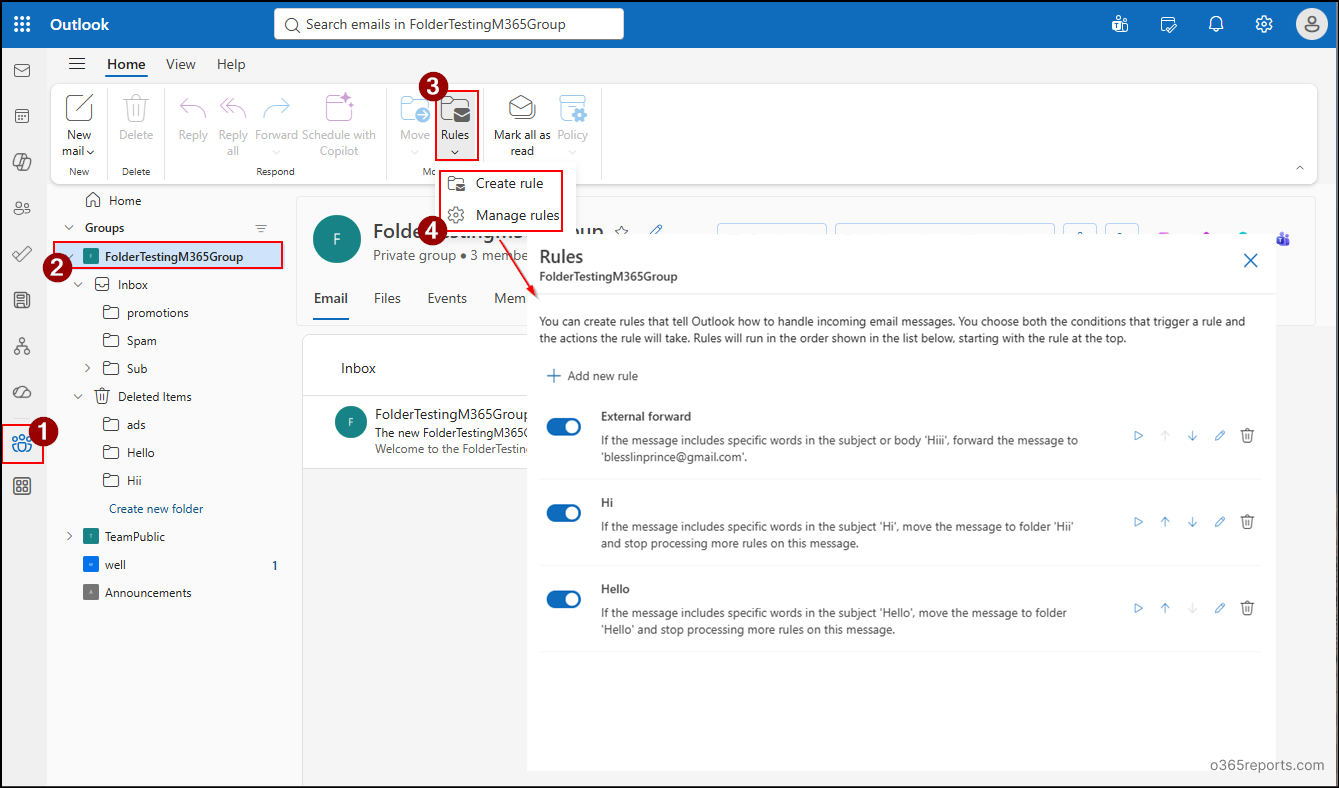
Once your folder structure is in place, you can organize existing conversations by manually moving or copying emails between folders. You can also create inbox rules to automatically move or copy incoming emails into the appropriate folders.
Block “Move Messages” Capability for Microsoft 365 Group Mailboxes
After folder and inbox rules support is enabled, users can create folders and move messages to better organize the mailbox.
However, some organizations may prefer to keep important emails in the Inbox until they are reviewed or processed. Allowing users to move messages manually increases the risk of important emails being moved to the wrong folder and overlooked. To address this, admins can disable the Move message option across all Microsoft 365 Group mailboxes while keeping folder and inbox rule functionality available.
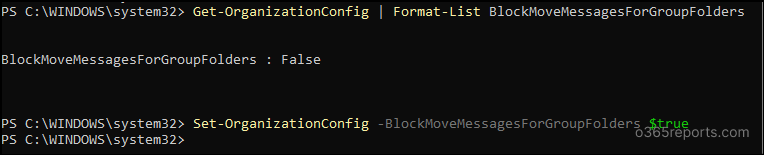
To confirm whether the Move option for group mailbox messages is blocked, run the following cmdlet:
|
1 |
Get-OrganizationConfig | Format-List BlockMoveMessagesForGroupFolders |
If the value is False, users can move messages between folders. To prevent this, run the following cmdlet to block the Move message capability for group mailboxes in the organization:
|
1 |
Set-OrganizationConfig -BlockMoveMessagesForGroupFolders $true |
Once this setting is enabled, the ‘Move messages’ option is greyed out in Microsoft 365 group mailboxes, as shown below.
Once this setting is enabled, the ‘Move messages’ option is greyed out in Microsoft 365 group mailboxes, as shown below.
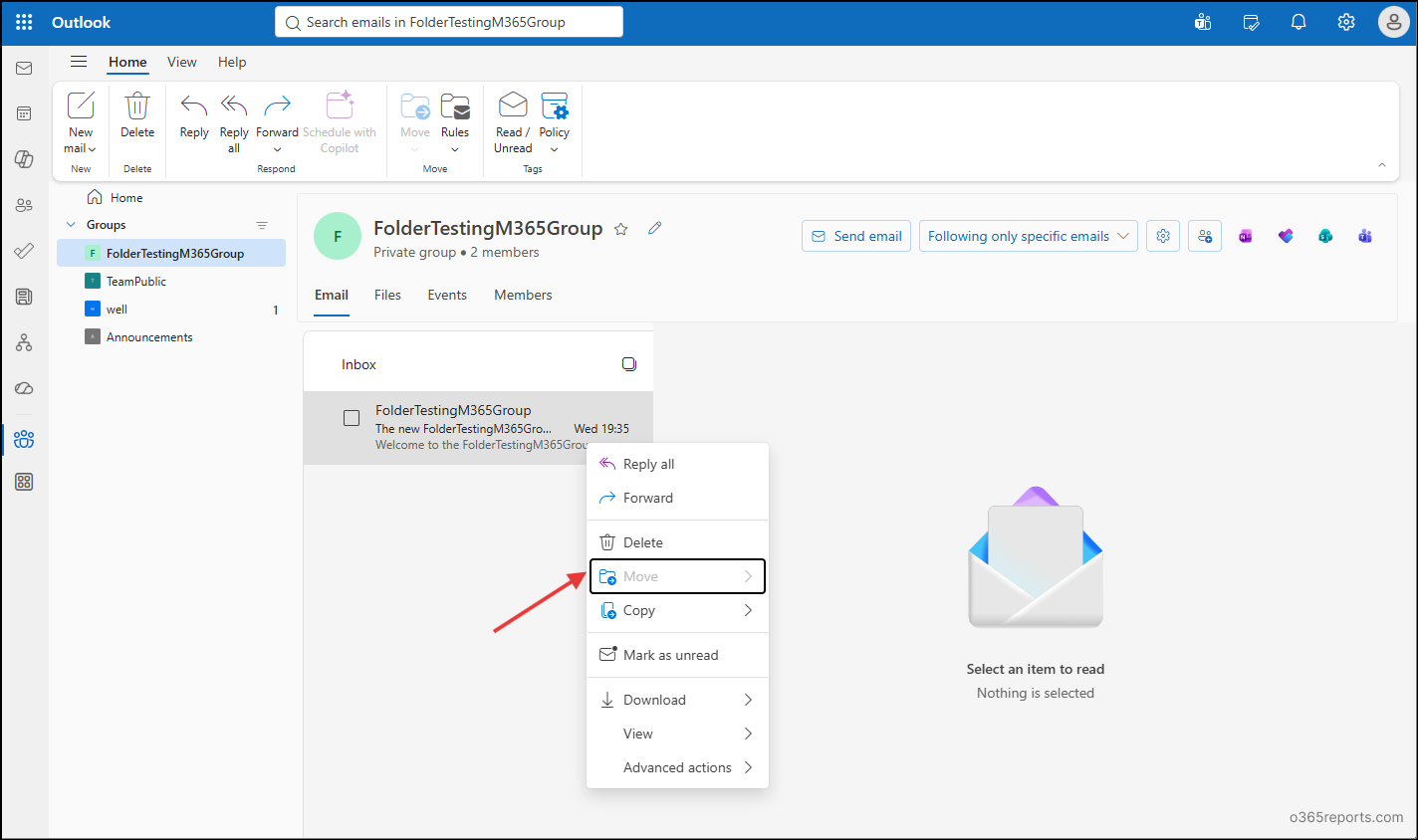
As a result, group owners and members can no longer move messages between folders, either manually or by using inbox rules.
Key Things to Know About Folder and Rule Feature in M365 Groups
Although folders and inbox rules support adds greater flexibility to Microsoft 365 groups, there are a few important things you should know.
- Changes may take time to propagate: Configuration changes made using the organization-level cmdlets are not applied instantly. After enabling or disabling folder and rule feature (or related settings), it may take some time for the changes to propagate across your Microsoft 365 tenant.
- Existing Microsoft 365 groups are also supported: Once enabled, folder and inbox rule feature becomes available for all existing Microsoft 365 group mailboxes.
- Disabling the feature stops users from managing folders and inbox rules: Any folders and inbox rules created before the feature was disabled continue to exist and function. However, users can no longer create, modify, or delete folders or inbox rules.
- You may encounter a temporary cache error: After enabling the feature, Outlook may occasionally display an error such as Cannot load folders for <GroupName>. Responsecode=undefined.
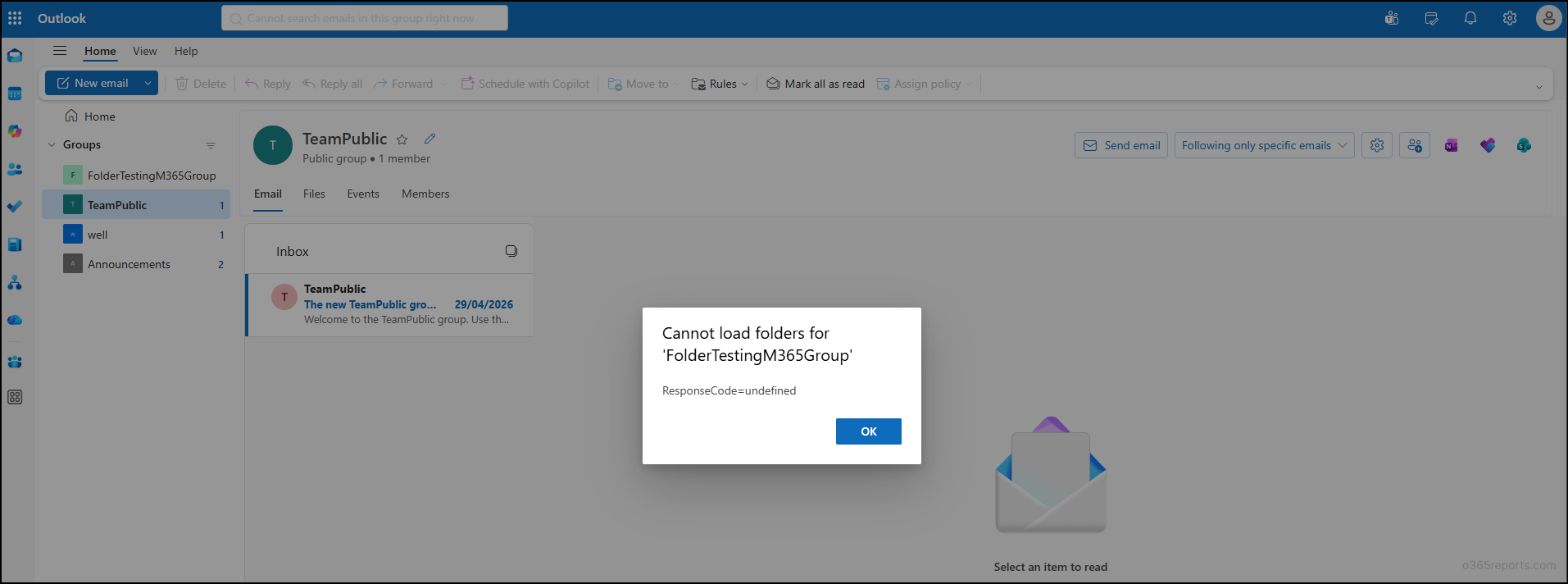
This is usually a temporary issue caused by caching or propagation delays. Wait a few minutes and try again. Otherwise, open the group mailbox in an InPrivate/Incognito window. If the problem still isn’t resolved, contact Microsoft Support for further assistance.
Wrapping Up
And that’s it! We hope this blog helped you need to deploy and manage folder and inbox rules feature in Microsoft 365 groups. Have questions or insights from your own testing? Share them in the comments below. We’d love to hear from you.