Keeping track of who changed what in SharePoint Online is essential for monitoring changes to external sharing settings, site ownership modifications, tenant-level configuration updates, etc. Historically, tracking these changes required searching Microsoft Purview audit logs, running PowerShell scripts, or using third-party tools.
But with these methods, monitoring activity across large environments with multiple admins required significant effort. To address this, Microsoft introduced change history reports in the SharePoint admin center. In this blog, we’ll walk through how to create change history reports to track important changes in SharePoint and maintain better control over administrative changes.
What Are Change History Reports in SharePoint Online?
Change history reports provide visibility into changes made across SharePoint Online by Global Administrators, SharePoint Administrators, and Site Administrators. They provide a chronological log of who made the change, what was changed, when it occurred, and from where it was initiated. These reports can retrieve data for up to 180 days.
SharePoint Online offers two types of change history reports:
- Site settings report – Tracks changes made to individual SharePoint sites such as site permissions, memberships, properties, etc.
- Organization settings report – Tracks changes made to tenant-wide SharePoint settings in the SharePoint admin center, including external sharing policies, access control settings, etc.
Note:
SharePoint Online allows up to 10 reports to be created at a time within the SharePoint admin center.
Pre-requisites to Generate SharePoint Online Change History Reports
The change history reports feature is available as an opt-in feature capability under Content Lifecycle Management in SharePoint Advanced Management. Before getting started with change history reports, make sure the following prerequisites are met:
- Role Requirements: You must have any one of the following roles depending on the level of access required:
- SharePoint administrator (or equivalent permissions) – Can create, download and manage the change history report.
- Global reader – Can download and review the report data, but cannot create or delete reports.
- Licensing Requirements:
- You must have at least one of the following base licenses:
- Office 365 E3, E5, or A5
- Microsoft 365 E1, E3, E5, or A5
- Additionally, you must have at least one of the following add-on licenses:
- Microsoft 365 Copilot license (at least one user in the tenant)
- SharePoint Advanced Management (SAM) license
- You must have at least one of the following base licenses:
- Tenant Requirements: You must enable audit logging in Microsoft Purview, as change history reports depend on audit data to track site and tenant configuration changes.
How to Create a Change History Report in SharePoint Online
Once these prerequisites are in place, you can follow the steps below to generate a change history report in SharePoint Online:
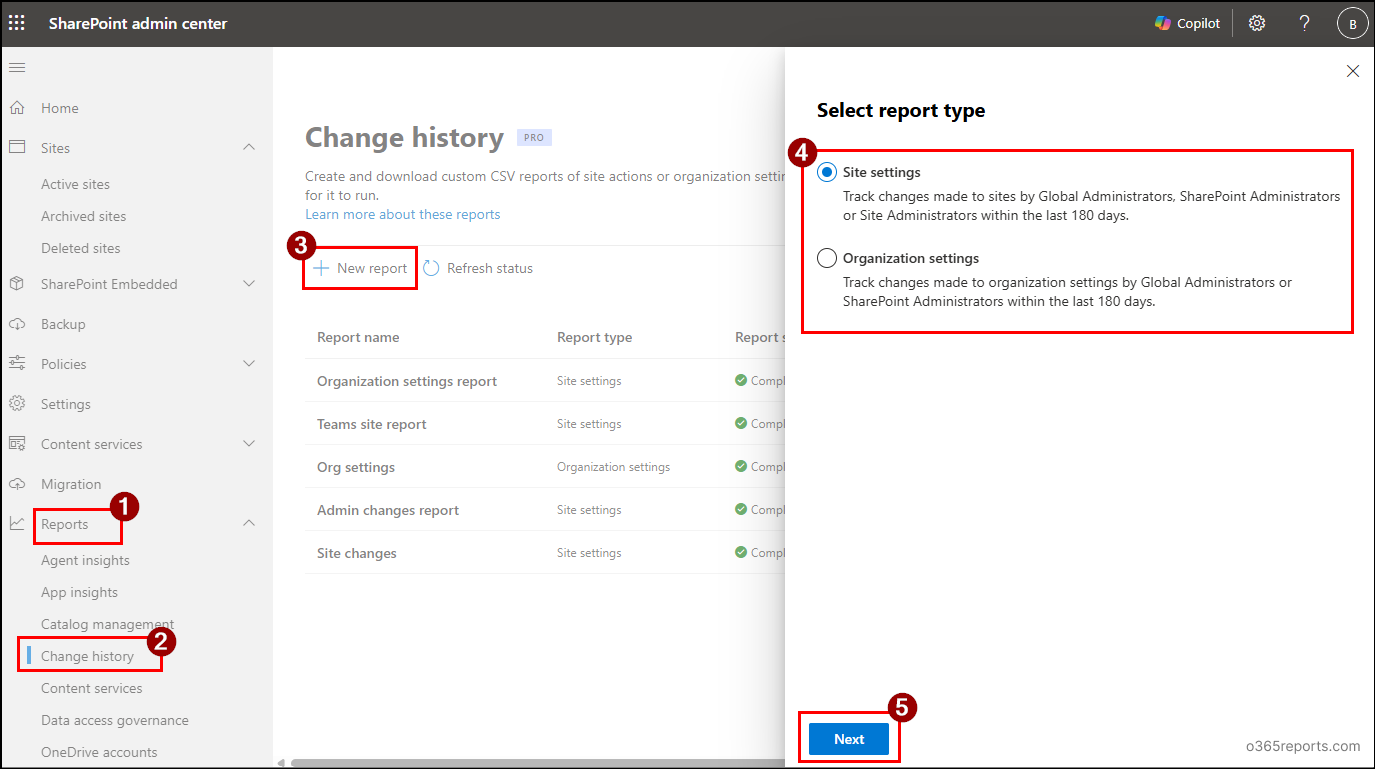
- Sign in to the SharePoint admin center.
- Navigate to Reports → Change history.
- Click on + New report and select the report type as Site settings or Organization settings, then click Next.
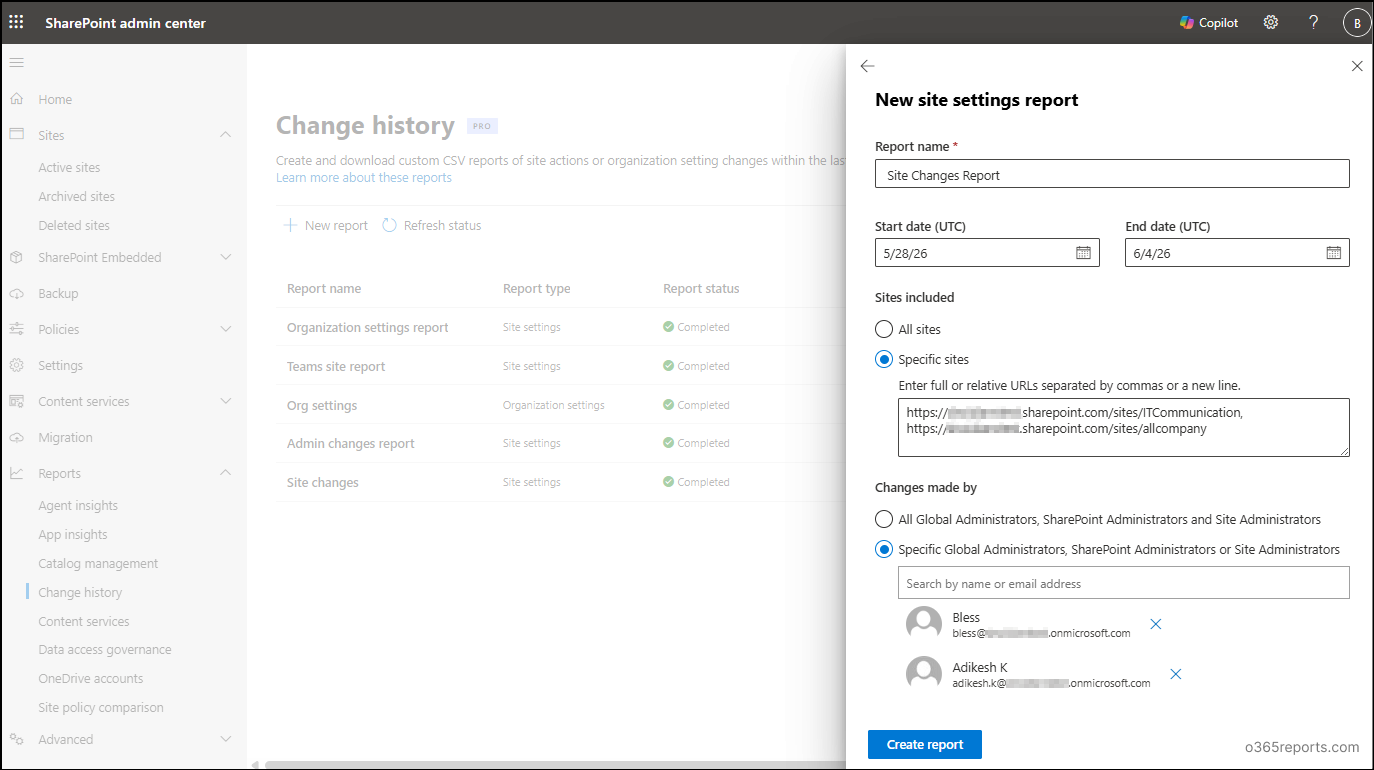
- Provide a descriptive name for the change history report.
- Select the date range for which you need to prepare the report.
- Under Sites included, choose whether you want to generate the report for all sites or specific sites. If you select specific sites, enter the site URLs separated by commas.
Note: This option is available only if you have selected the ‘Site settings report’. - You can get the site URLs from the SharePoint admin center → Active sites, or by connecting to SharePoint Online PowerShell and running the below cmdlet:
1Get-SPOSite -Limit All | Select-Object Url - Under Changes made by, select whose changes should appear in the report. You can either include all admins or select specific ones.
- Once all selections are made, select Create report to generate the change history report. After you click Create report, the request is queued for processing. Once the report is generated, you can use the Download report option to view the results.
Note:
The report creation will take a few hours depending on the selected filters and data volume.
Overview of Change History Report Types in SharePoint Online
When creating a change history report, the actions tracked vary based on the report type selected. Each report type focuses on a specific set of activities and configuration changes. Let’s explore the actions tracked by each report type in detail.
Site Settings Report
The site settings report helps you monitor configuration and administrative changes made within individual SharePoint sites. It captures modifications to site properties, permissions, and other site-level configurations performed by Global Administrators, SharePoint Administrators, and Site Administrators. This helps ensure better tracking of site-level governance and accountability across SharePoint environments.
Some of the actions that are tracked in the SharePoint site settings report include:
- Email address changed
- IB (Information Barrier) mode changed
- Members/site owners/ site admins/ Owners changed
- Sharing settings changed
- Restricted site access changed
- Teams added to the Microsoft 365 group
- Site settings changed
- User groups changed
And more…
A sample site settings CSV report generated is given below:

The report generated includes the following details:
- Date (in UTC) – Indicates the date and time (in UTC) when the change was made.
- Resource – Specifies the SharePoint site URL where the change occurred.
- Action – Identifies the specific action or configuration change performed on the site.
- Changes made by – Lists the administrator who performed the action.
- Previous value – Shows the value of the setting before the change was made.
- New value – Displays the updated value of the setting after the change was applied.
Organization Settings Report
The organization settings report provides a broader view of administrative activities performed at the tenant level in the SharePoint admin center. It tracks changes made to organization-wide settings that impact the overall SharePoint environment.
The report supports monitoring changes across key configuration areas, such as general Settings, Access Control policies, and Sharing policies configured through the SharePoint admin center. The organization settings currently tracked by the report are listed in the table below:
| Category | Setting Name | Description |
| Settings node
|
SharePoint pages | Allow commenting on modern pages
Allow users to create new modern pages |
| SharePoint site creation | Users can create SharePoint site
Create teams site under Default time zone Default storage limit for new sites |
|
| SharePoint notifications | Allow notifications | |
| SharePoint site storage limits | Automatic
Manual |
|
| OneDrive notifications | Allow notifications | |
| OneDrive retention | Days to retain a deleted user’s OneDrive | |
| OneDrive storage limit | Default storage limit | |
| OneDrive sync | Show Sync button on the OneDrive website
Allow syncing only on computers joined to specific domains Block download of specific file types |
|
| SharePoint version history limits | Set version history limits | |
| Access Control policies node | Unmanaged devices | Restrict access from devices that aren’t compliant or joined to a domain |
| Idle session sign out | Automatically sign out users from inactive browser sessions | |
| Network location | Allow access only from specific IP address | |
| Apps that don’t use modern authentication | Block access from Office 2010 and other apps that can’t enforce device-based restrictions | |
| SharePoint access restriction | Restrict access to SharePoint sites & content by security group | |
| OneDrive access restriction | Restrict access to OneDrive content by security group | |
| Sharing Policies node
|
External sharing | Content can be shared with
More external sharing settings Other settings |
| File and folder settings | Choose the type of link selected by default when users share files and folders in SharePoint and OneDrive
Select the permission selected by default for sharing links Choose who can access files with the URL to a file copied from the browser address bar |
Here’s a sample exported organization-level settings report:

Note: The amount of change history data available in exported reports depends on the user’s license. Some users may have up to 180 days of history, while others may have less.
Manage Change History Reports in SharePoint Online
Once you have created a change history report, you can manage and analyse it using several built-in options. Below are the actions that you can perform on the change history report:
- Review all report details: The Change history page in the SharePoint admin center maintains a list of all generated reports, allowing admins to easily review previously created reports. On this page, you can view details such as report name, report type, status, total changes, date created, and created by. This helps you quickly identify existing reports and avoid generating duplicate reports unnecessarily.
- Export the change history report: Click on a report and select the Download report option to download it locally. The report will be exported as a CSV file and can be saved for further analysis or shared with other teams if required.
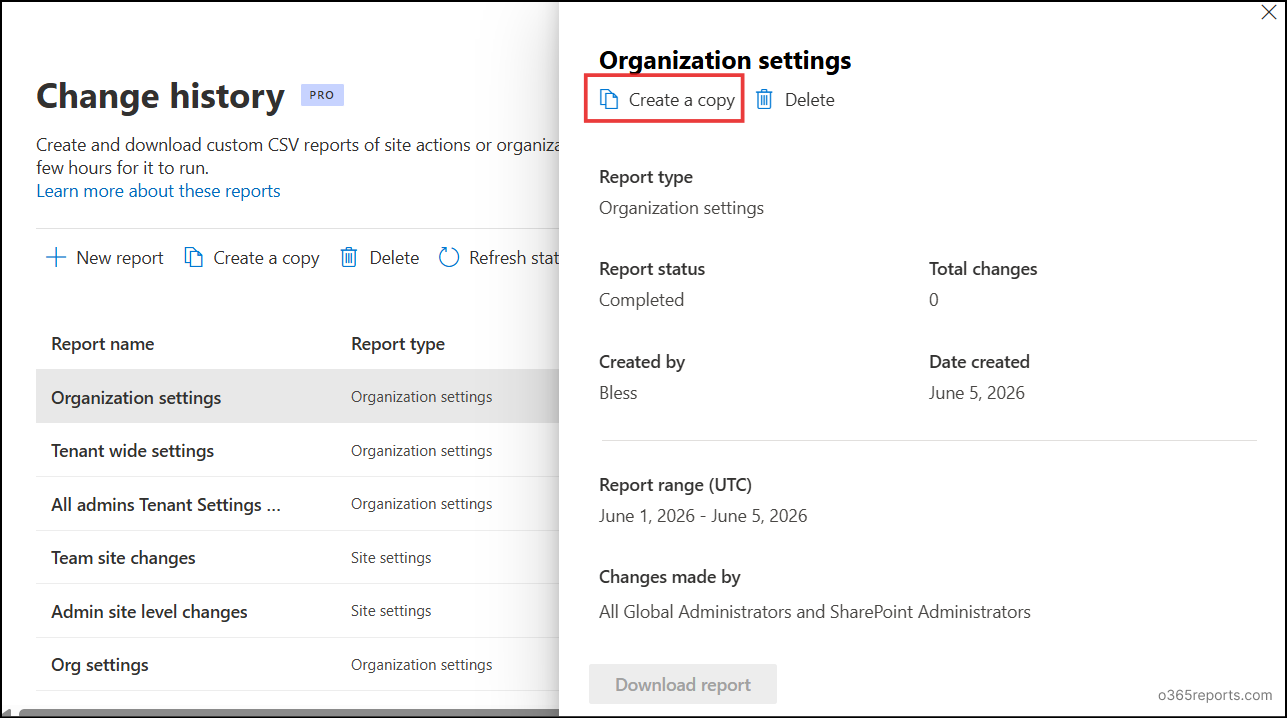
- Copy a change history report: Change history reports cannot be edited after they are created. If you need to modify a report or duplicate an existing one by changing only a few details, select the report and choose Create a copy. This will generate a new report with the same configuration. You can then make the required changes in the copied report and create it as a new one.
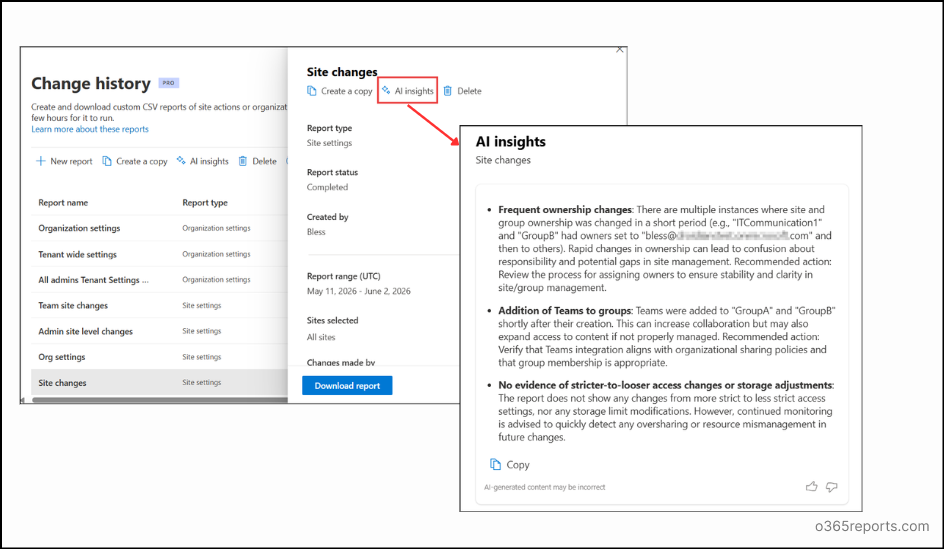
- Get AI insights of a change history report (site settings report only): When the report contains a large volume of data (for example, more than 1000 records), it can be difficult to manually review all entries. In such cases, you can use AI Insights in the change history report to get a summarized view of the report. This feature provides a high-level overview of key activities, helping you quickly understand patterns and important changes. The image below shows a sample view of AI insights:
- Delete a change history report: As mentioned earlier, you can create only up to 10 reports at a time in the SharePoint admin center. If you try to create more than that, you may receive an error message like: You’ve reached the maximum number of reports. You can have up to 10 reports at a time. In such cases, you need to delete an existing report before creating a new one. To do this, select the report and choose the Delete option, then proceed with creating a new report if required.
💡Best practice: It is recommended to download the report and save it locally so that you can access the data anytime, even if the report is later deleted from the SharePoint admin center.
And that’s it! We hope this blog helped you to create and use SharePoint change history reports to track configuration changes and improve visibility across your environment. If you have any queries or experiences to share, drop them in the comments section below. We’d love to hear from you! Stay tuned for more upcoming blogs.