External collaboration in Microsoft Teams is essential but managing it is often where the real headache begins. Until now, key controls like external and guest access and B2B collaboration were scattered across multiple pages in Entra and Teams admin center. 😓 So, when a client can’t access a Teams channel, you may end up hopping between tabs to check external access settings in one place, B2B settings in another, and the cycle continues. This fragmented navigation also increases security risks such as overlooked important controls, misaligned configurations, and unintended access gaps.
Now, Microsoft has addressed this by introducing a centralized and unified external collaboration settings management in Microsoft Teams admin center. This new experience brings all key external collaboration controls to manage external access, guest access, and B2B collaboration from a single location. In this blog, we’ll walk through what this section is, what settings it includes, and how it helps you manage external collaboration with ease. Let’s dive in!
Simplified External Collaboration Management in Teams Admin Center
The new external collaboration settings management is now available as a preview feature in the Microsoft Teams admin center. It introduces a centralized interface that brings guest and external access controls, making easier for you to manage how users collaborate with people outside your organization.
To access this feature, follow the steps below.
- Sign in to the Teams admin center.
- From the left navigation pane, select External collaboration settings.
- Expanding this section reveals four new subsections:
- Overview (new)
- External access
- B2B guest access
- B2B member access
Note:
B2B guest access and member access pages aren’t displayed for organizations using unified policies and settings management in Teams admin center.
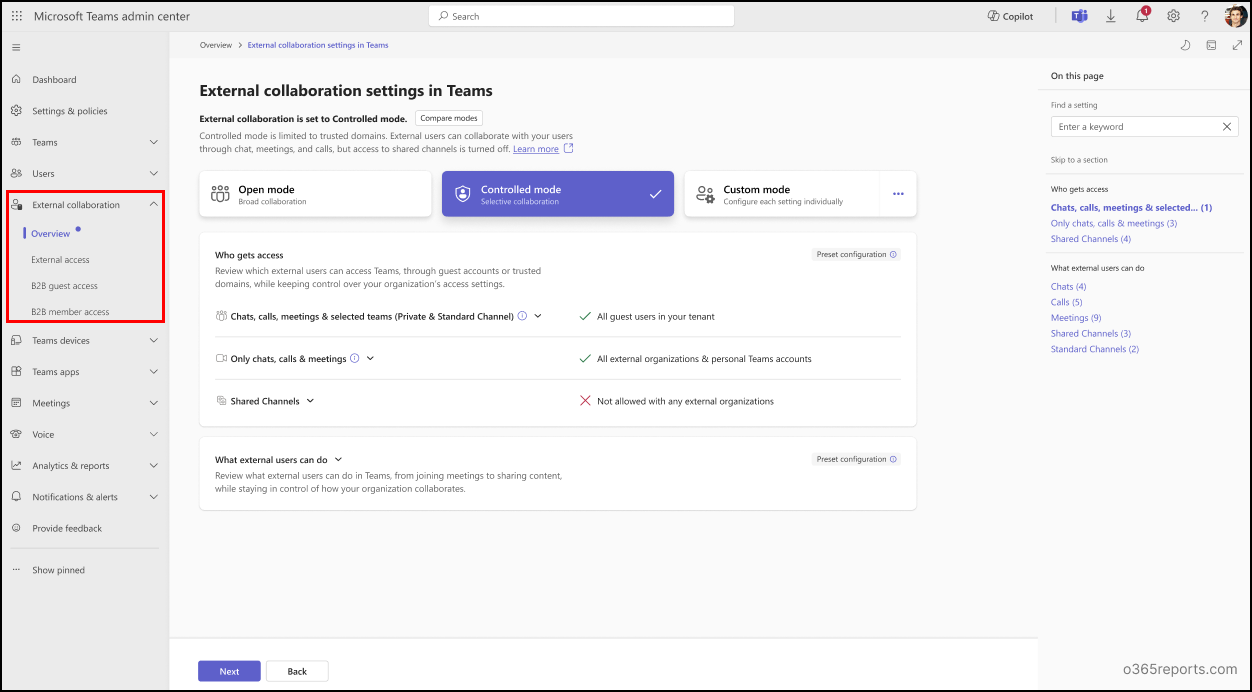
Let’s take a quick look at these sections.
- The Overview section is the latest addition to this experience, offering a high-level view of your organization’s external collaboration setup. It allows you quickly understand how external and guest collaboration is configured across the tenant. The other three pages, which previously existed, have now been relocated under the Overview section for a more streamlined and intuitive management experience.
- Then comes the key highlight of the Overview page – the Collaboration modes, which is also a new addition. There are three modes: Open, Controlled and Custom. These modes allow you to manage external collaboration at different levels of restriction. This makes it easier to align external collaboration settings with your organization’s security needs.
Let’s explore the new settings in detail after reviewing the prerequisites.
Prerequisites for Unified Teams External Collaboration Settings Management
You must have one of the following roles to manage the external collaboration settings.
- A Teams Administrator role can give control to view the settings and manage Teams-related configurations. However, access to B2B direct connect and selecting Open mode is restricted.
- A Global Administrator role gives you full control over all external collaboration settings and modes, including B2B configurations.
Microsoft has introduced a new role called External Collaboration Administrator, expected to be generally available from mid-March 2026. This role allows administrators to manage external collaboration settings only through PowerShell.
Once you have the required role in place, you are ready to manage collaboration with external participants. Before diving into the Overview page settings, it is important to understand the three external collaboration modes available in the Teams admin center. By the end of this section, you’ll understand why we are introducing them first.
Three Modes of New Unified External Collaboration Settings Management
As mentioned earlier, collaboration modes are the core of the Overview page. There are 3 modes: Open, Controlled and Custom. They play a key role in defining the level of restriction for external, guest and B2B access in your organization.
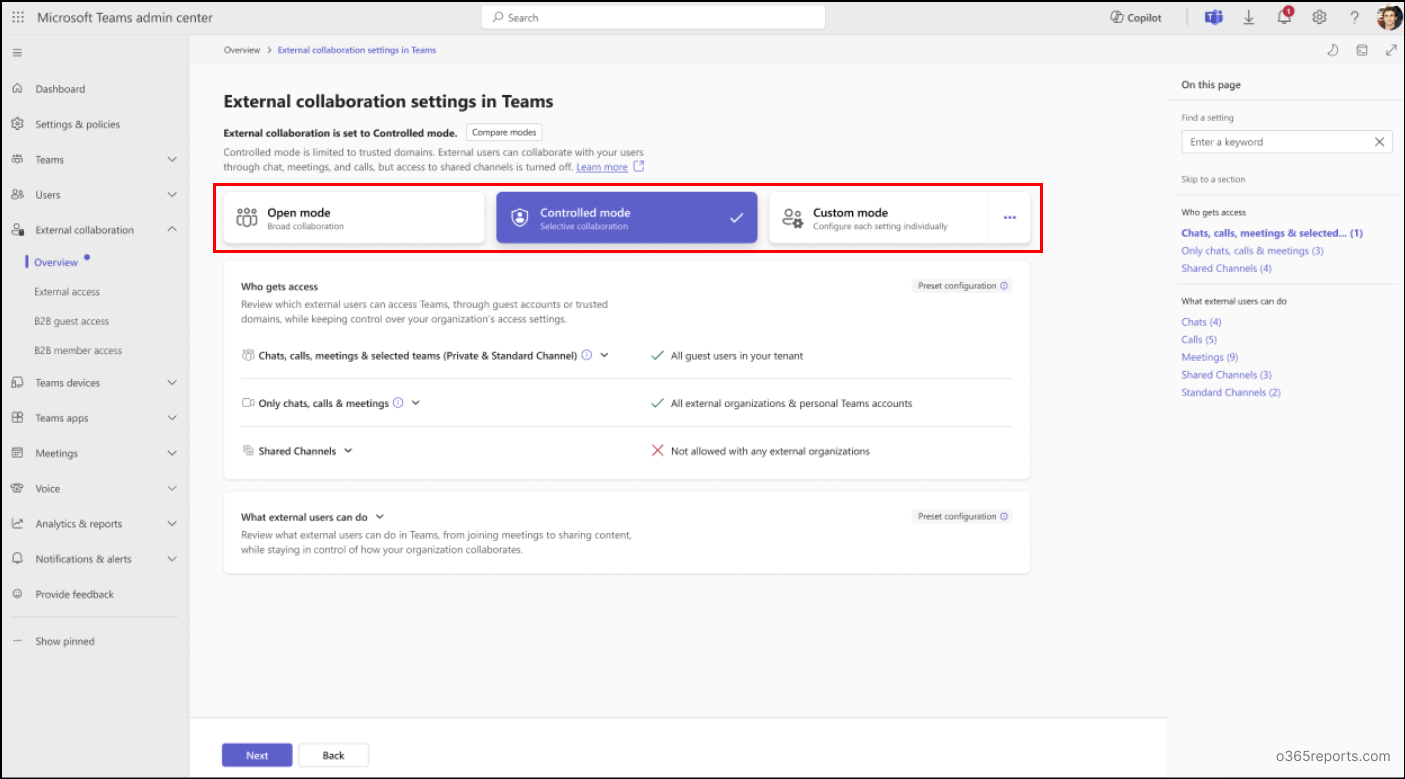
- Mode 1 – Open Mode:
What it is: This is a predefined mode that enables a broad external collaboration.
What it does: It lets your team interact with people outside your organization through chats, calls, meetings, teams, and channels, including shared channels. You can collaborate with external Teams users, personal Microsoft accounts, and partner organizations using federation, B2B, or B2B Direct Connect.
When to Choose: Choose Open collaboration mode if your organization frequently collaborates with external partners and requires a more flexible collaboration setup. This mode is ideal when most external communication happens through B2B Direct Connect using shared channels, allowing users to collaborate seamlessly and freely with guests and partner organizations. Open collaboration ensures external users can participate in shared channels without any restrictions, which makes it the right choice for organizations that prioritize frequent and open external collaboration. - Mode 2 – Controlled Mode:
What it is: This is also a predefined mode, and it offers a more restricted external collaboration experience. It aligns closely with the default behaviour of many Microsoft 365 enterprise and education tenants.
What it does: It lets you interact through chats, calls, and meetings with external domains but restricts collaboration in shared channels.
When to choose: Choose Controlled mode when your organization requires a tighter control over external and guest access. If your organization doesn’t rely on shared channels and manages external collaboration primarily through federation and external access, Controlled mode is the ideal choice. - Mode 3 – Custom Mode:
What it is: This is a flexible mode that lets you design and control your own external collaboration setup.
What it does: It lets you manually configure organization-wide settings for chats, calls, meetings, teams, and channels including shared channels. Also, it offers granular control over every external collaboration option.
When to Choose: Choose Custom mode when neither Open nor Controlled fits your organization’s requirements. For instance, if you want to prevent anonymous users from joining meetings or ensure that not everyone can bypass the meeting lobby, then Custom mode is the right choice. Unlike Open and Controlled modes, which have these enabled by default, Custom mode lets you explicitly configure and restrict them according to your organization’s policies.
Note: Changes made in custom mode apply only to global organization-wide settings only. The existing custom policies remain unchanged.
These modes can only be managed from the Overview page. That’s why we introduced them first. Now that you have a clear understanding of the collaboration modes, let’s move on to exploring the Overview page settings.
Breakdown of Overview Section in New External Collaboration Settings
The Overview section in the external collaboration area provides a quick snapshot of your organization’s external collaboration posture. It is designed to give you a simplified way to manage global org-wide settings, without affecting any custom user or group settings.
Here, you can see the three collaboration modes, each of which has two configurable buckets where you can define specific values. The mode you select controls how these settings are applied to the buckets. The two buckets are:
- Who gets access: The settings in this bucket determine which users in your organization can communicate with external users, and which external users are allowed to communicate with your organization.
- What external users can do: This bucket defines what actions guests and external users are allowed to perform across chats, meetings, Teams, and channels.
The table below outlines each setting, and how the values differ between Open and Controlled modes.
| Modality | Name of the Setting | Value in Open mode | Value in Controlled mode |
| Who gets access | |||
| Teams and channels | Guest access | On | On |
| Shared channels | B2B direct connect inbound | Allowed for all users and applications | Blocked for all users and applications |
| B2B direct connect outbound | Allowed for all users and applications | Blocked for all users and applications | |
| Invite external users to shared channels | On | On | |
| Join external shared channels | On | On | |
| Chats, calls, and meetings (external access) | Teams and Skype for Business users in external organizations | Allow all external domains | Allow all external domains |
| People in my organization can communicate with personal Teams accounts | On | On | |
| People in my organization can communicate with accounts in trial Teams tenant | Off | Off | |
| What external users can do | |||
| Teams and channels | Tagging (Who can manage tags) | Microsoft default | Microsoft default |
| Shared channels | Provide a link to my support request page | Off | Off |
| Calls | Routing for PSTN calls | Use default settings | Use default settings |
| Routing for federated calls | Use default settings | Use default settings | |
| Spam filtering | On | On | |
| Meetings | Who can register for meeting | Everyone | Everyone |
| Anonymous users can join a meeting | On | On
|
|
| Anonymous users and dial-in callers can start a meeting | People in my org and guests | People in my org and guests | |
| Who can bypass a lobby | Everyone | Everyone | |
| People can join external meetings hosted by | Anyone | Anyone | |
| Anonymous users can interact with apps in meetings | On | On | |
| Meeting chat | On for everyone | On for everyone | |
| External meeting chat (When on, people can read or write messages in external meeting chats from untrusted organizations) | On | On | |
| Who can present | Everyone | Everyone | |
| External participants can give or request control | Off | Off | |
| Participants can share content in external meeting hosted by | Any Org | Any Org | |
How to Change Modes or Modify Settings in External Collaboration Section?
Now that you have a good understanding of the Overview page and the collaboration modes, let’s consider a scenario. Suppose, your organization usually collaborates freely with external partners, but you may not need shared channels, or you may require customized settings for certain projects.
In such cases, you may need to switch modes to tighten security or control how external users can collaborate. Depending on your requirements, you can either select a different mode or fine-tune the settings using Custom Mode. Here’s how to do it:
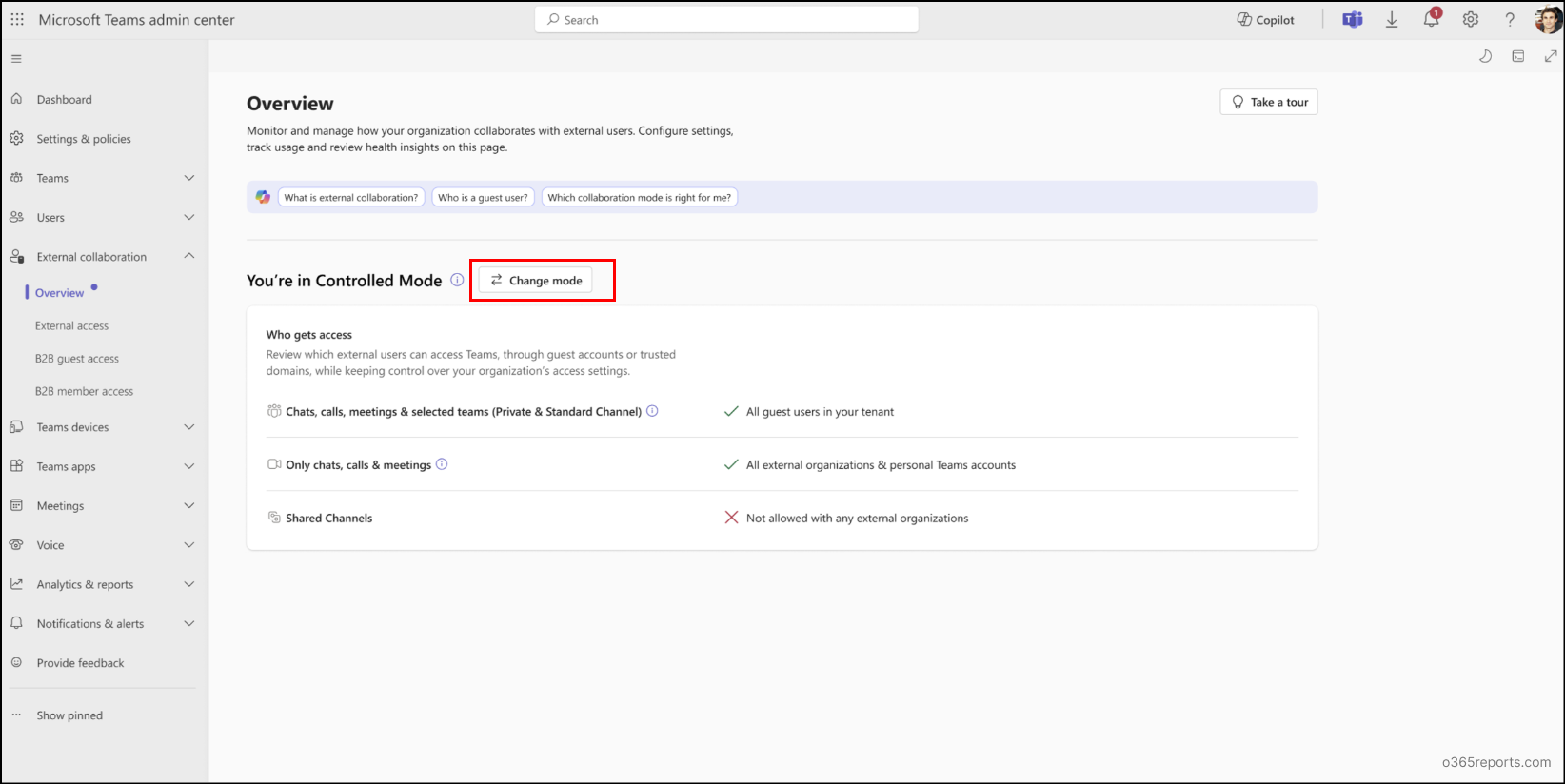
- If you’ve previously chosen a collaboration mode, such as Open mode, but your current project no longer requires shared channel access, you can switch to Controlled or Custom mode as needed. To do this, select Change mode button and confirm the prompt. Once done, the new mode will be applied automatically across the entire tenant.
- On the other hand, you need to adjust settings such as turning off B2B outbound access or changing who can bypass the meeting lobby. In these cases, you’ll need to use Custom mode, since these changes can’t be done in the Open or Controlled mode. To do this, select Custom mode, make the required changes, and click Confirm in the confirmation prompt.
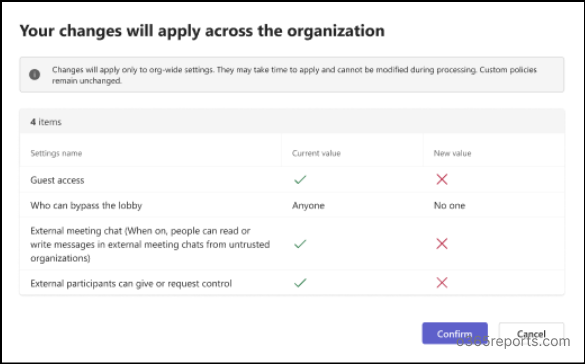
After the update, select Got it to complete the process. If any setting fails to apply or if one or more settings cannot be applied, an error message will appear.
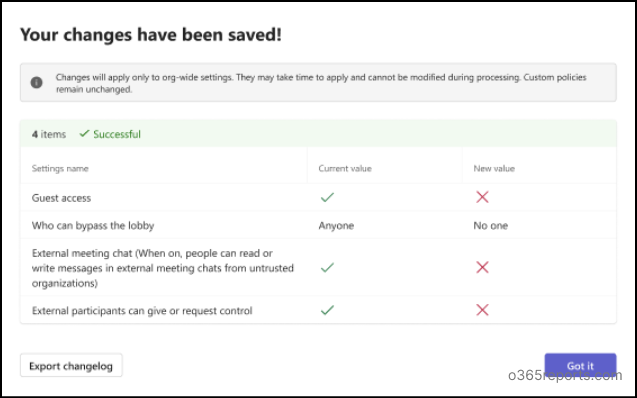
In addition, you can also export the changes using the Export changelog option. - Alternatively, if Open or Controlled mode is close to your requirements but needs some adjustments, you can copy its settings into Custom mode. To do this, click the three-dot menu near the Custom mode button, choose the mode from the dropdown, and select Next.
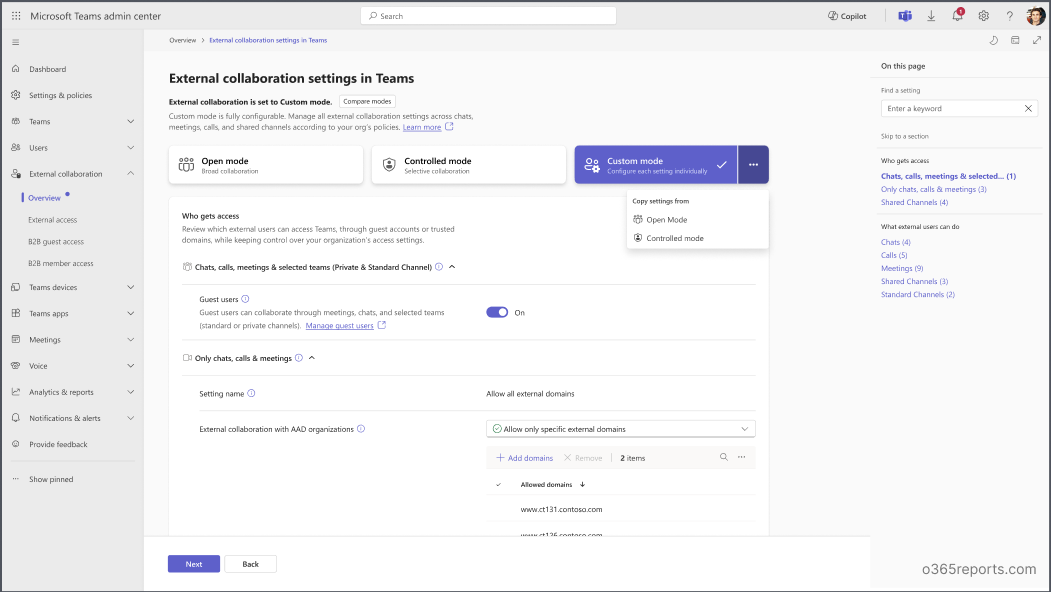
You can then make any additional changes if needed. Once done, click Confirm in the confirmation prompt and select Got it to apply the changes.
And that’s a wrap! We hope this blog has helped you get a clear understanding of the new unified external collaboration settings in the Teams admin center. With this approach, you can manage external collaboration more effectively while maintaining Teams security. If you have any questions, thoughts, or feedback, feel free to drop them in the comments below. We’d love to hear from you. Stay tuned for more upcoming blogs! 😊