Third-party apps make Microsoft Teams a lot more useful. From project management tools to AI-powered assistants, there’s an app for almost every need. But before allowing them into the organization’s Teams environment, admins need to check whether they’re suitable for business use.
This means reviewing their data-handling practices, permissions, security measures, and compliance standards.
The Teams admin center already provides security, compliance, and permission details for third-party apps. But reviewing these details manually for every app takes time, and different admins may focus on different criteria, so the same app can get inconsistent assessments.
To simplify these reviews, Microsoft Teams provides the Organization Evaluation Score for Apps and Agents. It automatically evaluates eligible third-party Teams apps and agents against the organization’s security requirements and assigns a score based on how well they meet them.
Good to know: The feature is on by default, so there’s nothing to enable.
Why Should Organizations Evaluate Third-Party Apps Before Approval?
Allowing an app into Teams takes a few clicks, but deciding whether it should be allowed takes a proper review. Admins need to look beyond its features and understand how it handles organizational data, what access it requires, and whether it meets security and compliance requirements.
To judge whether it’s fit for business use, they usually check these four areas:
- Compliance and certifications: Does the app meet the organization’s required compliance standards, such as GDPR-related obligations or SOC 2 requirements?
- Data residency: Where does the app store and process organizational data?
- Permissions: What access does the app request, and does it align with the organization’s security policies?
- Data protection: Are the app’s privacy and data handling practices suitable for business use?
Not every app provides the same level of transparency. Some vendors offer detailed compliance and security documentation, while others provide very little.
Reviewing each app individually takes time, and different admins may apply different standards. Having common evaluation requirements can make these reviews more consistent. Let’s see how Microsoft Teams handles this.
What is the Evaluation Score for Apps and Agents in Microsoft Teams?
Microsoft Teams brings all these checks together through the Organization Evaluation Score for Apps and Agents capability.
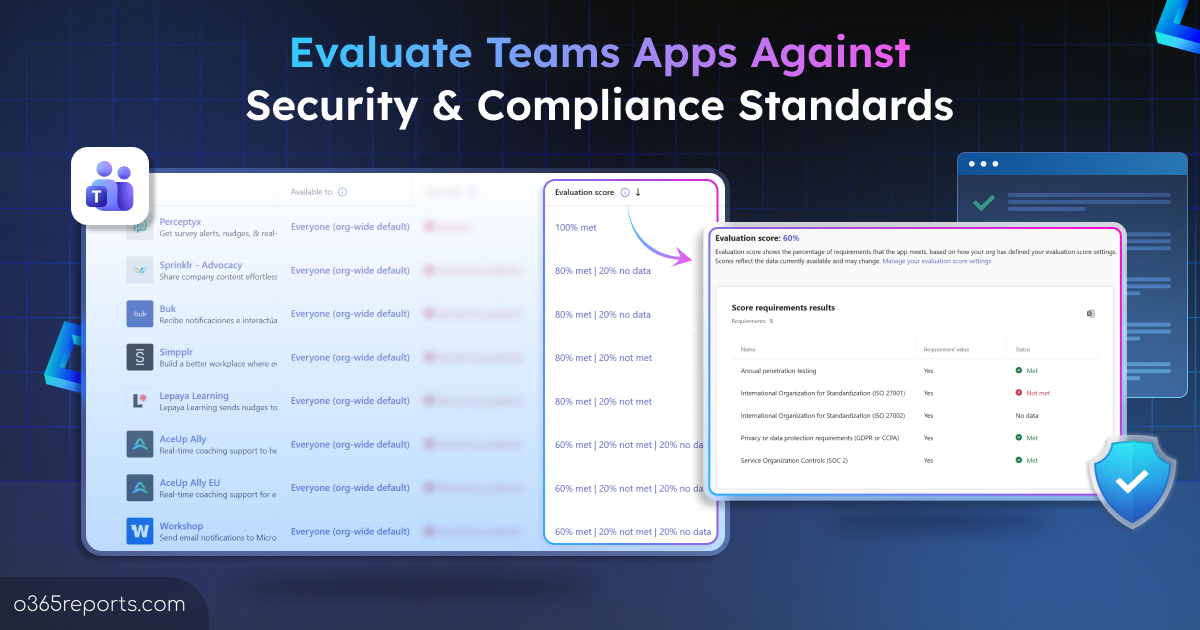
It gives each eligible third-party app or agent a percentage-based score showing how many of the organization’s selected security, compliance, and permission-related requirements it meets. The evaluation score is shown on the ‘Manage apps’ page in the Teams admin center.
Here’s how the evaluation works:
- Choose evaluation requirements: Admins select predefined security, compliance, and permission-related requirements that align with their organization’s standards.
- Evaluate eligible apps: Teams assesses eligible third-party apps and agents against the selected requirements using the available security and compliance information.
- Each app gets a score: Each eligible app receives a percentage-based score based on the number of selected requirements it meets.
- View detailed results: The detailed report shows the status of each requirement as Met, Not met, or No data.
To see how that plays out, take an organization that selects three requirements: GDPR-related compliance, SOC 2 assurance, and data residency. An app meets the first two but not data residency, so it scores 67% (2 out of 3), and the report shows data residency as the gap.
Now, another organization that selected only the first two would see the same app at 100%. So, the score isn’t a verdict on the app itself. It shows how well the app fits that organization’s expectations.
Which Apps and Agents Receive an Evaluation Score?
Some might think every app listed gets a score, but that’s not the case! Teams displays a score only when the following three conditions are met:
- The app or agent is a third-party application.
- Security and compliance data is available for it.
- It isn’t already available in the organization for anyone to install or use.
So, an app can appear on the Manage apps page without an evaluation score. The feature is intended to help admins assess eligible third-party apps and agents that are being considered for use in the organization.
How to Configure Security & Compliance Requirements for the Evaluation Score
First, define the security, compliance, and permission-related requirements apps will be scored against. Follow these steps:
- Sign in to the Microsoft Teams admin center.
- In the left navigation, go to Teams apps.
- Select Evaluation score settings.
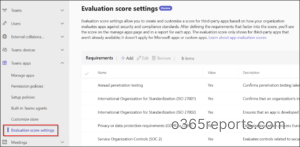
This page holds the organization’s evaluation criteria. From here, review the predefined list of available security, compliance, and permission-related requirements.
Add evaluation requirements:
- On the Evaluation score settings page, select Add.
- The Add a requirement page opens with the predefined security, compliance, and permission-related requirements.
- Select the requirements relevant to the organization, configure their values, and choose Add.
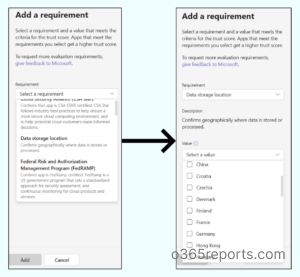
Edit or remove requirements:
You can change the selected requirements whenever needed. From the Evaluation score settings page:
- To edit, select the requirement, choose Edit, make the changes, and select Save.
- To remove a requirement, select it and choose the remove icon.
There is also an option to export the selected requirements as a CSV file.
Keep in mind: These changes only affect how app evaluation scores are calculated. They don’t modify the actual security, compliance, or permission-related information available for an app or agent.
How to Review Third-Party App Evaluation Scores
Once the requirements are saved, Teams shows the organization-specific score on the Manage apps page.
Go to Teams apps > Manage apps in the Teams admin center. A new Evaluation score column displays the percentage for each eligible app or agent.
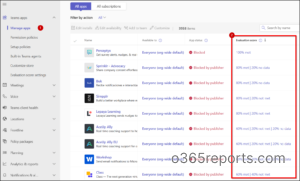
The “
Evaluation Score” column shows the scores of eligible apps on the Manage apps page. You can sort this column to view apps from highest to lowest score, or the other way around. If you’re looking for apps that meet a particular percentage of your requirements, use the filters to narrow down the list:
- On the Manage apps page, select the filter icon.
- Choose Evaluation requirements met from the dropdown.
- Pick a condition, either greater than or equal to a percentage.
- Select the percentage value and choose Apply.
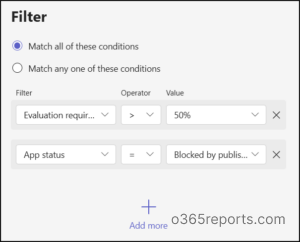
Don’t rely on the evaluation score percentage alone! It only shows how much an app meets, not what it misses! For the reasons behind a score, the detailed evaluation report breaks it down requirement by requirement.
How to View Teams App Evaluation Score Report
The Evaluation Score column shows only the overall score. To understand how it’s calculated and check the status of individual requirements, open the app’s Evaluation score report (Preview) tab.
- In the same Manage apps page in the Teams admin center, select the third-party app or agent you want to review.
- Open the Evaluation score report (Preview) tab (the 8th tab in the app details).
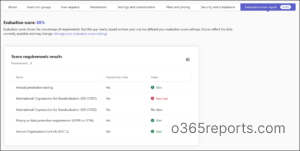
The report displays the overall Evaluation score along with a Score requirements results section. This section breaks down the evaluation requirement by requirement, with one of three possible statuses:
- Met: The available information shows the app satisfies the requirement.
- Not met: The available information shows that the app doesn’t satisfy the configured requirement.
- No data: Teams doesn’t have enough information to evaluate the requirement. This doesn’t mean the app failed; its status simply couldn’t be verified.
Pay particular attention to requirements marked No data, because it doesn’t mean the app failed. An app might meet the compliance and security requirements and simply have no data for data residency. The report points out that gap, which a percentage alone would hide. In that case, you may need to follow up with the app vendor for more information.
Evaluation Score vs. Security & Compliance: Key Differences
While looking at the Evaluation Score report tab, a similar tab named Security and Compliance sits right next to it. Since both cover app security and compliance, it’s natural to wonder: If the Evaluation Score already checks these requirements, what does the other tab do?
The difference is actually quite simple. Both show security-related information about an app in the Teams admin center, but they do different jobs:
The Security & compliance tab shows facts (security and trust information) available for the app itself.
- This includes details such as Microsoft 365 certification status, publisher attestation, and other security and compliance attributes. It helps admins understand the app’s existing security credentials and available trust information.
The Evaluation Score tab takes those same facts and checks them against the requirements the organization selected.
- It evaluates eligible apps against the security, compliance, and permission-related requirements selected by the admins and calculates a score based on how many requirements the app meets.
In short, the tab tells what the app is, and the score tells whether that app fits what the organization needs.
Common Misconceptions About the Evaluation Score
The evaluation score makes app reviews easier to compare, but it shouldn’t be the only factor behind an approval decision. There are a few things admins need to keep in mind when using it:
- It doesn’t approve or block apps: Teams doesn’t take any action based on the score. Admins remain responsible for reviewing the results and making the final approval decision.
- It isn’t a security audit: The score is based on available security, compliance, and permission-related information. It doesn’t replace a detailed security assessment, penetration test, or independent certification.
- A high score doesn’t guarantee that an app is risk-free, and a low score doesn’t automatically mean it should be rejected.
- It doesn’t cover every app: As discussed earlier, only eligible third-party apps and agents receive an evaluation score. So, the absence of a score shouldn’t be treated as an indication that an app failed the evaluation.
- It can change as app information changes: The score depends on the information available for an app. When that information changes, its evaluation results and score may change as well.
At the end of the day, the score gives admins a clearer picture, not a ready-made approval decision. It’s still up to them to decide whether an app belongs in their Teams environment.
Making App Trust Part of the Approval Process
A useful app isn’t necessarily the right app for every organization. What works for one business might not meet another’s security, compliance, or data protection expectations.
The Organization Evaluation Score adds another layer to Teams governance by bringing organizational requirements into app approval. It helps make app trust less about assumptions and more about what the available data actually shows.
Have any questions about the evaluation score or setting it up? Drop them in the comments.