Organizations use custom domains in Microsoft 365, such as zava.com to create professional email addresses like admin@zava.com and configure other services.
However, these domains are registered for a specific period and must be renewed to remain active. If a custom domain expires, its DNS records may stop working, affecting email delivery and other Microsoft 365 services that rely on it.
To help administrators avoid such disruptions, Microsoft provides the Domain expiring soon report in the Exchange admin center (EAC). In this blog, let’s understand how administrators can use it to keep their organization’s mail flow running smoothly.
Understanding Custom Domain Registration in Microsoft 365
When an organization wants to use a custom domain in Microsoft 365, it must first register the domain through a domain registrar, such as GoDaddy, Namecheap, or Cloudflare.
Once registered, the organization can add the domain to Microsoft 365 and verify its ownership. In Exchange Online, administrators can configure it as an accepted domain to allow the organization to send and receive emails using addresses associated with that domain.
However, adding a domain to Microsoft 365 does not transfer its registration to Microsoft. Organizations must renew their domains through their respective registrars to keep them active.
What Happens When a Custom Domain Expires in Microsoft 365?
Consider an organization using zava.com as its accepted domain in Exchange Online. Employees use email addresses such as user@zava.com to send and receive messages.
If zava.com expires:
- Incoming email stops: Emails sent to the zava.com domain stop arriving.
- DNS records break: When zava.com expires, it may be placed on hold, so its DNS records (MX, SPF, DKIM, DMARC, and Autodiscover) stop resolving.
- Federated sign-ins may break: If zava.com is federated with AD FS or a third-party identity provider whose sign-in page uses a zava.com hostname (such as sts.zava.com), users can’t reach that page to sign in.
Therefore, administrators must monitor domain registration and renewal dates to avoid unexpected service disruptions.
Track Upcoming Domain Expirations in the New Exchange Admin Center
To help administrators know when their domain registrations expire and take timely action, Microsoft provides the Domain expiring soon insight in the new Exchange admin center.
To access it,
- Open the Exchange admin center.
- Select Insights from the left navigation pane.
- On the Insights dashboard, look for the Domain expiring soon card.
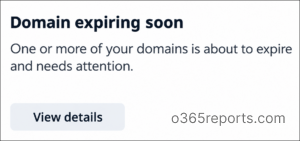
Note: This card appears only when one or more domains are approaching their expiration dates. If no domains are nearing expiration, the card will not be displayed.
Administrators can select View details on the card to see the domain names and their respective expiration dates.
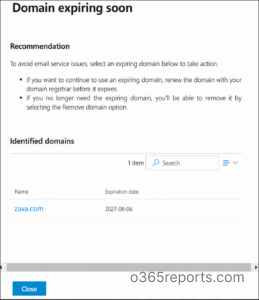
- If you want to continue using the domain, you can renew its registration through your domain registrar.
- If you no longer need the domain, you can remove the custom domain from Microsoft 365.
Domain Expiration Alert Notifications
The Domain expiring soon insight monitors domain expiration dates and alerts administrators 90, 60, and 30 days before expiration.
Each alert can include multiple domains with different expiration timelines. For example, a single alert might list one domain expiring within 90 days and another expiring within 60 days.
In addition to appearing on the Insights dashboard, these alerts are sent as email notifications to administrators’ registered email addresses.
⚠️ Fake domain expiration emails are common and may attempt to trick administrators into clicking malicious links or making fraudulent payments. If you receive a suspicious domain expiration email, verify its legitimacy by checking the alerts in the Exchange admin center.
To view them,
- Sign in to the Exchange admin center.
- Navigate to Mail flow.
- Select View alerts.
Here, administrators can review domain expiration alerts and identify the domains that require attention.
Closing Thoughts
An expired domain can interrupt email communication and affect users across an organization. Identifying domains approaching expiry gives administrators time to renew them or take the necessary action before mail flow is affected.
With the Domain expiring soon insight in the new Exchange admin center, Microsoft helps administrators stay informed about upcoming domain expirations through dashboard insights and email notifications.
Thanks for reading!