You open new Outlook for the first time, and something familiar is usually missing. Maybe a macro no longer runs, your offline mailbox behaves differently, or the rules you spent years fine-tuning can’t be imported or exported the way they were in classic Outlook.
That change can make you look back at the workflows you’ve relied on in classic. But the differences aren’t only about what’s missing but it’s also about what new version offers. New Outlook also brings capabilities such as snooze, sweep, email recall, along with some Copilot-powered workflows that aren’t available in classic Outlook.
That’s why the comparison goes beyond a simple feature checklist. This blog compares classic Outlook and new Outlook to see what stays, what changes, what you gain, and what you may miss before making the switch.
A Quick Comparison of Classic Outlook Vs New Outlook
Classic Microsoft Outlook is the mature desktop application many users have worked with for years. New Outlook offers a new interface and a modern Microsoft 365 experience. The real differences show up in the features, so here is the quick comparison.
| Feature | Classic Outlook | New Outlook |
| Interface | Traditional desktop experience | Modern, simplified experience |
| Offline access | Available | Partially available |
| PST support | Available | Partially available |
| VBA macros / COM add-ins | Supported | Not supported |
| Rules | Available | Partially available |
| Rules Import/Export | Available | Not supported |
| Quick Steps | Available | Partially available |
| Mail Merge | Available | Partially available |
| Copilot and AI | Available | Available, with newer capabilities |
| Snooze / Sweep / Undo Send | Not supported | Available |
| Recall email | Available | Available |
| Meeting Recap / Follow a Meeting | Not supported | Available |
| Work hours and location | Not supported | Available |
| Search refiners | Not supported | Available |
| Shared mailbox delegation | Available | Partially available |
| Teams scheduling | Add-in-based | Built in |
| Cross-device experience | Primarily desktop-focused | Windows, Mac, and Web |
Each version has features and workflows that make a difference depending on how you use Outlook. Let’s start with what new Microsoft Outlook brings.
Note: Microsoft regularly updates its feature comparison, so individual capabilities may change as new Outlook evolves.
What’s New in New Outlook for Microsoft 365 Users?
New Outlook is more than a redesigned version of classic Outlook. It is being developed around the newer Microsoft 365 experience, with new capabilities and workflows that go beyond what the traditional desktop client was designed for.
Copilot and AI-assisted Email
Copilot has become a bigger part of the Outlook experience as it moves into new Outlook. You get Copilot Chat, drafting with Copilot, email coaching, email thread summaries, meeting preparation, and creating meetings from email discussions.
Snooze, Sweep, Recall, and Undo Send
Below are some of the Outlook features that can make everyday inbox management easier.
- Snooze: Temporarily removes an email from your inbox and brings it back when you’re ready to handle it.
- Sweep: Helps clear recurring messages such as newsletters and notifications by moving or deleting them based on your preference.
- Undo Send: Adds a short delay before an email is sent, giving you a chance to stop it.
- Recall: Lets you try to retrieve a sent email in supported scenarios.
Swipe actions, updated folder and favorites experiences, and newer search workflows are also part of the inbox experience. You can manage emails more effectively in Outlook using these features.
Mail Merge
Mail merge in new Outlook makes it easier to send bulk emails while keeping each message individual. recipient an individual copy. You can use it for client communications, newsletters, event updates, and other messages where each recipient should receive their own copy.
Meeting Recap and Follow a Meeting
Meeting Recap helps you catch up after a meeting. Follow a Meeting keeps you connected to meetings you’re interested in, even if you’re not an attendee. Meeting recap is especially useful as Outlook works more closely with Teams and hybrid work.
Work Hours and Location, and Other Calendar Updates
The work hours and location feature in Outlook lets users share when and where they work, making it easier to schedule meetings around their availability. New Outlook calendar also supports in-person events and preserves declined meetings. For people who spend most of the day around meetings, these matter as much as inbox changes.
Microsoft 365 and Teams Integration
Microsoft Teams integration is built into the client rather than following the add-in model used in classic Outlook. Email, meetings, and collaboration sit closer together.
Search and Discovery
New Outlook supports refiners, file suggestions, mail suggestions, calendar suggestions, and online archive search results. It offers more contextual ways to find messages, files, and calendar information instead of copying classic Outlook’s search feature for feature.
Microsoft To Do Integration
New Outlook connects flagged emails with Microsoft To Do, making it easier to turn emails into tasks and keep follow-ups in one place. For example, you can flag an email that needs a response or action and manage it later from your task list without losing track of the original message.
Cross-Device Consistency
New Outlook offers a more unified experience across Windows, Mac, and the Web. This helps if you switch between devices. If you depend on Windows-specific desktop functionality, the trade-off is more noticeable.
Why Some M365 Users Prefer Classic Outlook Over New Outlook?
Classic Outlook has accumulated years of desktop features, customization options, and enterprise workflows. For someone who primarily reads and sends email, many of these capabilities may never matter. But for users managing multiple mailboxes, complex calendars, or automated workflows, these features can become essential to the way they work.
Deep Customization: Ribbon, Views, Rules, and Shortcuts
Classic Outlook provides extensive customization through its ribbon, Quick Access Toolbar, views, categories, conditional formatting, shortcuts, folders, and rules.
A user who has spent years building a specific workflow may not think of these as “features” anymore, they simply become part of the way the job gets done.
Moving to new Outlook doesn’t necessarily make the task impossible. But if the workflow behaves differently, users may need to learn new steps or find a workaround.
Automation and Integrations: VBA, COM Add-ins, OOM, and MAPI
Classic Outlook supports VBA macros, COM add-ins, Outlook Object Model (OOM), and Messaging Application Programming Interface (MAPI), giving organizations a range of options for custom integrations and automation.
This matters when Outlook is connected to a business process. A macro, add-in, or custom integration that has worked for years can’t simply be assumed to work after switching clients.
New Outlook doesn’t support these technologies, but it does support web add-ins, the same as classic Outlook. If your organization depends on an older extensibility technology, it’s worth checking whether a supported web-based replacement already exists before you migrate.
Rules and Quick Steps
Classic Outlook provides rules and quick steps that users can customize around the way they manage email and repetitive tasks. For users who have spent years building specific rules and customized quick steps, these settings may no longer feel like individual features. They simply become part of the way the job gets done.
New Outlook supports rules, but rule export and import aren’t supported, and quick steps are still only partially available.
Moving to new Outlook doesn’t necessarily make these tasks impossible. But if an established workflow works differently, users may need to learn new steps or find an alternative. The real migration question isn’t simply whether new Outlook has rules; it’s whether the specific workflow built in classic Outlook can be reproduced.
PST Files and Local Archives
Classic Outlook provides full PST support, making local data files and archived mail part of many users’ established workflows. Organizations and users with years of archived mail may also have processes built around accessing and managing that local data.
In new Outlook, Microsoft currently lists PST support as partially available. New Outlook supports importing mail, calendar events, contacts, and tasks from PST files, along with broader export and file-management capabilities, but some classic Outlook PST functionality is still unavailable.
If users depend on years of archived mail or established local-data workflows, those specific scenarios should be tested before migration. It also helps to know how to export Outlook contacts to CSV as part of that process.
Working Offline Mode
Classic Outlook was built around the desktop experience, so local caching and offline work are deeply tied to how it operates. Users can continue working with their mailbox, folders, and other local data without a connection.
For people who regularly work without a reliable internet connection, such as travellers or field staff, offline access can become part of their normal workflow rather than an occasional requirement.
In new Outlook, offline access is currently listed as partially available. Some offline capabilities are supported, but the experience may not cover every offline workflow available in classic Outlook.
Anyone who depends on working without a reliable connection should test their specific day-to-day tasks in new Outlook before switching.
Shared Mailboxes and Delegated Access
Classic Outlook provides familiar ways to work with shared mailboxes and delegated access. Executive assistants, support teams, and others who manage mailboxes on behalf of other users may depend on shared folders, calendars, unread counts, and delegated access as part of their daily work.
Shared mailboxes are available in new Outlook, but some delegation capabilities are still only partially available.
Before migrating these users, it’s worth testing shared mailbox access, calendar delegation, send-as and send-on-behalf workflows, shared folders, archive access, and any mailbox-specific rules or automation. A small difference here can affect someone who spends the entire day managing another person’s mailbox.
Dragging Attachments into Teams
In Classic Outlook, dragging an attachment directly into Teams can be part of an established workflow for sharing files during everyday collaboration. When a task is repeated throughout the day, even a small change in the number of steps can become noticeable.
If new Outlook requires a different sharing option, the result may be similar, but the workflow may involve an additional step.
For users who frequently move attachments between Outlook and Teams, it’s worth checking how this workflow fits into their daily routine before migrating.
Mail Merge Personalization
Classic Outlook supports mail merge workflows with contact-based personalization, making it possible to create individualized messages for larger groups of recipients. For users who rely on detailed personalization at scale, these capabilities can become an important part of their communication workflow.
New Outlook can start a mail merge and send each recipient an individual copy, but some of the contact-based personalization available in classic Outlook is still missing.
If detailed personalization is part of an established workflow, test the required mail merge scenarios in new Outlook before switching.
Can Users Switch Between New and Classic Outlook?
Yes, for now, Microsoft’s migration stages describe three phases: opt in, opt out, and cutover. Currently, new Outlook for Windows is in the opt-in stage, where you can try new Outlook and move back to classic Outlook when needed. In the opt-out stage, new Outlook becomes the default, but users can still revert. Cutover is the last stage, and it has no switching back.
The Classic Outlook Theme in New Outlook
Now, Microsoft is also rolling out an optional classic Outlook theme in new Outlook. It changes the visual styling, layout, typography, icons, and selected interactions so the interface feels more familiar. You can find it under Settings → General → Appearance → Outlook Classic.
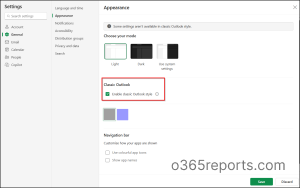
The theme makes new Outlook look more familiar, but it doesn’t turn it back into classic Outlook. The features and functionality underneath are still those of new Outlook.
How to Prepare for Migration to New Outlook in Microsoft 365
Before you migrate to new Outlook, look beyond the “Partially available” label and check how the features your users rely on will work after the switch.
- List your dependencies: Identify COM add-ins, VBA automation, PST archives, specialized calendar workflows, and other business-critical processes. Find out which users depend on them.
- Check shared and delegated workflows: Test shared mailboxes, shared calendars, and executive assistant scenarios.
- Test offline behavior: Check what users can do with their email and calendar when they don’t have an internet connection.
- Look for alternatives: For each gap, note whether new Outlook has an equivalent, a supported migration path, or a replacement technology.
- Control who can switch: Microsoft gives admins a policy for controlling the migration. If your add-ins, shared mailbox workflows, or PST archives aren’t ready, you can stop the migration prompts by setting the migration policy to disabled.
- Pilot first: Start with a small group and collect specific feedback. There’s a big difference between “new Outlook is unreliable” and describing the account, tenant, workflow, action, and how often it happens. Specific feedback gives Microsoft something concrete to investigate.
What Features Could Bring the Best of Both Outlook Experiences Together?
Classic Outlook and new Outlook each bring capabilities that may suit different workflows. Rather than assuming every organization needs the same features, it is useful to look at what each experience could borrow from the other.
Capabilities From New Outlook That Complement the Classic Experience
- Offline access could be useful for travellers and field staff who work with limited connectivity and need more than new Outlook’s current offline capabilities.
- PST support could make the transition easier for organizations with years of archived mail stored in PST files.
- A modern, supported path for automation and add-ins could give organizations a way to carry essential custom workflows into the newer experience.
- Rules with import and export could save users from manually rebuilding complex rules when moving from Classic Outlook to New Outlook.
- Quick steps with full parity could help users recreate the multi-step email workflows they have built around classic Outlook.
Capabilities From Classic Outlook That Matter in a Modern Outlook Experience
- Copilot for drafting and meeting preparation could bring newer AI-assisted workflows to users who still depend on classic Outlook for their day-to-day work.
- Snooze, sweep, recall, and undo send could make common email management and correction tasks easier without requiring users to change clients.
- Meeting recap and follow a meeting could be useful for teams that rely heavily on Teams and need easier access to meeting content after a meeting ends.
- Work hours and location could give teams more context when scheduling meetings across different working hours and locations.
- Favorites and folder colors could make it easier to organize and navigate busy mailboxes, particularly for users managing multiple folders and mail streams.
Final Thoughts
The classic Outlook vs. new Outlook discussion is less about choosing between two versions and more about how existing workflows move to the newer experience. Microsoft is bringing the familiar classic Outlook look to new Outlook, but some features and workflows still differ.
Microsoft currently says classic Outlook will be supported until at least 2029, but that is not a confirmed retirement date. The final cutover timeline has not been announced, giving organizations time to prepare.
For IT admins, the practical approach is to audit critical workflows, add-ins, macros, PSTs, and other workflow dependencies, then test them in new Outlook before making migration decisions. Keep an eye on the new Outlook release notes as capabilities continue to change.
Have questions about a specific classic Outlook or new Outlook feature? Share them in the comments below. We’re happy to help.