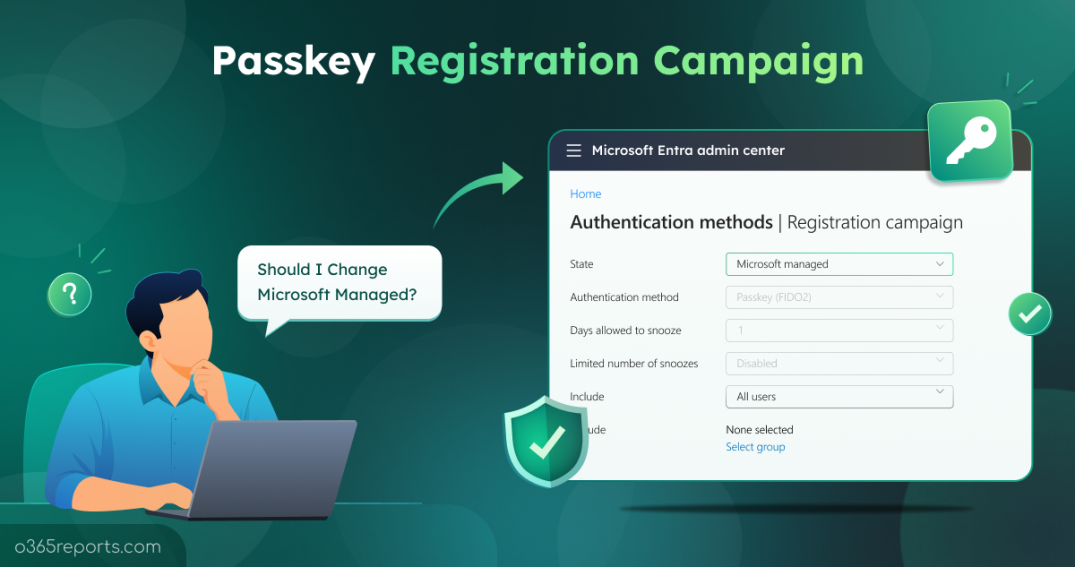
Weak authentication methods can leave organizations vulnerable to attacks. To strengthen authentication, Microsoft is now deprecating SMS and voice authentication and encouraging organizations to move users toward passkeys.
To help users make this transition, Microsoft has expanded its registration campaign to support passkeys. Previously, the campaign was used to encourage users to register for Microsoft Authenticator. Starting September 1, 2026, Microsoft began automatically enabling passkeys for users who were using SMS or voice authentication. These users can also receive a prompt to register a passkey when they sign in and complete MFA.
This means you may already have a passkey registration campaign running in your tenant without configuring one yourself. But what if you want to choose who gets the prompt, how often users can snooze it, or how you roll it out?
This guide explains how the passkey registration campaign works, when Microsoft manages it for you, and how to configure it yourself when you need more control.
What Is the Passkey Registration Campaign?
A registration campaign watches interactive sign-ins that complete multifactor authentication. After a user completes MFA, Microsoft Entra can display a prompt asking them to set up a passkey. The user can then create a passkey using a supported device or passkey provider.
Enabling Passkey (FIDO2) in the Authentication methods policy makes the authentication method available to users. The registration campaign goes a step further by prompting eligible users to register a passkey during sign-in.
The campaign can be in one of three states: Microsoft managed, Enabled, or Disabled. The State setting determines who controls the registration campaign and how much control you have over its behavior.
Registration Campaign: Microsoft Managed vs. Enabled
The table below highlights the key differences between the Microsoft managed and Enabled states of the Microsoft Entra passkey registration campaign.
| Setting | Microsoft managed | Enabled |
| Target method | Microsoft determines it | Admin selects Passkey or Authenticator |
| Passkey profile eligibility | Eligible passkey profile required | Any passkey profile |
| Snooze duration | 1 day | Admin selects 0–14 days |
| Snooze limit | Unlimited for Passkey | Admin chooses |
| Include/Exclude targets | Admin controls | Admin controls |
| Microsoft can update settings | Yes | No |
Check Whether a Passkey Campaign is Already Running in Your M365 Tenant
Your tenant may already have a passkey registration campaign running under Microsoft managed, as Microsoft is now making passkeys the default authentication method for the registration campaign. You can check its current state in the Entra admin center. To do it,
- Sign in to the Microsoft Entra admin center.
- Go to Entra ID > Authentication methods > Registration campaign.
- Check these two settings: State and Authentication method
If State is set to Microsoft managed and Authentication method is Passkey, a passkey registration campaign is already active in your tenant.
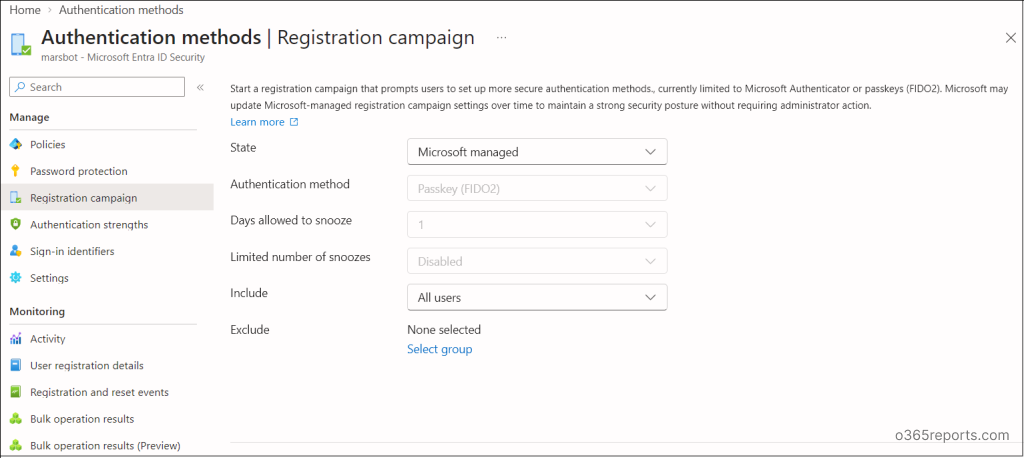
Note: Microsoft Managed handles the campaign settings, but you should still verify your passkey configuration.
Pre-requisites for a Passkey Registration Campaign:
To ensure users can receive and complete the passkey registration prompt, make sure the following settings are configured.
1. Enable Passkey (FIDO2) as an authentication method
This makes passkey authentication available to the users targeted by the registration campaign.
- Go to Microsoft Entra admin center > Authentication methods > Passkey (FIDO2).
- Set the Enable toggle to Yes.
- Under Include and Exclude tab, select the users or groups you want to make eligible for passkey registration.
- Save the changes.
2. Enable “Allow self-service setup”
This allows users to register their own passkeys through their Security info. Without it, users cannot complete passkey registration even when Passkey (FIDO2) is enabled.
- Go to Microsoft Entra admin center > Authentication methods > Passkey (FIDO2).
- Navigate to Configure tab
- Set Allow self-service setup to Yes.
- Save the changes.
Note: For Microsoft Managed passkey campaigns, Microsoft also checks whether a scoped user belongs to at least one eligible passkey profile. Passkey profiles affect eligibility under Microsoft managed, but they aren’t a separate prerequisite for enabling the registration campaign.
Do You Need to Configure the Registration Campaign Yourself?
You don’t necessarily need to configure the campaign yourself. If you’re comfortable with Microsoft’s managed settings, you can leave the campaign in Microsoft Managed state.
Consider switching to Enabled when you need more control over the campaign. For example:
- You want to control the targeted authentication method: Microsoft Managed determines the target method based on Microsoft’s current campaign settings. With Enabled, you can explicitly select Passkey as the authentication method.
- You need control over snooze behavior: Microsoft Managed currently allows users to snooze a passkey registration prompt for one day with unlimited snoozes. Enabled lets you set the snooze period and limit the number of snoozes.
- A user’s passkey profile isn’t eligible for Microsoft-managed targeting: Under Microsoft-managed passkey targeting, a user must be eligible for at least one passkey profile that meets Microsoft’s eligibility rules. For example, a passkey profile with restrictive AAGUID settings may prevent a user from receiving the nudge. With Enabled, users aren’t restricted by the Microsoft-managed profile eligibility check.
- You want predictable campaign settings: Microsoft Managed can change campaign settings as Microsoft updates its recommendations. Choose Enabled when you want to define and maintain the campaign settings yourself.
If your registration campaign is already set to Enabled and targets Microsoft Authenticator (i.e., Microsoft Authenticator registration campaign), you can edit the existing campaign and change the ‘Authentication method’ to Passkey.
How to Run a Registration Campaign to Setup a Passkey
Once you’ve decided how you want to run the registration campaign, you can configure it from the Microsoft Entra admin center. These steps cover both enabling a new passkey campaign and changing an existing campaign, such as one currently targeting Microsoft Authenticator.
- Sign in to the Microsoft Entra admin center with at least the Authentication Policy Administrator role.
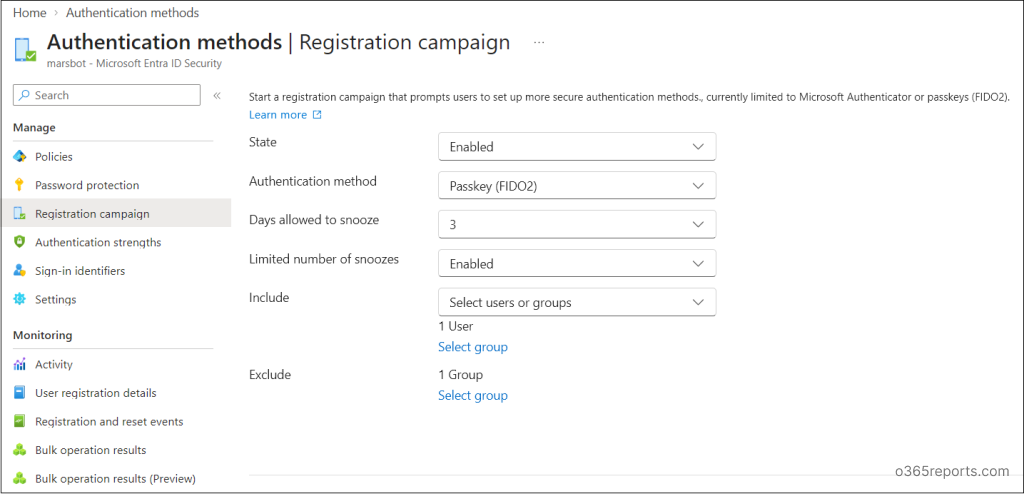
- Go to Entra ID –> Authentication methods –> Registration campaign.
- Under State, choose how you want to manage the campaign:
- Enabled: Configure the campaign settings yourself.
- Microsoft managed: Let Microsoft manage the campaign settings.
- If you selected Enabled,
- Set Authentication method to Passkey.
- Set Days allowed to snooze to a value between 0 and 14.
- Turn on Limited number of snoozes if you want to limit users to three snoozes.
- Under Include targets, add the users or groups you want to target. Add any exceptions under Exclude targets.
- Select Save.
For a controlled rollout, consider starting with a pilot group before expanding the campaign to a broader audience.
End User Experience for Passkey Registration Campaign:
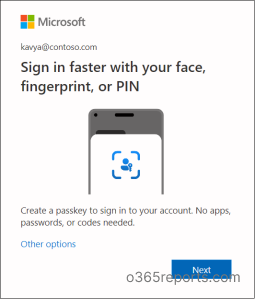
When an eligible user signs in interactively and completes MFA, Microsoft Entra can display a prompt to nudge user to register a passkey.
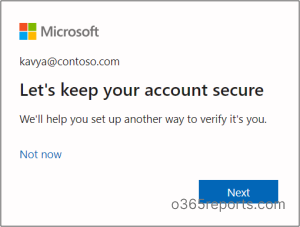
The user can continue with the passkey setup or select Not now to snooze the prompt based on the campaign settings.
Why are Some Users not Prompted to Setup Passkey?
If the passkey campaign is active but some users don’t receive the passkey registration prompt, check the following:
- The user isn’t included in the campaign
Check the Include targets and Exclude targets settings, along with the user’s group membership, to verify that the user is within the campaign’s scope.
- The user didn’t complete an interactive MFA sign-in
The registration prompt appears after MFA during an interactive sign-in. Users who aren’t completing an interactive MFA sign-in won’t receive the prompt.
- The user already has a suitable passkey
The campaign evaluates passkey availability for the user’s current device and browser combination. If a suitable local passkey is already available, Microsoft Entra doesn’t prompt the user to register another one.
- Microsoft Managed eligibility isn’t met
If the campaign is set to Microsoft Managed, check whether the user meets the required passkey profile eligibility. Users must be in at least one passkey profile that meets Microsoft’s eligibility criteria.
- Conditional Access prevents security information registration
CA policies governing security information registration are evaluated before the registration prompt. If the user doesn’t meet the policy conditions, the passkey prompt isn’t triggered.
- The user is on Linux
Currently, Linux users aren’t prompted by the passkey registration campaign.
- The user is a guest/B2B user
Passkey registration campaigns currently don’t prompt internal or external guest/B2B users. Microsoft plans to support passkey registration campaigns for B2B and internal guest users by the end of 2026.
Registering a Passkey vs. Enforcing Passkey Sign-ins
A registration campaign encourages users to set up a passkey, but it doesn’t by itself define when users must use a passkey to sign in. Once users have registered passkeys, organizations can use Conditional Access authentication strength to require stronger authentication for specific users, applications, or resources.
Once the rollout is complete, you can check users’ registered authentication methods to see how many users have successfully registered a passkey.
Wrapping up:
Passkey registration campaigns provide a simple way to guide users toward stronger, phishing resistant MFA in Microsoft Entra ID. By prompting users during sign-in, organizations can introduce passkeys as part of the normal authentication experience without requiring everyone to make the switch at once.
If you have any questions or run into issues while configuring the campaign, feel free to share them in the comments.