When a user offboards or changes roles, admins usually start by removing their licenses, group memberships, and permissions. However, one task remains difficult to automate: identifying and transferring the Teams meetings owned by that user.
If these meetings are left unchanged, recurring meetings continue under an inactive organizer, meeting settings become difficult to manage, and admins can’t easily remove or update attendees for future meetings. To avoid this, admins need to transfer the meeting organizer role to another eligible user. Previously, Microsoft didn’t provide a native way to do this, forcing admins to manually cancel and recreate the meetings, use shared mailboxes, or leave the inactive account as the organizer. These workarounds add unnecessary administrative overhead.
Microsoft addressed this gap by introducing the Invoke-ChangeMeetingOrganizer Exchange Online PowerShell cmdlet, which allows admins to transfer Teams meeting ownership to another user easily
It’s a valuable addition for meeting organizer transfers, but for operational tasks such as transferring recurring meeting series or handling bulk transfers across mailboxes requires additional PowerShell automation. This PowerShell script extends the cmdlet into a complete migration workflow. Let’s dive in!
Limitations of Using Get-MgUserDefaultCalendarEvent to Transfer Meetings
Before using the script, it is important to understand one complexity in discovering recurring meetings for transfer.
The Invoke-ChangeMeetingOrganizer cmdlet performs the organizer transfer, but it has no built-in way identify which meetings need to be transferred. Admins must first discover the eligible meetings by themselves.
⚠️ Another major challenge affects the transfer of recurring meeting series from Teams calendars. Most calendar-transfer scripts available online use cmdlets such as Get-MgUserEvent or Get-MgUserDefaultCalendarEvent to retrieve meetings. The problem is that a simple date-based filter can miss recurring meeting series that started before the selected transfer period, even when they have future occurrences within that period.
This is one of the complexities our script is designed to handle. ⭐
Our script uses Get-MgUserCalendarView to retrieve upcoming occurrences within the specified time range and then groups them by SeriesMasterId to correctly identify and include the corresponding recurring series in the transfer.
This way, long-running meetings aren’t overlooked just because they started earlier.
The script also includes a range of built-in filters for processing meetings based on specific requirements. This makes it a practical solution for Microsoft 365 user offboarding, mailbox migrations, or other lifecycle tasks, while ensuring no important Teams meetings are left behind.
Let’s see how to use the script to perform granular transfers and generate detailed reports.
Transfer Meeting Ownership in Microsoft Teams Using PowerShell Script
To get started, download the script below and transfer meeting organizers the smarter way.
Download Script: ChangeMeetingOrganizer.ps1
10 Highlights of the Meeting Organizer Transfer Script
- Report-only mode by default to preview eligible meeting transfers. Use -Transfer to perform the transfer.
- Transfer meetings for a single user or multiple users using a CSV file.
- Handles recurring meeting series that started before the transfer period but have upcoming occurrences within it.
- Generates a detailed CSV report with successful, skipped, and failed transfers, including failure reasons.
- Transfers upcoming meetings for the next 365 days by default. Use -DaysAhead to set a custom time range.
- Skips meetings starting within the specified lead time using -MinimumLeadHours.
- Automatically excludes cancelled meetings, attendee-only meetings, and personal appointments unless explicitly included.
- Validates mailbox types and processes only supported user mailboxes. Shared, room, and group mailboxes are excluded.
- Supports certificate-based authentication (CBA) and scheduler-friendly execution.
- Automatically installs the required Exchange Online and Microsoft Graph Calendar modules if not already installed.
Change Teams Meeting Organizers in Microsoft 365 – Sample Output
The script supports two execution modes:
- Report-only mode (default): Scans the specified organizers’ calendars and generates a report showing which meetings are eligible for transfer. No meeting organizers are transferred in this mode.
- Transfer mode (use -Transfer parameter): Transfers all eligible meetings from the current organizer to the new organizer and generates a report with the outcome of each transfer.
Upon every execution, the script explains the output file location and a summary of the transfer results, including attempted, successful, skipped, and failed meetings, as shown below:
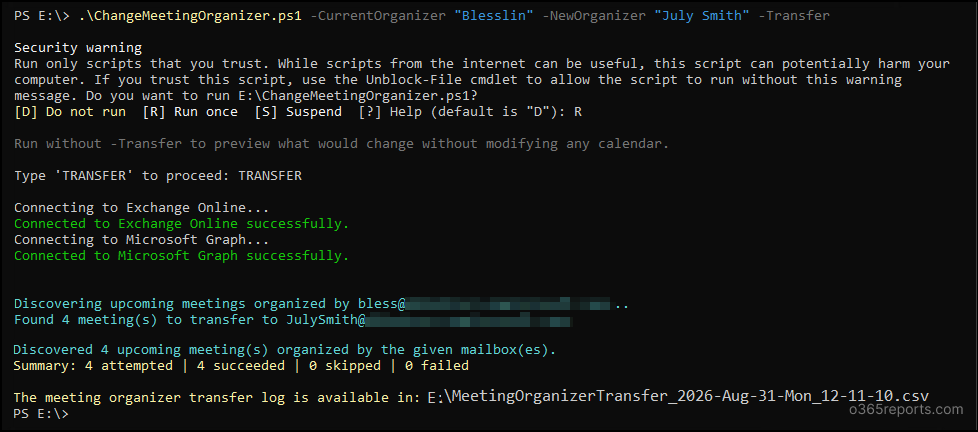
It also generates a detailed CSV report containing information about every meeting organizer transfer processed during the execution, as shown below.
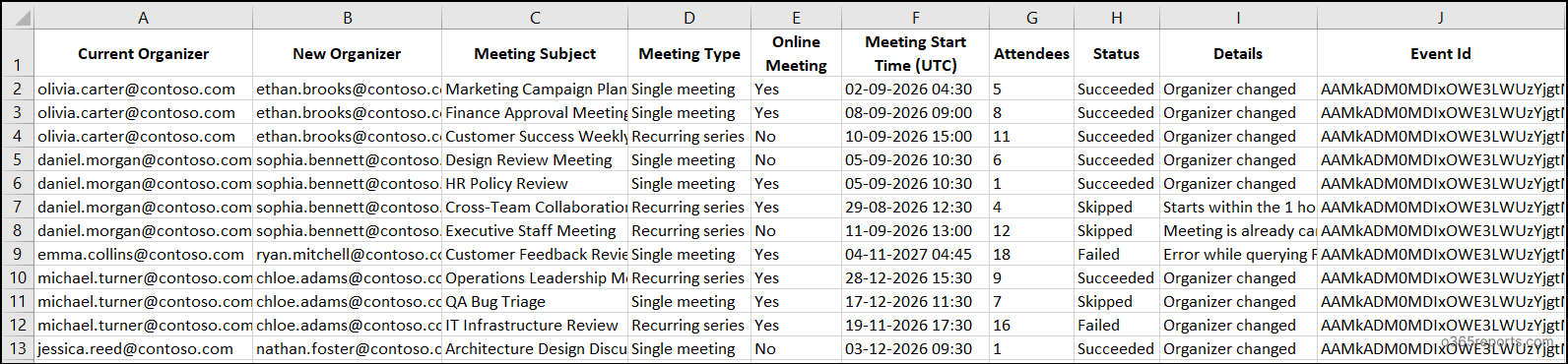
The generated report includes the details such as current organizer, new organizer, meeting subject, meeting type, online meeting, meeting start time (UTC), attendees, status, details, and event ID.
Bulk Transfer Meeting Ownership – Script Execution Methods
Before getting started, make sure you have the appropriate Exchange Online role assigned, either Organization Management or Recipient Management. These roles grant the required permissions to use the Invoke-ChangeMeetingOrganizer cmdlet.
Once the required permissions are in place, follow the steps below to run the script and reassign Teams meeting ownership:
- Download the script.
- Open Windows PowerShell.
- Select any one of the methods provided to execute the script.
Method 1:
Execute the script with MFA or non-MFA authentication.
Use this method when running the script with delegated Microsoft Graph permissions. Make sure the Microsoft Graph app has the Calendars.Read.Shared delegated permission.
|
1 |
.\ChangeMeetingOrganizer.ps1 -CurrentOrganizer <CurrentOrganizer> -NewOrganizer <NewOrganizer> -Transfer |
Replace <CurrentOrganizer> with the UPN or display name of the organizer whose meetings need to be transferred and <NewOrganizer> with the UPN or display name of the user who will become the new meeting organizer.
Note: The new organizer must be a user mailbox in the same Exchange Online tenant as the current organizer for the transfer to succeed.
This method can discover only calendars the signed-in admin can read, such as mailboxes with Full Access or calendars shared with the admin. If that doesn’t suit your case, use Method 2 instead.
During execution, the script prompts you to enter ‘TRANSFER’ to confirm the transfer process. After the transfer completes, the script exports a detailed CSV report with the status of every meeting processed, including successful, skipped, and failed transfers.
Method 2: Run the script using certificate-based authentication for unattended or app-only executions. Unlike Method 1, this method supports meeting organizer transfers for all mailboxes in the organization, regardless of the signed-in admin’s calendar permissions.
Before running the script, register an app in Microsoft Entra and configure it to connect to Microsoft Graph using a certificate. While configuring the app, make sure to grant the following application permissions:
- Microsoft Graph: Calendars.Read and User.Read.All
- Office 365 Exchange Online: Exchange.Manageas.App
|
1 |
\ChangeMeetingOrganizer.ps1 -CurrentOrganizer <CurrentOrganizer> -NewOrganizer <NewOrganizer> -Transfer -TenantId <TenantId> -ClientId <ClientId> -CertificateThumbprint <CertificateThumbprint> -Organization <DomainName> |
You can authenticate using either a CA certificate or a self-signed certificate, which is cost effective.
Advanced Capabilities of the Meeting Organizer Transfer Script
In addition to supporting both interactive and certificate-based authentication, the script includes various built-in filters that let you transfer Teams meeting organizers based on your specific requirements. Here are some of the key capabilities of the script:
- Change Teams meeting organizers across multiple mailboxes
- Transfer upcoming Teams meetings within a custom time range
- Change organizers for recurring meetings without duplicate processing
- Skip upcoming Teams meetings during organizer transfer
- Include personal appointments in meeting organizer transfers
- Combine multiple filters for granular Teams meeting organizer transfers
- Automate Teams meeting transfers with Task Scheduler
1. Change Teams Meeting Organizers Across Multiple Mailboxes (CSV Input)
During employee offboarding, department restructuring, or large-scale role transitions, admins often need to transfer Teams meeting ownership for multiple users at once. But, running the script separately for each organizer can be time-consuming and inefficient.
In such cases, create a CSV file with the CurrentOrganizer and NewOrganizer columns, and add the mailbox UPNs of the existing organizers and the new organizers, as shown below:
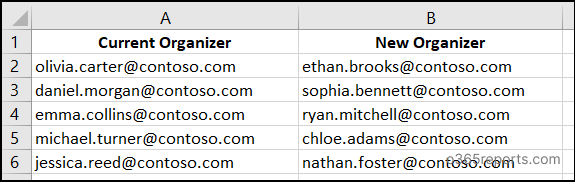
Once the CSV file is ready, run the script below to bulk change meeting organizers in Exchange Online:
|
1 |
.\ChangeMeetingOrganizer.ps1 -CurrentOrganizer <CurrentOrganizer> -NewOrganizer <NewOrganizer> -TenantId <TenantID> -ClientId <ClientID> -CertificateThumbprint <CertificateThumbprint> -Organization <DomainName> -Transfer |
Once executed, the script transfers all eligible meetings from each current organizer to the corresponding new organizer in a single run.
2. Transfer Upcoming Teams Meetings for a Custom Time Range
By default, the script looks for eligible Teams meetings whose next occurrence falls within the next 365 days.
This works well for most meetings, but not all; some recurring meetings, such as annual reviews or long-term milestone check-ins, may recur only once or twice a year. If their next occurrence falls beyond the 365-day window, they won’t be discovered for transfer.
To cover a longer range, use the -DaysAhead parameter as shown below. Replace <DaysAhead> with the number of days ahead you want the script to look. For example, setting it to 730 extends the discovery window to the next two years.
|
1 |
.\ChangeMeetingOrganizer.ps1 -CurrentOrganizer <CurrentOrganizer> -NewOrganizer <NewOrganizer> -Transfer -DaysAhead <DaysAhead> |
3. Change Organizers for Recurring Meetings Without Duplicate Processing
Recurring meetings require special handling because a single meeting series can contain hundreds of occurrences spread across months or even years. But, processing every occurrence individually can cause the same series to be processed repeatedly and result in unnecessary API calls.
The script avoids this intelligently by identifying the entire series using the meeting’s SeriesMasterId and transferring it only once, instead of occurrence by occurrence.

If an occurrence falls within the selected transfer window, the script includes the entire series, even if it started before that window. After the transfer, the new organizer takes over from the next scheduled occurrence, while past occurrences remain with the original organizer.
Note: For recurring Teams-enabled online meetings, this transfer changes the meeting organizer on the calendar, but not the ownership of the underlying Teams online meeting. The new organizer should update the recurring series with fresh Teams meeting details to take full ownership of the online meeting.
4. Skip Upcoming Teams Meetings During Organizer Transfer
By default, the script transfers all eligible Teams meetings from the moment you run it. However, transferring a meeting that’s about to start isn’t always a good idea. It may trigger last-minute updates or notifications for attendees, creating unnecessary confusion.
To avoid this, use the -MinimumLeadHours parameter as below. Replace <MinimumLeadHours> with the minimum number of hours before a meeting starts. For example, setting it to 24 skips meetings starting within the next 24 hours and processes only the remaining eligible meetings.
|
1 |
.\ChangeMeetingOrganizer.ps1 -CurrentOrganizer <CurrentOrganizer> -NewOrganizer <NewOrganizer> -Transfer -MinimumLeadHours <MinimumLeadHours> |
Note:
Instead of failing silently, these meetings are recorded as Skipped so you can transfer them later by running the script again.
5. Include Personal Appointments in Meeting Organizer Transfers
Employees often create Outlook calendar appointments for personal reminders, focus time, or private work sessions without inviting anyone else. By default, the script skips meetings without attendees to avoid transferring personal calendar items.
But, if your organization needs these appointments carried over during a mailbox transition, for example, an offboarding where even personal entries should move to a new owner, use the -IncludeAppointmentsWithoutAttendees parameter together with -Transfer, as shown below.
|
1 |
.\ChangeMeetingOrganizer.ps1 -CurrentOrganizer <CurrentOrganizer> -NewOrganizer <NewOrganizer> -Transfer -IncludeAppointmentsWithoutAttendees |
This includes both regular and Teams-enabled appointments without attendees alongside all other eligible meetings.
6. Combine Multiple Filters for Granular Teams Meeting Organizer Transfers
The script supports multiple parameters that can be combined to control which meetings are transferred. For example, to transfer meetings starting at least 24 hours from now and occurring within the next 500 days, you can combine -MinimumLeadHours and -DaysAhead as shown below.
|
1 |
.\ChangeMeetingOrganizer.ps1 -CurrentOrganizer <CurrentOrganizer> -NewOrganizer <NewOrganizer> -Transfer –MinimumLeadHours <MinimumLeadHours> -DaysAhead <DaysAhead> |
This transfers meetings scheduled from 24 hours ahead through the next 500 days. Similarly, you can combine the CSVPath, IncludeAppointmentsWithoutAttendees and other available parameters, to further refine the meetings to be transferred.
7. Automate Teams Meeting Transfers with Task Scheduler
Even after meeting organizers are transferred, there may be cases where additional Teams meetings still exist or continue to appear under the original mailbox. Manually checking these mailboxes regularly is impractical, especially when managing multiple users.
To automate this process, you can schedule the script using Windows Task Scheduler to run automatically at regular intervals. Each run checks for eligible meetings owned by the specified organizer and transfers them to the designated new organizer without requiring manual execution.
While configuring the scheduled task, specify the required script arguments in the Add arguments field, as shown below. The -Unattended parameter suppresses interactive prompts and allows the script to run silently in the background without requiring user input.
|
1 |
.\ChangeMeetingOrganizer.ps1 -CurrentOrganizer <CurrentOrganizer> -NewOrganizer <NewOrganizer> -TenantId <TenantID> -ClientId <ClientID> -CertificateThumbprint <CertificateThumbprint> -Organization <DomainName> -Transfer -Unattended |
The script also generates a report after each run and saves it to C:\Windows\System32 and allows you to review the transferred meetings when needed.
That’s all! The Invoke-ChangeMeetingOrganizer cmdlet simplifies Teams meeting organizer transfers, but this PowerShell script extends it with recurring meeting support, bulk transfers, granular filters, and detailed reporting. It helps admins handle meeting ownership changes more accurately, efficiently, and with complete visibility into every transfer.
We hope this script helps simplify bulk transfer meeting organizers in your Microsoft 365 environment. If you run into any issues, have any questions, or have suggestions, feel free to share them in the comments section below. Stay tuned for more blogs.