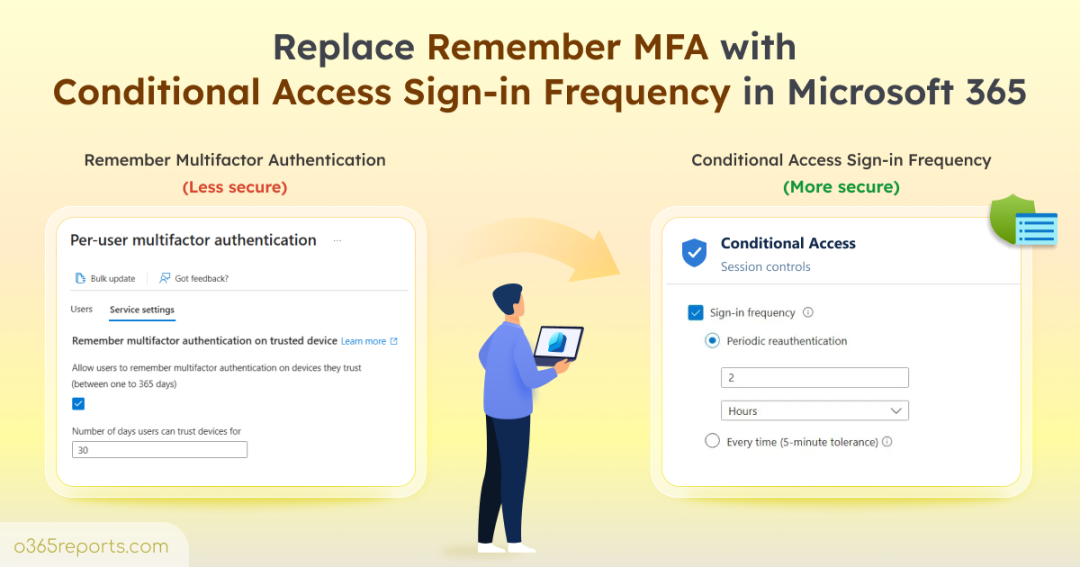
The remember MFA on trusted devices feature has long been used to bypass the default 90 days reauthentication window. But with modern identity security, does this static “Don’t ask for MFA again for X days” approach still hold up? While it improves user convenience, it relies on a fixed trust period rather than adapting to changing security conditions and access risks.
That is why switching from remember MFA to Conditional Access sign-in frequency is a significant step toward modern identity security. This blog covers the key differences between both features, explains why Microsoft recommends Conditional Access sign-in frequency, and walks you through how to configure it in your Microsoft 365.
What is Remember Multifactor Authentication in Microsoft 365?
Entra ID’s remember MFA feature reduces repeated MFA prompts for users who regularly sign in from the same trusted device. When an admin enables this setting, users who successfully complete the MFA challenge can select Don’t ask again for X days to mark their device as trusted.
After users select this option, Microsoft Entra ID stores a persistent browser cookie on the device, allowing the user to bypass MFA prompts until the configured trust period expires. Unless they sign in from a different browser, use another device, or clear their browser data, they won’t be prompted to verify their identity again.
Moreover, this is a tenant-wide setting that applies the same trust behaviour across all users, including administrators, regardless of whether they access resources from managed or unmanaged devices. As a result, if a trusted device is compromised, attackers can exploit this behaviour to maintain access without repeated MFA prompts.
Due to these limitations, Microsoft recommends using Conditional Access sign-in frequency to strengthen session security.
What is Entra ID Conditional Access Sign-in Frequency?
Conditional Access sign-in frequency is an adaptive session lifetime policy control in Microsoft Entra ID. This session control requires users to complete reauthentication based on the configured sign in interval.
Initially, this sign-in frequency session control applied only to first-factor authentication on Microsoft Entra joined, hybrid joined and registered devices.
However, Microsoft later extended this capability to enforce MFA reauthentication when the configured sign-in interval expires.
With Conditional Access sign-in frequency, you can:
- Apply different reauthentication intervals for specific users, groups, administrative roles, devices, and apps to strike the right balance between security and user experience.
- Combine this sign-in frequency session control with other conditions such as device compliance, user risk, and sign-in risk to further strengthen your organization’s security posture.
For example, organizations can allow longer sign-in intervals for managed and compliant devices, while applying stricter reauthentication requirements for privileged admins, risky users, and unmanaged or shared devices.
Because of this flexibility, Microsoft recommends using Conditional Access sign-in frequency instead of remember multi-factor authentication feature for organizations with Microsoft Entra ID P1 or P2 licenses. CA sign-in frequency works with Microsoft native apps by default, along with supported SAML or OAuth 2.0/OIDC apps that redirect users to Microsoft Entra for authentication.
Key Differences Between Remember MFA and Conditional Access Sign-in Frequency
The following comparison outlines the key differences between remember MFA and Conditional Access sign-in frequency features across authentication, configuration, and security characteristics.
| Characteristics | Remember MFA | Conditional Access Sign-in Frequency |
| Primary purpose | Bypasses repeated MFA prompts for a configured number of days. | Forces users to reauthenticate after a defined interval or every time, based on the Conditional Access policy. |
| Authentication behaviour | Skips the second factor (MFA) challenge until the trust period expires. | Requires first-factor authentication and prompts for MFA when required by Conditional Access policies. |
| Configuration level | Tenant-wide setting | Can target specific users, groups, roles, device locations, risk levels, or specific cloud apps. |
| License requirement | Included with Microsoft 365 subscription. | Requires Microsoft Entra ID P1 or P2 licenses. |
| Reauthentication interval | Configurable from 1 to 365 days. | Configurable from 1 hour to 365 days, or every time, depending on your organizational security requirements. |
| Zero Trust alignment | Relies on long-lived device trust making it less aligned with Zero Trust principles. | Doesn’t rely on implicit trust. It adapts authentication by continuously evaluating user, device, session, and risk signals, aligning with Zero Trust principles. |
| Compromised sessions | Trusted sessions remain valid until trust period expires upon device compromise. | Frequent reauthentication reduces the risk associated with compromised authentication sessions. |
Now that you understand the differences between these two approaches, let’s look at how to replace the legacy remember MFA setting with an adaptive Conditional Access sign-in frequency policy.
How to Replace Remember MFA with Conditional Access Sign-in Frequency in Microsoft Entra ID?
Before you begin, ensure you’re assigned at least the Microsoft Entra Conditional Access Administrator role to configure the Conditional Access sign-in frequency policy.
1. Disable the Legacy “Remember MFA” Setting in Entra Admin Center
To create a Conditional Access sign-in frequency policy, Microsoft recommends disabling the remember multifactor authentication feature. Since running both features together can result in inconsistent or unexpected MFA prompts. Follow the steps below to disable the remember MFA on trusted devices setting in Entra ID.
- Sign in to the Microsoft Entra admin center.
- Navigate to Entra ID > Users > All Users > Per-User MFA.
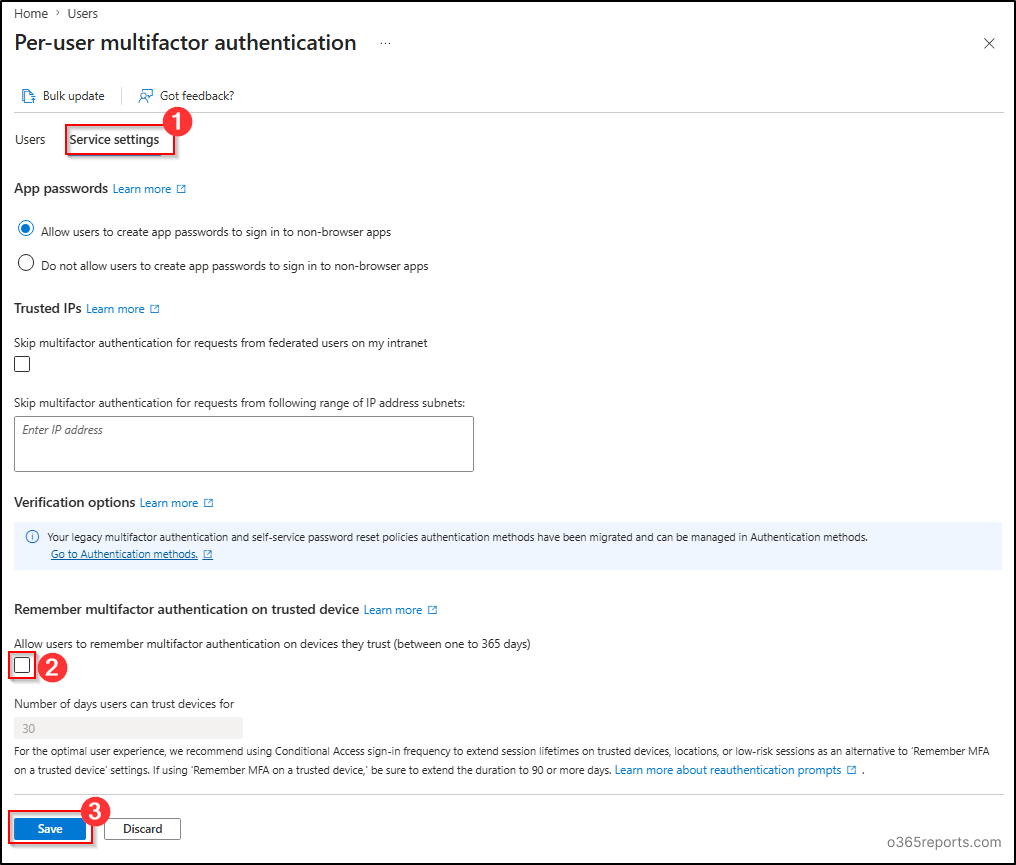
- Select the “Service settings” tab and scroll down to Remember multifactor authentication on trusted device section.
- Then uncheck “Allow users to remember multifactor authentication on devices they trust (between one to 365 days)” option and click Save.
2.Configure Entra ID Conditional Access Sign-in Frequency Policy
Now that you’ve disabled the legacy Remember MFA setting, the next step is to create a Conditional Access sign-in frequency policy. This policy determines how frequently users must verify their identity when accessing Microsoft 365 resources, giving you greater control over authentication sessions.
- On the Microsoft Entra admin center page, navigate to Entra ID > Conditional Access.
- Click on ‘Create new policy’ and give an appropriate name to your policy.
- Under Assignments section, select Users or agents this policy should apply to.
- In the “Include” section, select “All users”.
- In the “Exclude” section, exclude your break-glass accounts.
- In the “Target resources” section, choose “All resources (formally ‘All cloud apps’)” or “Select resources” based on your rollout plan.
- Click Grant under Access Controls and select Grant access.
- Enable ‘Require multifactor authentication’ and click ‘Select’ to ensure users complete MFA before accessing the selected cloud apps.
- Then, select Session under access control, enable Sign-in frequency, and choose one of the following options based on your security requirements.
- Periodic reauthentication: Requires users to sign in again after a specified number of hours or days. This option is suitable for most day-to-day workloads.
-
- Every time: Requires users to reauthenticate each time they access with 5 minutes tolerance. Admins can use this option to require reauthentication for sensitive apps or when activating a privileged role in PIM.
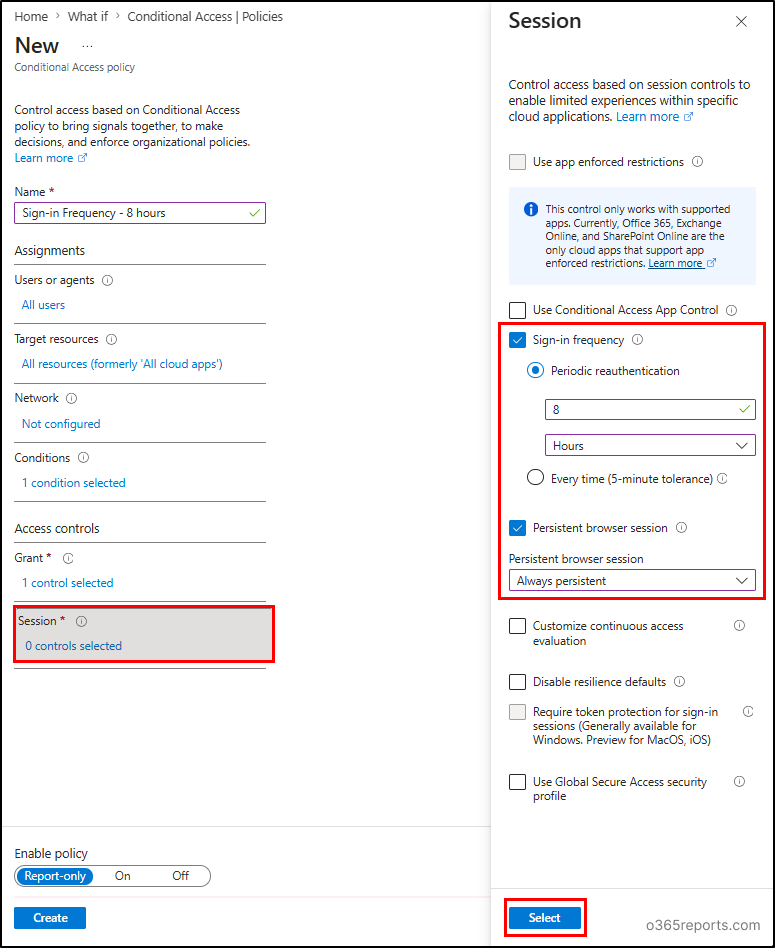
8. In the same section, select “Persistent browser session“ and choose “Always persistent” option. This allows users to remain signed in across browser sessions without requiring repeated authentication. Next, click “Select”.
9. Review your settings and set the Enable policy to “Report-only mode”.
10. Finally, click “Create” to create your Conditional Access policy.
Tip: If a trusted device is lost or compromised while you’re still on the legacy remember MFA setting, revoke the user’s sessions immediately from the Microsoft Entra admin center.
Points to be Considered:
Here are a few considerations to help admins implement Conditional Access sign-in frequency policies to ensure secure and seamless user access.
- To assess how CA sign-in frequency-based policy might impact users, you can use the Conditional Access What If tool in Microsoft Entra ID to simulate sign-in scenarios in real time.
- Avoid using token lifetime policies for access tokens, ID tokens, and SAML tokens together with Conditional Access session controls for the same users or applications, as this can result in repeated sign-in prompts.
- For a consistent user experience, Microsoft recommends configuring the same authentication prompt frequency for key Microsoft 365 applications, such as Exchange Online and SharePoint Online.
- If you configure both Persistent Browser Session and the “Stay signed in?” option for the same user, the Conditional Access setting takes precedence. Review both configurations to avoid unexpected session behaviour.
- Setting Conditional Access sign-in frequency to “Every time” across all users and apps increases how often users approve MFA prompts, which raises the risk of MFA fatigue and accidental prompt approval.
- While applying Conditional Access sign-in frequency for mobile devices, reauthentication after each configured interval may take around 30 seconds and can affect multiple apps simultaneously.
- Microsoft Entra Private Access does not support configuring Conditional Access sign-in frequency with the “Every time” option.
- On iOS devices, apps using certificate-based authentication as the first factor may block sign-in when both sign-in frequency and Intune MAM policies are applied.
- For unmanaged devices, consider enabling Idle Session Timeout for Microsoft 365 to reduce the risk of unauthorized access when users leave sessions inactive.
Final Takeaway
In conclusion, the legacy remember MFA feature may have reduced MFA prompts, but it no longer aligns with modern identity security requirements. Replacing it with Conditional Access Sign-in Frequency helps organizations improve session security. Hope this blog has helped you understand the differences between Remember MFA and Conditional Access sign-in frequency, and along with the considerations for implementing this security control in your Microsoft 365 environment. If you have any questions or doubts, feel free to leave a comment below. Thanks for reading!