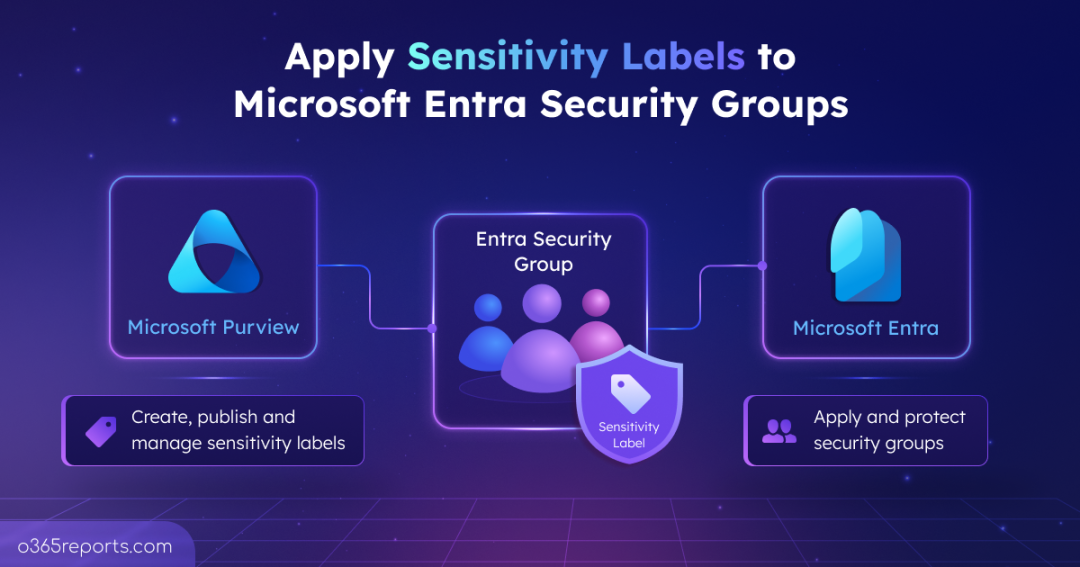
Microsoft Purview sensitivity labels have long helped organizations protect Microsoft 365 Groups, Microsoft Teams, and SharePoint sites with consistent governance policies. Now, this capability extends to Microsoft Entra security groups (in preview), bringing the same governance capabilities to cloud security groups.
By applying sensitivity labels to security groups, admins can consistently enforce governance policies without relying on manual configuration. This reduces administrative effort, strengthens governance, and minimizes the risk of inconsistent security configurations.
In this blog, we’ll explore how to create, publish, and apply sensitivity labels to Microsoft Entra cloud security groups.
How Purview Sensitivity Labels Protect Entra Security Groups?
Sensitivity labels are part of Microsoft Purview Information Protection and help organizations classify and govern Microsoft 365 resources based on their sensitivity. When applied consistently, these strengthen Microsoft Entra group governance by helping admins identify business-critical groups and reduce unmanaged access risks.
Applying sensitivity labels to Microsoft Entra security groups helps organizations to:
- Control external collaboration – Allow or block guest users from being added to supported cloud security groups.
- Standardize guest access policies – Apply consistent guest access settings across multiple security groups without manual intervention for each group.
- Classify sensitive security groups – Apply meaningful sensitivity labels to easily identify security groups that grant access to privileged roles, sensitive resources, and business-critical assets.
Now, let’s dive into how to apply a sensitivity label to Microsoft Entra cloud security groups.
Prerequisites to Create and Apply Sensitivity Labels to Security Groups
Before you apply sensitivity labels to Microsoft Entra security groups, ensure your environment meets the following prerequisites.
- Ensure your tenant has a supported license, such as Microsoft Entra ID P1/ P2 or Microsoft 365 E3/E5.
- To create sensitivity labels, you must be assigned one of the following Microsoft Purview roles:
- Compliance Administrator
- Compliance Data Administrator
- Security Administrator
- Global Administrator
- To apply a sensitivity label to a security group, the user must be the group owner or have an appropriate Microsoft Entra administrative role, such as Groups Administrator or Global Administrator.
- The target group must be a cloud-based Microsoft Entra security group with an assigned membership type.
- Sensitivity labels for security groups must be enabled by setting EnableMIPLabels to True in the Group.Security directory setting. If the setting doesn’t exist in your tenant, create it using the following cmdlet.
|
1 2 3 4 5 6 7 8 9 10 |
$params = @{ templateId = "d209f6fa-3839-4d70-b83f-60b1c64d0e8f" values = @( @{ name = "EnableMIPLabels" value = "True" } ) } New-MgBetaDirectorySetting -BodyParameter $params |
If the Group.Security directory setting already exists, update the “EnableMIPLabels” property to True by using the Update-MgBetaDirectorySetting cmdlet.
How to Create and Apply Sensitivity Labels to Security Groups in Microsoft 365
With the required prerequisites in place, follow the steps below to apply a sensitivity label to a Microsoft Entra security group,
- Create a sensitivity label in Microsoft Purview
- Publish the sensitivity label to security groups in Entra
- Apply sensitivity labels to Microsoft Entra cloud security groups
How to Create a Sensitivity Label in Microsoft Purview
Microsoft Purview sensitivity labels support governance settings such as privacy, external user access, external sharing, etc for Microsoft 365 Groups, Teams, and SharePoint sites.
Since Microsoft Entra security groups don’t have collaboration workspaces, most of these settings aren’t applicable. For security groups, sensitivity labels are currently used to govern guest membership rather than content or collaboration.
Depending on your requirements, you can choose either of the following approaches:
- Reuse an existing sensitivity label that is already configured for Microsoft 365 Groups. Only the supported guest membership settings are enforced for security groups.
- Create a dedicated sensitivity label for security groups by configuring only the settings relevant to security groups. This provides greater flexibility for security groups.
The following steps show how to create a sensitivity label for Microsoft Entra security groups.
- Sign in to the Microsoft Purview portal with a supported administrator account.
- Navigate to Solutions -> Information Protection -> Sensitivity labels, then click Create a Label.
- Enter the Label name, Display name, and Description. Optionally, provide a Description for admins and choose a Label colour. Then, click Next.
- On the Define the scope for this label page, select “Groups & sites” and click Next.
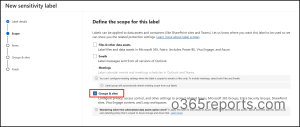
- Click Next until you reach the Define protection settings for groups and sites page. Select “Privacy and external user access”, then click Next.
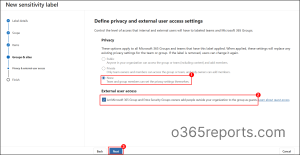
- On the Define privacy and external user access settings page, configure the following options for Microsoft Entra security groups and click Next.
- Privacy: Select None, as the Public and Private privacy options don’t apply to Microsoft Entra security groups.
- External user access: Enable this setting to allow group owners to add guest users to labelled security groups or disable it to prevent guest users from being added.
- Review the label settings and click on Create label to create the sensitivity label.
How to Publish Sensitivity Labels to Security Groups in Entra
Creating a sensitivity label is like designing a rulebook – it defines how the label should behave, but it isn’t available for use until it’s published. Publishing the label in Microsoft Purview through a label policy makes it available to the intended users and supported Microsoft 365 workloads, including Microsoft Entra cloud security groups.
To publish the label, on the final step of the label creation wizard, select Publish label to users’ apps. Then, create a new label policy or add the label to an existing policy and publish it. The label policy determines which users can see and apply the sensitivity label and where it’s available across supported Microsoft 365 workloads. 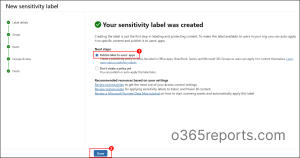
Note: You can also publish the label later by selecting the sensitivity label from the Sensitivity labels list and clicking Publish labels. This option also lets you create a new label policy or add the label to an existing policy.
After publishing a new sensitivity label, it may take up to 24 hours for the label to synchronize with Microsoft Entra ID to become available.
How to Apply Sensitivity Labels to Microsoft Entra Cloud Security Groups
After creating and publishing the sensitivity label, the final step is to assign it to a supported Microsoft Entra security group. Once applied, the label enforces its configured guest membership settings, helping maintain consistent governance across security groups.
You can apply a sensitivity label to a Microsoft Entra security group using any of the following methods:
- Apply a sensitivity label using the Microsoft Entra admin center
- Assign the sensitivity label with Microsoft Graph PowerShell
- Apply a Sensitivity Label through the Microsoft Graph API
Apply a Sensitivity Label to Security Groups Using Entra Admin Center
Use this approach to assign sensitivity labels directly from the Microsoft Entra admin center with a user-friendly interface.
- Sign in to the Microsoft Entra admin center.
- Navigate to Microsoft Entra ID -> Groups -> All groups, select the cloud security group that you want to apply sensitivity label.
- Go to Properties and select the required label from the Sensitivity label dropdown.
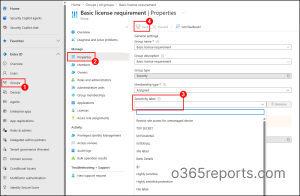
- Select Save to apply the sensitivity label.
Assign a Sensitivity Label to Security Groups Using Microsoft Graph PowerShell
You can also use Microsoft Graph PowerShell to assign a sensitivity label to a Microsoft Entra cloud security group.
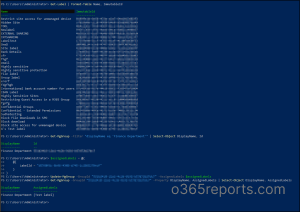
Before you begin, retrieve the sensitivity label ID from Security & Compliance PowerShell and the target security group’s ID from Microsoft Graph PowerShell.
- First, connect to Security & Compliance PowerShell and run the cmdlet below to retrieve the sensitivity label ID.
1Get-Label | Format-Table Name, ImmutableId - Next, connect connect to Microsoft Graph PowerShell and retrieve the object ID of the target security group using the below cmdlet.
1Get-MgGroup -Filter "displayName eq 'YourGroupName'" | Select-Object DisplayName, Id - After retrieving both IDs, run the following cmdlet to apply the sensitivity label to Microsoft Entra security groups:
1234$assignedLabels = @(@{ "LabelId" = "<labelID>" })Update-MgGroup -GroupId "<Group-ID>" -AssignedLabels $assignedLabels
Once the sensitivity label is applied, you can verify the applied sensitivity labels using the below cmdlet.
|
1 |
Get-MgGroup -GroupId "<Group-ID>" -Property DisplayName, AssignedLabels | Format-List |
Apply a Sensitivity Label to Security Groups Using Microsoft Graph API
You can also assign sensitivity labels to a Microsoft Entra cloud security group by updating the assignedLabels property through Microsoft Graph API.
Follow the steps below to apply a sensitivity label using Microsoft Graph Explorer;
- Sign in to Microsoft Graph Explorer.
- Set the HTTP request method to PATCH.
- Enter the following API in the HTTP request URL:
Replace <Group-ID> with the object ID of the target Microsoft Entra security group.1https://graph.microsoft.com/v1.0/groups/<Group-ID>
- On the Modify Permissions tab, click Consent on the “Group.ManageProtection.All” permissions.
- In the Request body, enter the following JSON payload, replacing <Label-ID> with the ID of the sensitivity label you want to assign to the security group.
1{ "assignedLabels": [ { "labelId": "<Label-ID>" } ] }
- Click Run query to assign the sensitivity label to the security group.
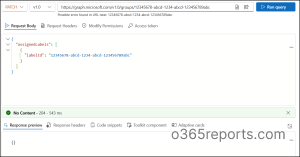
A successful request returns the 204 No Content response code, indicating that the label has been applied successfully.
Key Limitations for Applying Sensitivity Labels to Security Groups
Consider the following points before applying sensitivity labels to Microsoft Entra security groups to ensure a effective implementation.
- Use supported security groups: Sensitivity labels currently support only cloud-only Microsoft Entra security groups with the assigned membership type. Dynamic security groups, on-premises synchronized groups, mail-enabled security groups, Exchange-managed groups, and distribution lists aren’t supported.
- Verify the sensitivity label before assignment: Review the sensitivity label configuration before assigning it to a security group. During the preview, an applied sensitivity label cannot be changed or removed, so ensure the label settings are correct before applying it.
- Nested groups block label assignment: You can’t apply a sensitivity label to a security group that already contains nested security groups. Remove the child groups first, apply the label to the parent group, and then add them back.
- Child groups require equal or stricter labels: When adding nested security groups to a labelled parent group, each child group must have the same or a more restrictive sensitivity label than the parent group. Security groups with a less restrictive label can’t be added as child groups.
- Existing guest members block sensitivity label assignment: If a security group already contains guest users and the selected sensitivity label blocks external user access, the label assignment fails. Remove the guest members first and then apply the sensitivity label to the security group.
- Privileged admins can bypass label enforcement: During the preview, certain built-in administrator roles and permissions can bypass sensitivity label policy enforcement. Microsoft notes that this behaviour may change before general availability.
- Label policy changes don’t affect existing group state: If you modify a sensitivity label after it has been applied to security groups, the updated policy applies only to future actions. For example, if you change a label from Allow guest access to Block guest access, existing guest members are not automatically removed from groups that already have the label applied. The updated policy only prevents new guest users from being added to those groups.
By addressing these considerations, organizations can smoothly implement sensitivity labels and strengthen security group governance.
Conclusion
And that’s it! We hope this blog helped you understand how to apply sensitivity labels to Microsoft Entra security groups and improve group governance. If you have any questions or insights from your experience with sensitivity labels, share them in the comments below. We’d love to hear from you!