You open your SharePoint site permissions and notice something you didn’t configure: A mysterious group with “Web-Only Limited Access” permission pops up in your permissions list. You try to remove it—but SharePoint Online won’t let you. You search for answers and come across articles about blocking unmanaged device access. This leads you to assume that this web-only limited access permission level is the result of a device restriction policy.
But actually, it isn’t. The problem here is the terminology.
In SharePoint, “Web-Only Limited Access” refers to two completely different things. One is a system-managed permission level that SharePoint assigns automatically. The other is an admin-configured policy that restricts web-only access from unmanaged or personal devices. They share the same name, but they are entirely unrelated.
This guide untangles both, so you can clearly understand which one you’re dealing with and what to do about it.
Two SharePoint Features, One Confusing Name – An Overview
The phrase ‘Web-Only Limited Access’ appears in two separate contexts in SharePoint and confusing them can send you down the wrong troubleshooting path. Let’s start with a high-level overview.
| Aspect | Permission Level | Device Access Policy |
| What it is | A system-assigned permission level in SharePoint site permissions | An admin setting in the SharePoint admin center |
| Who creates it | SharePoint assigns it automatically | An admin configures it manually |
| Backed by | SharePoint’s permission inheritance system | Microsoft Entra Conditional Access policies |
| What it restricts | Limits the user’s navigation to the web object (site) they need to reach the shared item | Limits all unmanaged device users to browser-only access (no download, print, or sync) |
| Can you remove it? | Not directly. Remove the source item-level sharing instead. | Yes. Change the setting in the admin center, or turn off the Conditional Access policy |
Now that you have an overview, let’s break them down clearly to get a full picture of what the ‘Web-Only Limited Access’ permission level is and what the ‘web-only access’ device policy means.
Web-Only Limited Access Permission Level in SharePoint Online
SharePoint assigns Web-Only Limited Access at the site level when a user gains access to content inside the site without having direct site permissions. Let’s break down the Web-Only Limited Access permission level in two parts: when it appears and how it works behind the scenes.
- Common triggers for the Web-Only Limited Access permission level
- How does Web-Only Limited Access work behind the scenes?
When does the “Web-Only Limited Access” Permission Level Appear?
Before understanding how it works, it is needed to know what triggers it. Here are the most common scenarios where SharePoint automatically assigns the Web-Only Limited Access permission level:
- Sharing a file with an internal user who lacks site access
- Sharing a file or folder via a “Specific people” link
- Sharing with external/guest users
- Manually broken inheritance with unique permissions
The common thread is the same: a user receives access to a specific item but has no membership or permissions on the site above it.
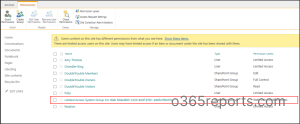
Based on our observations, it works as expected in most of the above scenarios. However, there are cases where users do not appear in the group as expected. Hope it will work as expected!
The Permission Chain: How SharePoint Builds Web-Only Limited Access
SharePoint’s permission model follows a clear hierarchy. A site contains libraries, libraries contain folders, and folders contain files. By default, each level inherits permissions from its parent, ensuring consistent and streamlined access control throughout the structure.
But what happens when you share a single file with someone who doesn’t have access to the site? SharePoint has a problem. The user needs to reach that file, but they have no permissions on the site, library, or folder above it. SharePoint’s UI can’t render the path to the file without some level of access at each parent level.
So, SharePoint solves this automatically. The moment you share an item with someone who lacks site access, SharePoint:
- Breaks permission inheritance on that specific item
- Grants the user their assigned permissions (Edit, View, etc.) on that item
- Assigns Limited Access or Web-Only Limited Access at every parent level: the folder, the library, and the site
The admin doesn’t do this. SharePoint does it silently in the background. Now let’s see exactly what this looks like with a real example.
Automatic Assignment of Web-Only Limited Access
Let’s say: Admin shares Q1-Report.docx with User B (who has no access to the site). The file lives at: Marketing Site → Documents Library → Finance Folder → Q1-Report.docx
Here’s what SharePoint does automatically!
Step 1: Break Inheritance on the File
SharePoint breaks permission inheritance on Q1-Report.docx so it can have its own unique permissions, separate from the folder above it.
Step 2: Grant the Actual Permission on the File
This is the only permission the admin explicitly granted. Everything in the next step is SharePoint acting on its own.
| Level | Object | Permission Granted | How |
| File | Q1-Report.docx | Edit or View (whatever you chose when sharing) | Direct permission on the item |
Step 3: Auto-Assign Limited Access Up the Chain
SharePoint works upward from the file, assigning the minimum access needed at each parent level:
| Level | Object | Permission Auto-Assigned | Group Added To | Why |
| Folder | Finance Folder | Limited Access | (direct assignment) | User B needs to traverse this folder to reach the file |
| Library | Documents | Limited Access | (direct assignment) | User B needs to traverse this library to reach the folder |
| Site | Marketing Site | Web-Only Limited Access | Limited Access System Group For Web | User B needs to enter the site but nothing more |
Step 4 — What User B Can Actually Do
| Level | Object | What User B Can Do | What User B Cannot Do |
| Site | Marketing Site | Open the site (web object only) | Use client integration, remote interfaces (APIs), application pages |
| Library | Documents Library | Open, use client integration, use remote interfaces (APIs), browse user info | Nothing restricted at this level |
| Folder | Finance Folder | Open, use client integration, use remote interfaces (APIs), browse user info | Nothing restricted at this level |
| File | Q1-Report.docx | Full edit or view per sharing settings | Nothing restricted — this is the shared item |
Hope you are clear about the Web-Only Limited Access group. Now, let’s move to the unmanaged device policy, causing limited, web-only limited access.
Unmanaged Device Policy for Limited Access in SharePoint Online
Now, this is a completely different thing from the SharePoint permission level we just discussed — there is no relation between them.
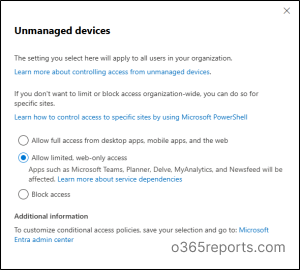
SharePoint admin center has an access control setting specifically for unmanaged devices. Under this setting, there are three options:
- Allow full access from desktop apps, mobile apps, and the web
- Allow limited, web-only access
- Block access
The catch lies in the second option –“Allow limited, web-only access.” While it sounds identical to the permission level seen in site permissions, it serves an entirely different purpose. When enabled, it restricts users on personal or unmanaged devices to browser-only access, preventing them from using desktop or mobile apps altogether.
Let’s see when it triggers and how it works behind the scenes.
- When does the unmanaged device policy take effect?
- What powers the unmanaged device restriction behind the scenes?
When Does the Unmanaged Device Policy Take Effect?
The device policy–driven “Web-Only Limited Access” comes into effect in the following scenarios:
- When a user accesses SharePoint from a personal or unmanaged device and an organization-wide restriction is enabled
- When a user accesses a specific site from an unmanaged device where per-site restriction has been applied via PowerShell
- When a user accesses a sensitivity-labeled site from an unmanaged device
We will be publishing a detailed blog on the different scenarios of enforcing web-only access using this device restriction policy. Stay tuned! Now that we’ve covered when this policy is triggered, let’s take a closer look at what happens behind the scenes.
What Powers the Unmanaged Device Restriction Behind the Scenes?
Once an admin enables “Allow limited, web-only access” in the SharePoint admin center, a chain of events kicks off automatically behind the scenes. Here’s what happens:
- Conditional Access policy auto-creation — When the admin selects “Allow limited, web-only access,” SharePoint doesn’t enforce this itself. It creates a Conditional Access policy in Microsoft Entra ID automatically.
- Device compliance check — At every sign-in, Entra evaluates whether the device is hybrid Azure AD joined or Intune compliant with the configured Conditional Access Policy. If neither, the device is treated as unmanaged.
- SharePoint applies the restrictions — once detected as unmanaged, SharePoint enforces browser-only access: blocks download, print, sync, and desktop/mobile app access.
- Banner notification — SharePoint renders the restriction banner at the top of every site as well as on the files, like this “Your organization doesn’t allow you to download, print, or sync using this device. To use other actions, use a device that’s joined to a domain or marked compliant by Intune. For help, contact your IT department.”
With a clear understanding of what’s happening behind the scenes, the next logical question is—how to remove it?
Remove Web-Only Limited Access in SharePoint Online
If you determine that either the Web-Only Limited Access permission or the device restriction policy is not required, you can remove or modify them as needed.
- To remove the Web-only Limited Access permission, identify the source (such as the specific document or item sharing) and remove the unique permissions accordingly.
- If you don’t want the device restriction (browser-only) policy, you can turn it off from the SharePoint admin center. Alternatively, you can disable or modify the Conditional Access policy based on your requirements.
That’s it! The confusion ends once you recognize that the name is shared—but the behavior isn’t. With this clarity, you can confidently identify whether you’re dealing with a permission or a policy and act accordingly. Happy reading!