Applications in Microsoft Entra ID are central to day-to-day operations in Microsoft 365. Along with Microsoft-managed apps, tenants rely on custom applications and third-party SaaS apps to support business-specific needs. Managing these applications effectively is essential to protect resources and maintain security.
When such applications become risky or unused, admins often consider deleting them. However, deleting the app permanently removes its configuration, including permissions, secrets, and integrations. Although app restoration is possible, it is available for only 30 days. After the duration, the app will be permanently deleted and cannot be restored.
In such cases, blocking access to the app is a safer approach, as it prevents usage while preserving all configurations. You can reactivate at any time and regain all existing permissions, certificates, secrets, etc.
Admins can restrict access to the application in two ways:
- Deactivating the application – It is used to stop access to the app across all tenants.
- Disabling user sign-in – It restricts app access within a specific tenant, and the app remains accessible to users in other tenants.
In this blog, you will learn the differences between the two actions and how to perform them in Microsoft 365.
What is App Deactivation and Disable User Sign-ins in Entra ID?
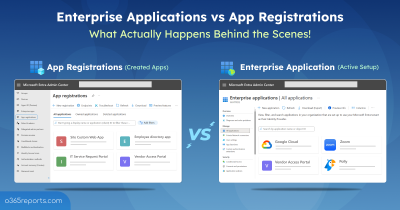
Before exploring the concepts, let’s revisit the basics, app registrations, and enterprise applications in Entra ID. These two terms appear frequently in this blog and represent the core difference in how user access is blocked.
App registrations: This is where applications are registered in Entra ID to work with Microsoft’s identity services. Registering an app creates its identity, and you can define how it can sign in, request permissions, and connect to Microsoft services. Here, all organization-owned applications are managed and securely granted access to tenant data.
Enterprise apps: When an application is added or consented to in a tenant, a service principal is created locally for using the application. Admins can control the app’s sign-ins, permissions, and policies within the tenant. All the apps used and consented to by the tenant will be listed in Enterprise apps.
Now, let’s explore deactivation and disabling user sign-ins in Entra ID applications.
Deactivate an Entra ID Application: This action is used to stop the app from working in every tenant where it’s been used while preserving all the app configurations intact. It can be taken only on app registrations by admins or app owners.
Disable User Sign-in to an Application in Entra: This action is used to disable sign-ins and control user access to an app within a specific tenant, while users in other tenants remain unaffected. It can be taken on all apps listed under enterprise applications in Entra ID.
For example, if the user is blocked from accessing the app in your tenant, they can access the same app in other tenants.
Hope this gives you a clear idea of the two ways of blocking app access. The detailed differences between app deactivation and disabling sign-ins are covered in a table at the bottom of the blog for better clarification and easy understanding. Let’s dive into the procedures in detail.
How to Block Access to Entra ID Applications?
To disable access for app registrations and enterprise applications in Microsoft Entra, the following prerequisites(admin roles and API permissions) are required.
Admin Roles:
- Cloud app administrator (or)
- Application administrator role (or)
- Owner of the service principal.
API permissions:
- Application.ReadWrite.All (delegated or application)
- Application.ReadWrite.OwnedBy (application, for owned apps only)
For deactivating an application, you must have ‘Application.ReadWrite.OwnedBy’ permission along with other permissions. Likewise, for disabling sign-in, you must be the owner of the service principal.
Let’s explore how to deactivate, activate, and disable applications in Entra ID with detailed steps.
- Deactivate an app registration in Entra ID
- Disable Enterprise applications in Microsoft 365
- Remove Application Owners After Disabling Apps in Entra
Deactivate Applications in Microsoft Entra
When an app registered in your tenant and is used by multiple tenants is compromised, deactivating the enterprise app would be ideal. As the compromise affects the app itself, deactivation cuts off access to the app across tenants.
The following happens when you deactivate the application in Entra:
- Block user access globally to prevent further exposure across all tenants.
- No new tokens will be issued across all tenants.
- All the existing configurations, secrets, and permissions are preserved.
- Existing tokens may work until expiry. So, you need to revoke sessions after deactivation to block access instantly manually.
After the app deactivation, you should follow proper steps like rotating secrets and certifications, and revisit permission grants.
To deactivate an application in Entra ID, you can use either Entra Admin Center or PowerShell. Below are the different actions covered in this section:
- Deactivate an application in Entra admin center
- Disable an Individual App Registration Using PowerShell
- End-user Experience When an Application Is Disabled
- List All Disabled App Registrations in Entra ID
- Reactivate applications in Microsoft Entra
1. Deactivate an Application in Entra Admin Center
Deactivating an app registration is a quick, one-click action that immediately stops it from issuing tokens across the tenant.
- Navigate to Microsoft Entra admin center → Entra ID → App registrations.
- Select the app you want to deactivate.
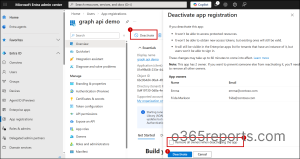
- Click ‘Deactivate‘ from the top action bar. A side panel would open, showing what happens when the app is deactivated and the list of current application owners.
| Important Security Tip: After deactivation, it’s strongly recommended to remove all owners. App owners can reactivate the app at any time, often without realizing the security risks! So, to avoid accidental reactivation, always enable “Remove all owners when deactivating the app.” (See detailed discussion below.) |
4. Click ‘Deactivate’ to stop the app registration from functioning globally.
2. Deactivate an Entra ID Application Using PowerShell
First, connect to Microsoft Graph with the required permissions, and replace <ObjectId> with the actual Object ID of the application, which you can copy from the App registrations page in the Entra Admin Center.
|
1 2 |
Connect-MgGraph -Scopes "Application.ReadWrite.All" Update-MgApplication -ApplicationId <ObjectId> -BodyParameter @{ isDisabled = $true } |
Verify application deactivation in Entra ID:
You can confirm whether an application is deactivated in Entra ID using either the Entra Admin Center or PowerShell.
-
- Navigate to Entra Admin Center → Entra ID → App registrations.
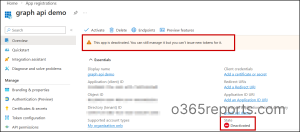
- When you open the deactivated application, a banner shows: “This app is deactivated. You can still manage it, but you can’t issue new tokens for it.”
- The status will also be marked as ‘Deactivated’ in the ‘Essentials’ section, confirming the app is blocked.
It means the app is successfully blocked everywhere, and new tokens can’t be issued. Still, admins or app owners can manage the application, such as configurations, permissions, and secrets, from the app registration page.
2.1 How to Deactivate Multiple Applications in Microsoft Entra
During maintenance, deactivating all the applications is essential to block access across all tenants for a certain duration. Once the process is completed, you can again reactivate the application with all existing configurations.
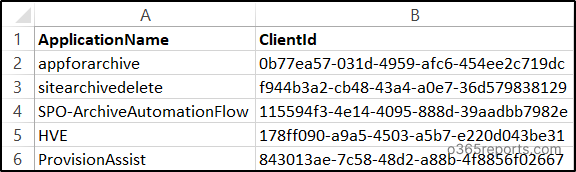
To deactivate Entra ID applications in bulk, run the code. Before that, you need to create a CSV file with a list of application names and client id that you want to deactivate. Ensure you have the column name as ‘ApplicationName’ and ‘ClientId’ in the CSV file as shown below.
Sample Input:
|
1 2 3 4 5 6 7 8 9 10 11 12 13 14 15 16 17 18 19 20 21 22 23 24 25 26 27 28 29 |
$results = Import-Csv "<filepath>" | ForEach-Object { $row = $_ $clientId = $row.ClientId.Trim() if ([string]::IsNullOrWhiteSpace($clientId)) { return [PSCustomObject]@{ ApplicationName = $row.ApplicationName Status = "Skipped"} } try { $app = Get-MgApplication -Filter "appId eq '$clientId'" if (-not $app) { throw "Application ID not found" } Update-MgApplication -ApplicationId $app.Id -BodyParameter @{ isDisabled = $true } return [PSCustomObject]@{ ApplicationName = $app.DisplayName Status = "Deactivated" } } catch { return [PSCustomObject]@{ ApplicationName = $row.ApplicationName Status = "Not Found or Error" } } } $results | Export-Csv ".\App_Deactivation_Result.csv" -NoTypeInformation -Encoding UTF8 |
Replace the ‘<filepath> with the exact path of the CSV input file.
Sample Output:
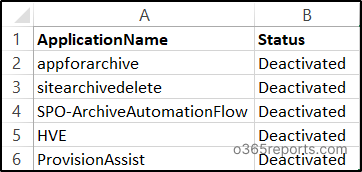
3. What Happens When Users Access a Deactivated App?
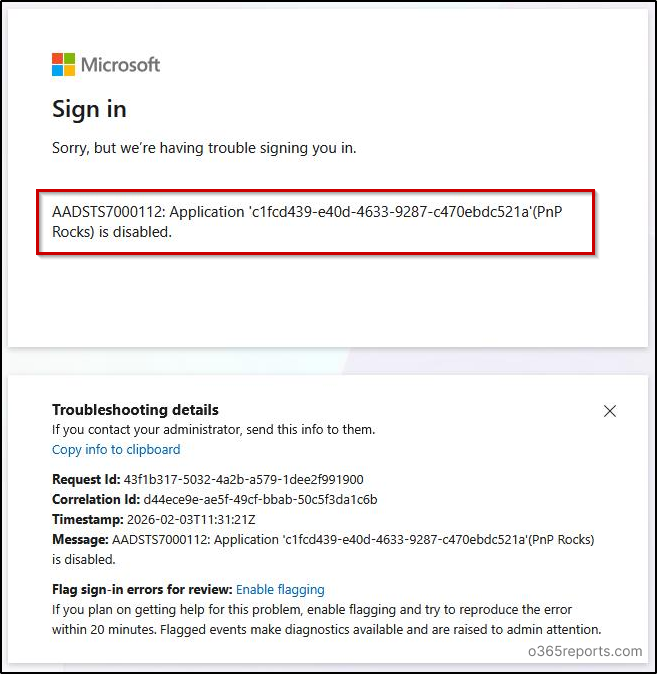
For user experience, I have used an application registered to use with PnP PowerShell. After deactivating the application, if a user tries to access a site using PnP PowerShell with this app’s client Id, the error “AADSTS7000112: Application ‘<appid>‘ (appname) is disabled” will be shown. It means the application access is blocked by the organization.
4. How to Find Deactivated Applications in Microsoft Entra ID
Once an app registration is deactivated, it’s important to verify its status and keep track of such apps for lifecycle and security reviews. You can confirm that a specific application is stopped in Microsoft Entra ID with the below cmdlet.
Note: This check requires the Microsoft Graph beta module, because the isDisabled property is not available in the v1.0 endpoint.
|
1 |
Get-MgBetaApplication -ApplicationId <appid> | Select-Object DisplayName,@{N='IsDisabled';E={$_.AdditionalProperties['isDisabled']}} |

To export the complete deactivated applications report, connect to Microsoft Graph and run the following command. This exports a CSV report of all deactivated applications in your tenant, making it easier to review, document, or manage them in bulk.
|
1 |
Get-MgApplication -Filter "isDisabled eq true" | Select-Object DisplayName, AppId | Export-Csv -Path ".\DeactivatedApplications.csv" -NoTypeInformation |
5. Activate an Entra Application in Microsoft 365
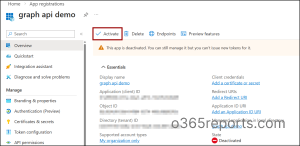
You can activate the app by clicking the ‘Activate’ button on the ‘Overview’ page, or use the cmdlet below. Simply replace <ObjectId> with the actual object ID of the application.
|
1 |
Update-MgApplication –ApplicationId <ObjectId> –BodyParameter @{ isDisabled = $false } |
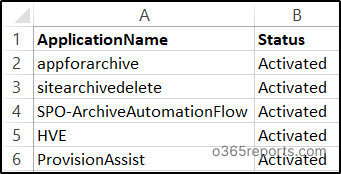
For bulk Entra ID app activation, you can use the same code given for bulk app deactivation and replace the value ‘isDisabled = $false’. Also, you can modify the Write-Host text accordingly, as shown below.
Disable an Enterprise Application in Microsoft 365
Apps are the key targets for attackers seeking access to organizational details. If admins find any suspicious sign-ins to an application in their tenant, the first step is to disable user sign-ins to the app to prevent access to the app within a tenant.
The following will happen when you disable sign-in to an enterprise application:
- Blocks user access within a specific tenant while other tenants using the app remain accessible.
- No new tokens will be issued for the specific tenant.
- Existing configurations, permissions, and secrets will be preserved until re-enabling the app.
- Existing sessions may work until token expiry. You need to revoke sessions to block access immediately.
After the investigation, based on the results and the severity, you can choose whether the app should be deactivated. If the app is not registered to your tenant, you can continue disabling sign-in to the app to avoid access within your tenant.
Disabling user sign-in to an enterprise application can be done through the Entra admin center or PowerShell. Below are the different approaches covered in this section:
- Block User Sign-In to Enterprise Apps via Entra Admin Center
- Disable Enterprise App Sign-In Using PowerShell
- Bulk Disable Enterprise Applications with PowerShell
- Export the disabled application report in Microsoft 365
- Restore access to disabled enterprise applications
1. How to Disable User Sign-in to Enterprise Applications Using Entra Admin Center
Follow the steps below to disable user access to an enterprise application in Entra ID.
- Navigate to Microsoft Entra admin center → Entra ID → Enterprise apps.
- Select the application for which you want to disable user sign-ins.
- Choose properties under ‘Manage’. Move the toggle to ‘No’ near the ‘Enabled for users to sign-in?’ option.
- Click Save to disable the service principal for the app.
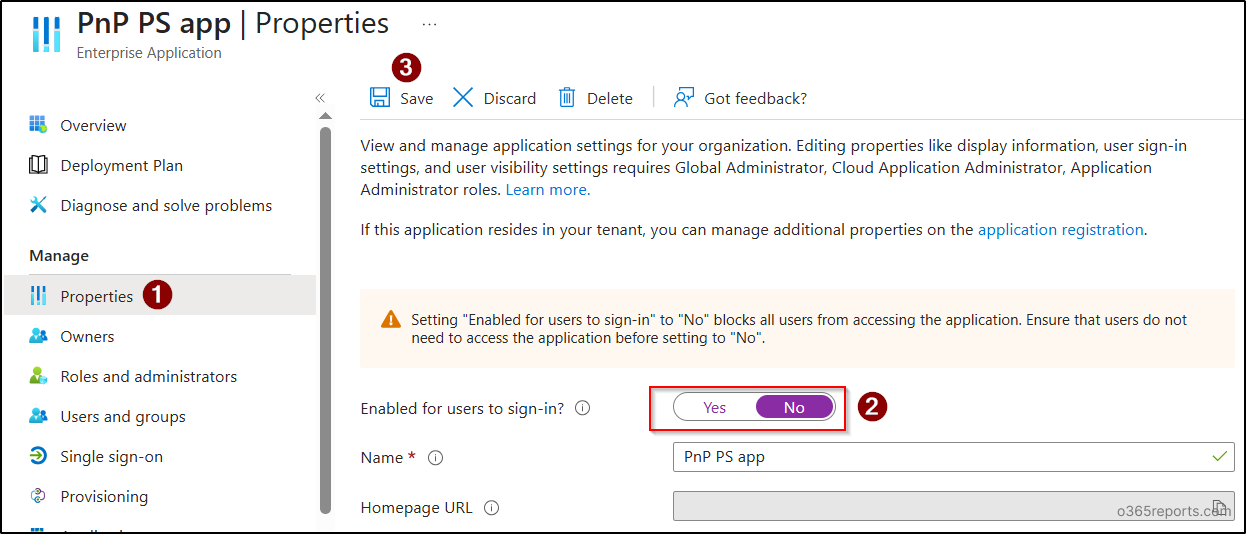
The above option disables all users in your tenant from accessing the app. If you want to restrict specific users from accessing an application, you can remove required users from user and group assignments. This will be helpful in scenarios where a specific set of users in your tenant is compromised or under investigation, and you want to prevent them from accessing applications in Entra ID.
2. Disable User Sign-in to Enterprise Applications Using PowerShell
To disable a client application in your tenant, you can use the ‘Update-MgServicePrincipal’ PowerShell cmdlet as shown below.
|
1 |
Update-MgServicePrincipal -ServicePrincipalId "<objectid>" -AccountEnabled:$false |
Replace the ‘<objectid>’ with the Object ID available on the app overview page under ‘Enterprise applications’.
3. How to Disable User Sign-ins for Multiple Enterprise Applications
If your organization is undergoing maintenance or migration, admins can temporarily disable user sign-ins to multiple applications to prevent access during the process.
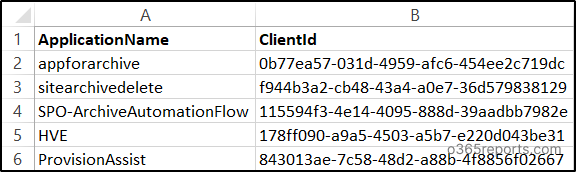
If you want to disable user sign-ins for multiple applications, you can use the code. Also, the same CSV input file used for deactivation can also be used here, as both uses client id of the application, which is the same for app registrations and enterprise apps.
|
1 2 3 4 5 6 7 8 9 10 11 12 13 14 15 16 17 18 19 20 21 22 23 24 25 26 27 28 29 30 |
$results = Import-Csv "<filepath>" | ForEach-Object { $row = $_ $clientId = $row.ClientId.Trim() if ([string]::IsNullOrWhiteSpace($clientId)) { return [PSCustomObject]@{ ApplicationName = $row.ApplicationName Status = "Skipped" } } try { $sp = Get-MgServicePrincipal -Filter "appId eq '$clientId'" if (-not $sp) { throw "Service Principal not found" } Update-MgServicePrincipal ` -ServicePrincipalId $sp.Id ` -AccountEnabled:$false return [PSCustomObject]@{ ApplicationName = $sp.DisplayName Status = "Sign-in Disabled" } } catch { return [PSCustomObject]@{ ApplicationName = $row.ApplicationName Status = "Not Found or Error" } } } $results | Export-Csv ".\Signin_Disable_Result.csv" -NoTypeInformation -Encoding UTF8 |
Replace the ‘<filepath> with the exact path of the CSV input file.
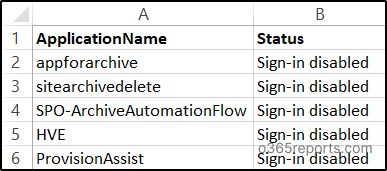
Sample Output:
4. Export Disabled Applications Report in Entra ID
To export a report on sign-in disabled applications in Entra ID, run the below cmdlet after connecting to Microsoft Graph. This report will list all the applications with user sign-in disabled in your tenant.
|
1 |
Get-MgServicePrincipal -Filter "accountEnabled eq false" -All | Select-Object DisplayName, AppId | Export-Csv ".\EnterpriseApps_SignInDisabled.csv" -NoTypeInformation |
5. How to Enable an Enterprise Application After Disabling It?
If your organization is under migration, you might need to disable sign-ins to specific apps or all enterprise apps. Once the migration is over, they need to re-enable user access to applications for better integrations. Admins can re-enable user sign-in by using either Entra admin center or PowerShell.
For enabling user sign-in to an Entra ID application, go to Entra admin center –> Entra ID –> Enterprise apps. Click on the app you want to re-enable sign-in and move the “Enabled for users to sign-in” toggle to ‘Yes’ as shown below.
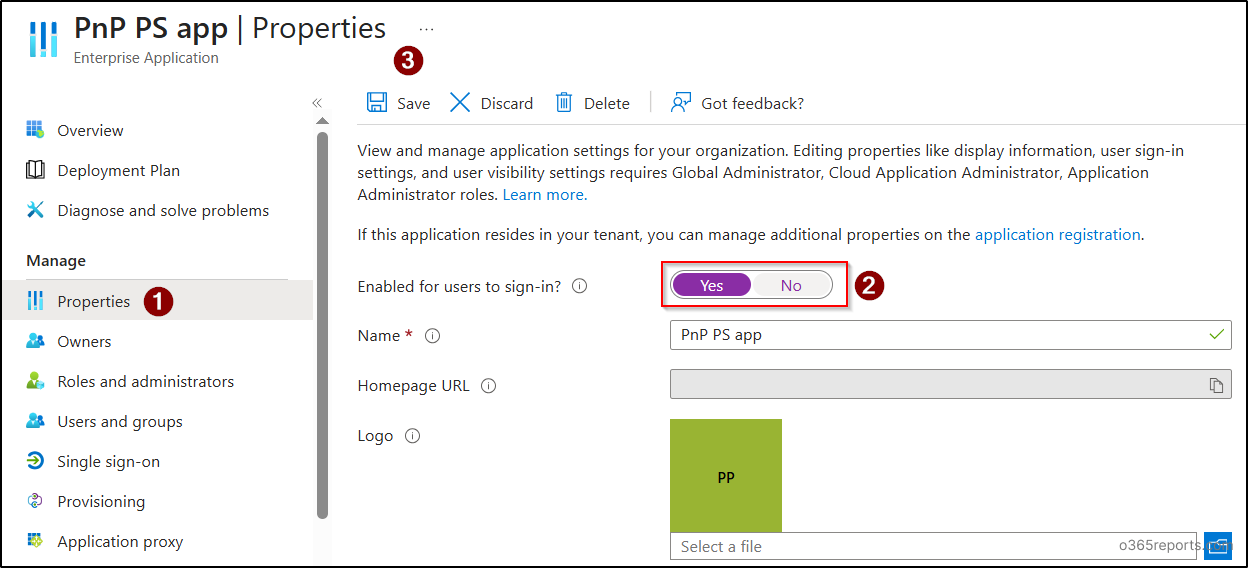
If you want to enable user sign-ins to Entra ID applications using PowerShell, just replace ‘$false’ with ‘$true’ in the ‘AccountEnabled’ parameter, as shown below.
|
1 |
Update-MgServicePrincipal -ServicePrincipalId "<objectid>" -AccountEnabled:$true |
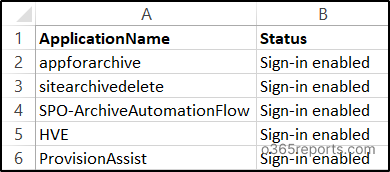
You can also enable user sign-ins for multiple applications by using the same bulk disable code by modifying the status and the parameter ‘AccountEnabled:$true’. You will get the output as shown below.
Stop App Owners from Re-Enabling Disabled Apps in Entra
Disabling sign-in for an application is mostly done during suspicious activity, access abuse, or an ongoing investigation. But what if I say, blocking sign-in alone doesn’t fully remove the risk!
When an admin disables an app in Entra, it’s natural to assume only admins can turn it back on.
But in reality, application owners can override your decision and re-enable the app, even without any administrative roles!
If an owner isn’t aware that the app was disabled for security reasons, they might simply switch it back on! This happens because owners have Application Administrator-level permissions scoped to their specific applications. It’s a privilege escalation risk that’s easy to overlook! [See the image: re-enabled successfully as an app owner]
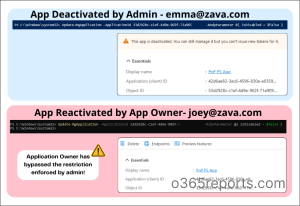
To properly secure a disabled application, always follow a two-step approach:
- Step 1: Disable sign-in for the application (as covered earlier)
- Step 2: Remove all owners from the application
Once owners are removed, only tenant-wide admins (like Application Administrator or Cloud Application Administrator) can reactivate the app. This prevents application owners from unknowingly reversing your security action during an investigation.
When you’re ready to restore the application, simply reassign the owners after proper validation.
Remove All Owners From App Registrations:
After an app registration is deactivated, use the below PowerShell script to remove all assigned owners. This ensures the app can’t be modified or re-enabled by owners during the investigation window.
|
1 2 3 4 5 |
$appObjectId = "<appobjectid>" $owners = Get-MgApplicationOwner -ApplicationId $appObjectId foreach ($owner in $owners) { Remove-MgApplicationOwnerByRef -ApplicationId $appObjectId -DirectoryObjectId $owner.Id } |
Remove All Owners from Enterprise Apps:
Once the enterprise application is disabled, replace it with the actual service principal (object) ID to remove all owners. This restricts reactivation to tenant-wide administrators only, preventing unintended rollbacks.
|
1 2 3 4 5 |
$servicePrincipalObjectId = "<ServicePrincipalObjectId>" $owners = Get-MgServicePrincipalOwner -ServicePrincipalId $servicePrincipalObjectId foreach ($owner in $owners) { Remove-MgServicePrincipalOwnerByRef -ServicePrincipalId $servicePrincipalObjectId -DirectoryObjectId $owner.Id } |
This additional step transforms a temporary disable into a properly controlled security measure.
Difference: Deactivate Entra ID Application vs Disable User Sign-ins
In general, deactivating or disabling sign-in to the apps that integrate with Entra ID seems to give the same outcome: “preventing users from accessing an application”. But the differences rely on the impacts created by them. Refer to the table to find the difference between them precisely.
| Differences | App Deactivation | Disabling User Sign-in to Applications |
| Scope | Applies to the application globally (across all tenants) | Applies to the app only within the specific tenant. |
| Where is the action applied? | App registrations |
Enterprise applications (service principal ) |
| Primary Purpose | Stops the application everywhere – Blocks access in every tenant. | Temporarily block access to the app in a specific tenant. |
| User Access | Users can’t access the application anywhere. | Users can’t access the app only within the disabled tenant. |
| Existing Sessions | No new tokens will be issued. Existing sessions will continue to work until their tokens expire and must be revoked manually. | No new tokens will be issued. Existing sessions will continue to work until their tokens expire and must be revoked manually. |
| App Owner Accessibility | While app owners cannot access the application, they can manage secrets, certificates, and permissions using app registrations. | App owners don’t have access to the app in the tenant, but it’s accessible in other tenants. And they can manage secrets and permissions using app registrations. |
| What can be retained? | Previous secrets, configurations, and permissions are retained. | Previous secrets, configurations, and permissions are retained. |
| When to choose the action? | If a high-risk multi-tenant app is found to be compromised, deactivate it immediately to stop it everywhere. | If an unapproved app is used in your tenant, sign-in can be disabled until the investigation is completed. |
I hope this blog helped you to understand the difference between deactivation vs disabling a user’s sign-in to Entra ID applications and how to do it in Microsoft 365. For queries, contact us through the comment section!