As per MC407050, Microsoft is going to retire the “Connect to Exchange Online PowerShell with MFA module” (i.e., EXO V1 module) on Dec 31, 2022. And the support ends on Aug 31, 2022. Recently Microsoft made another announcement regarding deprecation of Remote PowerShell (RPS) in Exchange Online. Starting from June 1, 2023, Microsoft will begin phasing out the use of Remote PowerShell (RPS) for Exchange Online, with a complete cut-off on July 1, 2023. So, admins should move to EXO V3 module to connect to Exchange Online PowerShell with multi-factor authentication.
Why We Should Switch from EXO V1 & V2 Module?
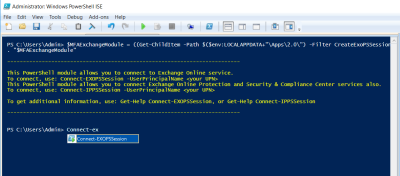
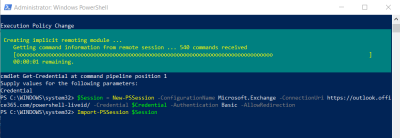
Earlier, admins should install the Exchange Online remote PowerShell module (EXO V1) and use the PowerShell cmdlet Connect-EXOPSSession to connect to Exchange Online PowerShell with MFA. This EXO V1 module uses basic authentication to connect to EXO. Due to basic authentication deprecation, Microsoft has introduced the EXO V2 module with improved security and data retrieval speed. But EXO V2 module uses RPS, which is going to expire in June 2023. So, admins must install the newer version or upgrade their existing Exchange Online PowerShell module.
Connect to Exchange Online PowerShell with MFA:
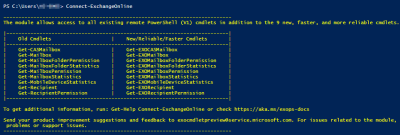
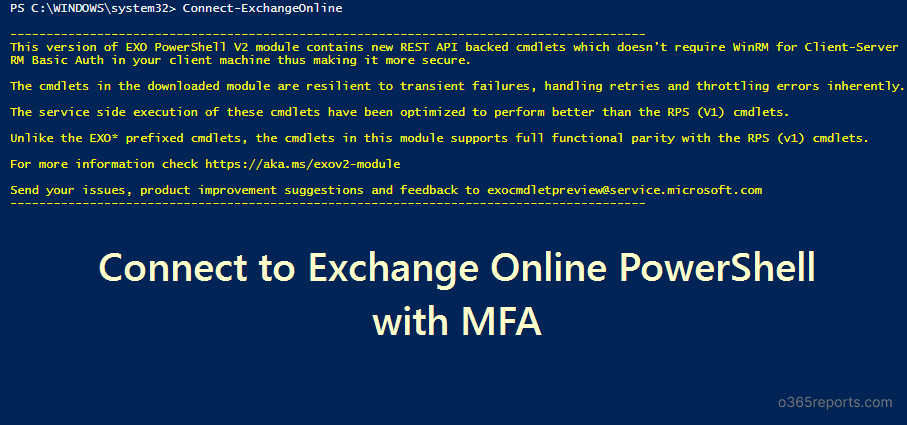
To connect to Exchange Online PowerShell with MFA, you need to install the Exchange Online PowerShell V3 module. With this module, you can create a PowerShell session with both MFA and non-MFA accounts using the Connect-ExchangeOnline cmdlet.
Additionally, the Exchange Online PowerShell V3 module uses modern authentication and helps to create unattended scripts to automate the Exchange Online tasks.
To download and install the EXO V3 module & connect to Exchange Online PowerShell, you can use the script below.
|
1 2 3 4 5 6 7 8 9 10 11 12 13 14 15 16 17 18 19 20 21 |
#Check for EXO v3 module installation $Module = (Get-Module ExchangeOnlineManagement -ListAvailable) | where {$_.Version.major -ge 3} if($Module.count -eq 0) { Write-Host Exchange Online PowerShell V3 module is not available -ForegroundColor yellow $Confirm= Read-Host Are you sure you want to install module? [Y] Yes [N] No if($Confirm -match "[yY]") { Write-host "Installing Exchange Online PowerShell module" Install-Module ExchangeOnlineManagement -Repository PSGallery -AllowClobber -Force Import-Module ExchangeOnlineManagement } else { Write-Host EXO V3 module is required to connect Exchange Online. Please install module using Install-Module ExchangeOnlineManagement cmdlet. Exit } } Write-Host Connecting to Exchange Online... Connect-ExchangeOnline |
If you have already installed the EXO V3 module, you can use the “Connect-ExchangeOnline” cmdlet directly to create a PowerShell session with MFA and non-MFA accounts. For MFA accounts, it will prompt for additional authentication. After the verification, you can access Exchange Online data and Microsoft 365 audit logs.
Advantages of Using EXO V3 Module:
- It uses modern authentication to connect to Exchange Online PowerShell.
- A single cmdlet “Connect-ExchangeOnline” is used to connect to EXO with both MFA and non-MFA accounts.
- It doesn’t require WinRM basic authentication to be enabled.
- Helps to automate EXO PowerShell login with MFA. i.e., unattended scripts.
- Contains REST API based cmdlets.
- Provides exclusive cmdlets that are optimized for bulk data retrieval.
If you are using the Exchange Online Remote PowerShell module, it’s time to switch to the EXO V3 module. Also, you can update your existing scripts to adopt the EXO V3 module. Happy Scripting!