Microsoft Copilot Cowork is taking workplace delegation to a whole new level. Instead of simply answering questions or summarizing documents, it can take on complex, multi-step tasks, and move work forward with less hands-on involvement.
⚠️ But when AI can do this much with business data, how can organizations let employees make the most of Copilot Cowork while keeping sensitive information protected?
Microsoft Purview Data Loss Prevention (DLP) helps strike this balance. In this blog, let’s explore how to configure DLP for Copilot Cowork and put the right guardrails in place.
How Copilot Cowork Handles Data
Microsoft Copilot Cowork uses Work IQ to understand an employee’s work context and complete delegated tasks across Microsoft 365.
To complete these tasks, Cowork:
- Understands the task: Interprets employee instructions and breaks complex requests into smaller, manageable steps.
- Accesses work context: Uses relevant emails, Teams conversations, meetings, files, and organizational data to understand the task and identify the information needed.
- Researches and processes information: Searches organizational resources and, when required, uses external web sources to gather and analyze information.
- Executes tasks: Creates or updates documents, drafts and sends emails, schedules meetings, posts Teams messages, and coordinates work across connected applications.
- Delivers completed work: Produces finished outputs such as reports, presentations, meeting briefs, and communications for employees to review.
Look at how much business data Cowork touches along the way. With Copilot Cowork accessing, processing, and acting on data across multiple sources, sensitive information can become part of a much broader workflow.
Therefore, organizations need safeguards that go beyond protecting individual files or emails.
Microsoft Purview DLP for Copilot Cowork
Data Loss Prevention allows admins to control how Copilot Cowork handles sensitive information through targeted policy rules. Depending on the organization’s security requirements, admins can configure the following protections:
- Block sensitive prompts: Prevent Copilot Cowork from responding to prompts that contain specified sensitive information types (SITs), such as credit card numbers, passport numbers, etc.
- Restrict external web searches: When a prompt contains the selected sensitive information types, Cowork skips external web searches and responds using only the internal Microsoft 365 data the user has access to. This prevents sensitive prompt content from being shared with external search providers.
- Block sensitivity-labeled files and emails: Stop Cowork from using information from files and emails marked with selected sensitivity labels when answering prompts. It may still show the file or email name as a reference, but won’t use the information inside it.
These protections are available through the Microsoft 365 Copilot, Copilot Chat, and Copilot Cowork location in DLP policies.
The supported Copilot experiences include:
- Microsoft 365 Copilot
- Copilot Chat
- Copilot Cowork
- Copilot in Word
- Copilot in Excel
- Copilot in PowerPoint
During the preview, users working in Word, Excel, and PowerPoint may not see a message explaining that their prompt was blocked by the organization’s DLP policy. However, Copilot will still block the prompt and won’t generate a response.
📝Note: If your organization already has DLP policies configured for Microsoft 365 Copilot & Copilot Chat, those policies will automatically apply to Copilot Cowork as well. Admins don’t need to create or configure separate DLP policies specifically for Cowork.
Prerequisites to Create a DLP Policy for Microsoft 365 Copilot Cowork
Before creating a DLP policy for Copilot Cowork, make sure you have the required permissions and licenses.
Roles required:
Accounts assigned one of the following roles or role groups can create or edit DLP policies for Microsoft Copilot Cowork:
- Microsoft Entra AI Administrator
- Purview Data Security AI Admin / Purview Data Security AI Admins role group
- Purview Compliance Administrator / Purview Compliance Data Administrator
- Purview Information Protection / Purview Information Protection Admin
- Purview Security Administrator
- Microsoft Entra Global Administrator
License requirements:
Users must be assigned one of the following eligible licenses to create a DLP policy for Copilot Cowork:
- Microsoft 365 E5/A5/G5/E3/A3/G3
- Microsoft 365 Business Premium
- Office 365 E5/A5/G5/E3/A3/G3
- Microsoft 365 E5/A5/G5/F5 Compliance or F5 Security & Compliance
- Microsoft 365 E5/A5/F5/G5 Information Protection and Governance
How to Set Up Data Loss Prevention for Copilot Cowork ?
To create a DLP policy for Copilot Cowork that includes all three protection controls, follow the steps below:
- Sign in to the Microsoft Purview portal and navigate to Data Loss Prevention.
- From the left navigation pane, select Policies –> Create policy –> Enterprise applications & devices.
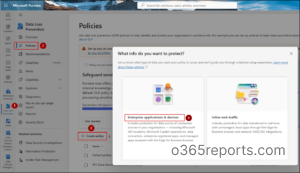
- The Custom policy template is the only template that supports the Microsoft 365 Copilot and Copilot Chat location. Under Categories, select Custom –> Custom policy and click Next. Enter a name for the policy and proceed.
- In the next step, optionally add administrative units to limit the scope of policy management.
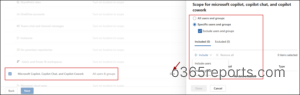
- On the Choose where to apply the policy page, select Microsoft Copilot, Copilot Chat, and Copilot Cowork. Selecting this location disables the other locations, as you can configure only one location at a time in this policy.
- Select Edit to include or exclude specific users and groups within the policy scope for Microsoft Copilot and Copilot Chat. Click Done.
- On the Define policy settings page, Create or customize advanced DLP rules will be selected by default. Keep this option selected and proceed.
- On the Customize advanced DLP rules page, select Create rule.
At this stage, we’ve defined where the policy applies. Next, we’ll configure how sensitive information is protected in Copilot Cowork.
Apply DLP Rules to Restrict Sensitive Data in Copilot Cowork
DLP rules define what sensitive information Microsoft 365 Copilot Cowork should detect and what restrictions to apply when employees use it. For example, you can decide what Copilot Cowork can and cannot do when employees work with sensitive information.
To configure this, we need to create three separate rules for each protection requirement because,
- You cannot combine “sensitive information types” and “sensitivity labels” as conditions in the same rule.
- Similarly, ‘Processing prompts’ and ‘Performing Web Searches’ must be configured in separate rules.
You can, however, create all these rules within the same DLP policy as below:
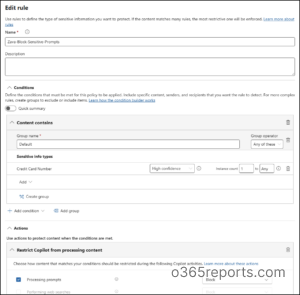
Block Prompts Containing Sensitive Information in Copilot Cowork
📌Scenario: A company named ‘Zava’ wants its employees to use Copilot Cowork to investigate customer payment issues, review transaction records, and prepare support summaries in Word. However, the organization doesn’t want employees entering credit card numbers in Cowork prompts, as this could expose sensitive payment information during AI processing.
To address this, Zava can add the following rule to the DLP policy:
- Select Create rule and enter a name for the rule.
- Under Conditions, select Add condition > Content contains > Sensitive information types.
- Select the sensitive information as Credit Card Number.
- Under Actions, select Restrict Copilot from processing content > Processing prompts. Note that “Performing Web Searches” will be grayed out when “Processing prompts” is selected, as both restrictions cannot be configured within the same DLP rule.
- Save the rule.
Restrict External Web Searches for Sensitive Prompts in Copilot Cowork
📌Scenario: Zava wants employees to use Copilot Cowork to research local market trends, identify nearby service providers, and prepare business reports. However, employees may include customer addresses in their prompts when requesting location-specific research. Zava doesn’t want these personal details sent to external search providers.
To address this, Zava can configure another DLP rule as:
- Name the rule.
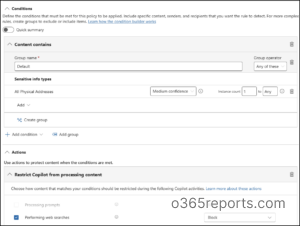
- Under Conditions, select Add condition > Content contains > Sensitive information types.
- Select the sensitive information types as “All physical Addresses”.
- Under Actions, select Restrict Copilot from processing content > Performing Web Searches.
- Save the rule.
Prevent Cowork from Using Sensitivity-labeled Files and Emails
📌Scenario: Zava wants employees to use Copilot Cowork to review internal business reports, summarize project discussions, and prepare presentations using organizational information. However, the organization wants to prevent Cowork from accessing files and emails protected by sensitivity labels.
To address this, Zava can configure a DLP rule as:
- Enter a name for the rule.
- Under Conditions, select Add condition > Content contains > Sensitivity labels.
- Select the sensitivity label(s) you want to restrict Copilot from accessing.
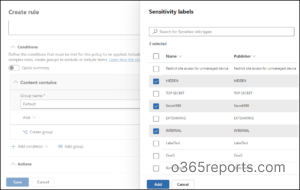
- Under Actions, select Restrict Copilot from processing content > Accessing knowledge sources. This prevents Copilot from accessing and using the content of the selected knowledge sources when generating responses.
- Save the rule.
The Accessing knowledge sources action is available only when you select Sensitivity labels as the condition. It isn’t available when you select Sensitive information types.
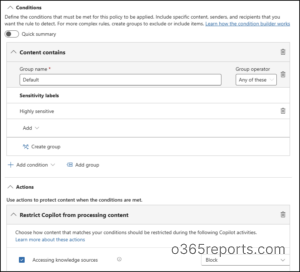
9. After saving all the three rules, click Next.
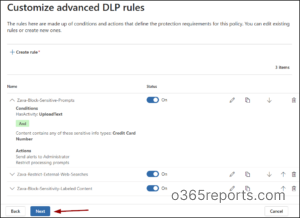
10. On the Policy mode page, choose whether to run the policy in simulation mode or turn it on.
11. Review your configuration and select Submit to create the policy.
That’s it! Your DLP policy now includes three protection controls for Copilot Cowork. These restrictions help prevent sensitive information from being processed, shared through external web searches, or accessed from protected files and emails.
Points to Remember
- DLP checks prompt text, not uploaded files: The prompt processing and web search restrictions evaluate the text users enter directly into Copilot Cowork prompts. They don’t scan the contents of files uploaded directly into prompts.
- Use supported sensitive information types: Only Microsoft-provided and custom SITs are supported for prompt detection. Other classifiers, including trainable classifiers, aren’t available.
- Be mindful of overlapping SITs: If both Prompt DLP and Web Search DLP rules target the same sensitive information type, the prompt-processing restriction is the more restrictive control and takes effect.
- Monitor DLP activity: Use Activity Explorer to review DLP activities and identify whether the configured policies have been triggered. This helps administrators track policy matches and investigate related activities.
We hope this blog helped you learn how to use DLP to block sensitive content in Copilot Cowork. Thanks for reading! If you have any questions, feel free to leave them in the comments below.