SharePoint Lists can hold valuable operational data, but turning that data into an interactive dashboard often takes more work than expected. Admins may need to build visualizations, configure reports, and find a suitable way to present the data for easy monitoring.
Traditionally, creating a live dashboard involves connecting SharePoint data into Power BI, building the report, dragging and dropping fields into charts, and then embedding it back into SharePoint. While this approach works, it can feel unnecessarily long when you need a quick, SharePoint-centric dashboard.
This is where Copilot in SharePoint can simplify the process. Admins can use natural-language prompts to generate a live, interactive HTML dashboard directly from SharePoint, reducing the effort required to build and configure the dashboard.
In this blog, we’ll explore how to create a SharePoint dashboard with Copilot, how the generated dashboard works with the underlying SharePoint data, and the practical considerations admins should keep in mind.
How Does Copilot-generated Dashboards Work?
When you ask Copilot to create a dashboard in SharePoint, it uses the selected SharePoint List as the data source and generates an HTML dashboard based on the requirements in your prompt. To make the dashboard interactive, specify the required data behavior, visualizations, and interactive elements in the prompt.
The generated HTML file is stored in a SharePoint document library and remains connected to the underlying SharePoint List. When the source data changes, the dashboard can reflect the updated information when it is refreshed.
You can define the dashboard’s KPIs, charts, tables, filters, and other elements through the prompt. You can also refine these elements by providing additional prompts to Copilot.
Hint: If the storage location is not specified in the prompt, Copilot saves the generated HTML file in the Site Pages page library as default. Copilot-generated HTML files do not have a Move option in the standard file menu. Use Copilot to move the generated file to another SharePoint location.
Prerequisites
- A Microsoft 365 Copilot license. If you’re troubleshooting Copilot licensing or eligibility, you can use the Copilot License Details test in Microsoft Remote Connectivity Analyzer to verify the account requirements.
- Copilot must be available for the SharePoint site. Follow the steps to verify and enable Copilot for the SharePoint site before generating the dashboard.
- Admin must be at least a member of the site.
How to Create a Live Dashboard in SharePoint with Copilot
Creating live SharePoint dashboards with Copilot involves preparing the data, generating the dashboard, refining it with prompts, and adding it to a SharePoint page.
1. Prepare Your SharePoint Data
Before generating the dashboard, prepare the SharePoint List or other data types (xlsx, csv, etc.) you want to visualize and ensure that Copilot can access the required data.
- Create a new SharePoint List with the columns required for your dashboard and add the data you want to visualize.
- Else, import data from an existing source such as an Excel file into the SharePoint List instead of creating the list data manually.
2. Generate the Live Interactive Dashboard
The dashboard you create can be tailored as per your reporting requirements. To demonstrate the process, we’ll use the following use case to show how a dashboard can be created from SharePoint List data using Copilot.
Case: An admin wants to create a Microsoft 365 Users Overview Dashboard from the prepared SharePoint List to monitor key metrics and visualize user data.
Now, open Copilot Chat from the bottom-right corner of the SharePoint site. Make sure you select Copilot Chat, not Copilot Agents.
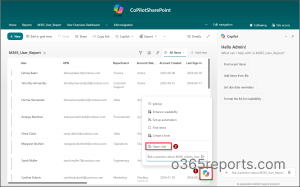
For this use case, we used the following prompt to create a Microsoft 365 user overview dashboard from a SharePoint List. You can adapt the prompt to use your own data source, metrics, visualizations, filters, and other dashboard requirements.
Prompt:
Create an interactive HTML dashboard from the M365_User_Report SharePoint list using it as the live data source. Provide an administrator-focused view with 8 KPI cards, relevant counts for other applicable columns, exactly 4 charts – License, Experience Years, Department, and Job Title – using different colors, and a detailed table showing all columns. Add single-select filters for Department, Account Status, License, Directory Role, Privileged, MFA Status, MFA Requirement, Authentication Method, Job Title, Location, and Employment Type. Make all dashboard elements respond dynamically to filters. Use a professional Microsoft 365 design with a dark header containing the title, description, Refresh button, and Last refreshed time, with no duplicate elements outside the header. Save as M365_User_Dashboard.html.
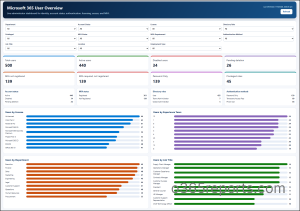
3. Refine the Generated Dashboard:
After reviewing the generated dashboard, you can use additional prompts to refine its content, visualizations, and usability. For example:
Prompt:
Change the Users by Department and Users by Job Title bar charts to pie charts in the M365_User_Dashboard.html and save the file.
You can also customize the dashboard based on your requirements by adding or modifying metrics, visualizations, filters, and other elements. Here are a few examples:
- Update chart with pie chart showing the distribution of users by Experience Years.
- Add a bar chart showing the distribution of users by MFA status.
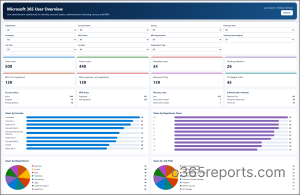
4. Add Your Dashboard to SharePoint Navigation
Copy the dashboard link and add it as a new entry in the SharePoint site’s navigation pane. This makes the dashboard easily accessible to users whenever required.
Follow the steps below:
- Copy the dashboard link: Navigate to the dashboard file location and copy the link from the More Actions menu.
- Review the sharing settings: The copied link uses the file’s default sharing settings. Click on Link settings and modify the sharing options based on your requirements to apply them.
- Add the dashboard to navigation: In the site navigation pane, click Edit navigation and provide a name for your dashboard along with the copied link, and save the changes.
You can now access the dashboard directly from the SharePoint navigation pane.
Practical Considerations Before Using Copilot
While Copilot can simplify dashboard creation, a few considerations can help ensure the generated dashboard is accurate, usable, and easy to maintain. Keep the following points in mind when creating and using Copilot-generated dashboards:
- Validate the data: Compare dashboard results with the source SharePoint List.
- Test interactions: Verify filters, charts, and other interactive elements.
- Plan storage: Store generated HTML dashboards in an appropriate SharePoint location.
- Use precise prompts: Clearly specify the required KPIs, layout, and visualizations.
- Know the dependency: The dashboard relies on the underlying SharePoint data and is not a historical snapshot.
- Usage Limits: During preview, Copilot in SharePoint applies daily and weekly usage limits per user to help ensure fair access for all users. Limits are individual and not shared across your organization. When a user reaches their limit, Copilot features are temporarily unavailable until the limit resets automatically. The user is notified in SharePoint.
Frequently Asked Questions
1. How to enable Copilot in SharePoint Online?
To enable Copilot in SharePoint Online, first check the current Knowledge Agent Scope configuration:
|
1 |
Get-SPOTenant | Select-Object KnowledgeAgentScope |
Based on the output, confirm whether the scope is set to AllSites or IncludeSelectedSites.
If it is set to AllSites, no further site-level configuration is required. If it is set to IncludeSelectedSites, verify whether the required SharePoint site is included in the selected sites list:
|
1 |
Get-SPOTenant | Select-Object KnowledgeAgentScope, KnowledgeAgentSelectedSitesList |
If the required site is not included, add it using the below cmdlet:
|
1 2 3 |
Set-SPOTenant ` -KnowledgeAgentSelectedSitesList @("<Your-Site-URL>") ` -KnowledgeAgentSelectedSitesListOperation Append |
Replace the sample URL with your SharePoint site URL in which you want to enable Copilot.
Note: The Include or Exclude site’s URLs list of Knowledge Agent Scope can’t exceed 100 items.
2. Why Does the Copilot Generated Dashboard Show Incorrect or Incomplete Data?
If the source data comes from an Excel file protected by a sensitivity label, Copilot may display the following error:
“Some data comes from a file protected by a sensitivity label and may not display correctly.”
This can occur when EnableAIPIntegration is set to True. You can verify whether the AIP integration is enabled using:
|
1 |
Get-SPOTenant | Select-Object EnableAIPIntegration |
If the setting returns True, Copilot may not display data correctly from Excel files protected by sensitivity labels when generating the dashboard.
3. Why Can’t I Create the Dashboard Using a Copilot Agent?
SharePoint provides different Copilot experiences for different purposes. Copilot Agents can analyze and work with information from their configured sources, but they may not have the file-generation and write actions required to create and save a new dashboard file.
In contrast, Copilot Chat supports the file-generation and write capabilities required for generating dashboards. Therefore, to generate a live HTML dashboard, make sure you are using Copilot Chat rather than a Copilot Agent.
If you use an Agent for the same request, it may analyze the SharePoint data or work with an existing dashboard but return a message such as “file-generation and write actions are unavailable.”
Conclusion
Thus, whether you’re creating a dashboard for identity monitoring, governance, or operational reporting, Copilot in SharePoint provides a practical way to turn SharePoint data into an interactive, live dashboard using natural language prompts.
Copilot does not replace Power BI for every reporting requirement. Instead, it provides a simpler way to create lightweight, SharePoint-centric dashboards from existing data. We hope this guide helps you quickly turn SharePoint data into a live and interactive view.