Most Teams problems reach admins only after someone reports them. A Teams Room goes offline, a user’s audio starts breaking up in a meeting, or an app waits for approval, and the admin finds out later through a meeting failure, support ticket, or manual check.
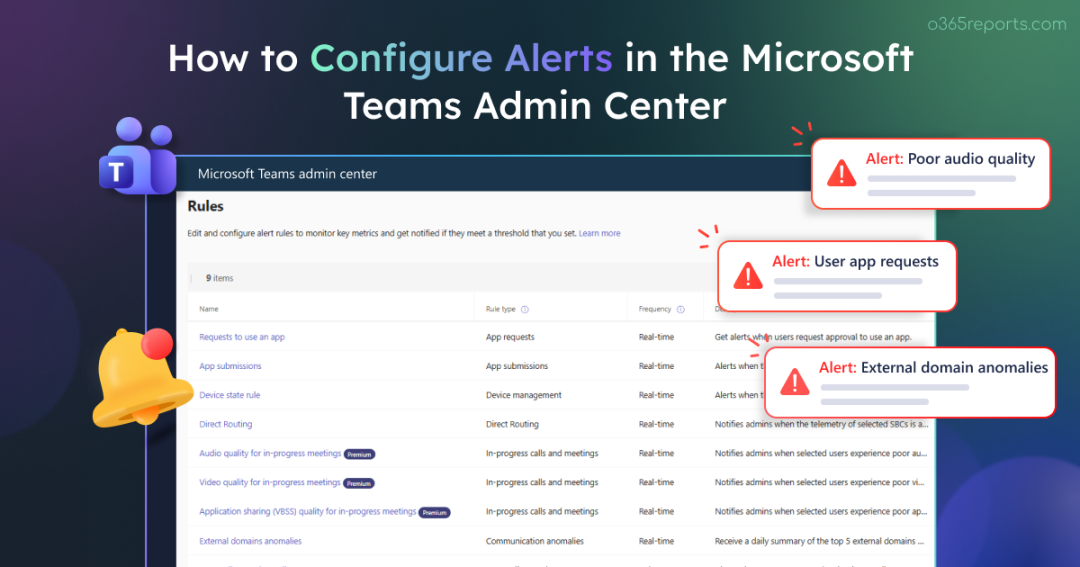
The real challenge isn’t fixing these issues. It’s catching them early before they spiral into failed meetings, frustrated users, or service disruptions. Alerts in Teams admin center help close this gap by notifying admins when specific conditions are met, so they can respond before a small issue becomes a bigger one.
Let’s take a closer look at how admins can use Microsoft Teams monitoring and alerting feature.
What Are Alert Rules in the Microsoft Teams Admin Center?
Microsoft Teams alert rules help admins monitor specific Teams activities and receive notifications when conditions that require attention are detected. This enables early detection of important issues without relying on user reports or manual checks in the Teams admin center.
Unlike custom rules that admins build from scratch, Teams alert rules are predefined by Microsoft. Admins can configure the available settings, choose the resources or users to monitor where applicable, and enable the rules relevant to their organization.
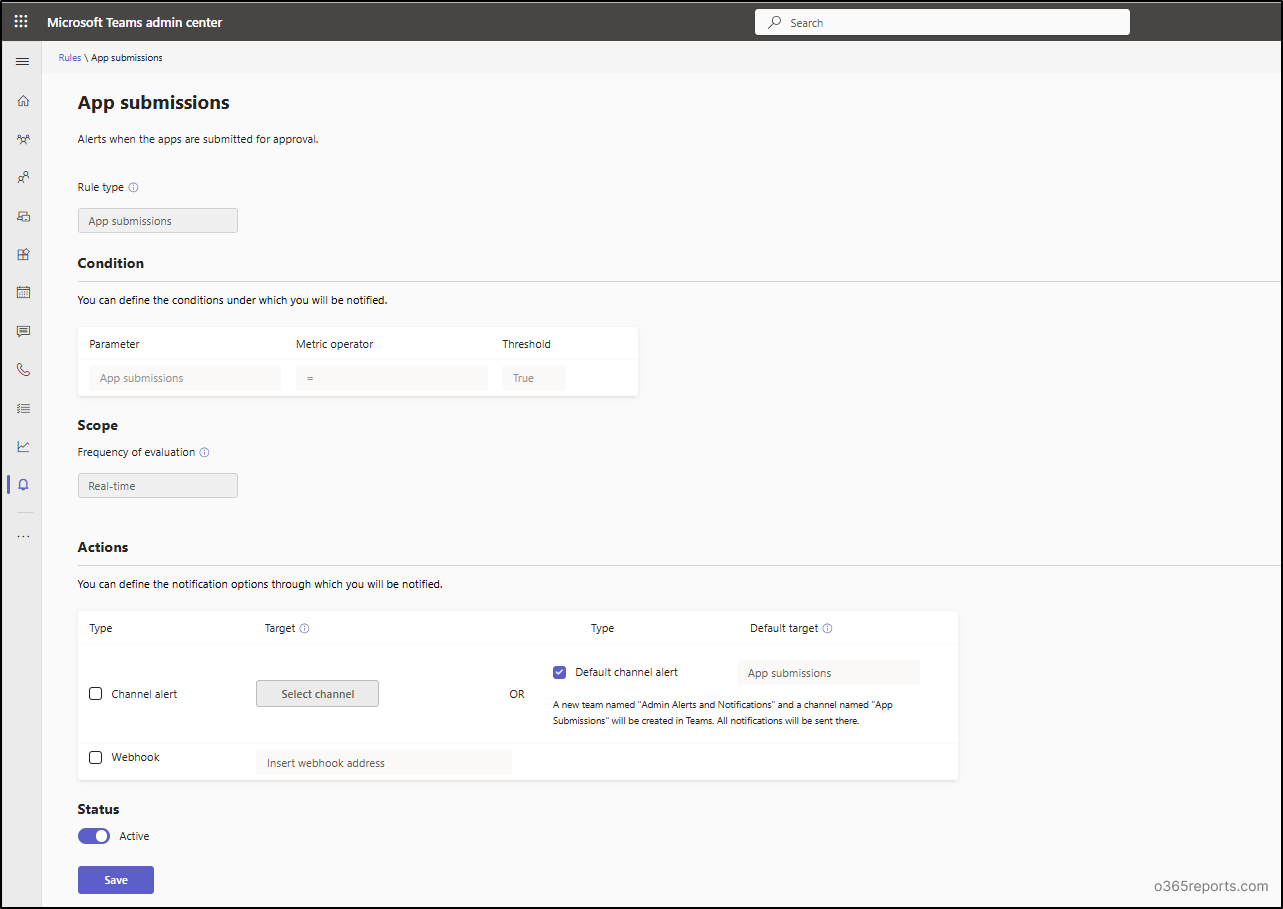
For example, consider the App submissions rule. Admins don’t define the conditions for when an alert should be triggered. Instead, they can configure where notifications should be delivered, such as a Teams channel or webhook, change the rule status from inactive to active, and save the configuration. Once enabled, the rule monitors app submissions and sends notifications when a new app is submitted for approval.
The available configuration options vary across rules. Some rules provide additional options such as monitoring scope, thresholds, monitoring windows, or notification frequency, while others offer only a limited set of configuration options.
Available Types of Alert Rules in Microsoft Teams
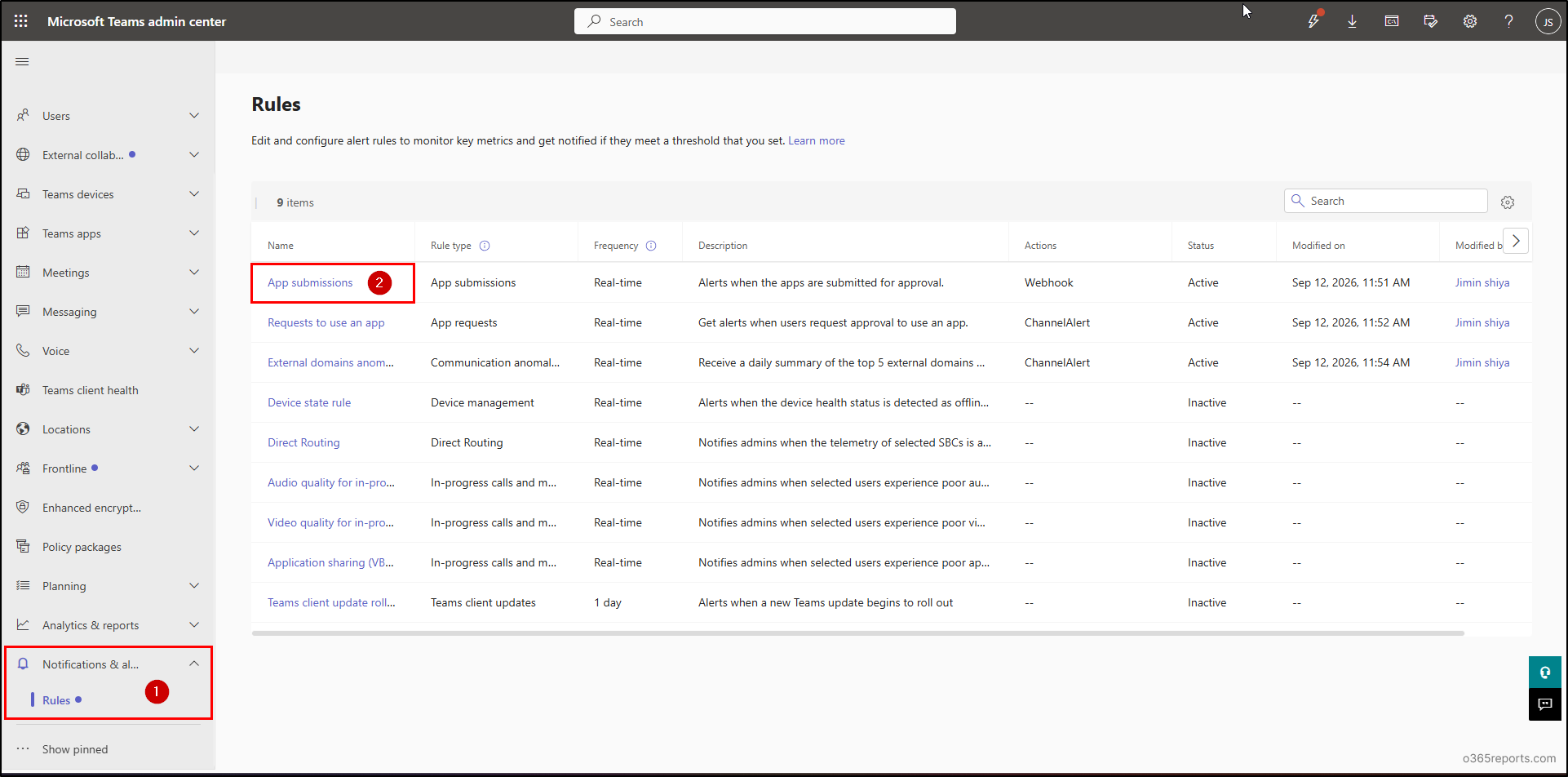
The Teams admin center currently provides nine alert rules across app management, communication, device management, meetings and calls, and client updates. The table below summarizes the available rules, their types, purpose, and frequency.
| Rule name | Rule type | Purpose | Frequency |
| App submissions | App submissions | Get notified when an app is submitted for approval. | Real-time |
| Requests to use an app | App requests | Receive notifications when users request access to an app. | Real-time |
| External domains anomalies | Communication anomalies | Identify unusual communication activity involving external domains. | Real-time |
| Device state rule | Device management | Detect when monitored Teams devices go offline or have a critical health status. | Real-time |
| Direct Routing | Direct Routing | Monitor Direct Routing activity and receive alerts when configured conditions are met. | Real-time |
| Audio quality for in-progress meetings | In-progress calls and meetings | Identify poor audio quality affecting specified users during in-progress meetings. | Real-time |
| Video quality for in-progress meetings | In-progress calls and meetings | Detect video-quality problems experienced by specified users in ongoing meetings. | Real-time |
| Application sharing (VBSS) quality for in-progress meetings | In-progress calls and meetings | Monitor application-sharing quality during active meetings. | Real-time |
| Teams’ client update rolls out | Teams client updates | Stay informed when a new Teams desktop client version begins rolling out. | 1 day |
Important: Microsoft is retiring the Device state rule in September 2026 as Teams device health monitoring moves to the Teams Rooms Pro Management portal.
With that covered, let’s look at the prerequisites and see how to create alert rules in the Teams admin center.
Prerequisites for Creating Microsoft Teams Alerts
Before creating alerts in Teams, make sure you have the required admin role and that your Microsoft 365 tenant meets the necessary requirements.
- Required Administrator Role: You need a Teams Administrator or Global Administrator role to create and manage alert rules.
- Supported Cloud Environments: Teams alert rules are currently available in Commercial and GCC environments. They are not available in GCC High or DoD environments.
- Rule-Specific Requirements: Admins don’t need a specific license to configure proactive monitoring alert rules in the Teams admin center. However, some rules have additional licensing requirements for the users or devices being monitored.
- For example, users monitored by in-progress meeting quality alerts must have Teams Premium licenses, while monitored meeting room devices may require Teams Rooms Pro or Teams Premium.
How to Configure Alert Rules in the Teams Admin Center
Teams alert rules can be created and managed from the Rules page in the Teams admin center.
- Sign in to the Microsoft Teams admin center.
- From the left navigation, select Notifications & alerts → Rules.
- Select the alert rule you want to configure.
- Configure the available settings for the selected rule. The options vary depending on the rule. Common settings include:
- Conditions: Defines what the rule monitors. For some rules, such as in-progress meeting quality alerts, admins can select the specific telemetry or quality conditions to monitor.
- Monitoring settings: Includes options such as thresholds, monitoring window, and notification frequency. These settings determine when and how often an alert is generated.
- Subnet notifications: Available for certain rules, this setting determines which subnet types are considered when evaluating the configured conditions.
- Next, specify the Scope by selecting the users, devices, or other resources to monitor.
- Then, configure the Actions by choosing a Teams channel or external webhook to route notifications to tools such as Power Automate, ticketing systems, or SIEM platforms.
- You can select an existing channel or use the default channel option, which creates an Admin Alerts and Notifications team and a dedicated channel for alerts.
- Finally, toggle the Status from Inactive to Active, and click Save to create the alert rule.
Once saved, the rule monitors the configured conditions and generates notifications when they are met.
How Admins Can View Generated Teams Alerts
Once a configured alert condition is met, Microsoft Teams sends a notification to the specified delivery channel. For example, when a user requests an app for approval, Teams posts an alert notification in the configured channel with a View details button, as shown below.
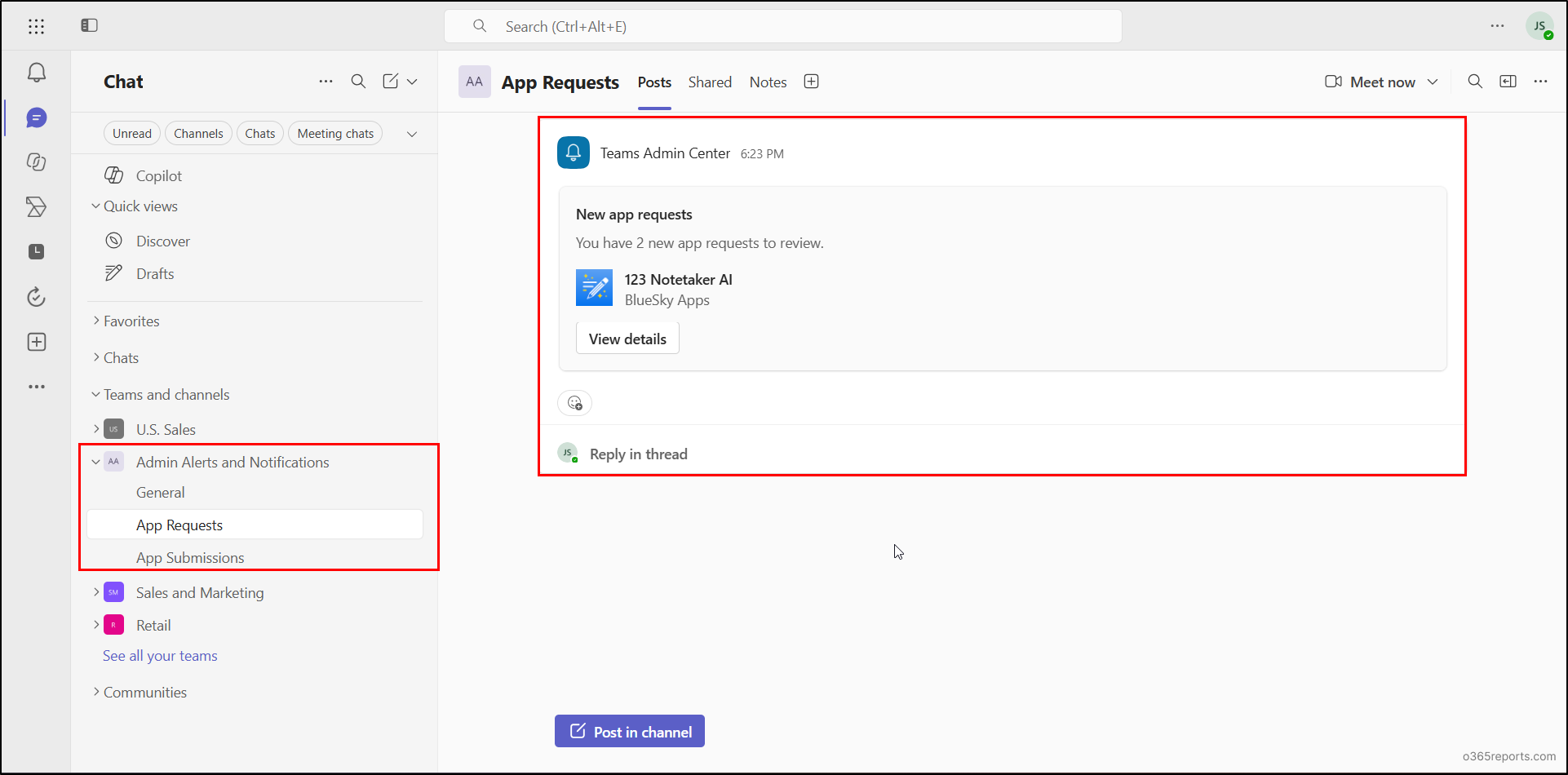
This way, Teams monitoring and alerting helps admins stay on top of their Teams environment by automatically monitoring configured conditions. It alerts admins when something unexpected occurs and helps them take corrective action to get things back on track.
However, the current alert rule management experience offers limited flexibility. Microsoft is now introducing new capabilities to address some of these limitations.
Enhanced Alert Rule Management Capabilities in the Teams Admin Center
Currently, admins can manage existing alert rules in the Teams admin center by editing their configuration or changing their status. They can also update the monitoring scope and notification destinations, such as a Teams channel or webhook.
However, options for managing alert rules are limited, making it difficult to quickly reuse existing configurations, manage users in bulk, or remove rules that are no longer needed.
To make alert rule management more flexible, Microsoft is introducing additional capabilities, particularly for In-Progress Meetings and Calls rules, as announced in Message Center post MC1470901.
The upcoming capabilities include:
- Duplicate rules: Create a new rule based on an existing configuration without setting it up from scratch.
- Bulk upload users: Add multiple users when creating or editing supported rules.
- Delete rules: Remove rules directly from the rule management experience.
- Monitor up to 500 users: Expand the monitoring scope for supported In-Progress Meetings and Calls rules to up to 500 users.
These capabilities are scheduled to roll out worldwide starting in late September 2026 and will be enabled by default when available in the tenant.
That’s it! We’ve explored what Teams alert rules are, the available rule types, and how to create them in the Teams admin center. With the latest rule-management capabilities, admins have more flexibility to manage alert configurations as their monitoring needs grow.
I hope this blog helps you get started with Teams alert rules and make the most of monitoring and alerting in your Microsoft Teams environment.