Managing groups in Microsoft 365 sounds simple, until your organization starts having hundreds or even thousands of them. As the number of groups grow, things can quickly get out of control with inconsistent names, inactive owners, outdated memberships, and unnecessary groups.
Without proper controls, managing groups can become difficult. It can also create security risks when groups are used to provide access to sensitive resources or privileged roles.
So, what’s the solution? A well-defined group management strategy can help keep things under control. Setting the right controls for group creation, membership, ownership, lifecycle, and access can make group management much easier.
In this blog, we’ll walk you through best practices for group management in Microsoft 365 to help keep your groups organized, secure, and manageable. Let’s get started.
- Identify the right group type
- Select the correct group membership type
- Restrict group creation
- Configure self-service group management
- Set up group naming policy
- Assign multiple owners to groups
- Control guest access
- Apply sensitivity labels to groups
- Use PIM for privileged groups
- Manage group nesting carefully
- Control group administration with RBAC
- Audit group memberships with access reviews
- Set group expiration policies
1. Identify the Right Group Type
Not every group in Microsoft 365 serves the same purpose. Choosing the right group type at the beginning can make it easier to manage access, membership, collaboration, and communication later.
Before creating a group, start by identifying what you need the group for. Is it intended to control access to resources or applications? Provide a collaboration workspace? Or simply distribute email to a predefined set of users?
You should also consider whether the group needs to be used for licensing, access policies, or Microsoft Entra role assignments. These requirements can determine which group type is appropriate.
Here are the common group types and when to use them:
- Security groups: Used to provide access to resources, applications, and policies. They can also be used for group based licensing and other access management scenarios.
- Microsoft 365 groups: Used for collaboration and provide a shared workspace across services such as Teams, SharePoint, Outlook, and Planner.
- Distribution groups: Primarily Used for email communication. It allows users to send an email to a single address and have the message delivered to all members of the group.
- Role Assignable groups: Role assignable groups are used to assign Microsoft Entra roles to a group and manage privileged access through its membership.
Understanding the different group types and their purposes helps you choose the right group in M365. This can help avoid access or management issues later and make group management easier.
2. Select the Correct Group Membership Type in Microsoft 365
After choosing the right group type, the next step is to decide how its members should be managed. The membership type determines how users or devices are added to and removed from the group.
Microsoft Entra provides different membership options based on the group type and management needs.
1. Assigned Membership
With assigned membership, admins and group owners can manually add or remove required users or devices from the group. This is useful when the group requires specific members and membership needs direct administrative control.
2. Dynamic Membership
License requirement: Microsoft Entra ID P1 or Intune for Education license is required
Dynamic membership automatically adds or removes users or device from the group based on attributes defined in a membership rule. For example, you can create a group for users whose Department attribute is set to Finance.
- Dynamic user membership is supported for: Microsoft 365 groups and Security groups
- Dynamic device membership is supported for: Security groups
Important:
Microsoft is retiring the memberOf rule operator for dynamic membership on November 3, 2026. After the retirement, dynamic groups that use memberOf will stop updating their membership. Before the retirement date, identify groups that use memberOf rules and replace them with supported alternatives.
3. Restrict Group Creation
Supported groups: Security groups, Microsoft 365 groups
In Microsoft 365, all users can create groups by default. As the number of groups grows, uncontrolled group creation can make it harder to maintain proper governance. To prevent unnecessary groups, restrict who can create Microsoft 365 groups and security groups based on your organization’s requirements.
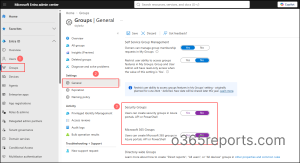
If you want to disable group creation for all users except those with the admin privileges, follow the steps below.
- Sign in to the Microsoft Entra admin center.
- Navigate to Entra ID –> Groups –> Group settings.
- Under General, find the options “Users can create Microsoft 365 groups in Azure portals, API or PowerShell” and “Users can create security groups in Azure portals, API or PowerShell.”
- Set the option to No for both and save the changes.
If you want to allow specific users to create Microsoft 365 groups, you can configure a security group and restrict group creation to its members. It requires Microsoft Entra ID P1 or P2, or Microsoft Entra Basic Education (EDU) license.
Restricting group creation helps reduce unnecessary groups and keeps your Microsoft 365 environment easier to manage.
4. Configure Self-Service Group Management in Entra ID
Supported groups: Security groups, Microsoft 365 groups
License requirement: A Microsoft Entra ID P1 or P2 license
While restricting group creation helps maintain control, admins still have multiple responsibilities beyond group management. Handling every group creation and membership change request can increase their workload. Self-service group management can help to delegate routine group management tasks to selected users and group owners.
In Microsoft Entra ID, you can separately control self-service creation for Security groups and Microsoft 365 groups. You can also allow group owners to manage membership requests by approving or rejecting them.
However, it is important to configure self-service group management based on your organization’s requirements, as unrestricted self-service can lead to group sprawl and governance challenges.
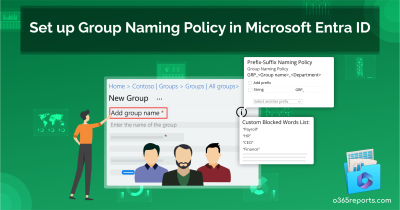
5. Set Up Group Naming Policy
Supported groups: Microsoft 365 groups
License requirement: A Microsoft Entra ID P1 or Microsoft Entra Basic EDU
As users can create Microsoft 365 groups by default, unclear or inconsistent names can make them difficult to identify their purpose. Define a standard naming structure to make group names consistent and meaningful.
Set up a group naming policy in Microsoft Entra ID to enforce the defined naming structure for Microsoft 365 groups. The policy supports prefixes, suffixes, and blocked words. Prefixes and suffixes can use fixed values or supported user attributes such as department, company, office, or location. Blocked words can prevent specific terms from being used in group names and aliases.
6. Assign Multiple Owners to Groups
A group can become ownerless when its only owner leaves the organization or their account is deleted. Without an owner, it becomes difficult to manage the group’s membership and settings.
To avoid this, assign at least two owners to each group. This provides a backup owner who can manage the group when the primary owner is unavailable. It is also important to identify ownerless groups and assign new owners.
How to Identify and Manage Ownerless Groups
1. Group Ownership Insights
Use group ownership insights in Microsoft Entra ID to identify groups that have no owners and groups with guest users or service principals as owners that may require review.
2. Ownerless Group Policy
Supported groups: Microsoft 365 groups
The ownerless group policy in Microsoft 365 can help manage ownerless groups by notifying eligible members of the group and allowing them to accept ownership. This helps ensure that groups do not remain without an owner for a long time.
7. Control Guest Access
Guest access is useful when organizations need to collaborate with external users. However, not every group should allow external users. Unintended or unnecessary guest access can increase the risk of exposing sensitive group content.
You can prevent group owners from adding guests to Microsoft 365 groups. This puts guest additions under admin control and helps ensure that external users are added only when necessary.
To prevent group owners from adding guests to Microsoft 365 groups, follow these steps:
- Sign in to the Microsoft 365 admin center.
- Navigate to Settings –> Org settings –> Services –> Microsoft 365 Groups.
- Find “Let group owners add people outside your organization to Microsoft 365 Groups as guests”.
- Clear the option and click Save.
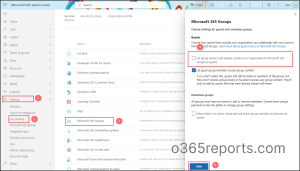
If you want to restrict guest access to specific Microsoft 365 groups, you can use Microsoft Graph PowerShell. This lets you keep guest access enabled for other groups while restricting it for groups that contain sensitive information.
Important:
Blocking guest access prevents new guests from being added to the group. It does not remove guests who are already members.
8. Apply Sensitivity Labels to Groups
Supported groups: Microsoft 365 groups
License requirement: Microsoft Entra ID P1
Groups can contain information with different levels of sensitivity. Use sensitivity labels to apply appropriate access and security controls based on the sensitivity of the information they contain.
Sensitivity labels can control group privacy, guest access, and access from unmanaged devices.
To use sensitivity labels for groups, follow the steps below.
- Create and publish the sensitivity labels in Microsoft Purview with the Groups & Sites scope.
- To synchronize the labels with Microsoft Entra ID connect to Security and Compliance PowerShell and run the Execute-AzureADLabelSync cmdelt.
- Once the labels are available in Microsoft Entra ID, navigate to Entra ID –> Groups –> All groups and select the required Microsoft 365 group. Under Properties, select the required Sensitivity label from the “Sensitivity label” dropdown and click Save.
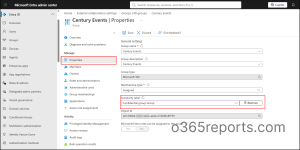
For example, a Highly Confidential label can be configured to make a group private, prevent guest access, and restrict access from unmanaged devices. This helps apply stronger protection to critical groups without affecting regular collaboration groups.
Important: Group sensitivity labels control the group and its connected services. They do not automatically apply item level protection such as encryption to files stored in the group.
9. Use PIM for Privileged Groups
License requirement: Microsoft Entra ID P2 or Microsoft Entra ID Governance
Groups that provide access to privileged resources should not have permanent membership unless necessary. Permanent privileged access increases the risk of unauthorized access, especially if a user’s account is compromised.
Use Microsoft Entra Privileged Identity Management (PIM) for Groups to provide just in time access to privileged groups.
Instead of keeping users as permanent members, make them eligible to activate group membership only when required. PIM for Groups can enforce controls such as MFA, approval, and justification before membership activation. This ensures that privileged access is available only when needed and for the required duration.
10. Manage Group Nesting Carefully
Group nesting allows one group to be added as a member of another group. It can help reuse existing groups when assigning access and avoid maintaining the same membership across multiple groups.
However, not all Microsoft Entra features support nested group membership. For example,
group-based licensing does not assign licenses to users through nested groups.
Before using group nesting, verify whether the feature or resource supports it. Keep the nesting structure simple and use nesting only where it provides a clear benefit.
If nesting isn’t required, you can disable group nesting during creation. Currently, it is supported only for security groups.
11. Control Group Administration with RBAC
Not every administrator needs full access to manage groups. Use role-based access control (RBAC) in Microsoft Entra to delegate group administration based on specific responsibilities.
Assign the Groups Administrator role to administrators who need to manage group settings and memberships, rather than granting the broader high privilege role. For more granular delegation, use custom roles when built-in roles provide more permissions than required.
Regularly review role assignments and remove administrative access when it is no longer required.
12. Audit Group Memberships with Access Reviews
License requirement: Microsoft Entra ID Governance or Microsoft Entra Suite
Group membership can change frequently as users join teams, change roles, or leave the organization. Without regular reviews, users may retain access to resources they no longer need. Regularly review group memberships to ensure that users have only the access they still require.
For important groups, create Access Reviews and allow designated reviewers to confirm whether users still need access to a group. For groups that provide privileged access, use Access Reviews for PIM groups to review active and eligible members and ensure that privileged access remains appropriate.
Configure recurring Access Reviews to keep group memberships up to date and remove access for users who no longer require it.
13. Set Group Expiration Policies
Supported groups: Microsoft 365 groups
License requirement: Microsoft Entra ID P1 or P2 license
Unused Microsoft 365 groups can accumulate over time and make it difficult to identify active groups. Set an expiration policy to automatically expire groups that are no longer in use
The expiration policy checks group activity to determine whether a group should be renewed. Groups with recent activity can be renewed automatically. If a group is not automatically renewed, its owners receive notifications before expiration and can renew the group manually if it is still required.
If a group is not renewed, it is deleted and can be restored within 30 days. Configure the group expiration policy with an expiration period that aligns with your organization’s group lifecycle requirements.
Wrapping Up
Effective group management in Entra is more than just creating and managing groups. It involves maintaining proper access, ownership, membership, and lifecycle controls based on your organization’s requirements. Following these best practices can help keep your groups secure, organized, and manageable.
I hope this blog helps you follow the right group management practices and maintain a well governed Microsoft 365 environment.