Inactive user accounts often go unnoticed in Active Directory. As a result, former employees, contractors, disabled users, and unused accounts can accumulate over time. If left unmanaged, these accounts can increase security risks, create directory clutter, and complicate access reviews. 😥
The challenge? Finding truly inactive users isn’t always straightforward. Many admins rely on LastLogonDate or lastLogonTimestamp to identify inactive users. However, these values can be affected by replication delays of up to 14 days and may not accurately reflect recent user activity. On the other hand, the lastLogon attribute provides the most accurate logon information, but obtaining this data requires querying every domain controller.
Unfortunately, there is no efficient way to identify inactive users based on their true last logon time using native Active Directory GUI tools. So, in this blog, we’ll show you how to use PowerShell to accurately identify inactive users and streamline Active Directory account management.
How to Find Inactive Users in Active Directory Using PowerShell
PowerShell provides the flexibility needed to accurately identify inactive users in multi-domain controller environments.
Using the Get-ADUser cmdlet and the lastLogon attribute, admins can query all domain controllers, compare the returned values, and determine a user’s last true logon time. However, this requires custom scripting logic to retrieve and evaluate data from every domain controller.
To simplify this, we developed a PowerShell script that accurately identifies dormant users in Active Directory across all domain controllers. The script also supports targeted reporting for inactive users based on account status, users who have never logged in, and stale users within specific OUs.
Without further delay, let’s walk through how the script works and the parameters it supports.
Download Script: GetADInactiveUsers.ps1
Script Highlights
- Retrieves all AD inactive users using the true last logon by querying all domain controllers.
- Exports inactive user details to a CSV report.
- Identifies inactive Active Directory users based on a specified inactivity period.
- Generates separate reports for AD enabled and disabled users.
- Finds never logged-in users in Active Directory.
- Retrieves dormant users from a specific OU.
- Supports excluding never logged-in users from inactivity reports.
- Automatically prompts to install the Active Directory PowerShell module if it is not available.
- This script is scheduler friendly.
Active Directory Inactive Users Report – Sample Output
Once executed, the script exports a report of dormant users in Active Directory based on their actual last logon time to a CSV file, as shown below.
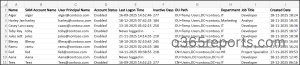
The report includes key details such as the user’s name, account status, last logon time, inactive days, OU path, department, job title, and account creation date.
Script Execution Methods – Generate Active Directory Inactive User Reports
Follow the steps below to execute the Active Directory inactive users PowerShell script:
- Download the PowerShell script and save it locally.
- Choose any of the methods below to execute the script.
Method 1: Execute the Inactive Users Script Interactively
Open Windows PowerShell and navigate to the script location Then, run the following cmdlet as follows to generate the Active Directory inactive users report.
|
1 |
.\GetADInactiveUsers.ps1 -InactiveDays 90 |
This method allows admins to run the script interactively and retrieve users who have been inactive for 90 days.
Method 2: Schedule the Inactive Users Script
You can also schedule the script using Windows Task Scheduler to generate inactive user reports at regular intervals. This helps admins continuously monitor inactive accounts without manually executing the script.
When configuring the task, specify the script path in the Actions section and use the following parameter to run the script without prompts.
|
1 |
.\GetADInactiveUsers.ps1 -Unattended |
The -Unattended parameter suppresses interactive prompts, making the script suitable for scheduled execution. After execution, the report will be automatically generated and saved in the current working directory from which the script is executed.
To ensure successful execution, verify that the account used by Task Scheduler has permission to read Active Directory information across all domain controllers and has the Log on as a batch job right on the system.
Note: This script can only be run on Windows editions that support RSAT and the Active Directory PowerShell module. Therefore, it is not compatible with Windows Home editions.
Export Active Directory Inactive User Report: Go Beyond Basic Inactive User Reports
The script includes built-in filters that let you generate targeted inactive user reports based on your requirements. Here are inactive user reports offered by the script:
- Find inactive enabled users in Active Directory
- Retrieve inactive disabled users in Active Directory
- Manage Active Directory users who have never logged
- Get inactive users from a specific OU in Active Directory
- Generate granular inactive user reports using multiple filters
Find Inactive Enabled Users in Active Directory
User accounts may become inactive in Active Directory when employees leave the organization, contractors finish their work, or temporary project accounts are no longer in use. If these accounts are left enabled, they may provide unnecessary access to organizational resources and increase the attack surface of the Active Directory environment.
Therefore, organizations should regularly review inactive enabled accounts and take appropriate actions such as disabling, removing, or reviewing access permissions.
To retrieve details of enabled dormant users in Active Directory, run the script as follows:
|
1 |
.\GetADInactiveUsers.ps1 -InactiveDays 90 -EnabledUsersOnly |
Once you run the script, it will generate a report of all enabled users who have been inactive for 90 days. Using this information, admins can identify stale accounts and take the required action.
Use the -ExcludeNeverLoggedInUsers parameter to exclude accounts that have never logged in. This allows you to focus only on users who were previously active but have become inactive.
Retrieve Inactive Disabled Users in Active Directory
Many organizations follow a staged cleanup process for stale user accounts. Instead of immediately deleting inactive accounts, they first disable them after a defined inactivity period. For example, user accounts that remain inactive for 90 days may be disabled and moved to a quarantine OU. If the accounts remain unused for an additional period, such as another 90 days, they may be permanently removed as part of the organization’s cleanup policy.
To identify disabled accounts that are eligible for review or deletion, execute the script as shown below:
|
1 |
.\GetADInactiveUsers.ps1 -InactiveDays 180 -DisabledUsersOnly |
Once executed, the script exports a report of all inactive disabled users who have not signed in for the 180 of days.
Manage Active Directory Users Who Have Never Logged In
While it is important to clean up inactive users, it is equally important to review accounts that have never logged in. These accounts may result from incomplete onboarding, provisioning errors, or pre-created accounts associated with abandoned projects.
For example, admins may provision accounts before an employee’s start date or before a project officially begins. If hiring plans change or projects are cancelled, these accounts can remain unused indefinitely. Identifying these accounts helps organizations remove unnecessary accounts and maintain a clutter-free Active Directory environment.
To identify users who have never logged in, run the script as follows:
|
1 |
.\GetADInactiveUsers.ps1 -NeverLoggedInUsersOnly |
This report lists all users whose accounts have never authenticated to Active Directory.
Note: This report may also include newly created user accounts that have never logged in. Before removing or disabling any account, verify its creation date to confirm that it is no longer required.
Get Inactive Users from a Specific OU in Active Directory
In Active Directory, users are often organized into different organizational units (OUs) based on department, location, or business function. Therefore, admins may need to identify inactive users within a specific OU for targeted cleanup and access reviews.
To retrieve inactive users from a specific OU, replace <DistinguishedNameOU> with the distinguished name of the required OU and run the script as follows:
|
1 |
.\GetADInactiveUsers.ps1 -InactiveDays 90 -OU "<DistinguishedNameOU>" |
This exports inactive users from the respective OU, including users located in nested child OUs.
Generate Granular Active Directory Inactive User Reports
By default, the script supports multiple filtering options to help generate targeted inactive user reports. You can combine parameters based on your reporting requirements.
For example, to retrieve inactive enabled users from a specific OU, run the script as follows:
|
1 |
.\GetADInactiveUsers.ps1 -InactiveDays 90 -OU "<DistinguishedNameOU>" -EnabledUsersOnly |
You can combine parameters such as -InactiveDays, -OU, -EnabledUsersOnly, -DisabledUsersOnly, -NeverLoggedInUsersOnly, and -ExcludeNeverLoggedInUsers to generate more granular reports.
Simplify Inactive User Management with AdminDroid
Identifying inactive users is only the first step. Administrators still need to review accounts, decide which ones should be disabled, track dormant users over time, and clean up obsolete accounts.
AdminDroid helps simplify this entire process. Instead of running scripts and manually reviewing results, you can quickly identify inactive users, refine the results based on your requirements, and take action directly from the report.
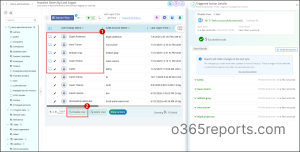
Need to automatically disable dormant accounts and move to a quarantine OU? AdminDroid’s built-in automation can handle these tasks for you.
Looking for more management actions? Active Directory management tool by AdminDroid offers 60+ management actions, 450+ reports, and Powerful automation to simplify day-to-day Active Directory administration.
Download AdminDroid today and start your 15-day free trial to experience smarter Active Directory management.
We hope this guide helped you understand how to identify dormant users in Active Directory using PowerShell. Have questions or feedback? Feel free to leave a comment below!