We all know that users use various Microsoft services to organize their day-to-day work like To-do, Calendars, Planners, etc. Can an email be your users’ work organizer? Yes, Microsoft made it happen through Briefing email. A checklist of the user’s daily activities is sent to them that helps to plan their day productively. They can prioritize the tasks, set focus time, reschedule their work, and more. Thus, briefing emails help users to work without interruptions and organize their work efficiently.
Enable Briefing email:
This feature can be enabled via.
Privilege Requirements
:You need to be a Global admin or an Exchange admin to enable this feature.
License requirements: Microsoft enterprise license is required to use this email feature.
Configuring Briefing Email via Microsoft Admin Center:
- Open the Microsoft Admin Center.
- Go to Settings→Org setting→ Briefing email from Microsoft Viva.
- Select the checkbox.
- Click Save.
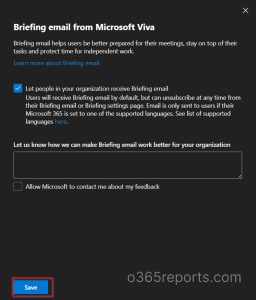
You can uncheck the checkbox and click SAVE to disable this feature any time you wish. It usually takes a day to reflect on the changes made in the Briefing email.
Note: This email feature is only supported in a few languages, you can get the list of languages by clicking the link in the Admin center.
Configuring Briefing Email Using PowerShell:
Make sure that you are connected to the exchange module using Connect-ExchangeOnline.
You can use the below cmdlet to enable or disable the Briefing email users.
|
1 |
Set-UserBriefingConfig -Identity "Joe@contoso.com" -Enabled[$true |$false] |
You need to set the ‘Enabled’ parameter as true.
When you enable Briefing email using Microsoft admin center it is activated for tenant level. However, using PowerShell, you can enable or disable it for specific users.
Briefing Email Settings:
Follow the steps given below to personalize the feature based on your requirements.
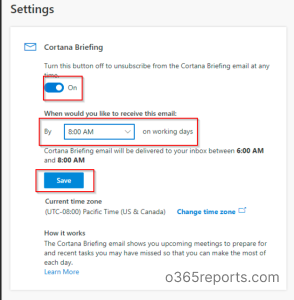
- Click the Setting option near the end of the Briefing mail.
- In the popup, you can switch ON or OFF the feature using the toggle button.
- If you don’t want these Briefing emails to disturb you on weekends you can also set it only for weekdays.
- After making the required changes you can click Save changes to reflect the changes.
In simple, a Briefing email is a daily activity reminder that helps users to be more prepared for their day. Hope we have fulfilled your requirements regarding the Briefing email. Feel free to reach us in the comment section. We would be glad to assist you!