Imagine a Microsoft 365 user approves an OAuth consent requested from a malicious third-party application that appears legitimate. No credentials are compromised, MFA is not bypassed, and no security alerts are triggered. For admins, the environment remains compliant and secure.
However, the consent given to the malicious app has persistent access to M365 resources, such as mailboxes, files, Teams data, etc. Even if the user changes the password, the access remains valid. These attacks can exist for long periods without any detection, making them more dangerous. In this blog, we will explore how illicit consent grant attack works, how to identify the indicators of compromise (IOC), how to remediate, and prevent OAuth consent grants effectively in your M365 environment.
What is an Illicit Consent Grant?
An illicit consent grant attack is where a registered Entra ID application requests access to M365 data. The attacker tries to do a phishing attack or inject illicit code into a trusted website and then tricks user to grant consent to that application. After consent is given, malicious client applications don’t need an organization account for accessing data as it has account-level access.
Do admins review every consent given to every application? No! All consent grants are not malicious. Admins need to investigate unusual activities after a consent has been granted and confirm whether it is a malicious application or not. Let’s see how to detect and confirm illicit consent grants below.
How to Confirm Illicit Consent Grant Attack in Microsoft 365?
Admins can confirm that the illicit consent grant attack happened in their organization using one of the following ways.
Find Illicit Consent Grant Activity Using Audit Log Search
Try to find out any indicators of compromise (IOC) in the audit log search, such as unusual user behavior, frequent file access, high-privileged account access, etc.
- Navigate to Microsoft Defender portal → Audit.
- In the Search tab, configure the Date and time range. Ensure that ‘Show results for all activities’ is selected.
- You can sort the search results to identify ‘Consent to application’ activity.
- In the entry details, you can verify that ‘IsAdminConsent’ is set to True.
Review Application Permissions Using Microsoft Entra Admin Center
You can review the applications and their granted permissions for a user by following the below steps.
- Go to Microsoft Entra Admin Center → Entra ID → Users → All users.
- Select the required user and choose Applications on the details page.
- Click on ‘View granted permission’ option to verify the app permissions.
Review Application Permissions Using PowerShell
Ensure you have installed Microsoft.Graph module and connect to Microsoft Graph. Use the below cmdlet to retrieve a single user’s apps and their permissions.
Investigate App Consent Grant for M365 User:
|
1 2 3 |
$userPrincipalName = "user@contoso.com" $user = Get-MgUser -UserId $userPrincipalName Get-MgOauth2PermissionGrant -Filter "principalId eq '$($user.Id)'" -All | Format-List ClientId, ResourceId, Scope, ConsentType |
You can give the required user’s UPN in the $userPrincipalName variable.
Remediation Steps for Illicit Consent Grant Attacks in Microsoft 365
Once you find applications with illicit OAuth consents in your organization, you can use the below ways to resolve the attack.
- Revoke illicit app permissions using Entra Admin Center.
- Revoke OAuth consent grant using PowerShell.
- Revoke service app role assignment using PowerShell.
- Block illicit application via Conditional Access.
- Disable compromised user sign-ins in Microsoft 365.
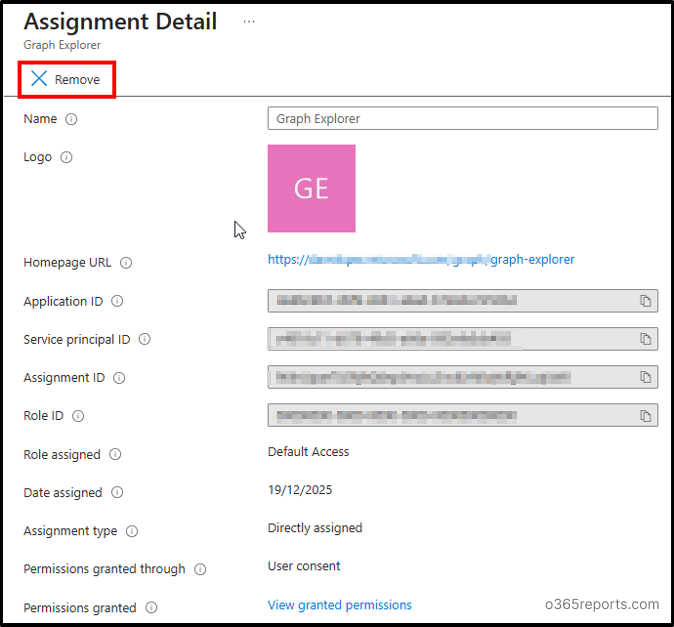
1. Revoke Illicit App Permissions Using Entra Admin Center
- Go to Microsoft Entra Admin Center → Identity → Users → All users.
- Select a user and click on the Applications option. Select the ilicit application.
- Click on Remove on the Assignment detail page to remove the application.
2. Revoke OAuth Consent Grant Using PowerShell
You can remove the OAuth consent granted via registered application by connecting to MgGraph and using the below cmdlet.
|
1 |
Remove-MgOauth2PermissionGrant -OAuth2PermissionGrantId “<TheSpecificGrantID>” |

Replace “TheSpecificGrantID” with the respective OAuth2 Permission Grant ID of the specific permission.
3. Remove Service App Role Assignment Using PowerShell
Removing service app role assignments ensure least privilege access and reduce attack surface. Use the below PowerShell cmdlet to do it.
|
1 |
Remove-MgServicePrincipalAppRoleAssignment -ServicePrincipalId <servicePrincipalId> -AppRoleAssignmentId <appRoleAssignmentId> |

Replace the “servicePrincipalId” and “appRoleAssignmentId” with the respective IDs of the service app role assignments.
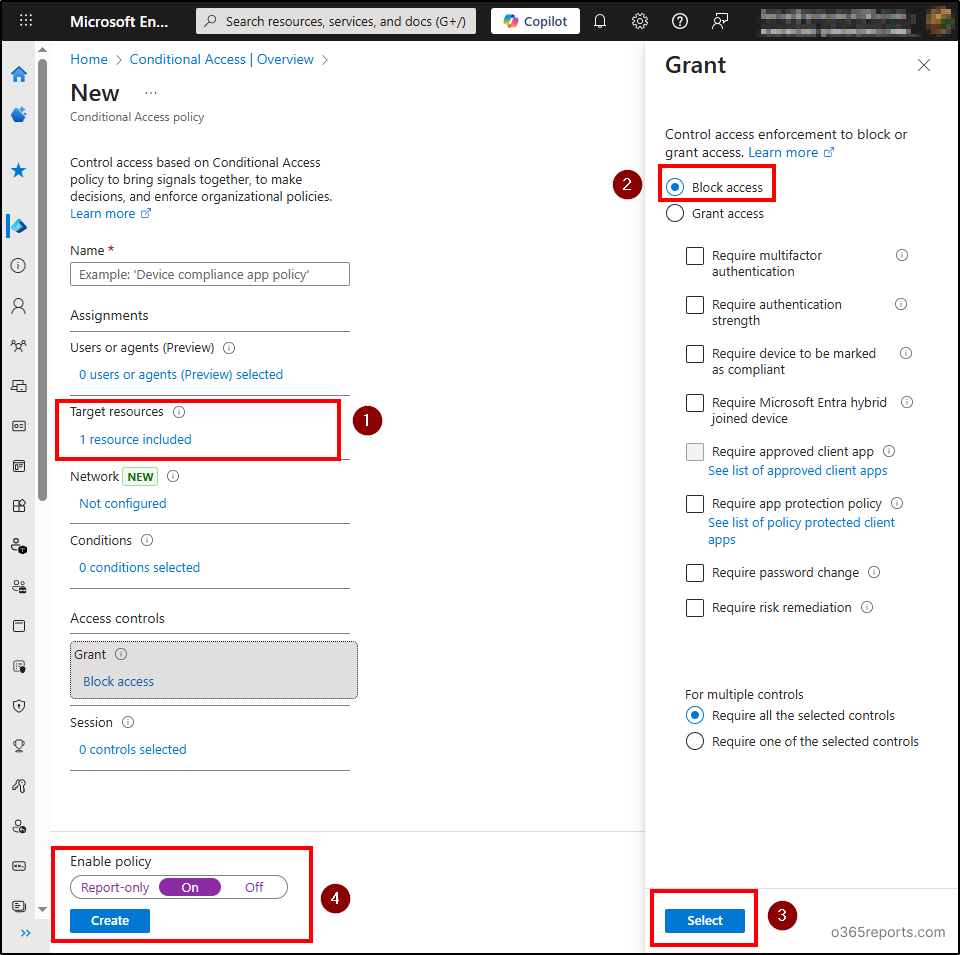
4. Block Illicit Application via Conditional Access
You can use Conditional Access policy in Microsoft Entra ID to block the required application.
- Navigate to Microsoft Entra Admin Center → Entra ID → Conditional Access.
- Choose ‘Create new policy’ option and give a name to the policy.
- Click on Target resources → Select resources → Select specific resources →Enterprise applications tab → Choose the required illicit application.
- Choose ‘Select’.
- Under ‘Access controls’, Click on ‘Grant’ and choose ‘Block access’.
- Click ‘Select’.
- Under ‘Enable policy’, move the toggle to ‘On’ and click Create.
5. Disable Compromised User Sign-ins in Microsoft 365
Though this method affects user productivity, it disables access to user data by the app. This step will be a temporary remediation which helps for a short period.
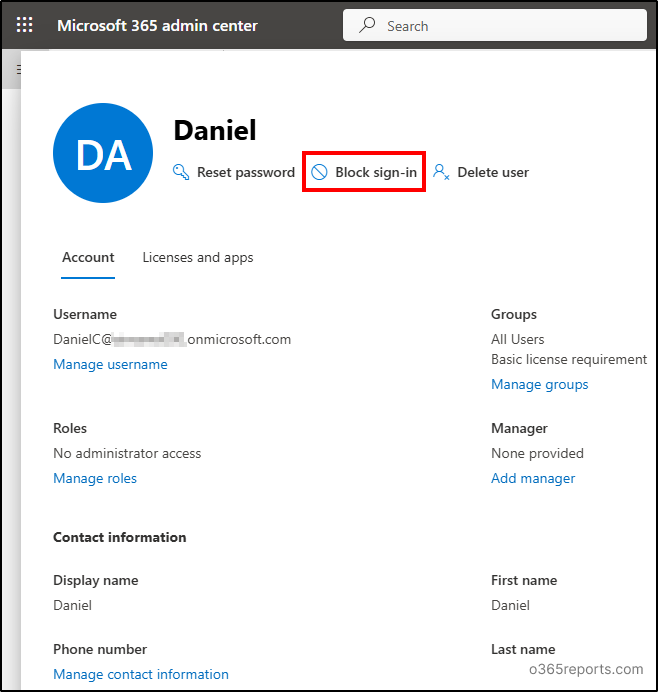
You can disable the compromised user sign-in by navigating to
- Microsoft 365 Admin Center → Users → Active Users.
- Select the respective user and choose the ‘Block sign-in‘ option.
These are several ways to remediate illicit consent attacks and to manage Entra application permissions. You can utilize the required methods based on your organization’s needs.
Note: Usual ways like resetting account passwords or enforcing MFA aren’t much defensive against this attack.
How to Prevent Illicit Consent Grant Attacks in Microsoft 365?
Admins can follow the below preventive measures to avoid OAuth consent grants to illicit applications in their organization in future.
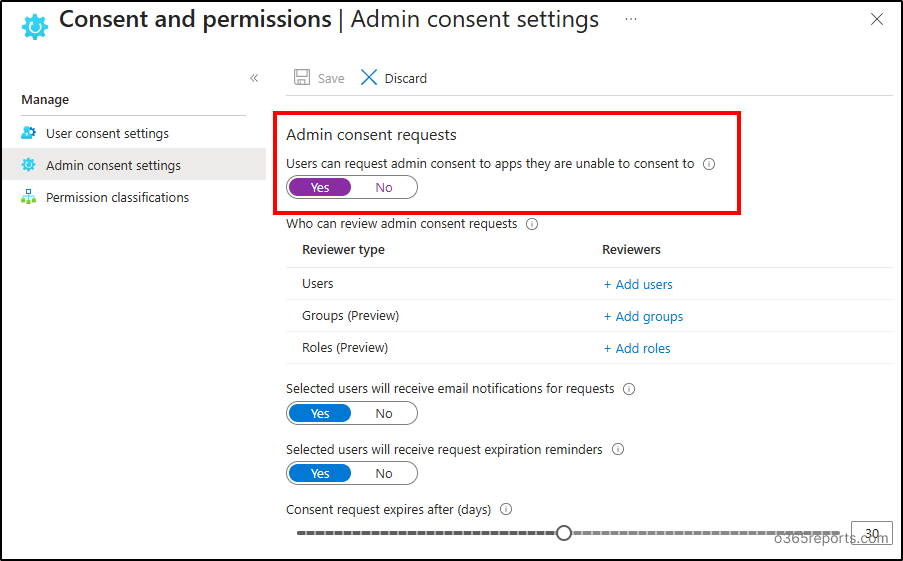
1. Enable admin consent workflow to request consent from admins and avoid user-granted consent.
- Go to Microsoft Entra Admin Center → Entra ID → Enterprise apps → Consent and permissions → Admin consent settings.
- Under ‘Admin consent requests’, move the toggle to ‘Yes’ for ‘Users can request admin consent to apps they are unable to consent to’ option.
- Select required admins to review the consents under ‘Who can review admin consent requests’.
- You can also set expiration for consent requests.
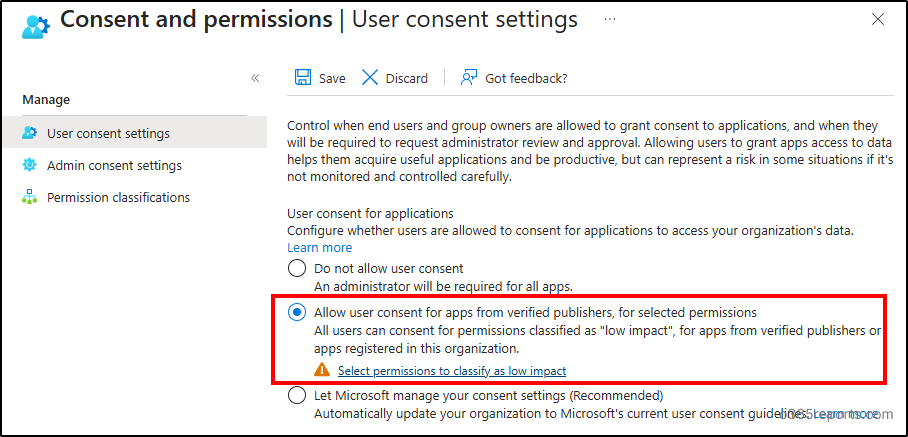
2. Configure user consent settings to allow users to grant consent only to the trusted applications and verified publishers. It helps to manage user consent to applications effectively, avoiding malicious apps entering the organization.
3. Export Entra application permissions report to review the overprivileged applications and revoke access periodically.
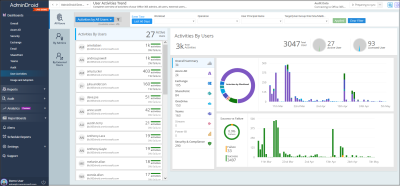
4. Track Entra application activity to identify the indicators of compromise (IOC) and take the necessary steps.
5. Use Defender for Cloud Apps OAuth app governance by navigating to Microsoft Defender portal → Cloud apps → OAuth apps to monitor app permission levels and authorized users.
6. You can also use advanced hunting by navigating to Microsoft 365 Defender → Investigation & response → Hunting → Advanced hunting to investigate consent phishing attacks.
You can use unique identifiers for application like ‘Application id’, ‘Serviceprincipalid’, etc., to query about the app and see the desired results.
Hope this blog helped you to detect and remediate illicit consent grant attacks and to prevent it from your organization effectively. Let us know how your organization remediates or prevents such attacks through the comments section.