Microsoft 365 users are frequently targeted by attacks such as anonymous IP sign-ins, unfamiliar sign-in properties, and password compromise. When such activity is detected, users are flagged as risky. Admins can review and take actions like risk remediation, dismissal, confirm compromise, or block the account.
To streamline risk remediation, Microsoft introduced the Require risk remediation option in Conditional Access (User risk-based policy). With this capability, users included in the policy can self-remediate active risks and unblock themselves without compromising security.
In this blog, we’ll walk you through why admins must enable risk remediation and how to do it.
Why Do Admins Enable Require Remediation for Risky Users in Microsoft 365?
To remediate user risks (both user and sign-in risks), previously administrators need to create separate CA policies for Password + MFA and Passwordless authentication. But, it will be harder for admins to manage several policies to remediate risks. Also, any misconfiguration might lead to security issues.
Also, manually remediating user risk is time consuming for admins. Else, users must contact the helpdesk to reset their passwords. In large-scale environments with an increasing volume of threats, manually addressing each risky user becomes time-consuming and inefficient. This often results in a surge of helpdesk tickets and delayed remediation.
Enabling users to self-remediate their risks provides a more efficient and secure approach. It reduces administrative overhead, minimizes helpdesk involvement, and ensures faster risk resolution. Therefore, requiring risk remediation for risky users is essential in any Microsoft 365 environment.
Pre-requisite for Enabling Users to Self-remediate Risks:
- Microsoft Entra ID P2 or Microsoft Entra Suite license is required to use the ‘Require risk remediation grant control’.
- To create or edit Conditional Access policies, Conditional Access Administrator role is required.
Allow Users to Self-remediate Risks Using Entra ID Conditional Access Policy
Admins must enable users to self-remediate risks in Microsoft 365 to efficiently balance their work without compromising security. If the user has either password-based or passwordless authentication, they will be enforced to sign-in again with the configured authentication strengths in the policy. Follow the steps below to create a Conditional Access policy to require remediation for risky users in Microsoft 365.
- Navigate to Entra Admin Center → Entra ID → Conditional Access.
- Click on ‘Create New Policy’ and give an appropriate name to your policy.
Configure Assignments in CA Policy:
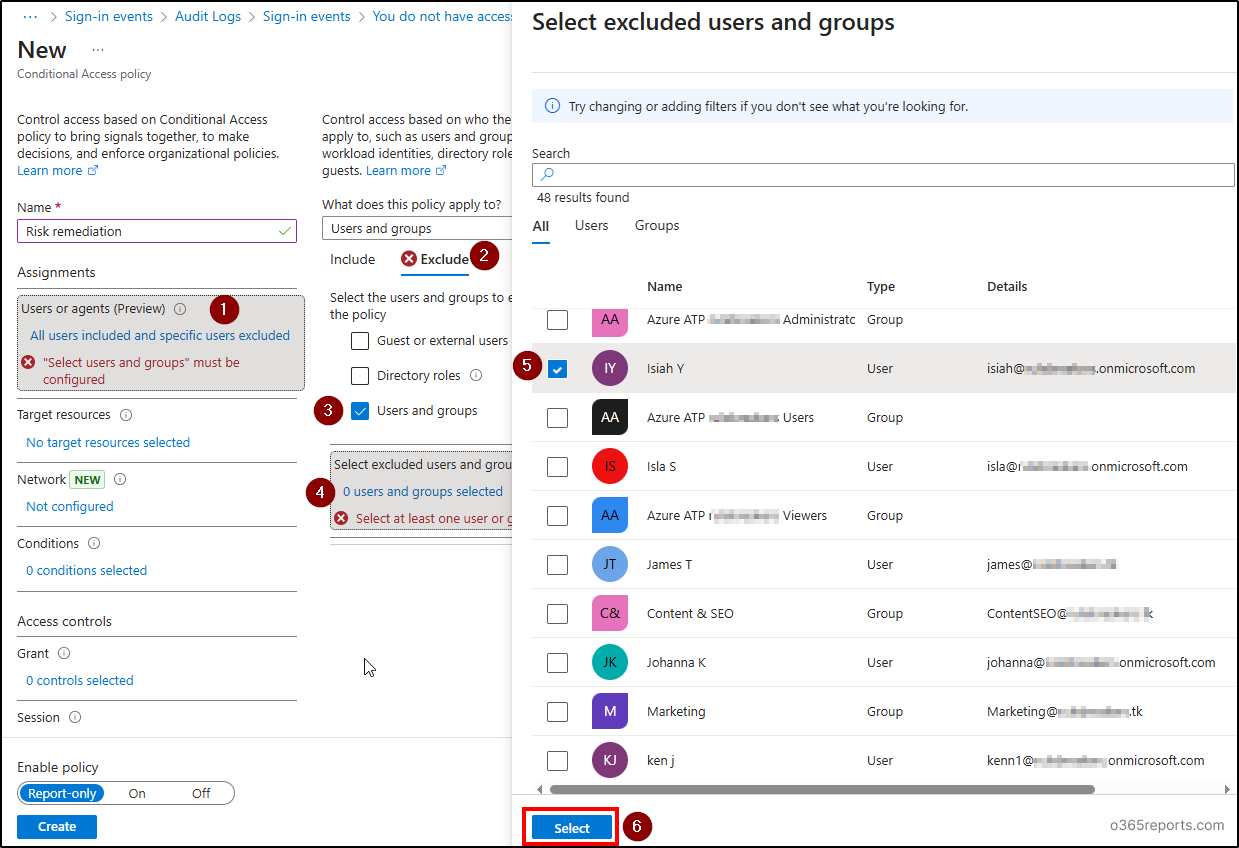
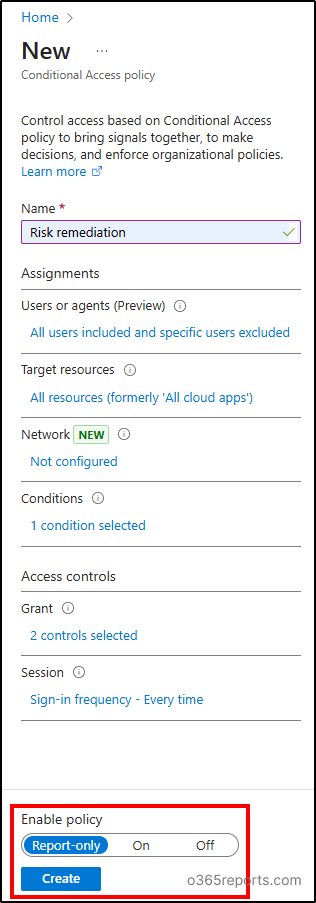
- Under Assignments, click on the ‘Users or agents (Preview)’ and select ‘All users’.
- Click ‘Exclude’ tab and choose ‘Users and groups’. Select the break glass account and service accounts or service principals to exclude from this policy.
- Choose ‘Select’.
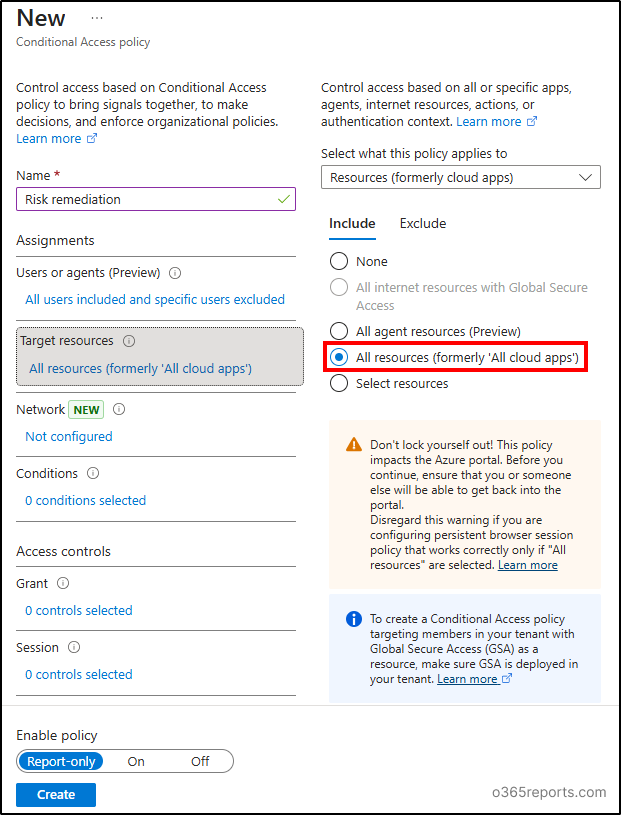
- Click on ‘Target resources’ and select ‘All resources (formerly ‘All cloud Apps’)’ option.
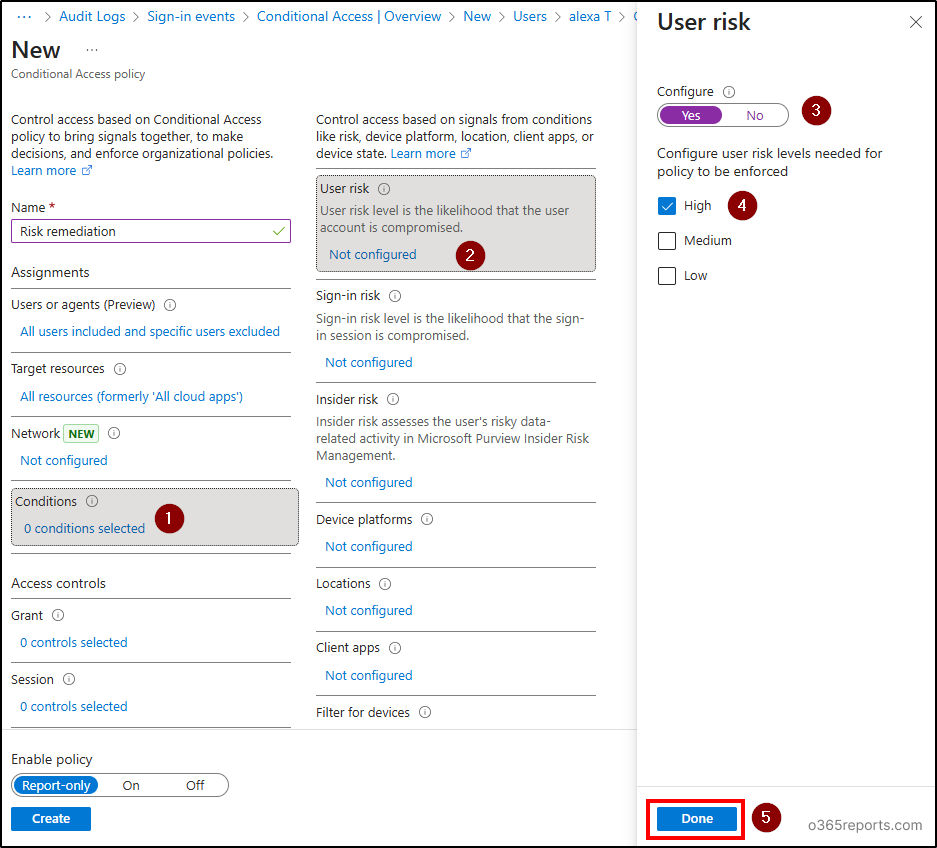
- Click on ‘Conditions’ and click ‘User risk’.
- In the flyout page, move the toggle to ‘Yes’ under Configure option and choose the risk level (High, Medium, or Low) as per your organization’s requirements.
- Click ‘Done’.
Configure Access Controls:
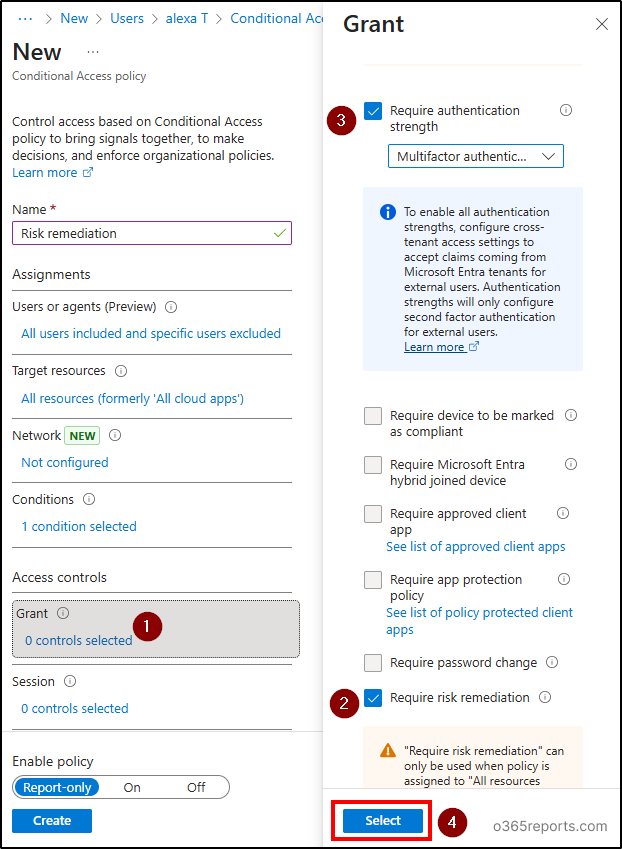
- Click on ‘Grant’ control and select ‘Require risk remediation’.
- You can see that the ‘Require authentication strength’ selected automatically.
- Choose the required authentication strength as you wish and click ‘Select’.
- Under ‘Session’ control, the ‘Sign-in frequency – Every time’ option will be selected automatically.
Enabling Conditional Access Policy:
Ensure the policy is enabled in ‘On’ mode and click ‘Create’ to create a CA policy to allow users to self-remediate their risks.
Deploy CA Templates for Risk Remediation
Also, you can deploy ‘Require password change for high-risk users’ policy under ‘Zero-trust category in Conditional Access templates to allow remediation for risky users in Microsoft 365.
Points to Consider:
- Make sure you don’t have any existing CA policy targeting risky users and configured with ‘Require password change’ or ‘Sign-in frequency – every time’. Turn off such policies to avoid conflicts.
- If you want to create a CA policy with ‘Require risk remediation’, target resource should be selected as ‘All resources (formerly ‘All Cloud Apps’). And session control must be ‘Sign-in frequency – Every time’.
End-User Experience
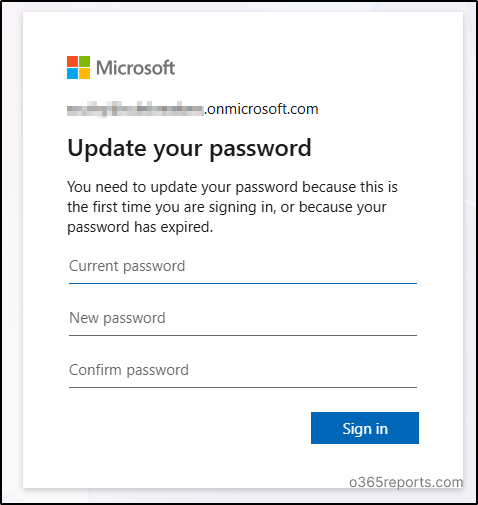
I have configured MFA authentication strength in the CA policy. When a risky user with active risk tries to login, they will be prompted to change the password. For passwordless users, their sessions will be revoked and asked to re-authenticate with strong authentication method (Passwordless or MFA).
For password users, first they will be asked to verify their identity as below.
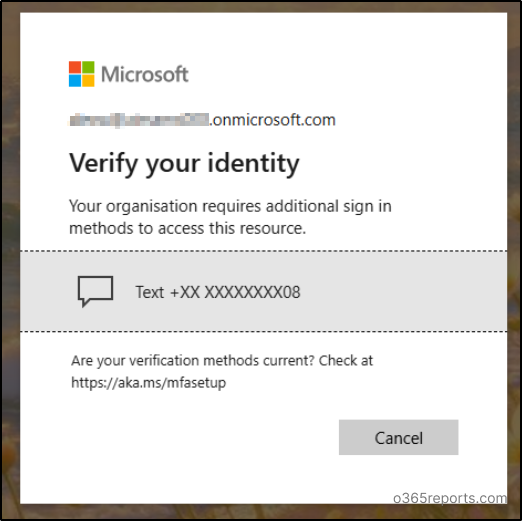
Then, they will be enforced to reset their password.
How to Monitor Users’ Self-remediation Events Using Entra ID Audit Logs
Admins can monitor users’ self-remediation activity in Microsoft 365 using the Entra ID Audit logs. For monitoring, navigate to Entra Admin Center → Entra ID → Monitoring & Health → Audit Logs.
I hope this blog helps you to understand why admins should enable users to self-remediate risks and how to do it using the Conditional Access policy in Microsoft 365.