Due to the growing practice of social distancing and work from home, millions of people around the world are working remotely.
The era of ‘remote everything’ has changed the way how we work and connect with each other. To continue business as usual, every organization uses team collaboration tools such as Microsoft Teams, Google Meet, Zoom, etc., to encourage teamwork and real-time collaboration.
According to recent research, Microsoft Teams usage has increased tremendously when compared to other collaboration tools. It has reached 115 million daily active users. Also, Microsoft Teams continuously introducing new features to improve employee productivity and make work a bit more fun.
Specifically, Teams meeting usage has spiked because of remote working. Microsoft is also working hard to provide rich-in class experience to its users through its new features like custom background, background blur, raise the hand, real-time noise suppression, etc.
We can see Microsoft Teams in a hurry to release new and innovative features to compete with the experienced players in the market such as Zoom, Team Viewer, etc. We found that one of the new features might concern users’ privacy by exposing their video when they are not prepared. More detail follows.
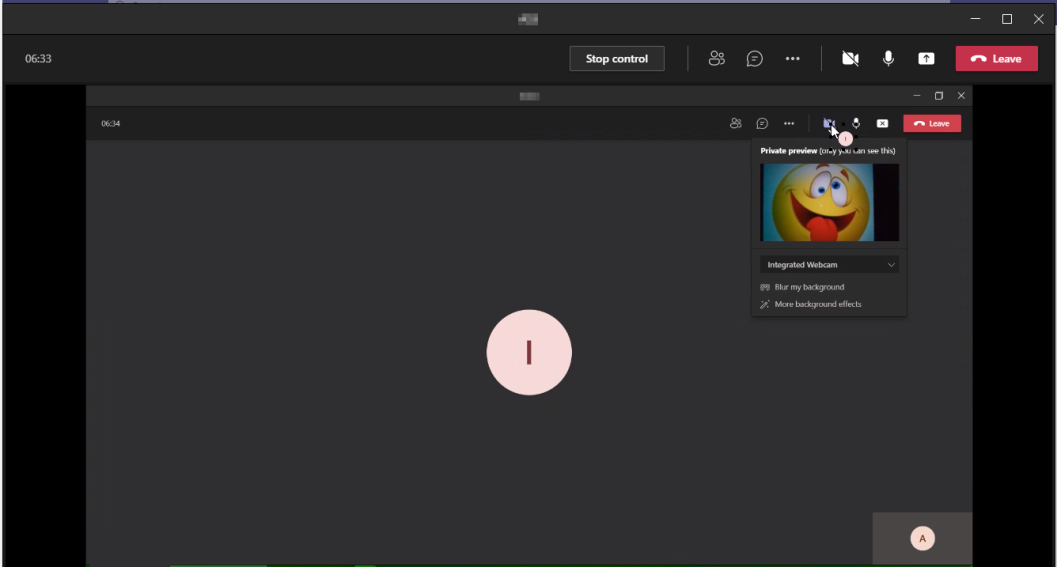
Microsoft Teams recently released a feature to show a preview of your cam when you bring your mouse over to the video icon. During voice call, most of the users who accidentally hovered the video icon might have shocked, but the text ‘only you can see this’ given in the preview gave the relief.
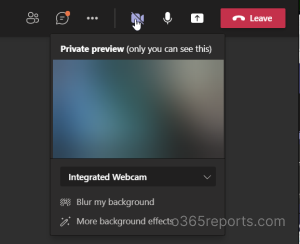
The same feature can question your privacy!
If you attend meetings in Teams, you might have shared your screen at least once. Do you believe screen sharing can show your video to everyone in the meeting without you turning on the video? Yes. It can happen. It can happen to anyone.
How Your Video Can Be Exposed?
From my experience, it can happen in two ways.
- Your video exposed by you (without your knowledge)
- Your video exposed by your teammate (unintentionally)
Let me explain in detail. Consider, you have shared your screen with your team and when you mouse hover on the video icon, it will show a video preview which can be seen by people in the meeting.
The same thing can happen when you share your screen with the team and have given mouse control to your teammate. If they accidentally hover the mouse on the video icon, it will show your video preview to everyone in the meeting.
I can hear someone says, ‘It’s Not a Bug, It’s a Feature’. Showing a video preview is a good feature, but most people might not aware of this accidental video preview. As similar to Do Not Disturb (which helps to suppress the notifications when presenting) automatically activated while screen sharing, Microsoft should have disabled this preview option.
Until then, be cautious about your video icon.
I am writing this to make you alert of it. You can share this with your colleagues and alert them as well. If you have any similar experiences, share them through the comment section. Happy Teams Meetings!!! 😉