If you’ve ever opened the Microsoft Entra admin center to view your organization’s applications and asked yourself:
- Why does Entra have two separate sections for managing applications — App Registrations and Enterprise Applications?
- Why does the same app sometimes appear in two places?
- Why do I need both?
You’re not alone! This is a common point of confusion for many M365 administrators. It usually starts when you register an application and notice it shows up in both App Registrations and Enterprise Applications.
The confusion grows when you notice dozens of apps like Zoom, Salesforce, or Adobe Creative Cloud under Enterprise Applications. When you check App Registrations, none of them are there! The list often looks empty unless you’ve created apps yourself.
So, whether you’re registering an application or integrating a third-party SaaS tool, it’s important to understand the purpose of these two sections and how they work. In this blog, we’ll clear things up by explaining the key difference between the Enterprise Applications section and App Registrations.
What are Applications in Microsoft Entra ID?
In Microsoft Entra ID, an application represents an identity that authenticates and accesses organizational resources based on permissions granted to it. Generally, applications can interact with organizational data in two ways: delegated permissions and application permissions.
Since Entra ID functions as an identity platform for your applications:
- You can use a single custom-built application across multiple organizations.
- You can integrate and use third-party applications even if they were developed outside your organization.
- You can have tenant-level control over every application, custom or third-party, that accesses organizational resources.
To handle the above, Microsoft Entra separates application-related activities into two distinct areas, clearly distinguishing app creation from app usage and management.
Here’s a quick explanation to understand the purpose of each area:
- App registrations: In this section, you can register applications and configure API permissions tailored to your organization’s requirements.
- Enterprise applications: Here, you can manage how both custom and third-party applications access your organization by controlling user access, permissions, and security settings.
In simple terms, App Registrations are mainly for developers to configure apps,
while Enterprise Applications are for IT admins to manage and control them.
To get a detailed understanding of how App registrations and Enterprise applications differ, explore the sections below.
- App registration in Microsoft Entra
- How to Register an Application in Entra
- What are Service Principals
- Enterprise Application in Microsoft Entra
- Manage Applications in Enterprise Applications
What is an App Registration in Microsoft Entra ID?
An app registration in Entra ID is the process of creating and defining an identity for an application within the Microsoft identity platform.
For example, think of it like adding a new employee in your organization,
When you onboard a user, you:
- Assign them a name
- Define how they sign in
- Control what resources they can access
Registering an app works the same way!
When you register an application in Microsoft Entra ID, you:
- Give the app a name
- Define the API permissions it needs
- Specify how it authenticates
The only difference? A user signs in with a username and password, while an app proves its identity using credentials such as client secrets or certificates!
In short: App Registration is where your application gets its identity. It serves as the foundation that allows the Microsoft identity platform to securely recognize and authenticate it every time it tries to access your organizational resources.
How to Register an Application in Microsoft Entra ID?
Organizations often register internal applications to simplify daily operations while maintaining strict security controls.
➡️ One such example is an HR Employee Portal, where employees check their personal information and HR teams manage sensitive records securely.
Although third-party apps can provide similar functionality, a few organizations prefer building their applications to retain full control over authentication, access, and data protection. Through this portal, employees can sign in with their work accounts, while administrators centrally manage who can access HR data.
To register and configure the application in Entra, follow the steps below. By following similar steps, you can create your own custom applications.
- Sign in to the Microsoft Entra admin center.
- Navigate to Entra ID → App registrations and click + New registration.
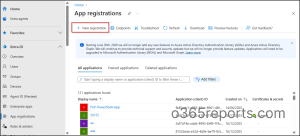
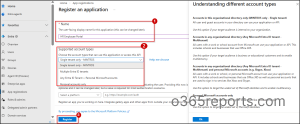
3. On the Register an application page, provide the name ‘HR-Employee-Portal‘.
4. Next, under Supported account types, select Single tenant only – <TenantName> to ensure the app is accessible only to users within the organization.
To allow access for multi-tenant users or personal Microsoft accounts, choose the appropriate option below.
- Multiple Entra ID tenants: Allows users from multiple organizations to use your application.
- Any Entra ID Tenant + Personal Microsoft accounts: Allows access for users from multiple organizations and personal Microsoft accounts to use your application.
- Personal accounts only: Allows access only for users with consumer Microsoft accounts to use your application.
Note: This setting determines who can sign in to the application; it does not affect the application’s functionality.
5. Optionally, if the application is a web app, select Web and enter a redirect URI (for example, https://hrportal.contoso.com/sign-in-oidc).
6. Click Register to create the application.
After registration, Entra automatically creates the following IDs and default permissions to establish the identity of the registered app.
- Application (Client) ID – A unique global identifier created for your registered application. It remains consistent across all tenants in a multi-tenant setup and is used when the application requests tokens.
- Object ID – Unlike the Client ID, the object ID is a local identifier unique to your specific tenant. It represents the application’s configuration and properties within your directory.
- Default API permission( User.Read) – This permission is added by default to allow the app to read the signed-in user’s basic profile during authentication.
7. As the final step, add a certificate or client secret, configure the required API permissions, and grant admin consent as needed.
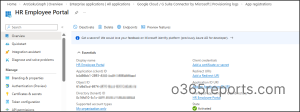
Once registration is complete, a Service principal is automatically created in your tenant for the HR employee portal application. This service principal represents the application within the tenant and is used to manage access, sign-in, and security settings.
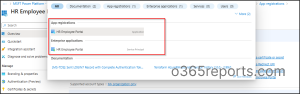
What is a Service Principal in Entra ID?
After successful application registration, the HR Employee Portal gets its own service principal in Enterprise Applications. In fact, the Enterprise Applications blade is essentially a list of Service Principals — each one representing an application introduced into your tenant.
A Service Principal is the tenant-specific identity of an application and is used to manage access, sign-in behavior, and security controls.
This may seem confusing at first — why does the same application appear in multiple places, and why does Entra ID use two different objects to define and manage it?
This separation is intentional! Microsoft Entra distinguishes between defining an application once and managing how that application is used within each tenant.
To support this model, Entra ID uses two related but distinct objects: the Application Object and the Service Principal.
Application Object vs Service Principal
When you register an app, Entra ID creates two objects behind the scenes:
1. App object (App registration): The App registration creates an App Object, which defines the application’s configuration, such as authentication settings and the permissions it can request. It exists only in the home tenant where the application was originally registered.
2. Service principal (Enterprise application): The service principal, on the other hand, is the local identity of that application in your tenant. It is automatically created when the app is registered or consented to, and it is where permissions are actually granted or enforced.
For multi-tenant applications, a separate service principal is created in each tenant when consent is granted.
Note: The app object only defines what the application can request. The service principal is what actually holds the permissions, such as reading user mail or accessing sites.
How a Service Principal is Created?
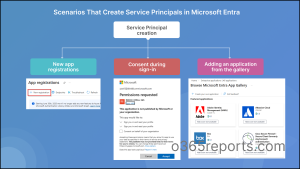
We already discussed that a service principal is created in Entra when an application is introduced into a tenant. This happens automatically in various ways, depending on how the application is added or accessed. Common scenarios include:
- New App Registration: When you register a new application, Entra ID automatically creates a service principal in your tenant so the app can authenticate and be managed locally.
- Consent during sign-in: When a user or an admin signs in to a third-party app like Zoom or Adobe Acrobat for the first time, the app requests consent. Once consent is granted, a Service Principal is instantly created in your tenant.
- This local identity now holds the record of that consent, which allows the external application to authenticate against your tenant and access the resources it was consented to.
- Adding an application from the gallery: When you select an app from the Microsoft Entra gallery under Enterprise Applications → New Application, a Service Principal is automatically created for that application.
What is an Enterprise Application in Microsoft Entra?
While App Registrations defines the application, the Enterprise Applications controls how it is managed and secured within your tenant.
In simple terms, the enterprise application is the tenant-specific app management section where admins can control application access, security policies, and configurations for all service principals within their tenant.
From here, you can:
- Control who can access your organization’s applications through user and group assignments.
- Review app permissions and consents granted to the application within the tenant.
- Apply security policies such as MFA and Conditional Access.
- Monitor the application’s sign-in activity and audit logs across the organization.
The following types of applications can be managed in this section:
- Microsoft-owned apps like Microsoft Teams and SharePoint Online are pre-provisioned and appear automatically in Enterprise Applications.
- Third-party SaaS applications added from the Microsoft Entra application gallery, such as Salesforce and ServiceNow.
- External applications that are consented by the user or administrator, such as ChatGPT and Zoom.
- Custom applications registered using App registrations (like the HR Employee Portal we configured earlier).
How to Manage Application Access & Security in Enterprise Applications
As we already discussed, the Enterprise Applications section contains a list of all service principals created for registered apps, consented apps, and gallery-added apps.
To manage an application, navigate to Enterprise Applications → All Applications under Manage.
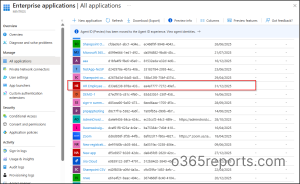
When you click on the application (for example, HR Employee Portal), you’ll see the Application ID and the service principal’s Object ID, along with important configuration settings.
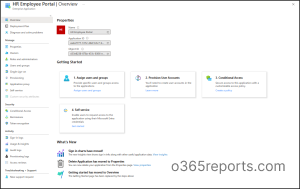
Below are the main settings you manage here:
Application Properties: Use the Properties section to update basic details, such as the application name, logo, etc. In this place, you can also disable user sign-in, configure app visibility, and more.
User and Group Access: Assign users or security groups to control who can access the application. If custom app roles are defined, apply them to enforce role-based access. Additionally, designate a responsible enterprise app owners to manage settings like SSO, provisioning, and user access.
Single Sign-On Settings: Configure single sign-on (SSO) so users can sign in to applications using their organizational accounts via OpenID Connect or SAML.
Security and Conditional Access: Apply Conditional Access policies for applications to enforce multi-factor authentication, device compliance, or location-based restrictions.
Monitoring and Logs: Use sign-in and audit logs to monitor application usage, track configuration changes, and detect unusual activity.
In addition to the core settings mentioned above, Enterprise Applications also lets you manage other configurations.
Test Scenario: How to Handle a Compromised Application Entra ID?
Beyond application creation and management, administrators must also know how to respond to security incidents and safely retire applications. For example, an application may show suspicious behaviour due to token compromise.
In such a scenario, you may be faced with multiple options:
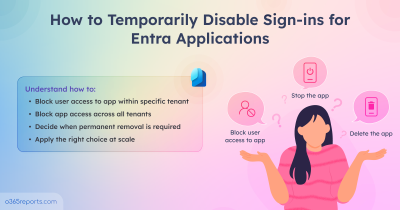
- Disable user sign-in for an application via Enterprise Applications
- Delete the service principal in Enterprise Applications
- Deactivate the application across all tenants
- Delete the registered app in App registration
| Which one you would choose?
The answer: It depends on your specific situation and the scope of impact you want to control. |
For example:
1. If you want to disable the app only within your organization:
Action to choose: Disable user sign-in via Enterprise Applications. This blocks new sign-ins but does not invalidate existing tokens.
2. If the application is no longer required in your organization but may still be used in another tenant (in the case of a multi-tenant application):
Action to choose: Delete the service principal in Enterprise Application (tenant-specific removal)
3. If you want to stop sign-in for the application across all tenants:
Action to choose: Deactivate the app registration in Entra ID. This stops new Service Principals from being provisioned in any tenant and blocks sign-ins across all tenants where the app is used.
4. If the application must be permanently retired across all environments:
Action to choose: Delete the registered app from the App Registrations section.
Common Mistakes to Avoid
1. Deleting the registered app instead of the service principal:
Deleting a multi-tenant app registration can unintentionally impact all tenants using the app. To avoid a broader impact, remove only the tenant-specific service principal from Enterprise Applications instead.
2. Deleting without proper investigation: Deleting a registered app or service principal removes all app configuration, including permissions, secrets, and integrations. Although deleted apps can be restored for up to 30 days, they are permanently removed afterward. Therefore, it is recommended to disable the application first and delete it only after proper investigation.
3. Assuming disabling ends access immediately: Disabling an app blocks new sign-ins, but existing access tokens remain valid until they expire. To avoid this risk, revoke active user sessions and rotate credentials.
Key Differences Between Application Registration vs Enterprise Application
For a clear side-by-side breakdown of these differences, refer to the comparison table below.
| Feature | Application Registrations | Enterprise Applications |
| What it is used for | To define and configure an application’s identity in Microsoft Entra ID. | Controls how the application is used and managed within your tenant. |
| App Identity | Provides the global identity (Client ID) and application object ID in the home tenant. | Provides the application with a unique local identity (Service Principal Object ID). |
| Scope | One registration can be used by multiple tenants who grant consent. | Exists as a tenant-specific instance of the registered app. |
| Permissions
|
Defines the permissions the app can request. | Holds granted permissions through consent and role assignments. |
| Use case
|
Used by developers to register and configure applications or to integrate with the Microsoft identity platform. | Manage SaaS or internal app access in your tenant |
And that’s a wrap! We hope this blog helped you clearly understand the difference between App Registrations and Enterprise Applications in Microsoft Entra ID, and why both exist.
Have questions or real-world scenarios you’d like us to cover? Drop them in the comments; we’d love to hear from you. Stay tuned for more upcoming blogs on Microsoft Entra ID and identity management!