Ever had a temporary guest who stuck around so long they felt like family? In Microsoft 365, that scenario is surprisingly common. It starts with a quick invite, an external partner brought in for a short project. But projects evolve, contractors stay longer, or they even transition into full‑time employees. Suddenly, that guest label doesn’t fit anymore.
Traditionally, the shift was messy. Admins had to delete the guest account, create a new internal user, and manually re‑assign memberships and permissions. The worst part? All history and access tied to the guest account vanished.
It’s time for a smoother transition. In this blog, we’ll explore how to bulk convert external users to internal users using PowerShell without recreating accounts. This preserves activity history, keeps permissions intact, and saves admins hours of manual work.
From Guest to a Member: When Conversion Becomes Necessary?
Guest users are external identities in Microsoft 365, typically invited to collaborate through Teams, Groups, or shared resources. When accessing resources, guest users authenticate using their own organizational or personal accounts, and their access is governed by conditional access and external collaboration settings in Microsoft Entra ID.
Unlike internal users, they do not have a full set of permissions by default and rely on guest-specific policies for authentication and access. These accounts are commonly created for partner collaboration, project-based access, or through multi-tenant setups like Microsoft 365 multi-tenant organizations (MTO).
However, as these users become more integrated into the organization such as transitioning from external partners; continuing to manage them as guest users may no longer be ideal. In such cases, converting them to internal users helps maintain continuity without losing their existing access, permissions, and activity history.
Here are a few scenarios where an organization might want to convert external users into internal users:
- Mergers & Acquisitions: During mergers or organizational changes, users may initially be added as external users to collaborate. For example, employees from an acquired company might start with external access; later, converting them to internal users ensures continuity without recreating accounts.
- Employee onboarding as full-time: Interns or temporary hires initially added as guests with limited access can be converted to internal users once they join full-time. This preserves existing access and activity history.
- Role transitions & long-term collaboration: External consultants, vendors, or partner users who take on expanded roles or engage in long-term projects can be converted to internal users. This ensures they retain their existing access, permissions, and setup without disruption.
How to Convert External User into Internal User in Microsoft 365
Based on the scenario, whether it’s a single user or large-scale conversion, there are a few methods available to convert an external cloud user into an internal user.
1. Convert guest to internal user using Microsoft Entra ID:
You can convert external users directly using the external user conversion feature in Microsoft Entra by navigating through: Entra ID → Users → All users → Select user. In Overview tab, select Convert to internal user under the B2B collaboration section.
This method is manual and not scalable for multiple users, as each user must be converted individually. Additionally, users are not prompted to change their password at the next sign-in, so administrators need to set a strong password for each user.
2. External user conversion using Microsoft Graph API:
You can convert a guest user to internal user using the Microsoft Graph API with the following HTTP request.
|
1 |
https://graph.microsoft.com/beta/users/{userId}/microsoft.graph.convertExternalToInternalMemberUser |
This method only supports converting one user at a time, making it impractical for bulk operations.
3. Convert external user into internal user using PowerShell:
You can use the Convert-MgBetaUserExternalToInternalMemberUser cmdlet to convert an external user via PowerShell. While it supports bulk conversion, it requires a UPN and password for each user and does not generate a detailed log on failures, making issue tracking difficult.
To overcome these limitations, we’ve developed a PowerShell script that enables bulk conversion of hundreds of external users via CSV in one go. It generates a detailed execution log, capturing conversion status, new UPNs, passwords, and optional email changes, making auditing and tracking effortless. The script also supports optional auto-generation of passwords and user principal names at scale.
Download script: ConvertExternalUsersToInternalUsersM365.ps1
Script Highlights:
- Supports bulk conversion of guest users to internal users using CSV input.
- Automatically generates UPN and password if not provided.
- Allows both single-user and bulk user conversion.
- This script automatically checks for Microsoft Graph Beta and 7Zip4Powershell modules and installs them if missing with your confirmation.
- Generates detailed execution logs with conversion status and exports them as a password-protected ZIP file for secure auditing.
- The script can be executed with an MFA enabled account too.
- The script is compatible with certificate-based authentication (CBA).
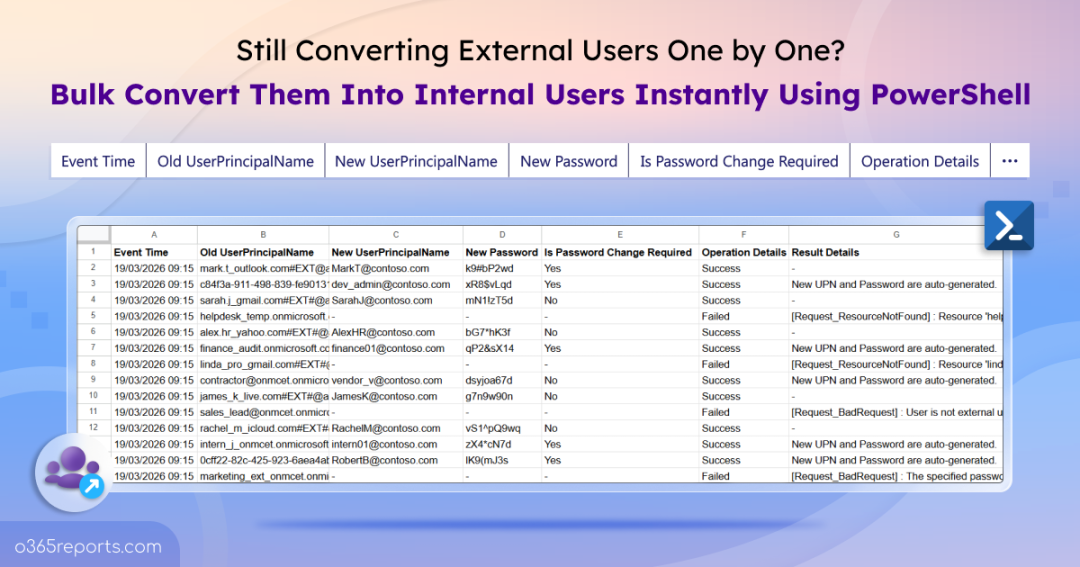
Sample Output – Bulk Conversion of External Users to Internal Users
Upon execution, the PowerShell script will generate output log file as follows.
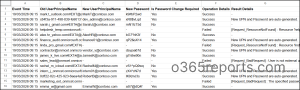
This script exports detailed conversion results for each user, including Event Time, Old User Principal Name, New User Principal Name, New Password, Is Password Change Required, Operation Status, and Result Details.
Script Execution Methods – Convert External Users to Internal Users in Microsoft Entra
Follow the steps below to run the external user conversion script:
- Download the PowerShell script and save it locally.
- Open Windows PowerShell and navigate to the script folder.
- Select any of the methods provided to execute the script.
Method 1: Run the script with MFA or non-MFA accounts.
|
1 |
./ConvertExternalUsersToInternalUsersM365.ps1 |
This method uses an interactive script to convert external users into internal users. When you run the script, you will first be prompted to authenticate to your Microsoft 365 tenant using an account with the required permissions.
Once authenticated, you will be required to provide the following attributes to convert an external user:
- UserId – The external user’s identifier (UPN, object ID, or email).
- UserPrincipalName – The user’s current UPN.
- New internal UPN – The UPN to assign after conversion.
- Password – The password for the internal account.
You can also choose whether the user must change their password at next sign-in and set a password to protect the output log file, which captures all conversion details. This makes it ideal for quick, one-off conversions where you need full control over the input values.
Method 2: Run the script using certificate-based authentication.
You can also use certificate-based authentication to execute the script. To connect to graph PowerShell using certificate, register an app in Microsoft Entra ID. Based on your needs, create a self-signed certificate or use a certificate authority (CA). Then, execute the script as follows:
|
1 |
./ConvertExternalUsersToInternalUsersM365.ps1 -TenantId "<TenantId>" -ClientId "<ClientId>" -CertificateThumbprint "<Thumbprint>" |
Points to Remember:
- Windows PowerShell 5.1 or PowerShell 7+ is required.
- If an incorrect or non-existent UPN is provided, the conversion will fail and the log file will capture it with a “resource not found” error.
- Make sure the necessary permissions or roles are assigned based on the authentication method you’re using:
- For certificate-based authentication: Ensure the app registration in Microsoft Entra ID has the User.ReadWrite.All permission; otherwise, you may encounter errors such as “Insufficient privileges to complete the operation” or “Unauthorized.”
- For direct user sign-in: At least one of the following directory roles is required: Global Administrator or User Administrator.
Unlock Full Potential of the Script – External User Conversion in Microsoft 365
This PowerShell script enables flexible external-to-internal user conversion across different scenarios. It supports both individual and bulk conversions with built-in parameters, allowing you to easily target users using the information you have. Whether handling one-off changes or large-scale migrations, the script streamlines the process with automated dependency checks and intuitive prompts. Here are some key use cases of the script.
- Bulk convert external users using CSV input
- Convert external users with auto-generated UPN
- Convert guest user with auto-generated password
Bulk Convert External Users Using CSV Input
By default, the script converts an external user you specified during execution. To perform bulk execution, you should provide an CSV file containing all external users you want to convert using the -InputCSVFilePath parameter. This format coverts all the listed users and prepares a detailed execution log showing status, new UPN, new password, and other details.
To convert multiple external users in bulk, create a CSV file with columns headers named UserId (Mandatory), NewUserPrincipalName, NewPassword, and ForceChangePasswordNextSignIn as shown below:
Sample input file:
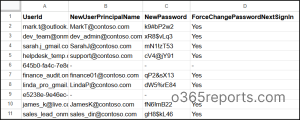
If NewUserPrincipalName or NewPassword are left empty, the script will auto-generate the values. The ForceChangePasswordNextSignIn column header to be set to Yes by default for empty entries. The script accepts either the object ID, UPN, or email as UserId column input.
Finally, replace <FilePath> with the path to your CSV file and run the script as follows:
|
1 |
./ConvertExternalUsersToInternalUsersM365.ps1 -InputCSVFilePath "<FilePath>" |
This format converts all users listed in the CSV and generates a detailed log file with conversion status, new UPN, password, and execution results.
Convert External User with Auto-Generated UPN
When converting multiple external users to internal users in bulk, leaving the UPN field empty allows the script to automatically generate a new UPN. In the case of manual (single-user) conversion, you can use the -AutoGenerateNewUPN parameter to generate the UPN automatically. This updates the UPN to use the tenant’s domain name.
This helps maintain consistent naming across users. During execution, you’ll be prompted to enter the external user’s UPN, password and whether to force change password at next sign-in. The script then performs the conversion and outputs details such as the newly generated UPN and operation status.
|
1 |
./ConvertExternalUsersToInternalUsersM365.ps1 -AutoGenerateNewUPN |
Convert Guest User with Auto-Generated Password
Manually setting passwords might seem simple, but it often leads to weak credentials, inconsistent formats, and unnecessary delays. To simplify this, you can use the -AutoGeneratePassword parameter to automatically assign a strong and secure password during the conversion process. This ensures compliance with password policies while saving valuable admin time.
To enable this, execute the script as follows.
|
1 |
./ConvertExternalUsersToInternalUsersM365.ps1 -AutoGeneratePassword |
During execution, the script will prompt you to enter the external user’s UPN and the new internal UPN. This automatically force a password change at next sign-in.
You can also combine the parameters -AutoGeneratePassword and –AutoGenerateNewUPN to automatically generate both the UPN and password during external user conversion.
What Happens When an External User is Converted to an Internal User in Microsoft Entra ID
When a guest user is converted to an internal user in Microsoft Entra ID, the existing user object is retained, ensuring a seamless transition without disrupting access or collaboration. The conversion upgrades the user’s role within the organization while keeping their existing access and data intact, avoiding the need to create a new account.
- User object remains the same: The account is not recreated, so the object ID stays intact.
- Access and memberships are preserved: Existing group memberships, permissions, and activity history remain unchanged. The user now has the same capabilities as any internal user.
- Conditional Access policies: The user is now evaluated against internal user CA policies instead of guest-specific policies. This may result in stricter controls such as MFA enforcement, compliant device requirements, or location-based access restrictions.
- User type is updated: The user type is converted from guest to member, allowing them to access resources as an internal user.
- Licensing remains the same: Any licenses assigned to the guest remain active after conversion.
- Authentication remains the same: Any MFA or other authentication methods previously configured for the guest account remain intact after the user becomes internal.
- Login with updated credentials: The user can now sign in as an internal user using the updated credentials.
- No impact on external identity source: The conversion only affects access within the tenant and does not change the user’s original identity provider.
Considerations While Converting Guests to Internal Users
There are a few important aspects to keep in mind when converting external users to internal users to ensure a smooth transition and avoid access or policy issues.
- Application/session impact: Users may face sign-in issues in apps like Teams after conversion. A sign-out, cache clear, and fresh sign-in may be required to reflect the updated identity.
- Dynamic group membership: Converting a guest to an internal user may trigger inclusion in dynamic groups, potentially granting unintended access to apps, data, or resources. Admins should review the user’s group memberships post-conversion and adjust memberships or access policies as needed to ensure proper security and compliance.
- Profile and attribute updates: Update key properties like display name, job title, department, manager, and usage location to ensure correct visibility in profile cards, dynamic groups, and access policies.
- Cleanup activities: After conversion, review user attributes to identify and update any values carried over from the external account. Properties of job information and contact information may still reflect guest-style values and should be updated to align with internal user standards.
We hope this blog helped you understand how to convert external users to internal users in Microsoft Entra ID. By converting users, you enable a seamless transition from external collaboration to full internal access without losing existing permissions and history. Have questions? Feel free to leave a comment below!