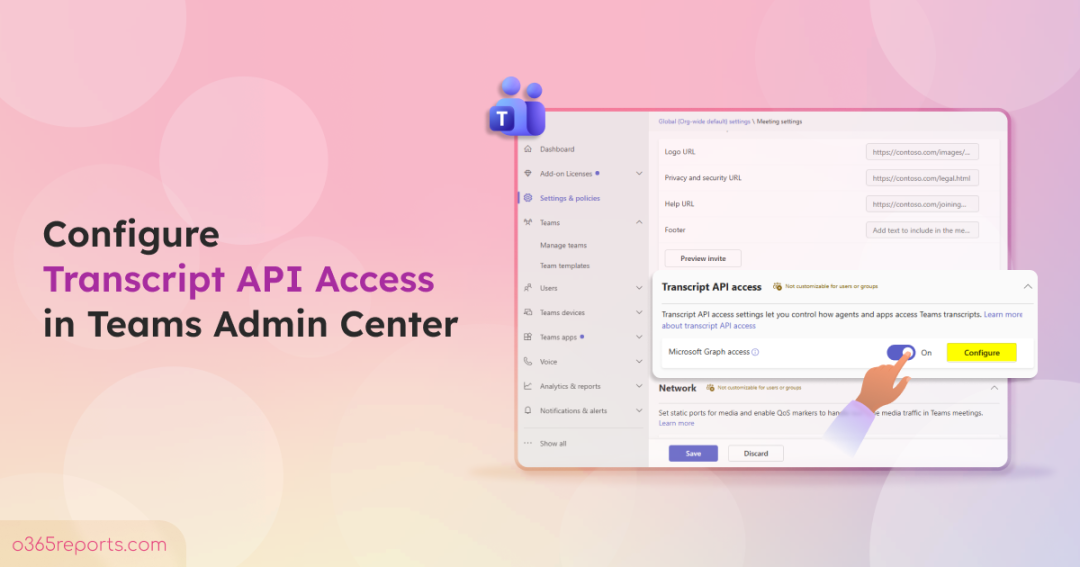
Teams Transcript API Access is now a critical Microsoft Teams setting for organizations that use third-party and custom applications to process meeting transcripts for scenarios such as meeting summaries, action item extraction, compliance, and knowledge management – applications granted Graph application permissions such as OnlineMeetingTranscript.Read.All, OnlineMeetingTranscript.Read.Chat, or CallTranscripts.Read.All could retrieve Teams meeting transcripts after an administrator granted tenant-wide consent.
While this permission model supported legitimate business scenarios, it lacked a tenant-wide control for transcript API access. Organizations that wanted to prevent applications from retrieving meeting transcripts had to identify each application and individually remove the required Graph permissions.
To address this gap, Microsoft has enforced a tenant-level control for transcript API access and speaker attribution, not as a replacement for existing Microsoft Graph permissions and admin consent, but as an additional layer of security. Hence, even if the applications have Microsoft Graph permissions, they can only retrieve Teams meeting transcripts when transcript access is enabled at the tenant level.
Why Teams Meeting Transcripts Need an Extra Security Layer
Teams meeting transcripts are among the most sensitive data exposed through Microsoft Graph. They can reveal entire meeting discussions, and with speaker attribution enabled, even who said what.
At the same time, AI agents and third-party apps are consuming this data more than ever. Without tenant-wide control, admins had to manage transcript access application by application, and that just doesn’t scale once you’re dealing with dozens of apps!
To address these challenges, Microsoft introduced a tenant-wide Transcript API Access setting in the Teams admin center.
This organization-level control lets administrators centrally govern whether applications and agents can retrieve Teams meeting transcripts and speaker attribution information through Microsoft Graph.
As a result, applications must now satisfy two requirements: they need the appropriate Microsoft Graph permissions, and Transcript API Access must be enabled at the tenant level.
The following table highlights the changes that have been made after the enforcement.
|
Aspect |
Old Behaviour |
Current Behaviour |
|
Apps/agents with valid Graph API permissions |
Could retrieve transcripts with valid Graph permissions. |
Requires both valid Graph permissions and Transcript API Access to be enabled. |
|
Transcript API Access and Speaker Attribution settings |
Not Available. |
Available and enforced at the tenant level. |
|
Admin action required |
No additional configuration required. |
Enable Transcript API Access to avoid disruptions to existing applications |
What Happens if Transcript API Access is Disabled?
As part of Microsoft’s secure-by-default design, Transcript API Access is turned off by default.
As a result, applications that currently retrieve Teams meeting transcripts using the required Microsoft Graph permissions will stop working until Access is enabled.
Depending on the application, transcript requests may fail with errors such as 403 Forbidden, Graph API access to transcripts is disabled for this tenant, or GraphAccessToTranscriptsDisabled.

To avoid disruptions and ensure your applications continue retrieving Teams meeting transcripts, administrators should enable Transcript API access in the Teams admin center.
Note: This enforcement doesn’t affect transcript generation, meeting recordings, or the transcript experience in Microsoft Teams. It only prevents applications and agents from accessing transcripts through Microsoft Graph until transcript API access is enabled.
Enable Transcript API and Speaker Attribution Access
Microsoft provides multiple ways to configure Teams transcript API access and speaker attribution access based on your administration preference. You can configure these settings by using any of the following methods:
- Manage Transcript API and Speaker Attribution Access Using Teams Admin Center
- Configure Teams Transcript Permissions Using PowerShell
Manage Transcript API and Speaker Attribution Access Using Teams Admin Center
The Transcript API access configuration in the Teams admin center allows you to control how applications and agents access Teams meeting transcripts through Microsoft Graph. It includes two settings:
- Microsoft Graph access – Enables Graph access to Teams transcripts for authorized applications and AI agents. Turn on this setting if your organization uses AI assistants, automation tools, or other applications that rely on transcript data.
- Include speaker attribution (Optional) – Allows applications to identify who spoke each part of a meeting transcript. Since this exposes additional sensitive speaker identity information, enable it only when it’s required for business, compliance, or investigative scenarios.
To configure these settings, follow the steps below:
- Sign in to the Microsoft Teams admin center.
- Navigate to Settings & policies > Transcript API access.
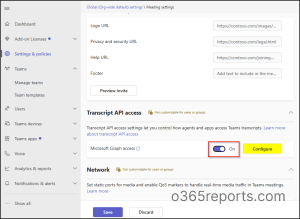
- Under the “Transcript API access” section, Toggle On the “Microsoft Graph access” option to enable Transcript access for apps and agents across your organization.
- (Optional)Select Configure, then turn on Include speaker attribution if your applications require speaker identity information.
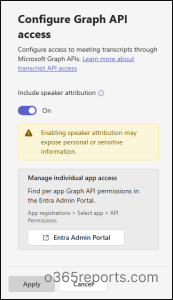
Once enabled, applications with the required Microsoft Graph permissions can retrieve Teams meeting transcripts.
Configure Teams Transcript Permissions and Speaker Attribution Access Using PowerShell
You can also use Microsoft Teams PowerShell to configure transcript API access and speaker attribution for your organization.
Connect to MS Teams PowerShell and run the following cmdlet to enable Microsoft Graph access for Teams meeting transcripts.
Next, run the following cmdlet to enable Microsoft Graph access for Teams meeting transcripts.
|
1 |
Set-CsTeamsMeetingConfiguration -Identity Global -EnableGraphTranscriptAccess $true |
If applications require speaker identity information, enable speaker attribution by running the following cmdlet.
|
1 |
Set-CsTeamsMeetingConfiguration -Identity Global -EnableAttributedTranscript $true |
Once configured, you can verify the configured transcript API and speaker attribution settings using the following cmdlet.
|
1 |
Get-CsTeamsMeetingConfiguration | Select EnableGraphTranscriptAccess, EnableAttributedTranscripts |
This displays the current Transcript API access and Speaker Attribution settings for your organization.
Manage Application Access to Teams Meeting Transcripts
At this point, you’ve enabled Transcript API access for your organization.
However, enabling the tenant-wide setting doesn’t automatically give every application access to Teams meeting transcripts. Applications must also have the required Microsoft Graph permissions.
The following sections show you how to review those permissions, manage access for individual applications, and revoke transcript permissions in bulk when needed.
- Block Individual Apps and Agents from Accessing Teams Transcripts
- Remove Transcript Permissions from Multiple Applications Using PowerShell
Block Individual Apps and Agents from Accessing Teams Transcripts
Since Transcript API access is enabled at the tenant level, applications with the required Microsoft Graph permissions can retrieve Teams meeting transcripts.
But if you no longer want a specific application or AI agent to access transcript data, you can review and remove the transcript-related permissions in Entra ID.
To review and manage transcript permissions:
- Sign in to the Microsoft Entra admin center.
- Navigate to Entra ID > App registrations > All applications.
- Search and select the app or agent you wish to review.
- Now, select API permissions under the Manage section.
- Then, review the list of Microsoft Graph permissions given below.
- OnlineMeetingTranscript.Read.All – Allows the application to read transcripts of all online meetings across the organization.
- CallTranscripts.Read.All – Allows the applications to read call transcripts across the organisation.
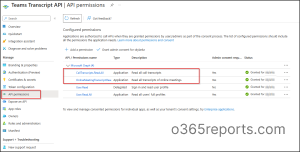
- If the application no longer requires transcript access, select the relevant permission and click Remove permission.
Note: Keep in mind, this only controls access for that one app. The tenant-wide Transcript API access setting still has the final say, if it’s off, this app (or any app) can’t reach transcripts regardless of what permissions it holds here.
Remove Transcript Permissions from Multiple Applications Using PowerShell
If you need to revoke transcript permissions from multiple applications, Microsoft Graph PowerShell lets you find and remove them in bulk instead of reviewing each application individually.
The process involves two steps: first, identify applications that have transcript-related Microsoft Graph permissions, and then revoke permissions only for the applications that no longer require access.
Step 1: Export Teams Transcript Permissions Report Using PowerShell
Before removing permissions, export a list of applications that have transcript-related Graph permissions.
First, connect to Microsoft Graph PowerShell and then run the following script to export applications with transcript-related permissions.
|
1 2 3 4 5 6 7 8 9 10 11 12 13 14 15 16 17 18 19 20 |
Connect-MgGraph -Scopes "Application.Read.All" $graphSP = Get-MgServicePrincipal -Filter "appId eq '00000003-0000-0000-c000-000000000000'" $roles = $graphSP.AppRoles | Where-Object Value -in @( "OnlineMeetingTranscript.Read.All", "CallTranscripts.Read.All", "OnlineMeetingTranscript.Read.Chat") $result = foreach ($role in $roles) { Get-MgServicePrincipalAppRoleAssignedTo -ServicePrincipalId $graphSP.Id -All | Where-Object AppRoleId -eq $role.Id | Select-Object @{N="AppDisplayName";E={$_.PrincipalDisplayName}}, @{N="AppServicePrincipalId";E={$_.PrincipalId}}, @{N="Permission";E={$role.Value}}, @{N="AssignmentId";E={$_.Id}}} $result | Group-Object AppDisplayName, AppServicePrincipalId | ForEach-Object { [PSCustomObject]@{ AppDisplayName = $_.Group[0].AppDisplayName AppServicePrincipalId = $_.Group[0].AppServicePrincipalId Permissions = ($_.Group.Permission -join ", ") AssignmentIds = ($_.Group.AssignmentId -join ", ")} } | Sort-Object AppDisplayName | Export-Csv "<Output File Path>" -NoTypeInformation |
The exported CSV contains every application assigned Teams transcript-related permissions, which makes it making it easier to identify which applications currently have access.
Step 2: Remove Teams Transcript Permissions from Multiple Applications
Before proceeding, review the exported CSV file and keep only the applications whose transcript permissions need to be revoked, and save the file. Once done, proceed with the steps below.
Connect to Microsoft Graph using PowerShell:
|
1 |
Connect-MgGraph -Scopes "Application.Read.All","AppRoleAssignment.ReadWrite.All" |
Then run the following cmdlets against your saved CSV.
|
1 2 3 4 5 6 7 8 9 |
$graphSP = Get-MgServicePrincipal -Filter "appId eq '00000003-0000-0000-c000-000000000000'" Import-Csv "<Input CSV>" | ForEach-Object { $ids = $_.AssignmentIds -split ",\s*" $permissions = $_.Permissions -split ",\s*" for ($i = 0; $i -lt $ids.Count; $i++) { Remove-MgServicePrincipalAppRoleAssignedTo ` -ServicePrincipalId $graphSP.Id ` -AppRoleAssignmentId $ids[$i] Write-Host "Removed $($permissions[$i]) from $($_.AppDisplayName)"}} |
Now the selected applications will no longer have transcript-related Microsoft Graph application permissions.
Recap
This new configuration reflects Microsoft’s recognition that Teams meeting transcripts contain highly sensitive organizational knowledge and deserve an additional layer of protection beyond Microsoft Graph permissions.
As more AI agents and third-party applications consume transcript data, relying solely on application permissions is no longer enough.
👉Configure Transcript API Access, review which applications can retrieve transcripts, and periodically remove permissions that are no longer required.
This ensures your transcript-based integrations continue to work while keeping sensitive meeting data under your organization’s control.
We hope this blog helps you configure these settings with confidence and manage which applications can access Teams meeting transcripts. If you have any questions or doubts, feel free to leave a comment below. Thanks for reading!