Organizations use SharePoint Online and Microsoft OneDrive to collaborate, store, and share files across teams and external users. However, uncontrolled downloads can lead to document theft and data leaks when visitors access files on unmanaged or personal devices. Unlike copy-paste actions, downloading provides full access to the document, including hidden or sensitive information. Once a file is downloaded, the organization no longer has control over it. This increases the risk of unauthorized sharing, data leaks, and compliance issues.
Microsoft 365 lets you block downloads in SharePoint and OneDrive while still allowing users to view or even edit files directly in the browser. Let’s explore the available methods, their limitations, and which approach works best for stronger and more effective protection.
Block File Downloads to Protect Sensitive Data in SharePoint Online
Blocking file downloads can be implemented in multiple ways, but they are generally applied at two levels. These levels decide whether the restriction applies to a single site or organization level in SharePoint Online and Microsoft OneDrive.
- How to block file downloads in SharePoint and OneDrive at tenant level
- Prevent file downloads in SharePoint Online and OneDrive (site level)
How to Block File Downloads in SharePoint and OneDrive at Tenant Level
Restricting downloads for SharePoint sites at the tenant level helps keep data protection consistent across the organization. It allows users to open and work on files directly in the browser while preventing them from downloading sensitive content. Use the following methods to block downloading files in all SharePoint sites.
- Restrict file downloads in SharePoint using a CA policy
- Block SharePoint file downloads in unmanaged devices
Prerequisites for restricting file downloads in organization level:
Before configuring the above methods, ensure the required licenses and admin permissions are in place to block file downloads smoothly.
| Feature | Conditional Access Policy | Access Controls for Unmanaged Devices |
| License required | Microsoft Entra ID P1 | Microsoft Entra ID P1 |
| Roles required | Conditional Access Administrator, Security Administrator, Global Administrator | SharePoint Administrator + Conditional Access Administrator / Security Administrator / Global Administrator |
1. Create Conditional Access Policy to Restrict File Download Access in SharePoint Online
Disable file downloads in SharePoint online with Conditional Access policies is the recommended method. It controls how users access files while still allowing them to view documents in the browser.
With these in place, follow the steps below to configure Conditional Access policy to block downloads in SharePoint sites.
- Open Microsoft Entra admin center and navigate to Entra ID → Conditional Access.
- Click +Create new policy and provide the name for the policy.
- Next, under Assignments select the users and the target apps to apply this policy.
- Users or agents (Preview) – In this include all guest users to apply the policy for all external users.
- Target Resources – Choose Select resource, then under “Select specific resources”, select Office 365 SharePoint Online.
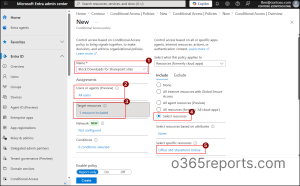
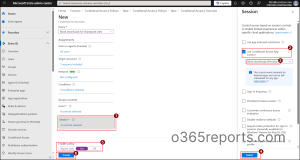
- Then, under Sessions, enable “Use app enforced restrictions “and “Use Conditional Access App Control”.
- Select Block downloads (Preview) from Use Conditional Access App Control drop down to block file downloading in SharePoint sites.
- Next, click on Select and set the Enable policy to “Report-only mode”.
- Review your settings and select Create to save the new policy.
Once the Conditional Access policy is created, it takes effect immediately. When you navigate to the site documents, the download option is still visible. However, selecting it does not work. The download is blocked, and an error message is displayed indicating that downloading is not allowed.
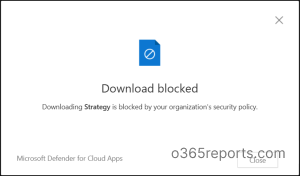
With this method, file download access can be restricted across all sites for targeted users at the tenant level.
Pain point: Blocking file downloads via Conditional Access often results in “all-or-nothing” restrictions that break essential business functions and application compatibility issues. Additionally, it can generate false positives (especially with encrypted files) and increase helpdesk overhead.
2. Block SharePoint File Downloads in Unmanaged Devices
This method prevents file downloads by controlling access from unmanaged devices and limiting the use of personal or non-compliant devices. It helps keep sensitive data safe by allowing access only from trusted devices.
Follow the steps below to configure device access restrictions for unmanaged devices in Microsoft 365.
- Open SharePoint admin center and navigate to Policies →Access control.
- Next, under Access Control page, select Unmanaged devices.
- In the Unmanaged devices flyout, choose Allow limited, web-only access and click Save to apply the changes.
- Next choose Confirm to block access for apps that don’t use modern authentication.
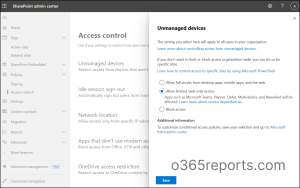
Only devices that meet the tenant compliance policy will be able to access the application.
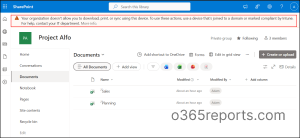
Pain point: Blocking file downloads on unmanaged device with “Allow limited, web-only access” introduces collaboration friction, as it limits advanced desktop features, and offer less flexibility for personal device access.
Prevent File Downloads in SharePoint Online and OneDrive for Site Level
File download restrictions can also be applied to specific SharePoint sites instead of all sites, allowing targeted data protection where it is needed most. This is useful for confidential areas such as finance, legal, or external collaboration sites to prevent sensitive data from being downloaded. Use the following methods to block file downloads for a specific SharePoint site.
- Block file download for SharePoint sites using PowerShell
- Create Conditional Access policy to block file download in site level
- Restrict file download using custom sharing permissions in SharePoint Online
Prerequisites to block downloading option in SharePoint Online:
Before implementing these methods, make sure the necessary licenses and administrative permissions are in place to ensure download restrictions can be applied without issues.
| Feature | Block Download Policy in SharePoint using PowerShell | Custom sharing permissions to Restrict File Downloads | Site-Level Download Restrictions with CA and Authentication Context |
| License required | Microsoft 365 Copilot license or Microsoft SharePoint Advanced Management license | No specific license required (depends on SharePoint plan) | Microsoft SharePoint Advanced Management license or Microsoft 365 E5 |
| Roles required | SharePoint Administrator / Global Administrator | Site Owner, SharePoint Administrator, or Global Administrator | Conditional Access Administrator, Security Administrator, or Global Administrator |
1. Enforce Download Restrictions on SharePoint Sites via PowerShell
Block file download policy method offers a simple, single-step solution to restrict downloads. This requires the M365 copilot license or Microsoft SharePoint Advanced Management license to restrict file downloads for specific sites.
First, install and connect to SharePoint Online PowerShell. Then, follow the steps below to block downloads at the SharePoint site level.
This helps block file downloads for a specific SharePoint site. Replace <siteurl> with the actual site URL where downloads need to be restricted.
|
1 |
Set-SPOSite -Identity <siteURL> -BlockDownloadPolicy $true |
Note: You can use parameters to block file downloads for a specific member in SharePoint.
- -ExcludeBlockDownloadPolicySiteOwners $true – This allows only the site owners to download files from the site.
- -ReadOnlyForBlockDownloadPolicy $true – It helps to prevent downloads by marking the site as read-only site.
- -ReadOnlyForBlockDownloadPolicy $true – This prevents downloads and sets the site to read-only mode.
- -ExcludeBlockDownloadSharePointGroups <GroupId> -This allows users in the specified SharePoint groups to download content by excluding them from the restriction. We can also add multiple group IDs easily as comma-separated values, improving flexibility.
After executing these cmdlets users will see a warning when accessing the site.
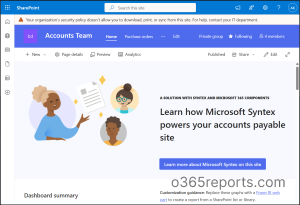
Here are the benefits and limitations of the PowerShell method when blocking file downloads in SharePoint sites.
Pain Point: This approach is heavily dependent on premium licensing, as blocking file downloads via PowerShell requires a Microsoft 365 Copilot or SharePoint Advanced Management license. Without these, the feature isn’t available at all—making it inaccessible for many organizations.
2. Block File Downloads Using Conditional Access with Authentication Context
Where the PowerShell method falls short due to strict licensing requirements, this approach provides a more inclusive alternative. Conditional Access with Authentication Context enables the same outcome without depending on Microsoft 365 Copilot or SharePoint Advanced Management, allowing more organizations to implement secure download controls.
Use the following steps to configure a Conditional Access policy for site-level download restriction.
1. Create an Authentication Context:
First create a Authentication context for the site using the following steps
- Open Microsoft Entra admin center and navigate to Conditional Access.
- In the Conditional Access overview page, under Manage choose Authentication contexts.
- Select +New authentication context and provide the name and description.
- Ensure Publish to apps is enabled and click Save to store the authentication context.
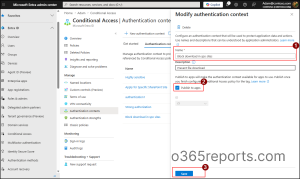
2. Configure Conditional Access policy:
After creating the authentication context configure the Conditional Access policy to block file download in a particular SharePoint site. Follow the below steps to create a conditional Access policy.
- Navigate to Policies in the Conditional Access page and select +New policy to create a policy.
- In Users or agents (Preview) select the required users and in Target resourses under Select What this policy applies to dropdown choose Authentication context.
- Select the Authentication context created and under Sessions choose Use Conditional Access App Control.
- Select Block downloads (Preview) from Use Conditional Access App control dropdown and click Create to save the policy.
After creating the Conditional Access policy, link it to the respective site to block file downloads. Replace the <tenant> with your respective tenant and <UserUPN> with the respective admin credential to login.
|
1 |
Connect-SPOService -Url https://<tenant>-admin.sharepoint.com -Credential “<UserUPN>” |
Next, run the following command by replacing <SiteURL> with the desired site URL and <ACName> with the name of the created Authentication Context.
|
1 |
Set-SPOSite -Identity “<SiteURL>" -ConditionalAccessPolicy AuthenticationContext -AuthenticationContextName "<ACName>" |
This configuration links the selected SharePoint site to a specific Conditional Access policy through an Authentication Context. As a result, access to the site is evaluated against the defined conditions (such as device compliance or location), and session controls can be enforced to restrict actions like downloading files.
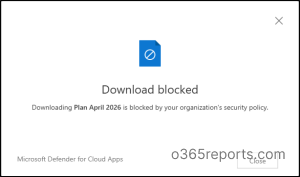
Pain Point: While this approach removes the dependency on the BlockDownloadPolicy feature, it is not entirely license-free. Implementing Conditional Access with Authentication Context still requires appropriate Microsoft Entra ID (Azure AD) licensing (typically P1 or P2) to create and enforce Conditional Access policies. This means organizations without these licenses cannot leverage this method either. Additionally, the setup involves multiple configuration steps across Entra ID and SharePoint, making it more complex compared to simpler, single-command approaches.
3. Restrict File Download Using Custom Sharing Permissions in SharePoint Online
Custom sharing permissions in SharePoint Online provide a fine-grained way to control file access, allowing you to define exactly what users can view, edit, or download based on tailored permission levels. This approach is particularly useful when you want to restrict downloads for specific users or files without applying broad, site-wide policies.
Follow the steps below to configure custom sharing permissions in SharePoint Online.
- Click the gear icon in the specific SharePoint site where downloads need to be restricted and navigate to the Site permissions.
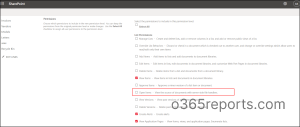
- Select Advanced permission levels to open the permissions page and next click on permission levels.
- Next click on Add a permission Level and provide a name for the permission level.
- Next, make sure “Open Items – View the source of documents with server-side file handlers” is not selected, and then add the custom permissions required for the user.
- Then select Create to configure a new permission level which allows to view the file but blocks downloading the file from SharePoint.
Next, after creating the custom permission level, you can share file to users by setting the created permission.
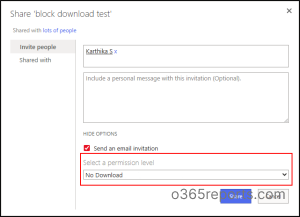
Note: This can also be used to restrict downloading of specific files.
Pain Point: This approach can become complex to manage and scale, especially in environments with many users or unique access requirements.
To further strengthen control, we extend permissions to keep downloaded files connected to their source. This ensures security and access policies continue to apply even after files leave SharePoint.
Additionally, Information Rights Management (IRM) can be used to restrict actions like downloading or printing within document libraries. However, it may also limit access on unsupported apps or devices and can disable editing in Office Online.
Block unnecessary settings for users and provide only the access they need to reduce risks and maintain better control over the Microsoft 365 environment. Additionally, you can audit file downloads in SharePoint Online using a prebuilt PowerShell script, helping track activity and improve visibility.
We hope this gives you a clearer understanding of how to prevent downloads from SharePoint and OneDrive. Feel free to reach out in the comments for any assistance.