Earlier, when an application was configured as a multi-tenant app, it could be accessed by users from any external tenant. This meant that if another organization discovered the application’s details, they could grant consent and begin using the app, depending on their tenant’s user consent settings.
To address this, Microsoft introduced a Microsoft Graph API capability a few months ago that allowed administrators to configure tenant restrictions programmatically. Microsoft has now simplified this further by bringing a new preview feature ‘Allow only certain tenants’ directly into the Entra admin center.
This blog explains how to restrict sign-in audiences for multi-tenant Entra apps to strengthen access control across external tenants.
Why Restricting Multi-Tenant Applications to Specific Tenants Is Important
Restricting app access for multi-tenant configured applications is crucial for the following reasons:
- Support partner–specific applications: Ideal for applications built for specific partners, customers, or integrations that should not be publicly accessible.
- Reduce administrative overhead: Tenant restrictions can now be managed directly at the platform level, eliminating the need for custom access logic within the application.
Restrict Multi-Tenant Apps to Specific Organizations
We can limit multi-tenant application access to specific tenants using both the Entra portal and PowerShell. To view the detailed steps, explore the sections below.
- Limit multi-tenant app access to a specific tenant in Entra portal
- Restrict multi-tenant app access to a specific tenant using PowerShell
Limit Multi-Tenant App Access to a Specific Tenant Using Entra Portal
To create a new multi-tenant application limited to specific tenants using Microsoft Entra admin center, follow the steps below:
- Sign in to the Microsoft Entra admin center.
- Navigate to Entra ID → App registrations and click + New registration.
- On the Register an application page, provide the application name.
- Under the Supported account types section, choose Multiple Entra ID tenants from the drop-down list.
- Then, select the Allow only certain tenants (Preview) radio button.
- Next, specify the tenant IDs or domain names of the organizations that should be allowed to access the application.
- Finally, click Apply and register the Entra ID application as usual.

The above approach helps limit access to a new multi-tenant application for specific organizations. If you want to restrict an existing multi-tenant application to specific organizations, that is also possible. To do so, follow the steps below.
- Navigate to Entra ID → App registrations and select the respective application.
- Select the Authentication (Preview) tab under Manage.
- Next, go to the Supported accounts section and select Multiple Entra ID tenants under Supported account types dropdown.
- Then choose Allow only certain tenants.
- On the Manage allowed tenants (Preview) page, add the tenant IDs or domain names of the organizations you want to allow.
- Finally, click Apply and save the settings.

Tip: To further enhance the security of multi-tenant applications, consider enabling App Instance Property Lock in Microsoft Entra ID. This feature helps prevent unauthorized modifications to application instances and reduces the risk of credential misuse across tenant boundaries.
Restrict Sign-in Audiences for Multi-Tenant Entra Apps
You can also use PowerShell to configure tenant restrictions for multi-tenant applications, for both existing and newly registering apps. For detailed steps, go through the following steps.
- First, connect to Microsoft Graph using the following cmdlet.
1Connect-MgGraph -Scopes "Application.ReadWrite.All" - To configure tenant restrictions for multi-tenant applications, replacing <Appname> with the app name and <TenantID> with the tenant IDs.
123456789101112$params = @{DisplayName = "<AppName>"SignInAudience = "AzureADMultipleOrgs"SignInAudienceRestrictions = @{"@odata.type" = "#microsoft.graph.allowedTenantsAudience"allowedTenantIds = @(" <TenantID> "" <TenantID> ")}}New-MgBetaApplication @params

- To restrict multi-tenant app access to a specific tenant for an existing app, run the following cmdlet. Make sure to replace <ObjectID> with the object ID of the app, <Appname> with the app name, and <TenantID> with the tenant IDs.
123456789101112$params = @{DisplayName = "<AppName>"SignInAudience = "AzureADMultipleOrgs"SignInAudienceRestrictions = @{"@odata.type" = "#microsoft.graph.allowedTenantsAudience"allowedTenantIds = @("<TenantID>" ,"<TenantID>")}}Update-MgBetaApplication –ApplicationID "<ObjectID>" -BodyParameter $param
Behavior When a Tenant Is Not in the Allowed List for a Multi-tenant App
If a user from a tenant that is not included in the allowed tenants list attempts to access the application, the AADSTS7000119 error will be returned.
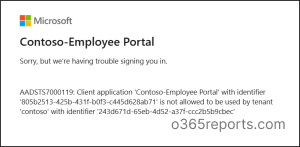
Note: If an organization has already granted consent to the application and its tenant ID is later removed from the allowed tenants section, it will also encounter the same error.
And that’s a wrap! Restricting multi-tenant applications to specific tenants in Microsoft Entra ID helps organizations maintain better control over who can access and provide consent to their applications. By allowing only approved tenants, you can prevent unauthorized organizations from consenting and using your application.
If you have any questions, feel free to share them in the comments—we’d love to hear from you. Stay tuned for more blogs coming soon!