Microsoft Teams is a core collaboration platform in Microsoft 365, hosting chats, meetings, files, and external collaboration across the organization. For administrators, understanding how Teams is being used is critical not just for operational visibility, but also for security and governance.
Admins are often expected to know which teams are actively used, who have access to them, how frequently channels are engaged, and whether external users are still required. Without clear usage insights, it becomes difficult to manage teams efficiently, assess collaboration health, support audit reviews, and make informed decisions. This is where teams usage reporting plays a key role.
In this article, we’ll explore the different ways to generate Microsoft Teams usage report to help admins gain better visibility and control!
How to View Microsoft Teams Usage Activity Report
To track and export MS Teams usage report, use the following methods.
- Teams usage report in Microsoft 365 admin center
- Teams analytics and reporting in Microsoft Teams admin center
- Microsoft Teams activity summary using PowerShell
- Microsoft Teams usage report using PowerShell script (Recommended)
1. Teams Usage Report in Microsoft 365 Admin Center
The Microsoft 365 admin center includes a Teams usage report that focuses on overall activity and adoption trends.
- Sign in to the Microsoft 365 admin center.
- Navigate to Reports → Usage → Microsoft Teams.
- Click on Team usage tab.
Although useful for tracking adoption trends, the report lacks deeper visibility into team-level activity and detailed engagement metrics.
2. Teams Analytics and Reporting in Microsoft Teams Admin Center
In addition to the Microsoft 365 admin center, the Microsoft Teams admin center offers more teams-specific analytics and reporting capabilities.
- Sign in to the Microsoft Teams admin center.
- Navigate to Analytics & reports –> Usage reports.
- Select Teams usage from the Report dropdown, required Date range, and click Run report.
While both admin centers offer more detailed analytics, it still lacks automation capabilities. You can’t integrate it to scheduled workflows, making it impractical for regular monitoring or compliance requirements.
Tip: Administrators can also use Power BI with the Microsoft 365 usage analytics content pack to track and export teams adoption trends across the organization. This provides pre-configured dashboards with a comprehensive view of usage patterns over the last 12 months.
3. Microsoft Teams Activity Summary Using PowerShell
PowerShell offers a faster way to export teams usage report. The Get-MgReportTeamActivityDetail PowerShell cmdlet provides detailed teams activity data in an export-friendly format.
|
1 |
Get-MgReportTeamActivityDetail -Period "<period>" -OutFile "<FilePath>" |
While this approach provides granular visibility, it is best suited for manual execution. It also requires installing the Microsoft Graph PowerShell module. For automation, additional aspects must be handled, including unattended module connection.
4. Microsoft Teams Usage Report Using PowerShell Script
To eliminate the manual effort, we built a PowerShell script that automates teams activity reporting. In addition, the script applies built-in filtering logic to identify inactive teams automatically. This automated approach helps administrators maintain better visibility into teams usage while supporting Teams governance and audit requirements without repetitive manual effort.
Download Script: TeamsActivitySummaryReport.ps1
Script Highlights
- Generates teams activity reports for periods of 7, 30, 90, or 180 days.
- Retrieves teams usage data for a specific date within the last 28 days.
- Identifies inactive teams based on customizable inactivity thresholds.
- Automatically verifies and installs the Microsoft Graph PowerShell Module (if not already installed) upon your confirmation.
- Supports Certificate-based Authentication (CBA).
- The script is scheduler-friendly for automated reporting.
- Exports results to timestamped CSV files for easy tracking and archival.
Sample Output
Upon execution, the PowerShell script will generate Teams usage activity report as follows.
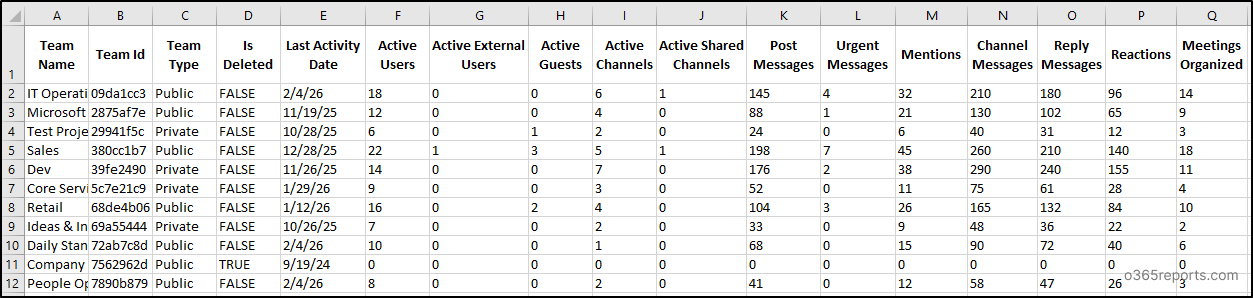
The exported output files list teams’ activity summary on a specific date with attributes like Team Name, Team Id, Team Type, Is Deleted, Last Activity Date, Active Users, Active External, Active Guests, Active Channels, Active Shared, Post Messages, Urgent Messages, Mentions, Channel Messages, Reply Messages, Reactions, and Meetings Organized.
Team Activity Summary Report – Script Execution Steps
Follow the steps below to run the script and generate your Teams activity report:
- Download the script.
- Start the Windows PowerShell.
- Select any of the methods provided to execute the script.
Method 1: Execute the script with MFA or non-MFA accounts.
|
1 |
.\TeamActivitySummaryReport.ps1 |
This method allows you to run the script interactively. You’ll be presented with a menu to choose from three operations:
- Audit teams activity for a period of time
- Get teams activity for a specific day
- Find Inactive teams
Upon selection, the script retrieves teams usage statistics and exports the results to a CSV file, making it easier to track team adoption and identify underutilized resources.
Method 2: Run the script using certificate-based authentication.
To run the script unattended without any intervention, you can register an app in Microsoft Entra that helps you connect to Graph PowerShell.
|
1 |
.\TeamActivitySummaryReport.ps1 -TenantId <TenantId> -ClientId <ClientId> -CertificateThumbprint <CertThumbprint> |
When executed, the script exports a Microsoft Teams activity summary report that includes team details, user and channel counts, last activity date, and overall usage information. You can either use a CA certificate or create a self-signed certificate, which is cost-effective.
Get the Best Out of This Script!
The script comes with built-in parameters that make it highly flexible for different scenarios. You can customize the report generation based on your requirements and focus only on the metrics you want to track. Here are some practical use cases:
- Audit teams activity for predefined periods
- Get teams activity for a specific date
- Find inactive teams based on custom thresholds
- Schedule teams usage report for automated monitoring
1. Audit Teams Activity Summary for Predefined Periods
By default, running the script interactively presents a menu. However, you can directly specify a reporting period to streamline execution. The script supports four predefined periods: D7 (7 days), D30 (30 days), D90 (90 days), and D180 (180 days). It’s ideal for monthly reviews and trend analysis.
To generate a teams activity summary report for a specific period, use the -Period parameter:
|
1 |
.\TeamsActivitySummaryReport.ps1 -Period D30 |
This command retrieves teams activity data for the last 30 days, including active users, channels, messages, and meetings organized.
By reviewing the count of active guests and external users, you can identify which teams have external access, critical information for security audits and compliance. ensuring proper Teams governance.
2. Get Teams Activity for a Specific Date
If you need to audit teams activity for a particular day, you can specify an exact date using the -ReportDate parameter. This is useful for investigating activity on specific dates or comparing day-over-day usage.
|
1 |
.\TeamsActivitySummaryReport.ps1 -ReportDate "2026-01-15" |
Running this script will generate a Microsoft Teams activity summary report for Jan 15, 2026.
Important: The report date must be within the last 28 days from the current date.
3. Find Inactive Teams in Microsoft Teams
Inactive teams consume resources and clutter your environment. To finds all teams that have been inactive for 90 or more days, use the -InactiveDays parameter.
Once you’ve identified, you can either delete or archive inactive teams.
|
1 |
.\TeamsActivitySummaryReport.ps1 -InactiveDays 90 |
By running this command, admins can list teams with no activity in the last 90 days.
To keep your Teams environment organized, consider following Microsoft Teams best practices, including restricting users from creating new teams to prevent unnecessary team sprawl.
4. Schedule Teams Usage Report for Automated Monitoring
Since this PowerShell script is scheduler-friendly, you can automate the script execution with Task Scheduler or Azure Automation to run at regular intervals. This ensures teams activity is continuously monitored without manual effort.
To automate weekly or monthly activity reports, use the provided format and configure it to run at your preferred interval:
|
1 |
.\TeamsActivitySummaryReport.ps1 -TenantId <TenantId> -ClientId <ClientId> -CertificateThumbprint <CertThumbprint> -Period "D30" |
Scheduling this format generates monthly teams usage reports and stores them for future review and usage trend analysis.
Replace the -Period parameter with the required number of days (D7, D30, D90, D180) based on your reporting needs.
Gain Visual-Rich Microsoft Teams Usage Analytics with AdminDroid
Switching between admin centers and running PowerShell scripts works, but it’s far from efficient. Manual reports mean repetitive clicks through web interfaces, waiting for exports, and piecing together data in Excel. PowerShell requires coding skills and delivers only raw CSV files, no dashboards, no visuals, no instant insights.
Beyond usability issues, there are significant data limitations. PowerShell provides only point-in-time snapshots. You can’t correlate team activity with user behavior or license usage. There’s no automated monitoring, no real-time updates, and no alerts when teams become inactive. You’re left with raw numbers lacking business context.
AdminDroid 365 eliminates the complexity. This powerful Microsoft Teams management tool consolidates everything into one platform with advanced filtering, automated scheduling, rich visualizations, and intelligent search, delivering teams usage insights instantly.
AdminDroid’s Teams 360° – The Ultimate Visibility into Teams and Channels

Every aspect of team collaboration captured in one explorer. Instead of scattered insights, you get a centralized view including:
✅ Channel & membership insights across all teams.
✅ Communication metrics covering posts, replies, reactions, mentions, and meetings.
✅ Engagement trends to spot activity patterns and optimize timing.
✅ User behavior analysis identifying top contributors and quiet observers.
✅ High-impact content highlighting trending discussions and dormant threads.
✅ Workflow intelligence correlating meetings with messaging patterns.
✅ Sentiment tracking through emoji reactions to monitor team morale.
✅ Real-time activity monitoring to flag inactive teams for archival.
Apart from Teams 360° visibility explorer, AdminDroid delivers reporting capabilities including:
- Teams Usage Statistics – Track calls, messages, chats, and user engagement
- Device Usage Reports – See which devices employees use to access Teams
- Inactive User Detection – Identify dormant users based on chat and meeting history
- Daily Activity Summaries – Monitor active devices and user activities in real-time
- Teams Management Metrics – Track team/channel creation, deletion, and modifications
You’ll also get a teams analytics dashboard where you can drill down into individual team performance with granular precision.
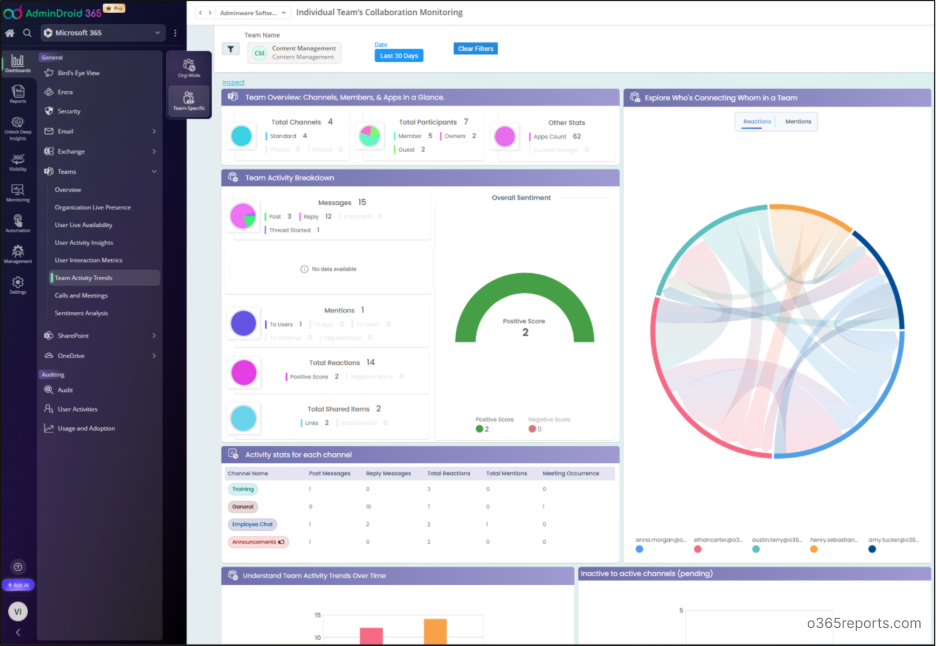
Cool, right? Download AdminDroid today and access 3,500+ pre-built reports, 100+ interactive dashboards, and 450+ management actions for complete control over your Microsoft 365 environment. Free to start. Zero PowerShell required. Maximum insights delivered.
I hope this blog helped you in finding all the possible ways where admins can find the Teams usage report of their organization. Feel free to reach us through the comments section if you have any queries.