If you work with SharePoint Online long enough, you quickly realize that creating a site is the easy part. The real challenge begins after the site is live, when content needs to stay relevant, and constantly updated. Users ask for announcements on the homepage; HR needs policy updates, holiday lists; executives expect key documents like guidelines, or quarterly plans to be easily accessible at all times. Meanwhile, IT wants fewer “Where do I find this?” tickets!
This is where SharePoint web parts come in. Web parts bring pages to life by enabling dynamic, real-time content that updates automatically as information changes. In this blog, we’ll explore how to use web parts and why every admin should understand them before designing intranet pages in SharePoint.
Using Web Parts in SharePoint Page
Web parts are the building blocks of SharePoint pages that turn a blank site into an information-rich, purpose-driven workspace. A centralized place for all needs where users can find information, take action, and collaborate with ease. Instead of hardcoding layouts or writing scripts, admins can simply choose a web part and configure it visually. Each web part is designed to handle a specific purpose, such as displaying text, listing documents, showing tasks, or embedding reports.
WordPress Vs Web parts
If you’ve worked with WordPress, SharePoint web parts will feel familiar. The real difference lies in context. WordPress is built for public, internet-facing sites, while SharePoint web parts are designed for the intranet, with built-in support for identity, permissions, and Microsoft 365 integration. They are deeply integrated with Microsoft 365, understanding user identity, permissions, compliance policies, and organizational structure.
Classic vs Modern Web Parts in SharePoint Online
SharePoint Online supports both classic and modern web parts, but their capabilities differ significantly. Classic pages, such as Web Part Pages and Wiki Pages, use classic web parts, while modern pages rely on web parts built specifically for Microsoft 365. Understanding these differences helps you make the right choice for your implementation.
|
Classic Web Parts |
Modern Web Parts
|
|
|
Note: Microsoft’s roadmap clearly favors modern page experiences, which makes very clear why moving to modern web parts is the safest choice any new SharePoint implementation.
Top 10 Web Parts in SharePoint Intranet Pages
If you’re looking to use SharePoint webparts or wondering how to embed a web part in SharePoint, modern pages make it simple. You can add a webpart in SharePoint quickly with drag-and-drop, and for budget-friendly options, there are plenty of free SharePoint webparts available.
The following list highlights the top 10 web parts that consistently power high-impact intranet pages while balancing functionality, consistency, and branding in SharePoint.
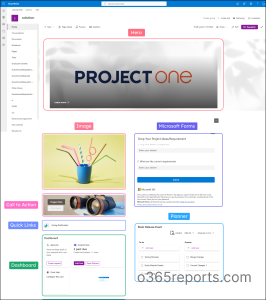
- Hero: Used at the top of landing pages to highlight up to five key items with large visuals and links. HR teams use it to promote open enrollment periods; IT uses it for system maintenance alerts, and executives use it to spotlight company milestones that need immediate visibility.
- Dashboard: A central platform that brings together key information, links, tasks, and reports in one place. Instead of jumping between apps, executives create leadership dashboards that combine KPI reports, pending approvals, and Power Apps, enabling at-a-glance decision-making from a single location.
- Planner: Displays and manages team tasks visually without leaving SharePoint. Marketing teams track campaign deliverables, IT tracks support tickets by status, and HR manages recruitment pipelines.
- Call to Action: Encourages users to take a specific action through a prominent button. IT uses it for “Submit a Ticket”, HR for “Enroll in Benefits”, and facilities for “Book a Meeting Room”, driving users toward high-priority actions with clear, clickable prompts.
- Microsoft Forms: Embeds surveys, polls, or request forms directly into the intranet. HR collects employee feedback on workplace satisfaction, IT embeds software request forms, and admins create leave approval workflows.
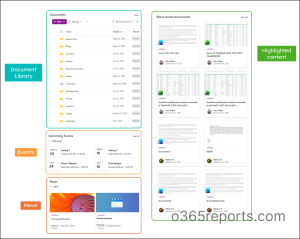
- News: Displays the latest announcements or articles with multiple layout options like carousel or list. Communication teams publish company updates, department wins, or policy changes here. Employees see what’s new without checking email and can filter news by department or topic.
- Document Library: Users can view, upload, and interact with files directly on the page.Project teams embed shared folders for meeting notes,or deliverables so members can access and collaborate on files without navigating away.
- Quick Links:Provides an easy way to “pin” and organize important internal or external links. Admins use it for “Getting Started” or “Important Resources” sections, linking to company policies, onboarding guides, or IT help desk portals, saving users from searching across multiple sites.
- Events: Displays upcoming meetings, training sessions, or company events. L&D teams showcase upcoming workshops, facilities teams post building maintenance schedules, and HR highlights social events or wellness sessions, all pulling from a shared calendar.
- Highlighted Content: Dynamically displays documents, pages, news, videos, and images from a document library, a single site, multiple sites, or across all sites. Legal teams surface the latest policy documents,training teams showcase recent video tutorials, and project managers automatically display updated project charters.
💡 Small Tip: SharePoint Home Sites Are Getting New Web Parts 
Microsoft is expanding the capabilities of SharePoint Home Sites with new web parts focused on communication and resource accessibility. The updates introduce:
Together, these web parts help organizations deliver important content more effectively across their SharePoint intranet. |
How to Add Web Parts in SharePoint Intranet
Let’s see an example to create a single intranet landing page where employees can get updates, find documents, complete tasks, view reports, and act, without switching tools.
Required Permissions: Make sure you have Edit or Owner permissions on the site. Without these, the page will open in read-only mode.
Step 1: Add Web Parts Inside SharePoint Pages
Adding SharePoint web parts let you include text, documents, images, lists, and interactive elements directly where your team needs them. Start by navigating to the SharePoint site where you want to add web parts.
- Go to Site Pages and click New → Page to create a new page, or open an existing page and click Edit at the top-right corner.
- Once in Edit mode, the web part picker will appear on the right-hand side. Here, you’ll see all the web parts available in SharePoint Online, including modern SharePoint web parts.
- Select the web part you want, and it will appear instantly on the page.
Tip: Each web part comes with its own settings panel. Admins can configure these to optimize performance, relevance, and security, ensuring your intranet remains efficient and user-friendly.
Step 2: Move or Resize Web Parts in SharePoint Pages
SharePoint pages are highly flexible, giving you full control over layout and design. You can rearrange content to make pages cleaner, visually balanced, and easier to navigate for your users.
- Drag and drop web parts within the same section.
- Move web parts across columns to optimize content flow.
- Adjust column widths by editing the section layout.
Step 3: Preview the SharePoint Intranet Page
Previewing ensures your page looks great before it goes live and functions perfectly on all devices.
It helps you catch layout issues, broken links, or overcrowded sections early, saving time and improving user experience.
- Click Preview in the page editor.
- Check both desktop and mobile views to ensure responsiveness.
- Confirm that content flows logically and that sections are not overcrowded.
- Verify that all links and permissions function correctly.
Step 4: Publish the SharePoint Intranet Page
Publishing makes your page accessible to users based on their permissions. With purpose-driven web parts, your page becomes a functional and engaging hub that keeps your team informed and connected.
- Click Publish.
- Regularly update web parts to keep content fresh and relevant.
Recommended Web Parts for the Real-Time Scenarios
Let’s look at common, real-world scenarios where SharePoint web parts are most effective, along with examples of modern and newly released web parts in SharePoint Online.
Scenario 1: Onboarding New Employees Effectively
Purpose: Enable new hires to quickly access paperwork, training resources, key contacts, and company culture information.
Recommended Web Parts:
- Hero – Highlights onboarding steps, welcome messages, and must-read resources for new hires.
- Quick Links – Provides direct access to HR portals, benefits, policies, and “Day 1” guides.
- People – Helps new employees find managers, HR contacts, IT support, and team members.
- Document Library – Stores employment forms, handbooks, training materials, and policy documents.
- Microsoft Forms – Enables completion of new hire surveys, feedback forms, and acknowledgment confirmations.
- News – Shares company updates, onboarding announcements, and welcome messages.
- Events – Tracks orientation sessions, training schedules, and team meet-and-greets.
Scenario 2: Monitoring Business Performance for Executives
Purpose: Provide executives with instant visibility into key metrics, project updates, and overall company performance.
Recommended Web Parts:
- Power BI – Displays real-time KPIs, financial metrics, sales data, and performance dashboards.
- Highlighted Content – Surfaces critical project updates, reports, and strategic documents.
- News – Communicates company announcements, executive updates, and strategic messages.
- Events – Tracks board meetings, executive reviews, and key business milestones.
- Quick Links – Provides fast access to financial systems, reporting tools, and strategic planning resources.
Scenario 3: Enabling Department-Level Collaboration
Purpose: Help teams collaborate on projects, share files, manage tasks, and stay aligned.
Recommended Web Parts:
- News – Shares department announcements, project updates, and team achievements.
- Document Library – Centralizes storage for project files, templates, and shared resources.
- Planner – Tracks tasks, assignments, deadlines, and project progress.
- Events – Team meetings, deadlines, department events, and milestone tracking
- Quick Links – Provides access to department tools, shared drives, and frequently used applications.
- People – Helps locate team members, subject-matter experts, and cross-functional partners.
- Highlighted Content – Surfaces recent documents, active projects, and relevant team content.
Scenario 4: Streamlining IT Support and Requests
Purpose: Allow users to find answers quickly and submit support requests without relying on email.
Recommended Web Parts:
- Quick Links – Directs users to common requests, self-service tools, and IT resources.
- Microsoft Forms – Allows submission of help desk tickets, hardware requests, and access requests.
- File Viewer – Displays IT guides, troubleshooting steps, and how-to documents.
- Text – Shows FAQs, troubleshooting tips, contact information, and service-level agreements.
- News – Communicates system maintenance alerts, outage notifications, and IT announcements.
- Embed – Integrates ticketing system status, live chat support, or external knowledge bases.
Scenario 5: Managing Multiple Projects Centrally
Purpose: Create a single hub to track projects, milestones, documents, and overall progress.
Recommended Web Parts:
- Hero – Highlights high-priority projects, upcoming milestones, and critical announcements.
- Highlighted Content – Automatically surfaces project documents, status reports, and deliverables from connected sites.
- News – Shares project updates, milestone achievements, and cross-project communications.
- Power BI – Displays dashboards for project health, budgets, resource allocation, and timelines.
- Quick Links – Provides access to project templates, governance documents, and project management tools.
- Events – Tracks project kickoffs, milestone reviews, stakeholder meetings, and deadlines.
- Planner – Provides an overview of tasks and dependencies across multiple projects.
Scenario 6: Driving Engagement Through the Company Intranet
Purpose: Serve as the primary landing page that connects employees to information, tools, and company culture.
Recommended Web Parts:
- Hero – Spotlights important announcements, company initiatives, and featured content.
- News – Shares company-wide updates, achievements, executive messages, and organizational news.
- Quick Links – Helps users navigate to HR, IT, departments, tools, and essential resources.
- Events – Displays company-wide events, holidays, town halls, and important dates.
- Viva Engage – Encourages conversation, engagement, and community building.
- People – Provides a directory to find colleagues, executives, and departmental contacts.
- Image – Reinforces branding with company values, culture visuals, and welcoming imagery.
What are Customized Web Parts in SharePoint Page
While most intranet requirements can be met using out-of-the-box web parts, some organizations need functionality that goes beyond standard capabilities. In such cases, custom web parts built using the SharePoint Framework (SPFx) are used. These web parts are developed once, packaged, and deployed through the SharePoint App Catalog, making them available across the tenant.
Although they require development effort, custom web parts offer long-term flexibility and control when standard web parts are not sufficient.
I hope this blog helped you understand what web parts in SharePoint Online pages are. If you have any queries, feel free to reach out to us through the comments section.