Every day, users receive newsletters, product updates, and promotional offers alongside their work emails. When these bulk emails land in the Inbox, they push important messages out of view.
Microsoft 365 uses anti-spam policies to manage these bulk emails. Each message gets a Bulk Complaint Level (BCL) score from 0 to 9, based on how likely recipients are to complain about it. Messages that score at or above the policy’s BCL threshold are sent to Junk or quarantine.
But here’s the problem! Bulk emails below this threshold may still reach the Inbox and add to the clutter.
To keep these messages accessible without crowding the Inbox, Microsoft 365 offers the BulkMovesEnabled setting in anti-spam policies. When it’s turned on, promotional bulk emails that would otherwise reach the Inbox are delivered to the Promotions folder instead.
This blog explains how BulkMovesEnabled works and how to configure and verify it in Microsoft 365.
How Microsoft 365 Evaluates and Filters Bulk Email?
Bulk emails, such as newsletters and marketing campaigns, aren’t necessarily spam, but recipients may still find them unwanted.
To identify these emails, Microsoft 365 analyzes the message and its sender and assigns a Bulk Complaint Level (BCL) value from 0 to 9. The higher the value, the more likely recipients are to consider the message unwanted.
|
BCL value |
Description |
|
0 |
The message isn’t from a bulk sender |
|
1–3 |
Bulk message with low negative feedback |
|
4–7 |
Bulk message with mixed number of negative feedback |
|
8–9 |
Bulk message with high number of negative feedback |
You might wonder now whether the BCL value and BCL threshold are the same. They aren’t. Let’s see how anti-spam policies use them.
How Anti-Spam Policies Use BCL Values and Thresholds
- The BCL value is the score assigned to an individual email.
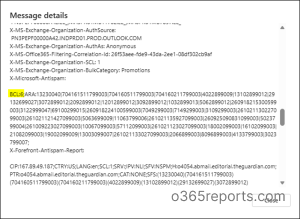
- The BCL threshold is the cutoff an admin sets in an anti-spam policy. When a message’s BCL value meets or exceeds this threshold, the policy’s bulk email action applies, such as moving the message to the Junk Email folder or quarantining it.
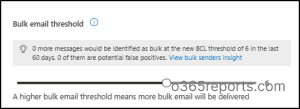
For example, suppose the BCL threshold is 6, and the action is set to move messages to Junk Email:
- Newsletter (BCL 3): Below the threshold, so the bulk email action doesn’t apply. The message may reach the Inbox if no other filtering affects delivery.
- Promotional email (BCL 6): Meets the threshold, so the message is moved to Junk Email.
That newsletter is exactly the kind of email BulkMovesEnabled handles. Instead of letting it reach the Inbox, the setting delivers qualifying promotional emails like it to the Promotions folder.
What is BulkMovesEnabled and How Does it Work?
Bulk emails below the BCL threshold can still reach the Inbox, where newsletters and promotions end up mixed with important business messages!
The Bulk moves enabled setting in Microsoft 365 anti-spam policies helps keep these messages separate.
When it’s turned on, bulk emails that would otherwise reach the Inbox are delivered to a separate Promotions folder in the user’s mailbox.
Note: This is an opt-in setting that administrators must enable in the applicable anti-spam policy.
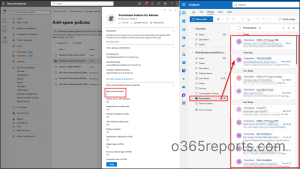
After the setting is enabled in the anti-spam policy that applies to a user, nothing else is needed on the user’s side. Microsoft 365 automatically creates the Promotions folder when the first eligible bulk email arrives.
How Bulk Moves Enabled Works with the BCL Threshold
Bulk moves enabled works alongside the BCL threshold, which decides which bulk emails it affects.
Take the earlier example, where the threshold is 6. A newsletter with a BCL value of 3 falls below it, so it would normally reach the Inbox. With Bulk moves enabled turned on, that same newsletter goes to the Promotions folder instead.
This shows how the setting and the threshold divide the work. Keep these two points in mind when you configure Bulk moves enabled in Defender:
- “Bulk moves enabled” configuration applies only to promotional bulk emails that score below the BCL threshold.
- Messages that meet or exceed the threshold still follow the action configured in the anti-spam policy, such as Junk or quarantine.
Once Bulk moves enabled starts sorting these emails, you’ll notice another similar term: the Promotions tag. The two sound alike, but they do different jobs, and knowing the difference helps you understand where promotional emails end up.
Since July 2026, supported Outlook clients have displayed a Promotions tag on messages identified as bulk, regardless of their BCL value. However, the tag only identifies the message as promotional; it doesn’t move it to the Promotions folder!
To automatically move eligible bulk emails below the BCL threshold to the Promotions folder, administrators must enable Bulk moves in the applicable anti-spam policy.
The flowchart below shows how the threshold, tag, and setting work together.
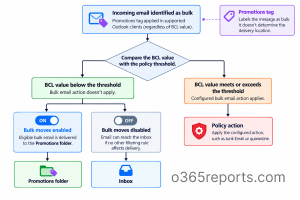
Enable BulkMovesEnabled Using the Microsoft Defender Portal
Turning on Bulk moves enabled takes a single toggle, but first you need to check which anti-spam policy applies to your users. Standard and Strict preset security policies take precedence over default and custom policies, so you may need to exclude users from a preset before proceeding.
Before you begin: You need the Security Administrator role or an appropriate Exchange Online role, such as Organization Management or Hygiene Management, to manage anti-spam policies.
- Step 1: Check which anti-spam policy applies to your users
- Step 2: Choose the right approach
- Step 3: Exclude users from preset policies (only if needed)
- Step 4: Enable BulkMovesEnabled in Anti-Spam Policies
Step 1: Check Which Anti-Spam Policy Applies to Your Users
Before enabling BulkMovesEnabled, check whether the users who need the Promotions folder experience are covered by a Standard or Strict preset security policy. Both presets have BulkMovesEnabled turned off, and enabling it in another anti-spam policy won’t override that setting.
Microsoft applies the highest-priority policy that matches a recipient. Strict preset policies take precedence over Standard presets, followed by custom policies in priority order (a lower number means higher priority). The default policy applies when no other policy takes precedence.
To check policy coverage:
- Sign in to the Microsoft Defender portal.
- Go to Email & collaboration > Policies & rules > Threat policies.
- Under Templated policies, select Preset security policies. Check whether Standard or Strict protection is turned on, and which users, groups, or domains it applies to.
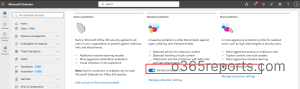
- Return to Threat policies > Anti-spam and review your custom policies, their priorities, and recipient assignments.
What if your users are covered by a preset? You’ll need to exclude them from the applicable preset before configuring BulkMovesEnabled in the default or a custom anti-spam policy. See Step 3 for the exclusion process.
Note: Built-in protection, which you’ll also see on the Preset security policies page, only covers Safe Links and Safe Attachments. It doesn’t affect anti-spam settings or Bulk moves enabled.
Based on what you found in Step 1, use this table to decide where to turn on the setting.
|
Your situation |
What to do |
|
Users aren’t covered by Standard or Strict presets, and you want the feature for everyone. |
Turn on Bulk moves in the default anti-spam policy. Step 4. |
|
Users aren’t covered by Standard or Strict presets, and you want the feature for specific users or groups. |
Turn it on in a custom policy that includes only those users, or create a new one. Step 4. |
|
Users are covered by the Standard or Strict preset policies. |
Exclude them from the preset (Step 3), then turn on the setting in the default or a custom policy. |
Step 3: Exclude Users from Preset Policies (Only if Needed)
Skip this step if the Standard or Strict preset policy doesn’t cover your intended users.
- On the Preset security policies page, select Manage protection settings under Standard or Strict protection.
- On the Apply Exchange Online Protection page, add the intended users or groups under Exclude these recipients.
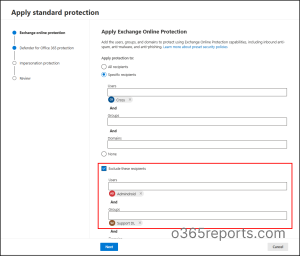
- Review and save the changes.
Important: Excluded users lose the preset’s protection settings. Make sure their new policy has equally strong settings, such as the BCL threshold, spam actions, and quarantine policies.
Step 4: Enable BulkMovesEnabled in Anti-Spam Policies
To update an existing policy (default or custom):
- On the Anti-spam policies page, select the policy. To apply the setting to all users, select Anti-spam inbound policy (Default).
- In the details flyout, go to the Actions section and select Edit actions.
- Turn on Bulk moves enabled.
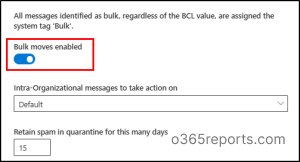
- Confirm the action for Bulk compliant level (BCL) met or exceeded, such as Move message to Junk Email folder. This action handles bulk emails at or above the threshold.
- Select Save.
You can also review the BCL threshold under Bulk email threshold & spam properties > Edit spam threshold and properties. Change it only if you need to adjust the filtering threshold.
To create a new custom policy for specific users:
- On the Anti-spam policies page, select Create policy > Inbound, and enter a name.
- On the Users, groups, and domains page, add the intended users or groups who should get the Promotions folder.
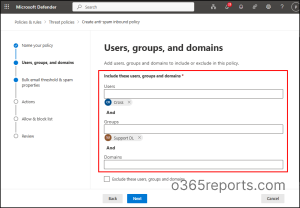
- Set the BCL threshold and actions as described above, and toggle on “Bulk moves enabled” in the Actions page. Then select Create.
- If other custom policies include the same users, give this policy a higher priority (lower number) so it’s the one applied.
Once the policy is saved, promotional bulk emails below the BCL threshold go to each user’s Promotions folder, which is created automatically when the first one arrives. Bulk emails at or above the threshold still follow the policy’s bulk action.
Tip: Need different settings for different users? Create opt-in and opt-out mail-enabled security groups and assign each group its own custom anti-spam policy, with BulkMovesEnabled on for opt-in and off for opt-out. If a preset policy covers these users, exclude them first.
Microsoft 365 Anti-Spam Policy Reporting Using PowerShell
After configuring BulkMovesEnabled, use PowerShell to confirm your settings across all anti-spam policies and check for users that preset policies might still be covering.
Connect to Exchange Online PowerShell first. In each script, replace <OutputPath> with a CSV file path in an existing folder.
Export a BulkMovesEnabled Status Report for Anti-Spam Policies
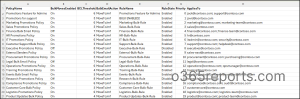
This report lists each anti-spam policy with its BulkMovesEnabled status, BCL threshold, bulk email action, priority, and the recipients it applies to.
|
1 2 3 4 5 6 7 8 9 10 11 12 13 14 15 16 |
$rules = Get-HostedContentFilterRule Get-HostedContentFilterPolicy | ForEach-Object { $p = $_ $r = $rules | Where-Object { "$($_.HostedContentFilterPolicy)" -eq $p.Name } $scope = if ($p.IsDefault) { "Recipients not covered by higher-priority policies" } else { (@($r.SentTo) + @($r.SentToMemberOf) + @($r.RecipientDomainIs) -ne $null) -join "; " } [PSCustomObject]@{ PolicyName = $p.Name BulkMovesEnabled = $p.BulkMovesEnabled BCLThreshold = $p.BulkThreshold BulkEmailAction = $p.BulkSpamAction RuleName = $r.Name RuleState = $r.State Priority = $r.Priority AppliesTo = $scope } } | Export-Csv "<output path>" -NoTypeInformation |
Find Users Covered by Preset Security Policies
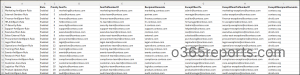
If BulkMovesEnabled isn’t working for some users, a preset policy may still cover them. Use this report to export each preset rule’s configured inclusions and exclusions for users, groups, and domains. Group membership isn’t expanded into individual users.
|
1 |
Get-EOPProtectionPolicyRule | Select-Object Name, State, Priority, SentTo, SentToMemberOf, RecipientDomainIs, ExceptIfSentTo, ExceptIfSentToMemberOf, ExceptIfRecipientDomainIs | Export-Csv -Path "<OutputPath>" -NoTypeInformation |
Enable Bulk Moves Using PowerShell
To enable the setting for an existing anti-spam policy, run:
|
1 |
Set-HostedContentFilterPolicy -Identity "Policy Name" -BulkMovesEnabled On |
Replace “Policy Name” with the name of the policy you want to update. To enable it in the default policy, use Default as the identity.
How the Promotions Folder Works for Users
Once BulkMovesEnabled is enabled in the applicable policy, eligible bulk emails below the BCL threshold that would otherwise reach the Inbox can be delivered to the Promotions folder.
If users move messages into or out of the folder, Microsoft 365 remembers their choice for future emails from that sender.
- Existing folder: If the mailbox already has an unrelated Promotions folder, a new one named Promotions(1) is created. Users can rename or move the folder, and it keeps working.
- Deleted folder: If the folder is deleted, bulk emails still go to it inside Deleted Items. If it is permanently deleted, future eligible messages may return to the Inbox.
- Turned off later: Disabling BulkMovesEnabled stops automatic delivery to Promotions, but doesn’t remove the folder.
- Exceptions: Bulk emails still reach the Inbox if the sender is on an allow list or belongs to one of your accepted domains, or if the user has an Inbox rule that handles bulk mail.
Promotions folder delivery is supported in Outlook on the web, new and classic Outlook for Windows, and Outlook for iOS and Android. However, the Promotions tag and the ability to use it in Inbox rules are available only in Outlook on the web and the new Outlook for Windows.
Before rolling BulkMovesEnabled out to everyone, try it with a small group of users and check which emails land in their Promotions folder. Have questions about configuring this feature? Share them in the comments below.