Managing permissions is one of the key aspects of maintaining a secure and well-organized SharePoint Online environment. Whether you’re managing a small organization or a large enterprise, the way you structure access directly affects how information is protected, shared, and governed.
Properly configured permissions let users access the content they need, while keeping sensitive information secure. Misconfigured permissions, on the other hand, can lead to confusion, data exposure, and administrative headaches. This is why a solid understanding of SharePoint’s permission model, particularly permission inheritance, is essential for admins.
In this blog, we’ll explore how permission inheritance works in SharePoint, how to identify when it’s broken, and best practices for managing it effectively.
What is Permission Inheritance in SharePoint?
Permission inheritance means a subsite, library, folder, or file automatically receives its permissions from the parent site. This ensures that access is managed centrally, with permissions flowing down the hierarchy unless intentionally changed.
Why Inheritance is the Default and Recommended Model in SharePoint Online:
By default, SharePoint Online uses inheritance to maintain consistent and easy-to-manage permissions. Instead of configuring permissions separately for each item, administrators can define them once at the site level and allow everything beneath it to follow the same pattern. This reduces complexity, minimizes configuration errors, and ensures a more manageable and scalable environment.
How SharePoint Online Permissions Inheritance Works?
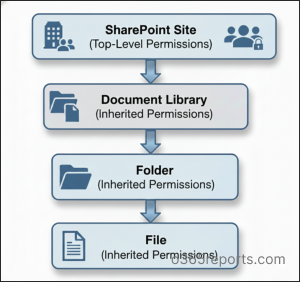
In SharePoint’s hierarchical structure, permissions cascade from parent to child. At the site level, permissions are typically set through SharePoint groups (Owners, Members, Visitors). Each group is given a corresponding permission level, like Full Control, Edit, or Read. These permissions automatically apply to the site’s libraries. The libraries, in turn, pass the same permissions down to their folders and files, unless inheritance is broken.
Example Scenario:
Imagine you have a SharePoint site called “Marketing Team Site” where Marketing Team members can edit everything.
- Now, when you create a document library inside this site, it automatically inherits that same permission – Marketing Team can edit. You don’t have to set it again!
- Next, you create a folder called “Projects” inside the Documents Library. It also inherits the same permission automatically.
- Finally, you upload a file called “Budget.xlsx” into the Projects folder, and it too inherits the editing permission from its parent folder.
How to Manage Permission Inheritance in SharePoint Online?
In SharePoint, site owners and site collection administrators can manage permission inheritance. They can determine whether sites, libraries, folders, or files keep their parent’s permissions or are assigned unique access rights.
- How to check permission inheritance in SharePoint Online
- How to check permission inheritance in SharePoint Online using PowerShell
How to Check Permission Inheritance in SharePoint Online?
SharePoint makes it easy to see if an item is inheriting permissions. By opening the permissions page for a site, library, folder, or file, you can quickly identify whether the item is using the same permissions as its parent or whether it has unique permissions assigned. Indicators and messages in the SPO clearly show whether inheritance is intact or broken, helping administrators diagnose access issues efficiently.
Check Inherited Permission for a Specific Subsite:
- First, navigate to the SharePoint site where you want to check permissions.
- Click the Settings icon in the top-right corner of the page, then select Site contents.
- From the Subsites section, click the subsite you want to review.
- Once the subsite opens, click the Settings icon again and select Site settings.
- Under Users and Permissions, click Site permissions.
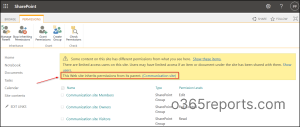
- At the top of the permissions page, look for the message: “This Web site inherits permissions from its parent.” This confirms that the subsite is inheriting permissions from its parent site.
Check Inherited Permission for a Specific Document Library:
- First, navigate to the SharePoint site where you want to check permissions.
- Click the Settings icon in the top-right corner of the page, then select Site contents.
- From the Contents section, click the three dots (⋯) next to the document library you want to review, then click Settings.
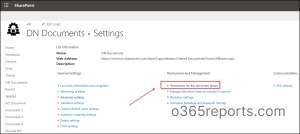
- Under Permissions and Management, click Permissions for this document library.
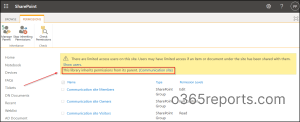
- At the top of the permissions page, look for the message: “This library site inherits permissions from its parent.” This confirms that the document library is inheriting permissions from its parent site.
Check Inherited Permission for a Specific Folder or Files:
- Select the document library that contains the folder/file you want to review.
- Click the three dots (⋯) next to the folder or file you want to investigate.
- Click Manage access, then click the three dots (⋯) at the top of the panel and select Advanced settings.
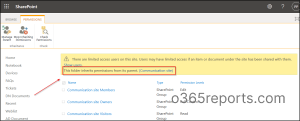
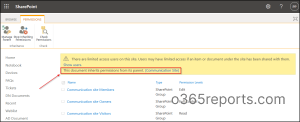
- At the top of the permissions page, look for the message: “This folder or document inherits permissions from its parent.” This confirms that the subsite is inheriting permissions from its parent site.
View Inherited Permissions for a Folder:
View Inherited Permissions for a File:
How to Check Permission Inheritance in SharePoint Online Using PowerShell?
Alternatively, you can also use PowerShell to check permission inheritance for a site’s content in SharePoint Online. To do this, first connect to SharePoint Online using PnP PowerShell
Check Site-Level Permission Inheritance Using PowerShell
To check if a subsite has unique permissions, use the following cmdlet:
|
1 2 3 |
Get-PnPSubWeb -Includes HasUniqueRoleAssignments | ForEach-Object { Write-Output "$($_.Url) - $($_.HasUniqueRoleAssignments)" } |

The cmdlet checks if a subsite has inherited permissions. If the specified subsite has unique permissions, it will return True; if it inherits permissions from the parent site, it will return False.
Check Library-level Permission Inheritance Using PowerShell
To check if a specific list or library has inherited permissions, use the following cmdlet. Replace <LibraryName> with the respective document library name.
|
1 2 |
Get-PnPList -Identity "<LibraryName>" -Includes HasUniqueRoleAssignments | Select-Object Title, HasUniqueRoleAssignments |

The cmdlet checks if a specific list or library has inherited permissions. If the specified library or list has unique permissions, it will return True; if it inherits permissions from the parent site, it will return False.
Check Folder-Level Permission Inheritance Using PowerShell
To check if a specific folder has unique permissions, use the following cmdlet. Replace <FolderPath> with the path to your folder.
|
1 2 3 4 |
$folder = Get-PnPFolder -Url "<FolderPath>" -Includes ListItemAllFields, ListItemAllFields.HasUniqueRoleAssignments $folder.ListItemAllFields | Select-Object ` @{Name='Name';Expression={ $_["FileLeafRef"] }}, @{Name='HasUniqueRoleAssignments';Expression={ $_.HasUniqueRoleAssignments }} |

The cmdlet checks if a specific folder has inherited permissions. If the specified folder has unique permissions, it will return True; if it inherits permissions from the parent library, it will return False.
Check File-Level Permission Inheritance Using PowerShell
To check if a specific file has unique permissions, use the following cmdlet. Replace <FileName> with the desired file name, including its extension, and <LibraryName> with the respective library name.
|
1 2 3 4 5 6 7 |
$FileName = "<FileName>.extension" $LibraryName = “<LibraryName>” Get-PnPListItem -List "$LibraryName " -Includes HasUniqueRoleAssignments | Where-Object { $_["FileLeafRef"] -eq $fileName } | Select @{Name='FileName';Expression={ $_["FileLeafRef"] }}, @{Name='FileRef';Expression={ $_["FileRef"] }}, HasUniqueRoleAssignments |
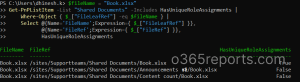
The cmdlet checks if a specific file has inherited permissions. If the specified file has unique permissions, it will return True; if it inherits permissions from the parent folder or library, it will return False.
How to Identify Where Inheritance Is Broken in SharePoint Sites?
Broken inheritance occurs when a specific library, folder, or file stops inheriting permissions from its parent site. At times, it’s necessary to do this to manage confidential content. However, frequent or undocumented inheritance breaks can make permission structures difficult to understand or troubleshoot. To maintain long-term stability and simplified governance, SharePoint’s best practice is to preserve inheritance whenever possible.
Therefore, tracing where inheritance is broken is essential for SharePoint administrators to identify and manage unique access to a library, folder, or file. This often requires manually navigating through the Permissions page at each level to pinpoint where the inheritance has been disrupted.
To locate items with broken permission inheritance, follow the steps below.
- Open the SharePoint site where you want to check permissions.
- Go to Settings -> Site permissions, then click Advanced permission settings to open the permissions page.
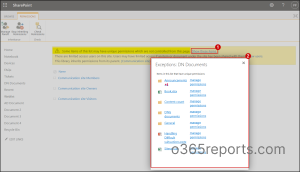
- On the permissions page, look for the message “Some items in this list may have unique permissions.” Click Show items.
- This will display all items or folders with unique permissions, allowing you to identify exactly where permission inheritance has been broken.
How to Restore SharePoint Permission Inheritance?
If inheritance was broken accidentally or automatically due to shared files and folders, restoring it can help bring your structure back under control. You can restore inheritance by removing unique permissions, which aligns the item with its parent again. For larger environments or repeated audits, PnP PowerShell offers a more powerful approach. Administrators can detect unique permissions and reapply inheritance consistently across multiple sites, libraries, or folders.
Restore Permission Inheritance from SharePoint UI
To reapply permission inheritance, follow the steps below.
- Navigate to the subsite, item, folder, library, or list where permissions were broken.
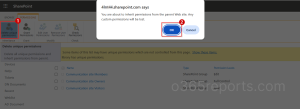
- Then, on the Permissions page, click Delete unique permissions and confirm the action.
- Refresh the permissions page to confirm that inheritance has been restored. The message “Some items in this list may have unique permissions” should no longer appear.
Reset SharePoint Permission Inheritance using PowerShell
You can also use PowerShell to restore permission inheritance in SharePoint Online. By connecting to the desired site through PnP PowerShell, you can execute specific cmdlets to restore inheritance at the subsite, library, folder, or file level.
Reset Site-Level Permission Inheritance
To reset permission inheritance for the specific subsite, use the following cmdlet. Replace <SubsiteUrl> with the URL of the subsite whose permissions you want to reset.
|
1 |
Set-PnPWeb -Identity "<SubsiteUrl>" -ResetRoleInheritance |
The cmdlet resets permission inheritance for the specified subsite. After running this, the subsite will inherit permissions from its parent site.
Reset Library-Level Permission Inheritance
To reset inheritance for a specific list or library, use the following cmdlet. Replace <LibraryName> with the name of the library or list.
|
1 |
Set-PnPList -Identity "<LibraryName>" -ResetRoleInheritance |
The cmdlet resets inheritance for a specific library or list. After running this, the library or list will inherit permissions from its parent site.
Reset Folder-Level Permission Inheritance
To reset inheritance for a specific folder, use the following cmdlet. Replace <FolderPath> with the path to your folder.
|
1 2 3 |
$folder = Get-PnPFolder -Url "<Folderpath>" $folder.ListItemAllFields.ResetRoleInheritance() Invoke-PnPQuery |
The cmdlet resets permission inheritance for a specific folder. After running this, the folder will inherit permissions from the parent library.
Reset File-Level Permission Inheritance
To reset inheritance for a specific file, use the following cmdlet. Replace <FilePath> with the path to your file.
|
1 2 3 |
$file = Get-PnPFile -Url "<FilePath>" $file.ListItemAllFields.ResetRoleInheritance() Invoke-PnPQuery |
The cmdlet resets permission inheritance for a specific file. After running this, the file will inherit permissions from the parent folder or library.
Best Practices for Managing SharePoint Permission Inheritance
To maintain a secure, scalable, and manageable permission structure in SharePoint Online, it’s important to follow established governance practices. Below are some key recommendations:
- Minimize the use of unique permissions: Break inheritance only when necessary. Each uniquely secured item adds complexity and increases the risk of inconsistencies or access issues.
- Use groups for access management: Assign permissions at the group level instead of giving individual users direct access. This keeps your security model clean and easy to manage.
- Use sharing links for file-level access instead of breaking inheritance: Use sharing links for individual files and folders instead of broadly breaking inheritance, as sharing links are more manageable and easier to revoke.
- Keep uniquely secured items below recommended limits: Although SharePoint technically supports up to 50,000 uniquely secured items per list/library, the best practice is to keep this number under 5,000 to avoid performance degradation and permission processing delays.
Conclusion
Permission inheritance is one of SharePoint Online’s most valuable features for keeping environments secure, consistent, and scalable. By understanding how it works, administrators can better design and maintain permission structures that protect sensitive information while supporting smooth collaboration. Whether you’re troubleshooting permission issues or planning a new site structure, keeping inheritance in mind is essential. This approach ensures proper access control and supports seamless collaboration across your SharePoint environment.