Microsoft 365 Groups is a cross-membership service that provides access to multiple Microsoft 365 workloads, such as Outlook, SharePoint, Teams, Viva Engage, and more. It acts as a single collaboration layer that streamlines communication and teamwork across the organization.
While Microsoft 365 Groups offers several advantages, it also consumes more storage compared to many other services. If you aren’t properly managing the group storage, it will run out of storage, and expenses will skyrocket. So, admins need to keep a close eye on Microsoft 365 groups’ storage usage.
Unfortunately, native Microsoft 365 reports fall short when it comes to detailed analytics and deeper storage insights. If you are one of the admins who is frustrated in finding the storage used by Microsoft 365 Groups, then this blog is for you. Let me show you the best solution you are looking for!
Microsoft 365 Group Storage – An Essential One:
Microsoft 365 group files use the storage capacity allotted to SharePoint Online site collections. If the storage is poorly managed, it will affect the site’s storage along with the group’s productivity. So, the best practice is to manage the storage of your Microsoft 365 groups in addition to managing group ownership and membership.
Take a look at the representation below that summarizes the Microsoft 365 groups storage limits.
| Plans | Total storage (per org) | Max storage per Site |
| Business Basic, Standard, Premium | 1 TB + 10 GB per licensed user | 25 TB |
| Microsoft 365 E3/E5
Office 365 E3/E5 SharePoint Online Plan 1 & 2 |
1 TB + 10 GB per licensed user | 25 TB |
| Microsoft 365 F1, F3
Office 365 F3 |
1 TB | 25 TB |
How to Find Microsoft 365 Group Storage Usage in Admin Center
There are multiple ways to find the storage used by groups in Microsoft 365. You can retrieve group storage reports from both the Microsoft 365 admin center and the SharePoint admin center. However, pulling usage data from these admin centers is often ambiguous and lacks clarity. Also, the SharePoint admin center reports include both Microsoft 365 Groups and regular SharePoint sites, which can make analysis harder.
Another pitfall with native UI reports is that the interface frequently changes, and the data is not always easy to interpret. Even exported CSV reports tend to be complex to work with, and make it difficult for admins to filter, customize, or extract meaningful insights.
Get the Storage Used by Microsoft 365 Groups Using PowerShell:
PowerShell – The Saviour:
Here comes the PowerShell! Admins can quickly get the amount of storage used by Microsoft 365 groups through PowerShell without too many hassles! However, one loophole is that it can be challenging for PowerShell newbies. Because identifying group storage often requires multiple filters and looping through several cmdlets.
To get over the challenges, I have developed a script that automates all the time-consuming tasks associated with retrieving the Office 365 group storage usage. The required modules to get the Microsoft 365 group space used have been added priorly!!
Isn’t that cool to hear? Make use of this script and keep an eye on Microsoft 365 Group storage and stay in control.
Download Now: GetOffice365GroupsStorage.ps1
Script Highlights:
- The script uses modern authentication to connect to Exchange Online.
- The script can be executed with MFA enabled account, too.
- Automatically install the EXO V2 and SharePoint PnP PowerShell module (if not installed already) upon your confirmation.
- Credentials are passed as parameters (Scheduler-friendly), so worry not! i.e., credentials can be passed as parameters rather than being saved inside the script.
- Exports the report result to a CSV file.
- Lists the details of the storage used in each Office 365 group.
Microsoft 365 Groups Storage Report- Script Execution:
To run this script, choose any one of the following methods.
Method 1: You can run the script with both MFA and non-MFA accounts.
|
1 |
.\GetOffice365GroupsStorage.ps1 |
Method 2: Usually, the script prompts you to enter the credentials two times.
- To connect with the Exchange Online PowerShell module and
- To connect with the SharePoint Online PowerShell module.
If you prefer not to have multiple-time logins for MFA disabled accounts and run non-interactively (Scheduler-friendly), execute the script with the –NoMFA parameter, mentioning the credentials.
|
1 |
.\GetOffice365GroupsStorage.ps1 -NoMFA -UserName admin@contoso.com -Password XXX |
If you prefer not to do this manually every time, you can opt to schedule the script using Windows Task Scheduler.
Note: This doesn’t support MFA-enabled accounts. To schedule for MFA-enabled accounts, you must disable MFA with the Conditional Access Policy.
Find the Storage Size in Microsoft 365 Groups – Sample Output:
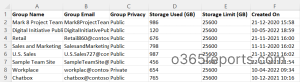
Once you run the script, the output file will be stored in the current working directory. The exported storage usage report of Microsoft 365 Groups has the following attributes:
- Group Name
- Email ID of the Group
- Group Privacy
- Storage Used (GB)
- Total Storage Limit (GB)
- Group Creation Date and Time
Surpass the Limitations of Native Microsoft 365 Group Usage Reporting:
The native Microsoft 365 reports are not much explicable. Even the available reports are spread over multiple admin centers, which eat up your time while getting complete group usage analytics. Also, it would be confusing and complicated for a PowerShell novice to work with advanced PowerShell cmdlets.
Considering all this, I’ve got a tool that will solve all your issues! AdminDroid Office 365 Reporting Tool is the perfect alternative for native Microsoft 365 Reporting and Auditing. It provides granular reports on every aspect of the Office 365 groups, like
- M365 Group Creations.
- Office 365 Group Memberships
- M365 Group Changes
- M365 GroupMember Changes
- M365 Group Owner Changes
- M365 Group Usage Trends
- Overall Storage Used By Office 365 groups
- Groups Activity Trends and much more.
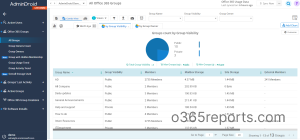
The Free Microsoft 365 Reporting tool by AdminDroid provides reports on Azure AD management, including Microsoft 365 group memberships, membership changes, license assignments, user signins, password changes, and more. The free edition includes over 100 built-in reports and dashboards.
AdminDroid provides widespread visibility across Exchange Online, SharePoint Online, OneDrive for Business, and every other Office 365 service through more than 3,200 reports. These reports include smart, AI-powered graphical analytics presented in clean, comprehensive dashboards.
So, without further ado, start using AdminDroid and optimize your Microsoft 365 group storage. Try the free 15-day premium edition of AdminDroid to explore its features and functionalities for managing environment efficiently.
Hopefully, you now have a better understanding of how to find the storage used by M365 Groups. Use this script to manage group storage more effectively. Let us know what other approaches work for you, share your ideas and strategies in the comments anytime.