Microsoft Teams has become our go-to place for everyday communication. From project updates and quick chats to sharing important files, it’s hard to imagine a workday without Teams. However, the more we rely on Teams, the more attractive it becomes to attackers.
And what about file attachments? They’re one of the easiest ways for threats to enter a normal conversation. Imagine an attacker sharing a malicious file in a project chat that looks completely normal. One click or one download could users and the turn into a security nightmare!
So, should we let every file type freely enter our Teams environment? Absolutely not!
Blocking potentially dangerous file types is a simple yet effective way to strengthen your organization’s security and keep harmful attachments out of everyday Teams conversations. To achieve this, Microsoft provides Weaponizable File Protection in Microsoft Teams setting, which automatically blocks messages that include malicious file types.
Let’s first understand why restricting file-sharing activities in Teams conversations is important and then explore how this feature helps protect your organization.
Why Do You Need to Restrict File Types in Microsoft Teams?
There are several reasons why organizations may need to introduce a list of restricted file types in Microsoft Teams.
- Block Malicious File Uploads– Insiders or external users can share harmful files that introduce malware or compromise organizational security. Blocking potentially dangerous file types helps prevent users from uploading potentially malicious attachments through Teams.
- Prevent Sensitive Information Leakage– If your organization stores sensitive information in specific file formats, you can add those formats to the block list to prevent users from sharing such files through Teams conversations.
- Block Accidental Execution of Dangerous Files – Users may unknowingly download and execute files that contain harmful scripts or commands. Restricting risky file types helps reduce the chances of accidental security incidents.
Now that you understand why it’s important to prevent users from uploading or downloading potentially dangerous or weaponizable file types. Let’s see how to achieve this in Microsoft Teams.
Restrict Users from Uploading Malicious File Types in Microsoft Teams
We need to look at file protection in Teams from two sides. First, we should prevent users from uploading dangerous file types in Teams conversations. At the same time, recipients should be protected from receiving or downloading malware-attached files. This is where Weaponizable File Protection in Microsoft Teams admin center comes into play.
What is Weaponizable File Protection on Microsoft Teams?
Weaponizable File Protection is a Microsoft Teams feature that monitors file attachments and blocks file types commonly associated with malware.
Here’s how it works:
- Pre-delivery blocking: Teams scans messages and attachments before delivery. If it detects a file type commonly associated with malware, it automatically blocks the message from being delivered. Also, it shows the malware attachment alert to senders & receivers.
- External collaboration protection: When collaborating with users from external organizations, Weaponizable File Protection applies across the entire conversation if at least one participating organization has the feature enabled.
- In such cases, any message containing a blocked file type will be prevented from being delivered to all participants, regardless of which organization the sender belongs to.
Now that you know how this feature works, let’s explore the different ways Microsoft lets you configure the blocked file type list.
Default Blocked File Types vs. Customizable Weaponizable File Protection
To help you get started with file protection quickly, Microsoft provides a default list of blocked file types. Once you enable Weaponizable File Protection, Teams automatically start detecting and blocking default unsafe file types.
Most of these extensions are commonly associated with malware and security threats. Here’s the default list:
ace, ani, apk, app, appx, arj, bat, cab, cmd, com, deb, dex, dll, docm, elf, exe, hta, img, iso, jar, jnlp, kext, lha, lib, library, lnk, lzh, macho, msc, msi, msix, msp, mst, pif, ppa, ppam, reg, rev, scf, scr, sct, sys, uif, vb, vbe, vbs, vxd, wsc, wsf, wsh, xll, xz, z.
What If Your Organization Needs a Different Set of Blocked File Types for Teams?
Not every organization follows the same file-sharing policies in Teams. While some may allow a wide range of file types, others may want to restrict sharing commonly used document formats such as Word, Excel, and PDF files. Organizations may also have specific file extensions that they consider risky or unsuitable for sharing through Teams conversations.
To provide more control, Microsoft is introducing an option to customize the file extensions blocked by Weaponizable File Protection. Instead of relying only on Microsoft’s recommended default list, admins can define their own list of blocked extensions based on their organization’s security and file-sharing requirements. With this customization option, admins can:
- Add more file extensions to the block list based on their security requirements.
- Restrict commonly used document formats when necessary.
Admins can use Microsoft’s default block list as it is if they don’t need any additional restrictions.
Note: This customization capability is planned for rollout in early December 2026. If an admin customizes the list, the organization will use that customized list and will no longer automatically receive future updates to Microsoft’s recommended default list.
Let’s see how to enable Weaponizable File Protection in the Microsoft Teams admin center
How to Configure Weaponizable File Protection in Microsoft Teams?
Before getting started, make sure you have the following prerequisites:
Role: Teams Administrator or Global Administrator
License: Microsoft 365 F1/F3/E3/E5, Entra ID P1/P2, EMS E3/E5, or Office 365 F3.
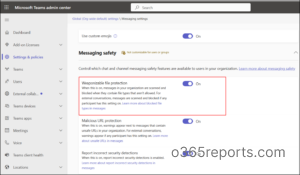
Weaponizable File Protection is enabled by default as a part of Teams messaging safety protections. However, you can check the configuration frequently by following the steps below to protect users from malicious file attachments in Teams conversations:
- Sign in to the Microsoft Teams admin center.
- Navigate to Settings & policies > Messaging > Messaging safety.
- Check whether the “Weaponizable file protection” setting is toggled on.
If you want to block additional file extensions based on your organization’s security requirements, you can customize the list by following the navigation below. (This section will be visible only after the rollout.)
- Open the configuration option available under Weaponizable file protection.
- Add the required extensions to your custom list, one by one.
- Once you’ve added all the required extensions, click Save.
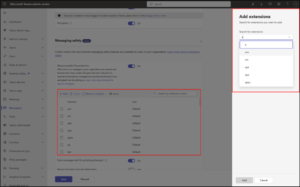
This way, you can either continue with Microsoft’s default list or customize it to match your organization’s file-sharing and security requirements.
Enable Weaponizable File Protection Using PowerShell
Prefer PowerShell over the Teams admin center? You can also enable Weaponizable File Protection using the Microsoft Teams PowerShell module.
First, connect to Microsoft Teams PowerShell using the appropriate admin account. Once connected, run the following cmdlet to enable Weaponizable File Protection:
|
1 |
Set-CsTeamsMessagingConfiguration -FileTypeCheck "Enabled" -Identity Global |
This enables the feature with Microsoft’s recommended default list of blocked file extensions, allowing Teams to detect and restrict access to specific file types in Teams messages.
Note: The command applies the setting at the organization-wide (Global) level.
If you need to verify the current configuration, run:
|
1 |
Get-CsTeamsMessagingConfiguration -Identity Global | Select-Object FileTypeCheck |
This helps confirm whether Weaponizable File Protection is enabled or disabled.
How Weaponizable File Protection Blocks Malicious File Uploads & Downloads
For Sender: Weaponizable File Protection blocks the entire message and attachment
Displays a blocked message indicator and notification explaining the reason, like “This message was blocked because it contains a file type that is not permitted“, and allows users to edit the original message, remove the unsafe file, and resend it.

For Receiver: Weaponizable File Protection displays a blocked message indicator
Prevents recipients from viewing the message content or downloading the attachment and shows notification details based on their Teams client version.

That’s how Weaponizable File Protection helps protect your organization from potentially harmful file attachments in Microsoft Teams. By blocking risky file types at the sender’s end and preventing recipients from clicking the malicious attachments, it adds an extra layer of security to your Teams conversations.
That’s it. If you have any questions or thoughts, feel free to share them in the comments section!