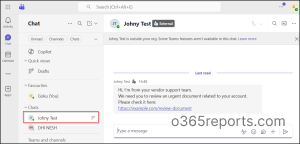
We’ve always been cautious about email-based phishing in Microsoft 365, but now the same threat is quietly making its way into Microsoft Teams. With Teams chat with anyone feature, attackers can now start chats directly with your users to initiate malicious activity. Unlike traditional email phishing, these messages often feel more personal and legitimate, making them harder to question. As a result, users may respond quickly, assuming the interaction is safe.
To address this, I explored ways to limit the impact of such conversations and came across the RemoveAllAccessForUser API in Microsoft Graph. It promises a way to remove external chats from a user’s view, but how effective is it in real-world scenarios?
In this blog, let’s walk through how I tested this API to remove external messages for users, and what actually happened.
External Chat Thread Removal in Microsoft Teams
Before attempting to remove external chats using the Microsoft Graph API, the first step is to gather the required identifiers from audit data for externally initiated conversations. This includes the User ID, Tenant ID, and Chat Thread ID, which are generated once the user accepts the external chat request.
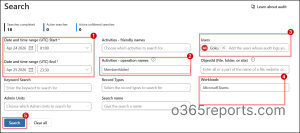
To retrieve these details, I queried audit logs in Microsoft Purview, filtering for MemberAdded activities under the Microsoft Teams workload and other required fields.
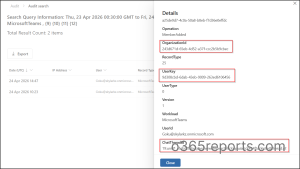
This provide the necessary values such as OrganizationId, UserKey, and ChatThreadId, which are required to proceed with API call.
Removing External Chats from Users in Teams Using Graph API
With the required details in hand, I tested the RemoveAllAccessForUser endpoint in Microsoft Graph.
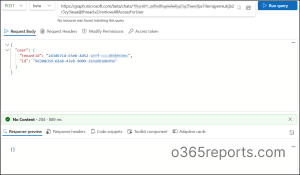
Using Graph Explorer, I issued a POST request to the beta endpoint:
|
1 |
https://graph.microsoft.com/beta/chats/<ThreadID>/removeAllAccessForUser |
Then, I passed the Chat Thread ID along with the User ID and Tenant ID in the request body:
|
1 2 3 4 5 6 |
{ "user": { "id": "<UserID>", "tenantId": "<TenantID>" } } |
Once I executed the request, the API ran successfully and responded with 204 No Content. Initially, the results aligned with expectations; the external chat disappeared from the user’s view.
What Actually Happens When Removing External Chats
At first, everything worked exactly as expected. The external chat disappeared from the user’s view, and it looked like the API did its job perfectly.
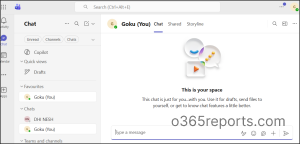
What surprised me was that, even after removing the chat, the external user could still start a new conversation. And this time, I wasn’t able to clean up those subsequent messages using the same approach.
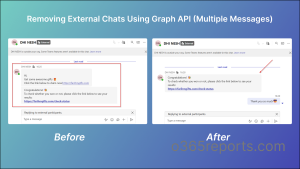
And while the initial test appeared successful, when testing with an external user who had sent multiple messages:
- Only the first message (the one tied to the initial chat acceptance) was removed.
- The remaining conversation stayed visible.
Key Observation on the RemoveAllAccessForUser Graph API
When reviewing the RemoveAllAccessForUser API in Microsoft Graph API documentation, it initially appears to offer a practical way to remove external chat access for users without requiring any end-user action.
However, in practice, its behavior is more limited than expected. It functions closer to an admin-triggered chat visibility reset rather than a complete solution for managing external conversations in Microsoft Teams. In fact, users can remove chat history themselves much more easily from their Teams client and clear the entire conversation, regardless of how many messages are involved.
That made me question the practical use of this API:
- What if an attacker sends multiple phishing messages?
- What if they initiate a new conversation again after the chat is removed?
From an administrative standpoint, a more effective approach would be the ability to control or restrict external chat interactions proactively. For example, by blocking specific external users or limiting chat initiation rather than reacting after the security risks.
Best Practices for Avoiding Unwanted External Chats
Prevention is far more effective than trying to clean up conversations after they occur. When it comes to external chat in Microsoft Teams, the most reliable approach is to control who can initiate communication in the first place.
At the present, the only effective way is to restrict external access by blocking unknown domains or accounts and allowing only trusted ones.
Restrict External Chat to Trusted Domains in Microsoft Teams
To allow only specific domains to communicate with your users in Microsoft Teams, follow the steps below.
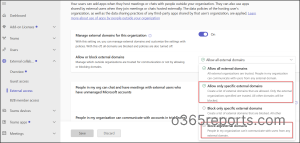
To do this, go to the Microsoft Teams admin center and navigate to External access under External collaboration. You can then choose either Allow only specific external domains by adding the trusted domains, or Block all external domains if external collaboration is not required.
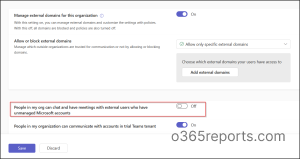
Disable Communication with Unmanaged Teams Accounts
To disable communication with unmanaged Microsoft accounts, such as personal Teams accounts, follow the steps below:
To configure this, in External access under External collaboration, locate the setting People in my organization can communicate with unmanaged Teams accounts. Then, turn it off and save the changes to apply the restriction.
You can also block external users directly from Microsoft Defender, enabling security teams to act immediately without relying on Teams admin or switching between portals. This adds a more proactive layer of control compared to reactive cleanup methods.
Alright, that’s my take on the RemoveAllAccessForUser API. While it works in certain scenarios, it doesn’t fully address the challenge of managing unwanted external chats in Microsoft Teams. Hopefully, Microsoft will improve this or introduce a more effective solution directly within the Teams admin center.
Thank you for reading! We’d love to hear your thoughts—what measures are you using to restrict unwanted external chats in your environment? Feel free to share your questions or insights in the comments.