When SharePoint users want to access files and folders directly in File Explorer, they typically reach for either ‘Sync’ or ‘Add Shortcut to OneDrive’ option. At first glance, these options may seem to work the same way. But, behind the scenes, each option comes with its own trade-offs. From high CPU usage and sync conflicts to file limits and delays, they differ in how they behave and impact your system. Choosing the wrong choice can impact performance and create confusion across devices and teams. 😥
So, let’s clear things up! This blog explores real-world scenarios, highlights potential risks, and provides a practical guide to help you choose between ‘Sync’ and ‘Add shortcut to OneDrive’.
- Sync Vs Add shortcut to OneDrive
- When to use Sync in SharePoint
- Challenges when using SharePoint Sync
- When to use Add shortcut to OneDrive in SharePoint Online
- Limitations of using Add shortcut to OneDrive
- Quick comparison check: When to use Sync vs Add shortcut to OneDrive
Sync Vs Add Shortcut to OneDrive in SharePoint
Instead of picking one out of habit or at random, it is important to understand the key differences between Sync and Add shortcut to OneDrive. This helps you decide which option fits your needs better. Here’s a quick glance at how each option works.
Sync Feature in SharePoint Online
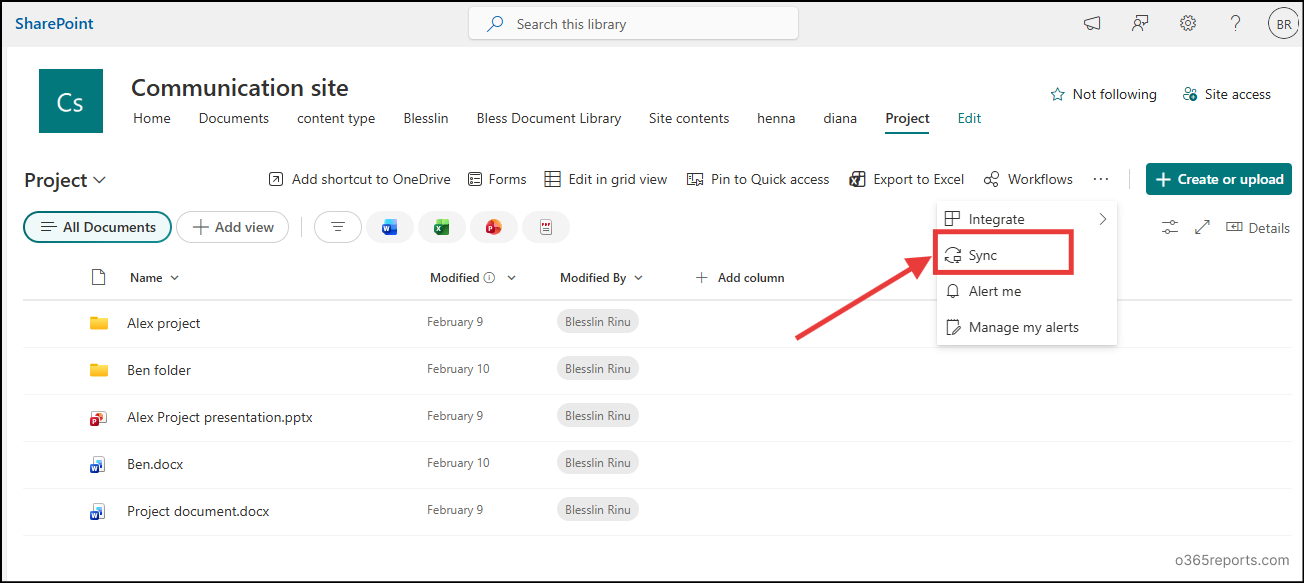
Sync works through the OneDrive sync client, continuously synchronizing SharePoint content between the cloud environment and your local device. This downloads and keeps a full local copy of the entire library or folder directly in File Explorer, making it accessible even offline. You cannot selectively sync individual files.
To sync a document library or folder, use the following navigation path:
Open SharePoint site → Site contents → Select a document library → More options (three dots) → Sync
Add Shortcut to OneDrive in SharePoint
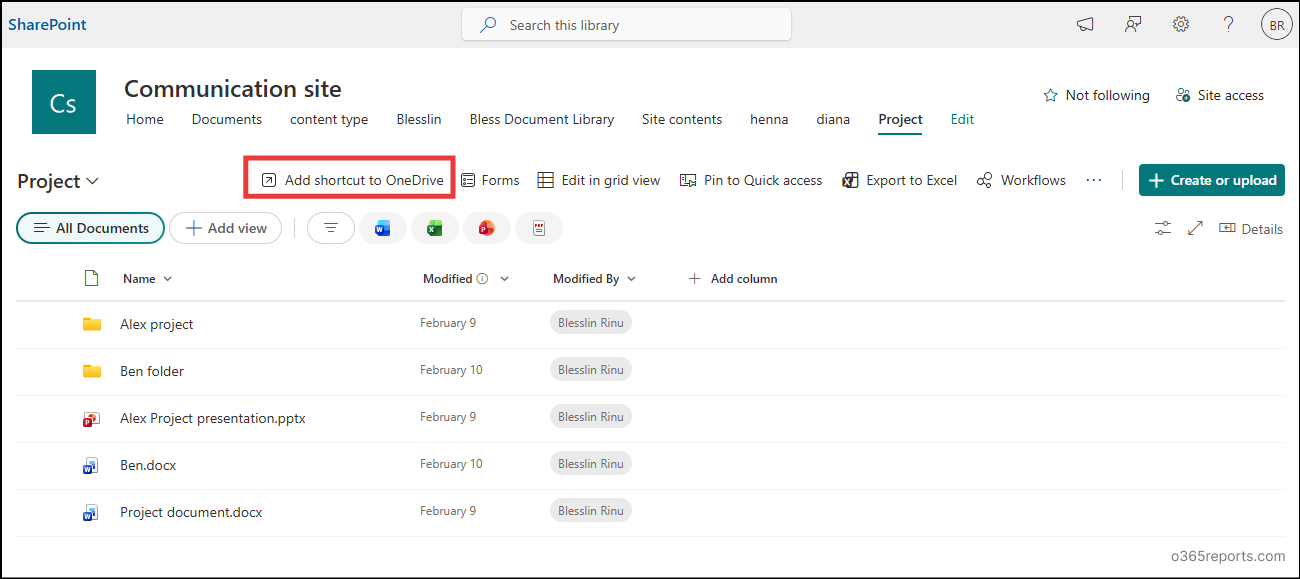
Add shortcut to OneDrive feature creates a shortcut to a SharePoint location within your OneDrive. It uses the OneDrive Files On-Demand feature by default, which makes files appear in File Explorer while they are actually stored in the cloud. These files are downloaded to your local device only when you open or access them. You can add shortcuts for individual files, folders, or entire document libraries, making it more flexible.
To add a shortcut for a document library or folder, follow this navigation path:
Open SharePoint site → Navigate to a document library/folder → Select it → Add shortcut to OneDrive
To add shortcut for an individual file, select file → Add shortcut → Choose My files or Other locations.
Now, let’s start by exploring when the ‘Sync’ option is best to use, based on real-time scenarios.
When to Use Sync in SharePoint?
Before choosing the ‘Sync’ option, it’s important to understand where it truly adds value. While it may seem like the go-to choice, ‘Sync’ works best only in specific scenarios. Below are some ideal use cases where the ‘Sync’ feature works best:
- When you need frequent offline access to SharePoint files and folders
- When guest users need to sync SharePoint libraries locally
- Legacy applications requiring access to SharePoint files
- Require automatic sync of SharePoint files and folders
1. When You Need Frequent Offline Access to SharePoint Files and Folders
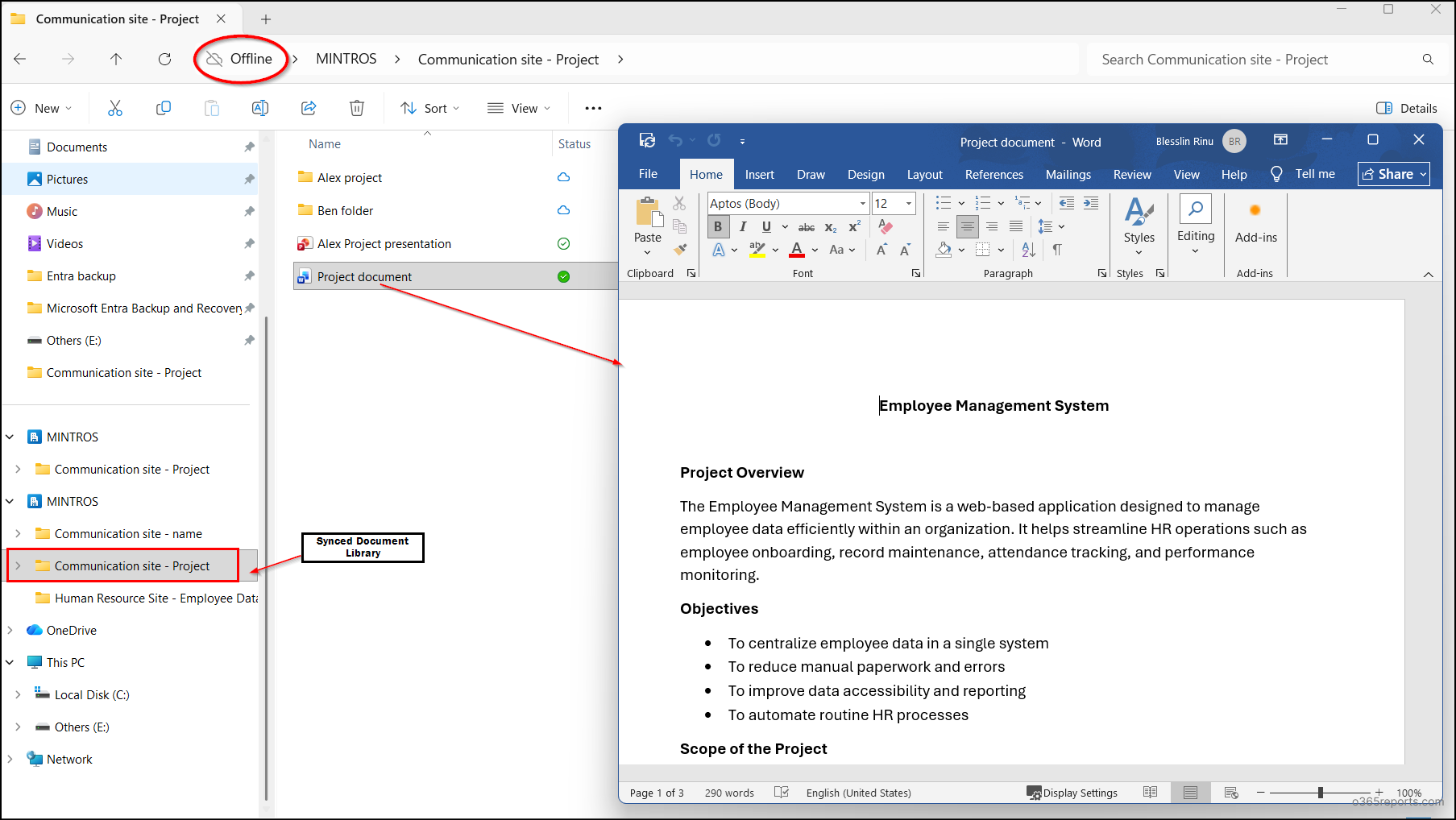
When you need to frequently work in areas with limited or no internet connectivity, ‘Sync’ is the right choice. It allows you to sync SharePoint files to your local storage while online and access them later without an internet connection.
Once synced, this is how the folders appear in the File Explorer for offline access:
2. When Guest Users Need to Sync SharePoint Libraries Locally
If your organization collaborates closely with guest users and they need offline access to SharePoint files or folders, then ‘Sync’ is the only option available to them. ‘Add shortcut to OneDrive’ is not supported for guest users.
Guest users can use B2B sync to sync the shared SharePoint site or document library to their device. This allows them to access, edit, and manage files locally, even when offline.
Note: This works best when the guest user has access to the full document library or site. ‘Sync’ option may not be available for limited folder-level sharing via a link.
3. Legacy Applications Requiring Access to SharePoint Files
SharePoint ‘Sync’ is also helpful in scenarios where an organization relies on legacy applications that require direct file path access, like C:\ to open or process files stored in SharePoint. In such cases, ‘Sync’ option becomes essential because it creates a local copy of the SharePoint files on the user’s machine.
This allows legacy applications to access files using familiar local file paths, which they typically require to function properly. As a result, users can seamlessly work with SharePoint content through known systems that do not support web-based or cloud URLs.
4. Require Automatic Sync of SharePoint Files and Folders
If you want the files and folders of a particular team site to be stored locally automatically, you can deploy auto-sync for team site libraries using Group Policy.
This requires Windows 10 version 1709 or later with OneDrive Files On-Demand enabled. With this setup, the contents of the target libraries are automatically synced as online-only files. This means users can open files when online, and once accessed, they are downloaded and can be used even without an internet connection.
Once auto-sync is enabled, it applies to both existing and newly added users without requiring any additional configuration.
Important considerations:
- This is not recommended for libraries with more than 5,000 items or in scenarios where it needs to be deployed across more than 1,000 devices.
- Even if existing users choose Stop sync for a document library, this auto-deploy option will automatically resync the library contents.
- This feature is not applicable to on-premises SharePoint sites.
Challenges When Using SharePoint Sync
Here are some of the key challenges when using the ‘Sync’ option:
1. SharePoint Sync Uses High CPU and Disk Usage
One of the most noticeable drawbacks of ‘Sync’ is its impact on system performance. When you sync a document library or a folder, a full copy of that content is created locally in File Explorer. This means your files now exist in both the cloud and your local machine.
While this improves accessibility, it also consumes the disk space based on its size, and your system’s CPU remains engaged in keeping everything in sync. The effect becomes even more evident when working with large files or libraries, where syncing can slow down your machine and disrupt overall performance.
💡Tip: Avoid syncing document libraries with deep folder structures or a large number of files, especially if disk space is limited. In such cases, consider using Files On-Demand so files are not fully downloaded and do not take up much local space.
2. File and Folder Limits in SharePoint Sync
While it may seem like you can sync as much content as needed, Microsoft recommends keeping syncing items within a limit of around 300,000. Going beyond this threshold doesn’t stop the sync from working, but it does introduce performance issues.
In addition, libraries with a higher number of items can lead to delays, sync errors, and in some cases, a noticeably sluggish system. What looks manageable at first can quickly become a bottleneck as the volume grows.
💡Tip: Always try to keep the files and folders being synced below 300,000 items to prevent performance issues and other consequences. For monitoring sync status and troubleshooting issues, you can use the OneDrive sync reports in the Apps admin center.
3. SharePoint Sync Creates Duplicate Files and Folders
If a document library is synced more than once, SharePoint may prompt you to either use the existing location or create a new folder.
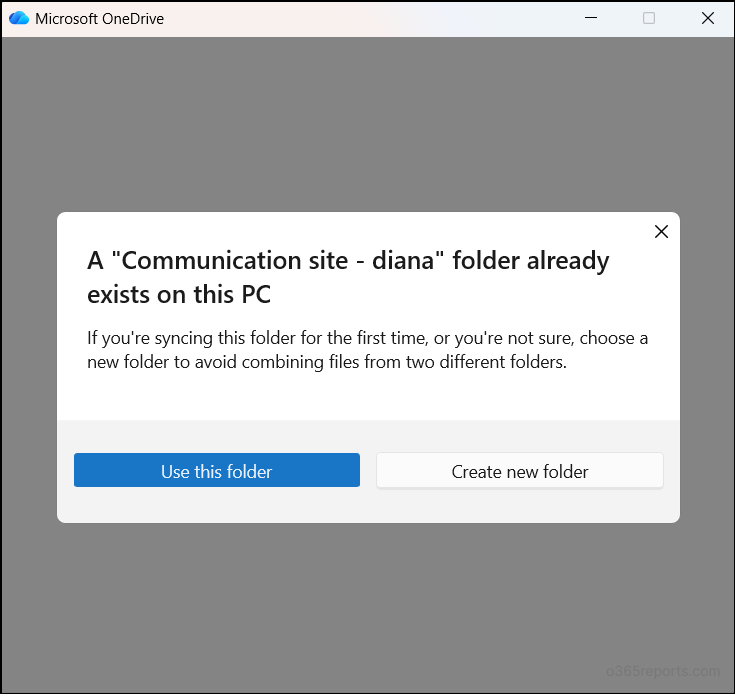
Choosing to create a new folder results in a duplicate copy of the same library, often with a similar name followed by a number, as shown in the image below.
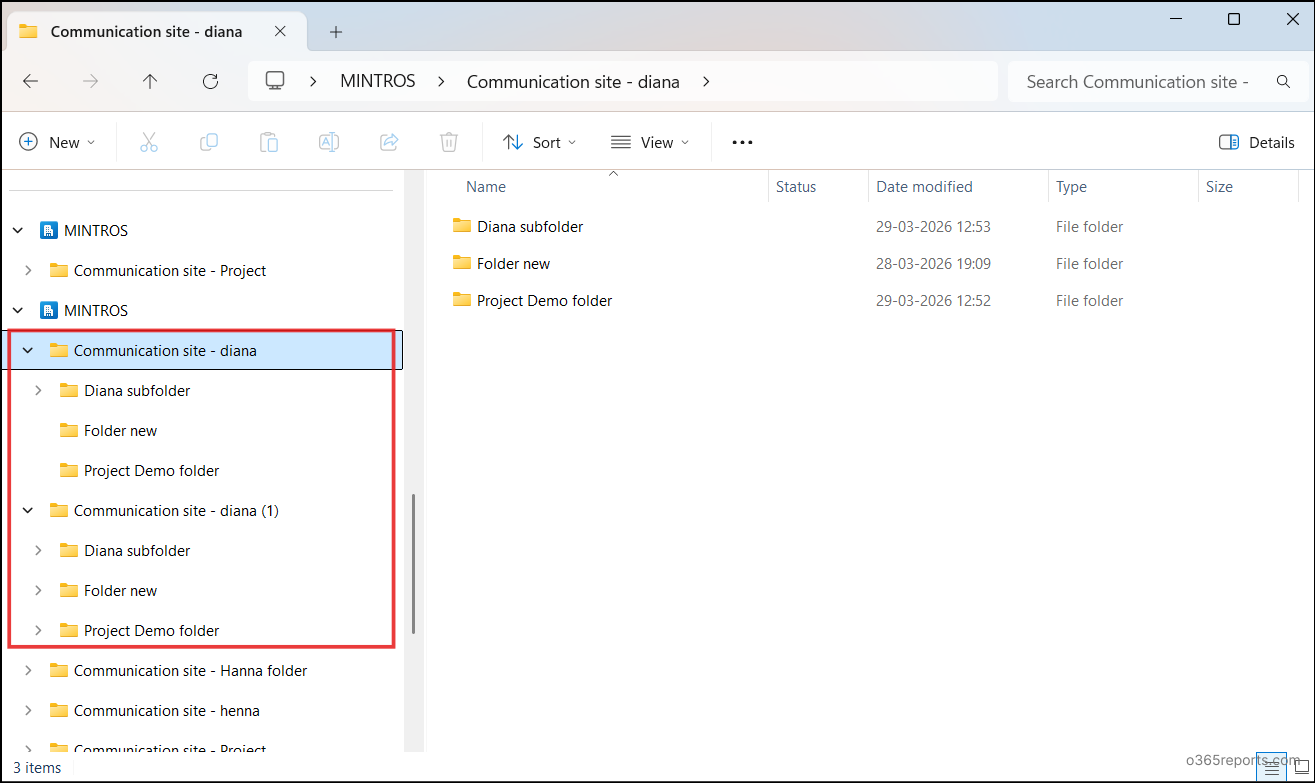
Over time, this may create confusion, particularly when folders are not clearly renamed. Additionally, it results in unnecessary storage consumption as the same content is synced twice.
💡Tip: Avoid creating new folders for syncing unless necessary. If you do, make sure to rename it clearly to prevent confusion.
4. Changes to Synced Items in File Explorer Automatically Reflect in SharePoint Online
Since ‘Sync’ maintains a continuous connection between your local environment and the cloud, any action performed locally reflects in SharePoint as well.
If a file or folder is deleted, renamed, or moved in File Explorer, the same changes are applied in SharePoint Online as well.
If you accidentally delete files or folders, you must rely on the SharePoint Online Recycle Bin to restore them. This creates a dependency on manual restoration and can be problematic in critical situations.
💡Tip: Be careful with actions in File Explorer and ensure that only necessary changes are made to avoid unintended updates in SharePoint.
5. Requires Re-sync When Using SharePoint Across Multiple Devices
Device transition is another area where ‘Sync’ falls short. If you switch from one system to another, the sync setup does not automatically carry over.
Even after installing the OneDrive sync client on a new device, you’ll need to manually re-sync all required libraries and folders. This adds extra time and effort, particularly for users who frequently move between devices or work across multiple environments.
💡 Tip: ‘Sync’ is not ideal if you frequently switch between multiple devices. Stick to a primary device whenever possible to minimize re-syncing and maintain continuity. Since ‘Sync’ doesn’t automatically carry your setup to a new device, each system requires manual configuration and library syncing.
6. Sync Supports on Windows and MacOS Only
‘Sync’ is limited in terms of platform support. It works well on Windows and macOS devices, but it doesn’t extend the same functionality to mobile platforms like Android or iOS. When you move to a new PC, you must resync all folders and libraries manually.
So, users cannot rely on ‘Sync’ option for a consistent experience across all devices and must instead depend on browser access or mobile apps when working with phones or tablets.
💡Tip: ‘Sync’ is not a great choice if you rely on mobile platforms. Since it’s primarily supported on Windows and macOS, relying on mobile platforms will be a headache for you.
Disable Sync Feature for a SharePoint Document Library
If any of the above limitations could impact you in a significant way, it’s better to avoid using the ‘Sync’ option or even consider disabling it.
You can disable ‘Sync’ only at the library level. This gives you more control over where ‘Sync’ should be available and where it shouldn’t.
To disable sync for a document library, follow the steps below:
- Open your SharePoint site and navigate to the target document library.
- Go to Settings (⚙️) → Library settings → More library settings → General Settings → Advanced settings and scroll down to the Offline and sync section.
- Set the “Allow people to sync this document library to their computers with Microsoft OneDrive and access it offline?” to No.
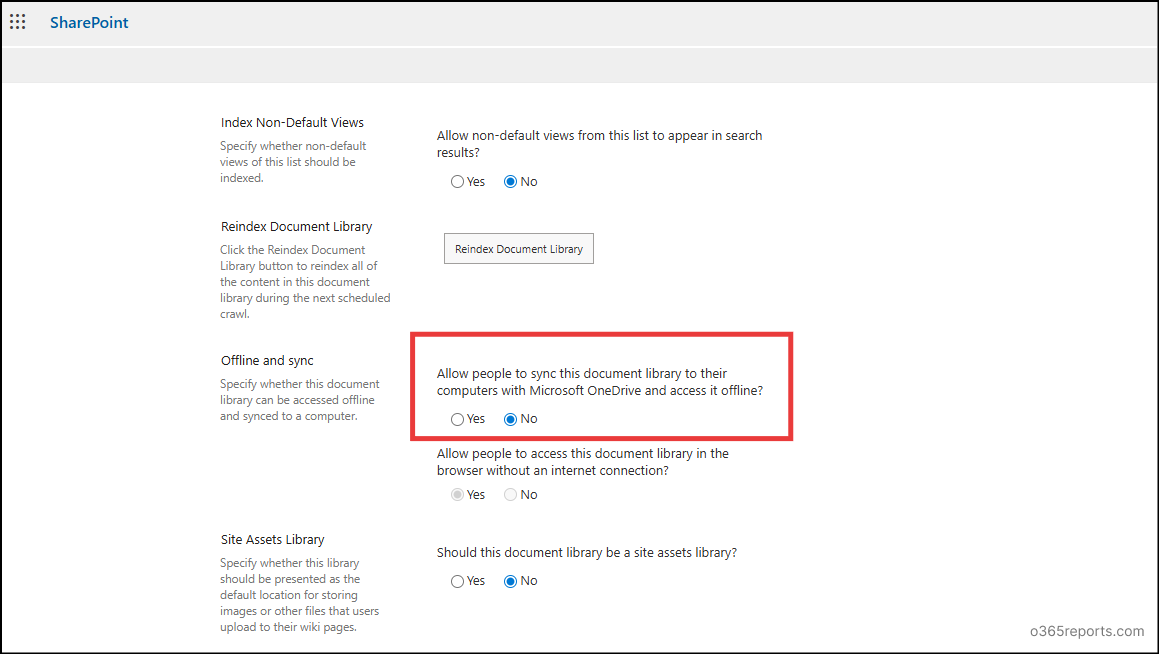
- Click OK to save your changes. Once done, the ‘Sync’ button will disappear from that document library, preventing users from syncing it locally.
Now that you know where the ‘Sync’ option falls short, let’s look at when ‘Add Shortcut to OneDrive’ should be used.
When to Use Add Shortcut to OneDrive in SharePoint Online
As mentioned earlier, ‘Add Shortcut to OneDrive’ is more like creating a link to your files in OneDrive, rather than downloading everything to your device. It can be used in scenarios like the ones below:
- Access SharePoint files and folders without downloading them locally
- Organize shared SharePoint files in a dedicated location
- For managing large volumes of files without local sync
- Access SharePoint files across devices without re-syncing
1. Access SharePoint Files and Folders Without Downloading Them Locally
If your system has limited storage but you still need access to SharePoint files and folders, ‘Add Shortcut to OneDrive’ is a great option. It doesn’t download the files to your device; instead, it creates a shortcut that points directly to the original file in SharePoint Online.
This feature even allows you to create shortcuts for individual files. This way, you can access your content whenever required without worrying about storage limits or slowing down your system. If required, you can also download the files and access them from File Explorer, but doing so can consume your disk space.
2. Organize Shared SharePoint Files in a Dedicated Location
If you’re working in a team or collaborating with external users, you’ll often receive multiple shared files and folders. Managing them can become confusing over time. Using ‘Add Shortcut to OneDrive’ helps organize shared files by placing them in a separate “Shared” folder within OneDrive. This makes it easier to access and manage all your shared SharePoint content in one place, instead of searching through emails or links.
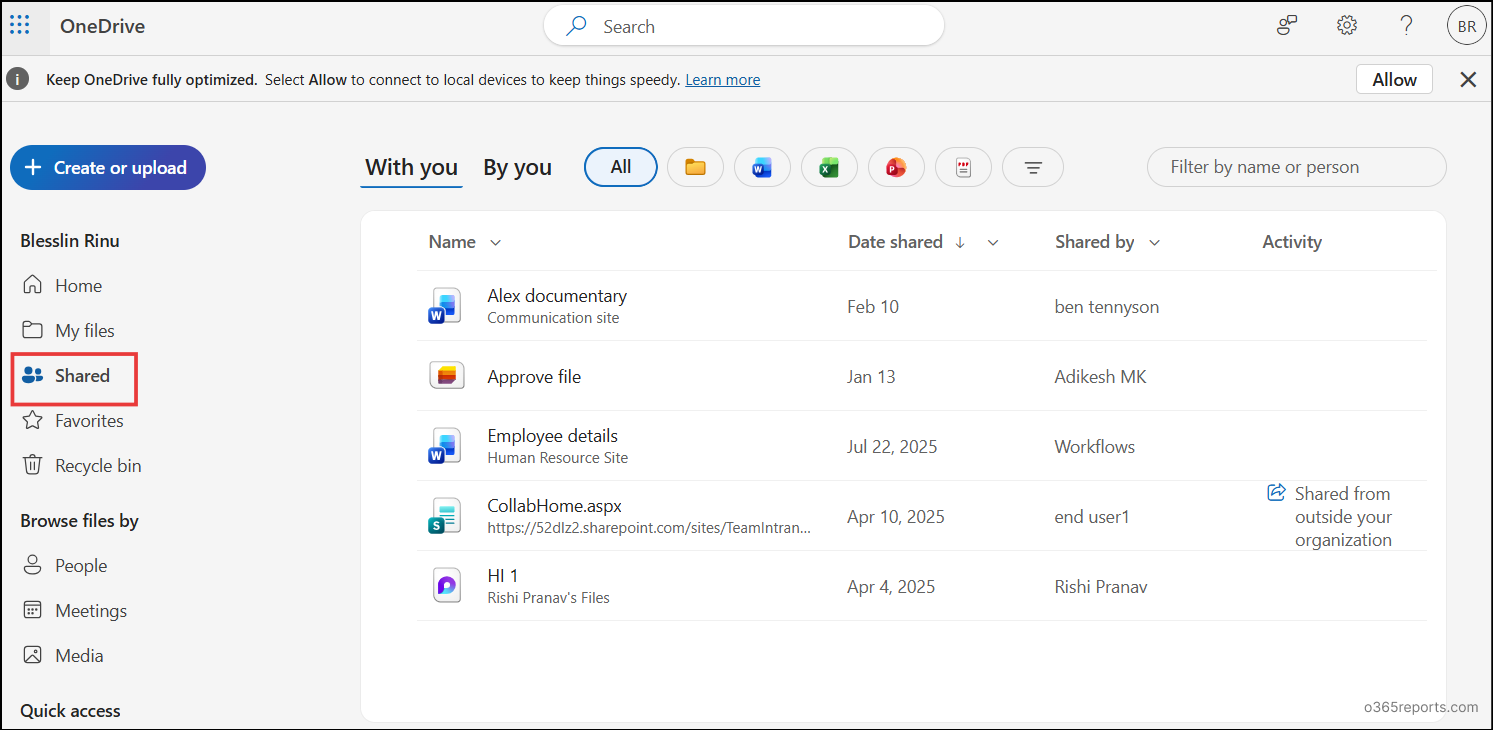
3. For Managing Large Volumes of Files Without Local Sync
In real-world scenarios, some users work with thousands or even lakhs of files. With ‘Add Shortcut to OneDrive’, you can create up to 500,000 shortcuts to handle a much larger number of files without affecting your system performance. This makes it a better option when you need access to a large volume of data without actually storing it locally.
Even if you try to add a shortcut again for the same file or folder, it won’t create duplicates. Instead, OneDrive recognizes the existing shortcut and notifies you that it already exists. This helps maintain a clean, organized structure and prevents confusion for users.
4. Access SharePoint Files Across Devices Without Re-syncing
If you use multiple devices for work, such as mobile, desktop, or tablet or if you switch to a new PC, ‘Add Shortcut to OneDrive’ makes access seamless.
The shortcuts you create are automatically available once you sign in to OneDrive on any device. Unlike ‘Sync’, there’s no need to set them up again manually. This ensures consistent and easy access to your SharePoint files and folders across all your devices.
Because of these advantages, Microsoft recommends moving away from the ‘Sync’ option and using Add shortcut to OneDrive instead. This offers better flexibility and avoids many of the limitations of ‘Sync’.
Limitations of Using Add Shortcut to OneDrive
Although ‘Add Shortcut to OneDrive’ offers several advantages over ‘Sync’, it also comes with certain limitations. Here are some key challenges to consider:
1. Using Both Sync and Add Shortcut Can Create Conflicts
If you use both ‘Sync’ and add shortcut on a SharePoint file, folder or a document library, conflicts can arise.
If you try to sync a folder that already has a shortcut, you might see an error like: “Sorry, we cannot sync the folder. You’re already syncing a shortcut to a folder from this shared library.”
Conversely, if you add a shortcut to a folder that is already synced, the shortcut will be added without an error. But the same files will appear in two locations in File Explorer – one inside the synced folder and one under OneDrive for Business. This can cause confusion since both point to the same content.
💡Tip: Standardize on one method to use either ‘Sync’ or ‘Add shortcut to OneDrive’ option. If needed, you can disable ‘Sync’ or deactivate OneDrive shortcuts based on your requirements to avoid conflicts.
2. Shortcut Limits for SharePoint Files and Folders
Even though the technical limit allows up to 500,000 shortcuts, it is recommended to keep the number below 300,000. Exceeding this threshold can lead to performance issues, including slower loading and syncing delays.
💡Tip: Try to keep the total number of shortcuts within 300,000 files and folders to maintain smooth performance.
3. Guest Users Cannot Create Shortcuts for SharePoint Items
Guest users do not have the ability to create shortcuts for files or folders shared with them. They must rely on shared links or direct access paths, which can become difficult to manage when working with multiple files or libraries.
💡Tip: Advise guest users to use ‘Sync’ when they need offline access to shared SharePoint files.
Disable Add Shortcut to OneDrive in SharePoint Online
If you plan to rely on the ‘Sync’ option or want to avoid conflicts from using both ‘Sync’ and add shortcut, you can disable the ‘Add Shortcut to OneDrive’ feature.
To disable Add shortcut to OneDrive feature at the tenant level, you can use PowerShell. Just connect to SharePoint Online PowerShell and run the following cmdlet:
|
1 |
Set-SPOTenant -DisableAddShortcutsToOneDrive $True |
Quick Comparison Check: When to Use SharePoint Sync Vs Add Shortcut to OneDrive
Now, let’s have a quick comparison look on when to choose between ‘Sync’ and ‘Add Shortcut to OneDrive’ effectively.
| Aspect | SharePoint Sync | Add Shortcut to OneDrive |
| Offline access | ✅ Supported | ⚠️ Supports only when downloaded |
| Guest user access | ✅ Supported | ❌ Not supported |
| Cross-device availability | ⚠️ Supports only the current device | ✅ Supports all devices |
| Disk space & CPU usage | ❌ Higher as it creates a local copy | ✅ Optimized |
| Legacy & desktop app compatibility | ✅ Supported | ❌ Not supported |
| Platform support | ⚠️Limited – Windows and macOs | ✅ Any device |
| Large libraries | ❌ Not ideal | ✅ Better option |
Closing Lines
With all these considerations, it is recommended to standardize on a single method to avoid user confusion. Ultimately, the choice depends on your case. Choose wisely to ensure better performance, organization, and user experience.
And that’s it! We hope this blog has given you a clear perspective on when, why, and which option to choose between SharePoint ‘Sync’ and Add Shortcut to OneDrive. Now, you’re better equipped to make the right choice based on your needs. Got any experiences or queries to share? Drop them in the comment section below. 💬We’d love to hear from you! Stay tuned for more upcoming blogs.