=When you need to grant access to a single file or folder without exposing anything else, you explicitly share that individual item. It seems simple on the surface, but behind the scenes, SharePoint does something important. The moment you share a specific file or folder, SharePoint automatically assigns a special permission level called Limited Access.
However, because this permission level cannot be customized or directly assigned, and appears higher in the site hierarchy, it often leads to misunderstanding. Administrators sometimes assume users can navigate beyond the shared item, even though they cannot.
To manage permissions effectively and avoid unnecessary security concerns, it’s important to understand what Limited Access truly does, and what it does not do. Let’s delve deeper!
What is Limited Access in SharePoint Online
Limited Access is a system-managed permission level that enables users to access resources like files or folders that have been shared with them. It’s specifically designed to work with fine-grained permissions, allowing users to reach a particular list, document library, folder, list item, or document through the site’s navigation structure.
Here are some key characteristics you want to remember about Limited Access:
- Cannot be assigned directly – SharePoint assigns it automatically when needed.
- Cannot be edited – It’s a locked permission level.
- Cannot be customized – Unlike custom permission levels, you cannot modify the permissions within Limited Access (same restriction applies to Full Control).
- Works as a pathway – It provides just enough access to navigate to the specifically shared item.
Although Limited Access might sound like a standard permission level, it doesn’t behave like Read, Edit, or Full Control. It is very different from custom permission levels in SharePoint.
How Limited Access Works in SharePoint Online
Here are the common scenarios where Limited Access is automatically assigned:
✅ Sharing a specific document or folder – When you share an individual file or folder with someone who does not have access to the site, SharePoint automatically breaks permission inheritance on that item. As part of this process, Limited Access is assigned at the site, library, and parent folder levels. This creates a secure navigation path, allowing the user to access only the shared item.
✅ Explicit Sharing a File with Existing Site Members – Even when a user already has access through group membership, explicitly sharing a specific file with them can still trigger Limited Access. Although they had broader permissions, sharing the individual file creates unique item-level permissions. SharePoint then adds a separate permission entry for that file and displays the user under Limited Access permission level.
✅ Unique permissions created manually – When inheritance is broken manually, the item becomes uniquely secured. For example, if you remove a user from broader permissions and
add unique permissions only to that item, Limited Access can appear at the site or library level.
For example, take a document and go to Manage access → Groups → Site Members Access summary, then change the permission level to No direct access. This manually breaks the inheritance. Next, add one of the site members back by clicking the grant access icon and assigning a unique permission. The user will now appear on the Limited Access list.
✅ Explicit sharing with members belonging to “Everyone except external users” –
When you add “Everyone except external users” to the Site members group, all internal users automatically inherit the Edit permission assigned to that group. In this situation, users already have sufficient access through group membership. However, if a specific document is explicitly shared using the Share option, SharePoint may create unique item-level permissions for that file. As part of this process, SharePoint will generate additional permission entries, and users will appear under the Limited Access permission.
✅ Granting excessive access – When giving permissions that exceed what a user currently has, existing users will fall under the “Limited Access” permission level for the parent containers. For example, if a user has Read access to a site but you grant them Edit access to a specific folder, they’ll have Limited Access at the site level.
When SharePoint Grants Limited Access Permission to Users
Access isn’t something you manually assign. It’s a behind-the-scenes permission level that SharePoint applies automatically. Let’s look at the most common real-world scenarios where this happens.
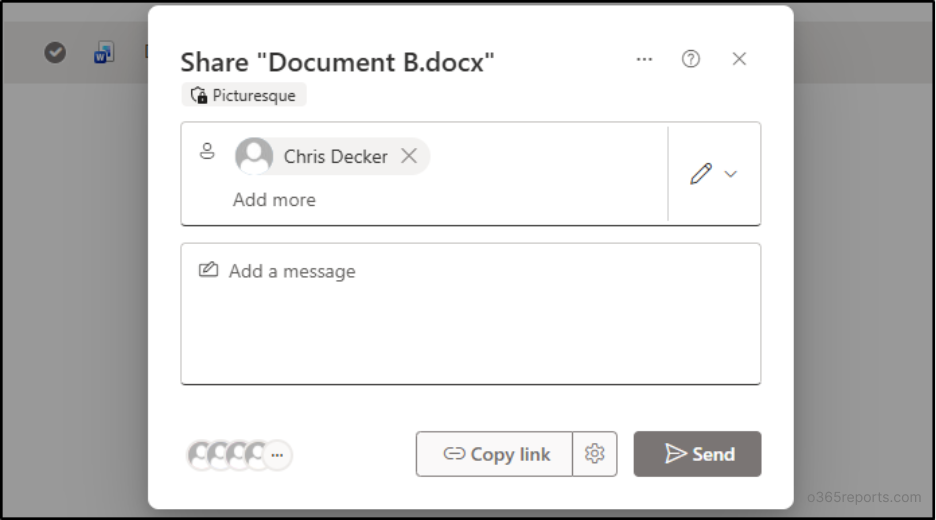
1. This special permission level is auto-applied when you share files or folders using ‘Share’ option in any of the above-mentioned scenarios. For example,
- Go to the site, select the file or folder, and click Share.
- Enter the recipient’s name or email address, choose the required permission level such as Can edit or Can view, add a message if needed, and click Send.
- The user receives an email with direct access to the item.
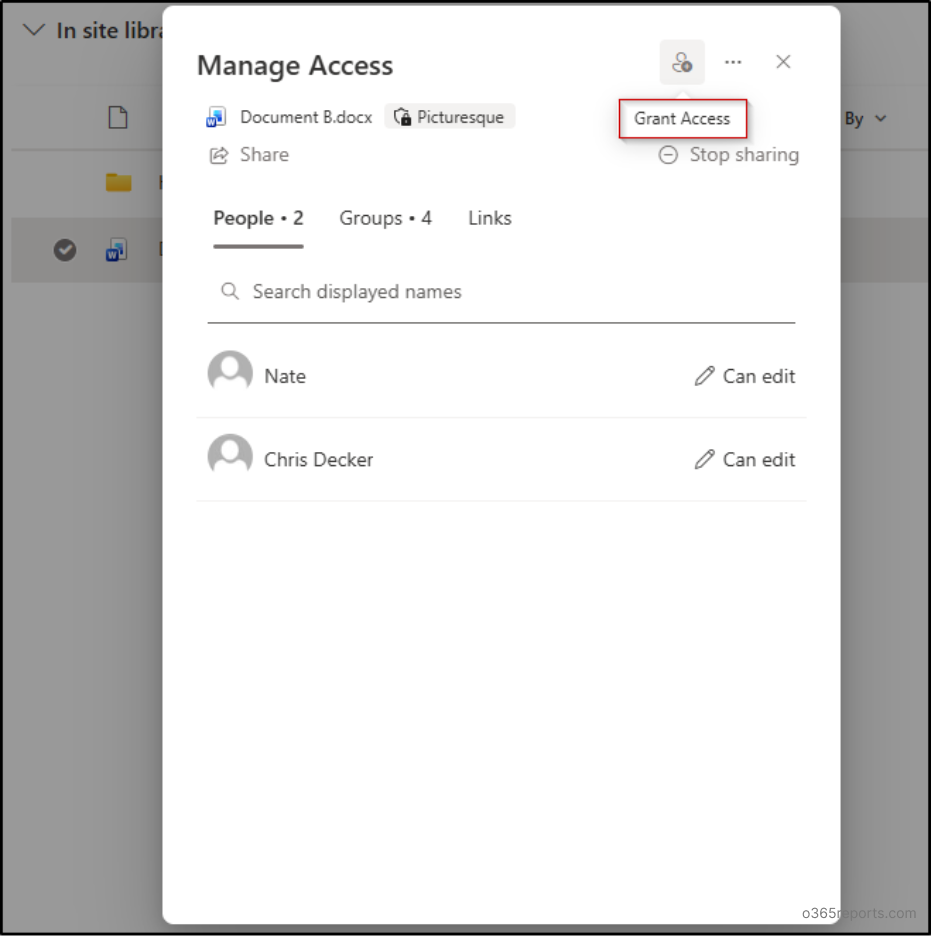
2. Limited Access can also appear when permissions are granted through the Manage Access panel.
- Click the ellipsis icon beside the file or folder you want to share and choose Manage access.
- Select the Grant Access icon at the top of the panel.
- Enter the users you want to provide access and select Grant access.
Now that we’ve covered the scenarios where Limited Access is automatically assigned, the next step is understanding where you can view Limited Access users in SharePoint Online.
How to Find Users with Limited Access Permission in SharePoint
Site Collection Administrators, Site Owners, and SharePoint Administrators can identify users with “Limited Access” in SharePoint Online. Below are the steps to locate them.
- Check limited access at the site level
- Check limited access to a document library
- Check limited access across multiple sites using PowerShell
Check Limited Access at the Site Level
To find users who have Limited Access on a SharePoint site, follow these steps.
- Navigate to the SharePoint site.
- Click Settings (⚙️) → Site permissions.
- Select Advanced permissions settings.
If Limited Access exists on the site, SharePoint will display a notification banner at the top of the permissions page: “There are limited access users on this site. Users may have limited access if an item or document under the site has been shared with them. Show users.”
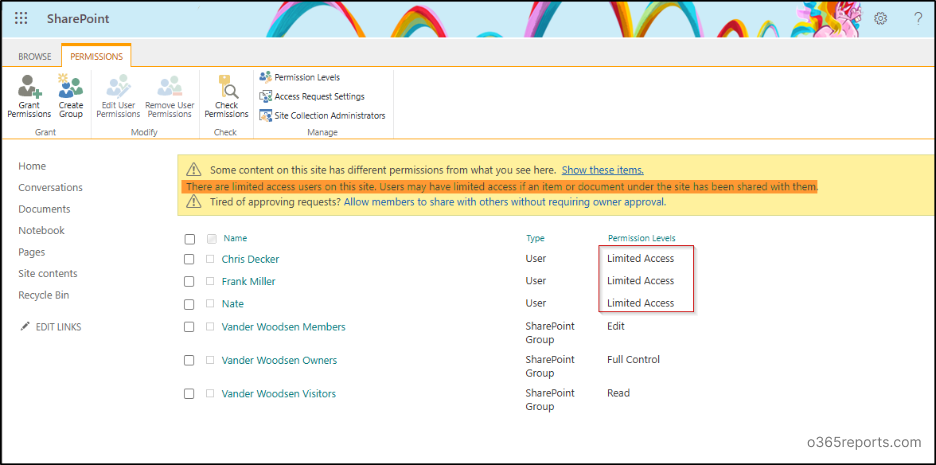
Click the “Show users” link in the banner to view all users who have been granted Limited Access.
Note: You may also encounter “Web-only Limited Access,” which is a variation that restricts access even further to web-based interactions only, without offline or sync capabilities.
Check Limited Access at Document Library or List Level
Similarly, you can also find the unique permissions assigned to a Document Library or a list. To identify the list of users with Limited Access on a document library, do the following.
- Go to Site → Document Library.
- Click Settings ⚙️ and select Library settings → More library settings.
- Under “Permission and Management”, click on Permissions for this document library.
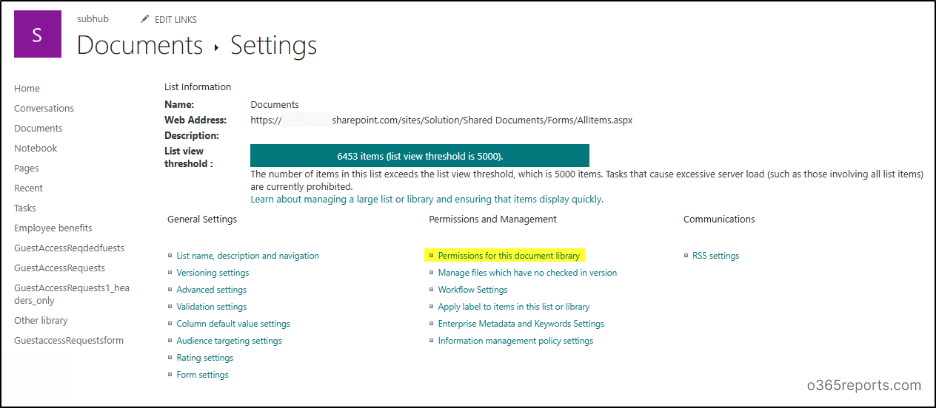
This directs you to the classic permissions view with a notification banner at the top of the permissions page. Click the “Show users” link in the banner to view all users who have been granted Limited Access.
Important: In some scenarios, you may notice permission levels displayed as a combination such as “Edit, Limited Access” or “Design, Limited Access.” This typically happens when a user already has site-level permissions through a group (for example, as a Member or Owner) and is then granted access to a specific file or folder separately.
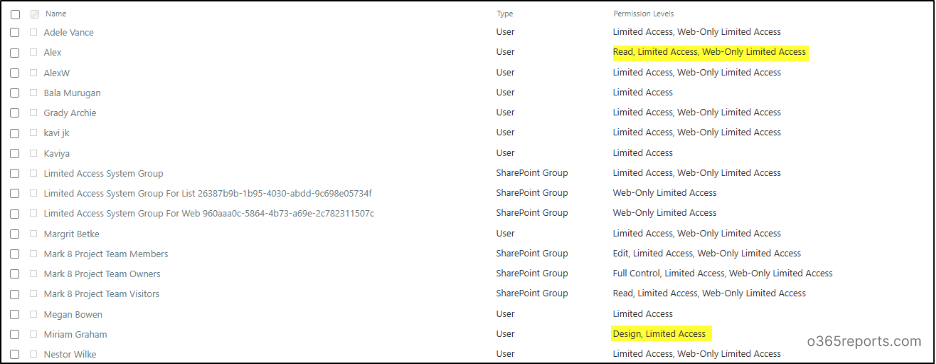
As a result, you may see combined permissions like “Edit, Limited Access.” This does not mean the user has two separate full permission sets; rather, it indicates that:
- Edit (or Design) comes from their group membership.
- Limited Access is automatically assigned by SharePoint to enable navigation to the uniquely shared content.
To better understand how the permissions were granted, you can use the Check Permissions option available on the permissions page. This tool clearly shows whether access was provided through group membership, direct sharing, or inheritance, helping you identify the exact reason behind the assigned permission level.
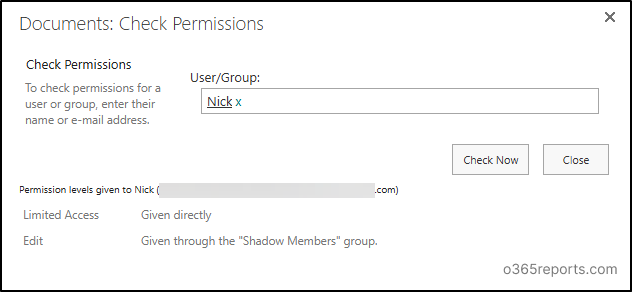
Limited Access often appears as a result of unique permissions being created in SharePoint Online. Yes, Limited Access is indeed a unique permission. When a file or folder is shared individually, inheritance is automatically broken for that item, making it uniquely secured.
The native approach is not scheduler-friendly, as it requires manual, site-by-site execution and does not support centralized automation across all SharePoint Online sites. This becomes especially challenging in bulk environments where administrators must review Limited Access permissions across multiple sites.
To address this, administrators can use PnP PowerShell to process multiple SharePoint Online sites in bulk and generate a consolidated report.
Find Users with Limited Access Permission Across Multiple Sites Using PowerShell
The following script requires connection to SharePoint admin center using PnP PowerShell module to run this bulk script successfully. This ensures proper authentication and allows access to multiple SharePoint Online sites.
It reads site URLs from a CSV file, checks for unique permissions, and exports the results to a consolidated CSV report.
Input format:
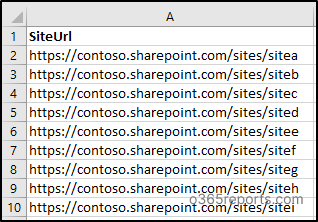
Script:
|
1 2 3 4 5 6 7 8 9 10 11 12 13 14 15 16 17 18 19 20 21 22 23 24 25 26 27 28 29 30 31 32 33 34 35 36 37 38 |
$clientId = "<your-client-id>" Connect-PnPOnline -Url "<yourtenant-admin.sharepoint.com>" -Interactive -ClientId $clientId $sites = Import-Csv "<Input File Path>.csv" $result = @() foreach ($site in $sites) { Write-Host "Checking site:" $site.SiteUrl -ForegroundColor Cyan Connect-PnPOnline -Url $site.SiteUrl -Interactive -ClientId $clientId $web = Get-PnPWeb -Includes HasUniqueRoleAssignments, RoleAssignments if (-not $web.HasUniqueRoleAssignments) { continue } foreach ($role in $web.RoleAssignments) { Get-PnPProperty -ClientObject $role ` -Property Member, RoleDefinitionBindings | Out-Null $principalType = $role.Member.PrincipalType # Capture both Users and Groups if ($principalType -eq "User" -or $principalType -eq "SecurityGroup" -or $principalType -eq "SharePointGroup") { $roles = $role.RoleDefinitionBindings $roleNames = $roles | Select-Object -ExpandProperty Name $allRoles = $roleNames -join "; " # Match if any of the assigned roles is "Limited Access" $hasLimited = $roleNames -contains "Limited Access" if ($hasLimited) { $result += [PSCustomObject]@{ SiteUrl = $site.SiteUrl PrincipalType = $principalType Name = $role.Member.Title LoginName = $role.Member.LoginName AllRoles = $allRoles # e.g. "Edit; Limited Access" } } } } } $result | Format-Table -AutoSize #Export to CSV $result | Export-Csv "<Output file path>.csv" -NoTypeInformation Write-Host "Export complete" -ForegroundColor Green |
Output:
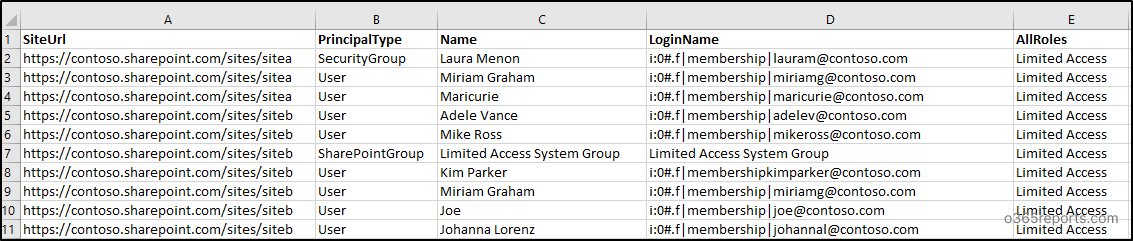
This script exports a list of SharePoint site principals (users and groups) that have Limited Access permissions, including their names, login IDs, and associated site URLs.
Simplify Limited Access Reporting with AdminDroid
While it is possible to extract unique permissions using PowerShell, the process must be executed site by site, which becomes time-consuming and complex in large environments with hundreds or thousands of sites. This makes organization-wide permission auditing and governance significantly harder to manage.
In such situations, you can rely on AdminDroid to gain centralized visibility into unique permissions across all SharePoint Online sites.
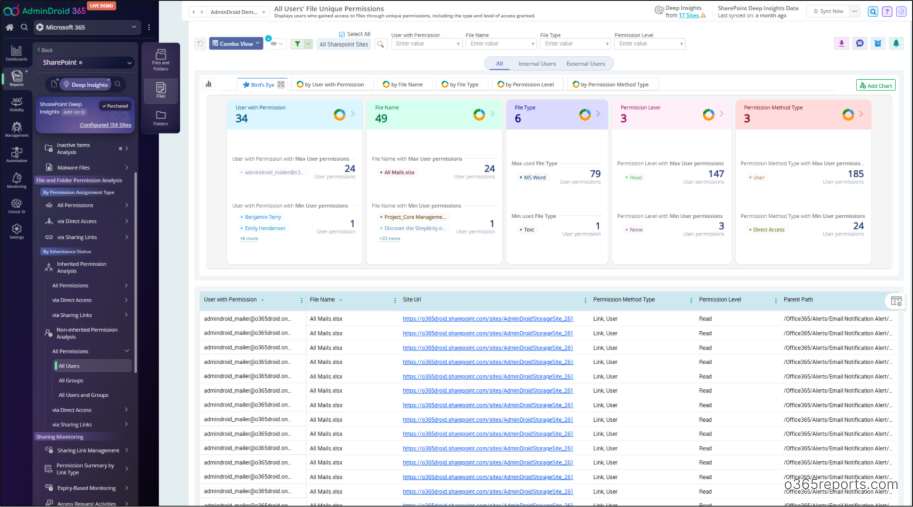
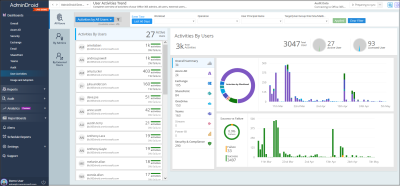
The report provides centralized visibility into unique permissions across all SharePoint Online sites, including key details such as User with permission, File/Folder name, Site URL, Permission Level, Parent Path, and Inherited From.
In short, Limited Access occurring in the following cases will appear in this report:
- Sharing a specific file or folder.
- Manually breaking inheritance and assigning unique permissions.
- Explicit sharing with users already belong to “Everyone except external users” or site groups.
- Granting higher permissions at the item level than the parent.
Explore the Unique Permissions Report in AdminDroid and eliminate manual, site-by-site effort.
Remove SharePoint Limited Access Permissions
You can also remove Limited Access permissions in SharePoint, directly from the same permissions page. To do this:
- Locate the user or group that is assigned to Limited Access.
- Select the user or group.
- Click Remove User Permissions from the top menu.
This will revoke their Limited Access from the site.
Note: If you remove the user’s unique permission from that document, folder, or library, their actual access to the content is revoked immediately. However, you may still see the user listed under Site Permissions as having Limited Access. This does not mean they still have access to the content.
Best Practices of SharePoint Limited Access Permission
Following SharePoint permission best practices ensures Limited Access remains intentional rather than a byproduct of unmanaged sharing. Here are a few best practices of Limited Access permission.
1. Avoid overusing item-level sharing – When you frequently share individual files or folders, SharePoint automatically generates multiple Limited Access entries across sites and libraries. Multiple Limited Access entries make permission audits confusing, slow down site performance, complicate troubleshooting, and create risks when attempting cleanup.
2. Prefer group-based permission management – Instead of sharing content directly with individuals, add users to a SharePoint default group or assign them through Microsoft 365 groups. Direct user assignments create permission sprawl, make onboarding/offboarding time-consuming, leading to inconsistent access levels across content.
As a best practice, use Microsoft 365 groups to manage access collectively, making it easier to grant, modify or revoke permissions for multiple users at once.
3. Enable Limited Access user permission lockdown mode where required – This feature further restricts users with Limited Access from viewing application pages or accessing content beyond what is explicitly shared, helping enforce tighter control on sensitive sites. Without this feature, Limited Access users can browse beyond their shared content to view site metadata, structure, or configuration details.
For enhanced protection, enable Limited-Access User Permission Lockdown Mode on sensitive, published, or externally shared sites to ensure stricter access boundaries and improved security control.
Important: Limited Access and Limited-Access User Permission Lockdown Mode are not the same and should not be confused!
Limited Access is a default, system-generated permission level in SharePoint Online that automatically allows users to access a specific shared item without granting access to the entire site. In contrast, Limited-Access User Permission Lockdown Mode is a site collection feature that further restricts what those Limited Access users can view or do, adding an extra layer of security on sensitive or published sites.
4. Apply the principle of least privilege even with Limited Access – Limited Access is automatically assigned by SharePoint to enable item-level access, but it should never be treated casually.
Ensure users receive only the permissions they genuinely need (such as View or Edit) on the specific file or folder being shared. Keeping access tightly aligned to business needs helps maintain a secure and well-structured permission model.
5. Regularly review unique permissions – Every time inheritance is broken on a list, folder, or item, Limited Access can increase. Unreviewed unique permissions accumulate over time, creating security blind spots where former users retain access, degrading site performance. So, schedule regular permission audits to identify unique permissions to maintain a manageable permission inheritance in SharePoint.
6. Be cautious when removing Limited Access – Limited Access cannot be directly assigned, it’s automatically generated by SharePoint when content is shared. Manual removal should be approached carefully to avoid unintended consequences.
7. Educate site owners about sharing behavior– Most Limited Access entries are unintentionally created through casual file or folder sharing. Site owners often share individual items without realizing the permission inheritance impact. Provide training on when to share at the library level instead of the file or folder level to minimize unnecessary permission breaks and reduce Limited Access sprawl.
That’s it! I hope this blog help you gain understanding on what is limited access permission in SharePoint Online. Feel free to reach us through the comments section if you have any questions.