You’ve spent hours configuring SharePoint permissions, setting up sensitivity labels, and deploying DLP policies to protect your organization’s data within Microsoft 365. But here’s the problem: the moment a user downloads a file, all those controls vanish. The file becomes a free agent— copied to USB drives, shared via personal email, stored on unmanaged devices – completely outside your governance.😶
One approach to reduce this risk is to prevent file downloads entirely. SharePoint allows administrators to block downloads using custom permission levels, restricted sharing links, or Conditional Access policies. These controls allow users to view or edit files in the browser while blocking direct downloads within SharePoint.
However, blocking downloads is not always practical. Users often need to open files to work offline, which requires downloading them. To address this challenge, Microsoft introduced Extended SharePoint Permissions, which ensures that SharePoint access controls continue to apply even after a file is downloaded. In this blog, we’ll explore how extended permissions work, why they matter for your security posture, and how to implement them.
What are Extended SharePoint Permissions?
When SharePoint is enabled for sensitivity labels, you can set a default sensitivity label on a document library. This means that any unlabeled files downloaded from that library automatically get protected based on the library’s current SharePoint permissions.
Extended SharePoint permissions make sure those permissions stay with the file even after it leaves SharePoint. So if someone downloads a Word, Excel, or PowerPoint file, it will still check whether the user has access to the original SharePoint site before opening. This means the user keeps the same level of access (or lack of access) to the file as they had in the SharePoint site, even after downloading it.
When using Extended Permissions, labeled files in a SharePoint library have the following movement restrictions:
- Cannot be copied or moved to a different SharePoint site
- Can only be moved within the same site if the user has permission to create or delete lists
Prerequisites for Extended Permissions in SharePoint
Before implementing extended SharePoint permissions, ensure you have the following requirements in place:
- Sensitivity labels must be created and published to the users who will select them for SharePoint document libraries.
- Site admin permissions are required to apply or change sensitivity labels in SharePoint.
- SharePoint IRM must be turned off because it isn’t compatible with sensitivity labels.
- The label scope must be set to Files and other data assets.
- Access control must be selected with encryption settings:
- Let users assign permissions when they apply the label.
- In Word, PowerPoint, and Excel, prompt users to specify permissions (also known as user-defined permissions).
- Your tenant must be enabled for co-authoring of files encrypted with sensitivity labels.
- If labeling PDFs, ensure SharePoint supports sensitivity labels for PDFs.
- Windows apps from Microsoft 365 Apps for enterprise must have a minimum version of 2402 (Current Channel, Monthly Enterprise Channel, or Semi-Annual Enterprise Channel).
- Files must contain content to be labeled. That is, empty files or files without any data cannot receive a sensitivity label.
How Do Extended Permissions Work for Downloaded Documents?
Extended SharePoint Permissions fundamentally changes how file security operates after download. Instead of files becoming disconnected once they leave SharePoint, they maintain an active connection to their source, creating a dynamic protection model with just-in-time enforcement.
Understanding Permission Mapping and Label Override Behavior
One of the most critical aspects of extended permissions is understanding how SharePoint permissions translate to file-level usage rights and when existing labels get replaced. Extended SharePoint permission maps SharePoint permission levels to specific usage rights management that control what users can do with downloaded files:
| SharePoint Role / Permission Level | Auto-Mapped User-Defined Permissions | Usage Rights | Blocked Actions |
| Owner | Owner | VIEW, EDIT, PRINT, EXPORT, EXTRACT, CHANGE RIGHTS, CHANGE LABEL | Full control |
| Edit | Editor | VIEW, EDIT, PRINT, EXPORT, EXTRACT, COMMENT | Cannot remove sensitivity label; typically cannot change label (temporary MS behavior may allow change but not removal) |
| Read | Viewer
|
VIEW, EXTRACT, VIEWRIGHTSDATA | Cannot EDIT, PRINT (unless label allows), CHANGE or REMOVE label |
Here’s a practical example to illustrate how it works:
Imagine Sarah downloading a financial report from the “Finance Team” SharePoint library where she has Read-only permissions. The file is labeled with Extended SharePoint Permissions. Here’s what happens:
- Sarah downloads the file with her initial Read-only permissions, meaning she can open and view the downloaded document but cannot edit, copy permissions, or make changes to it.
- She then emails it to John (who has no SharePoint access). John cannot open the file at all – it verifies his lack of permission with SharePoint.
- Sarah’s permissions are upgraded to Edit in SharePoint. The next time she opens her downloaded file, she can now edit it – the change is reflected automatically.
- The Finance Team removes Sarah’s access entirely. Her downloaded file becomes inaccessible – she cannot open it anymore.
This “live” connection ensures that governance policies remain enforced regardless of where files travel.
What Happens to Existing Labels?
When you enable extended SharePoint permissions on a library with existing files, understanding label replacement is crucial:
| Existing File State | Extended SharePoint Permissions Behavior | Result |
| No label | Applied | ✅ File gets Extended SharePoint Permissions label |
| Label without encryption (any priority) | Replaced | ✅ Extended SharePoint Permissions label overrides old label |
| Label with encryption (any priority) | Ignored | ❌ Original label retained |
| Manually applied label without encryption | Replaced | ✅ Extended SharePoint Permissions label overrides manual label |
How to Extend Permissions to Downloaded Documents in SharePoint Online?
Follow the steps below to configure Extended SharePoint Permissions:
- Configure default sensitivity labels for extended permissions
- Enable the capability at tenant level
- Configure your document library
1. Configure Default Sensitivity Labels for Extended Permissions
To extend permissions to downloaded documents in SharePoint Online, start by creating a sensitivity label in Microsoft Purview and configure it with encryption and user-defined permissions.
- Go to Microsoft Purview portal -> Information Protection -> Sensitivity Labels -> Create label.
- Enter name, description, and priority. Click Next.
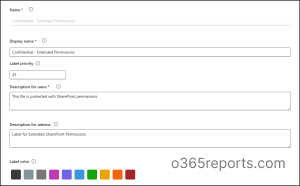
- On the Define the scope for this label page, check Files and other data assets (mandatory for extended SharePoint permissions) and uncheck all other options.

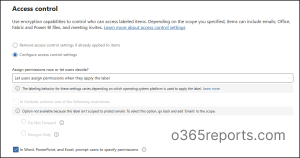
- On the Choose protection settings for the types of items you selected page, check Control access.
- Then, under Configure access control settings, select these options:
- Let users assign permissions when they apply the label (mandatory)
- For Word, PowerPoint, and Excel, check Prompt users to specify permissions (mandatory)
6. Skip auto-labeling and Groups & Sites configuration.
7. Review and Create label.
Publish the label to Make it Available to Users:
Creating the label isn’t enough; you must publish it to make it available to users. For this, follow the steps below:
- After clicking Done on the previous step, a flyout page appears for the newly created label.
- Click Create new label policy.
- In Choose sensitivity labels to publish, select your newly created label (e.g., “Confidential – Extended Permissions”) -> Click Add -> Next.
- Leave as Full directory unless you want to limit to a specific admin unit.
- Publish to Users and Groups:
-
- Click Choose users and groups.
- Select who should see this label:
-
-
- All users and groups (recommended for testing)
- Or specific groups (e.g., “Finance Team”, “HR Department”)
-
-
- Click Add -> Next.
6. Leave the next sections as default.
7. Name your policy, enter a description -> Click Next.
8. Review the policy -> Click Submit.
Note: Labels take 24–48 hours to sync across SharePoint, OneDrive, and Office apps. To verify if the labels is ready, run PowerShell:
|
1 |
Get-Label | Where-Object {$_.Name -eq "<Label name>"} |
Replace <Label name> with the name of the label you created
If the label is enabled and synced, the command will return its details, such as Name, Id, and other properties. If nothing is returned, the label is not yet available.
2. Extend SharePoint Permissions at Tenant Level Using PowerShell
- Install the latest SharePoint Online PowerShell module if not already installed.
- Enable the Extended Permissions capability for the tenant using the below cmdlet:
|
1 |
Set-SPOTenant -ExtendPermissionsToUnprotectedFiles $true |

⚠️ Important Note: You need at least version 16.0.25430.12000 to use the -ExtendPermissionsToUnprotectedFiles parameter. Using this parameter with an older version will throw error as,
Set-SPOTenant : A parameter cannot be found that matches parameter name ‘ExtendPermissionsToUnprotectedFiles’.
After enabling the tenant capability, the next step is to configure your SharePoint document libraries with default sensitivity labels to extend permissions to downloaded files.
3. Configure SharePoint Document Library for Extended Permissions
To configure a SharePoint library to use extended permissions, follow the steps below:
- Go to your SharePoint site
- Navigate to the document library
- Click Settings (gear icon) -> Library settings
- Once the tenant configuration is enabled, you’ll see a checkbox: “Extend protection on unencrypted files when they’re downloaded, copied, or moved.” Check it to enable.
- Select your sensitivity label (the one you created: “Confidential – Extended Permissions”)
- Click Save.
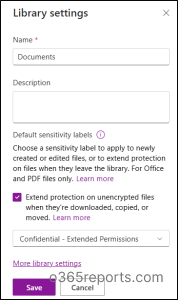
That’s it. Now, when a user downloads a file from the document library, the file retains its applied sensitivity label and the SharePoint permissions, ensuring that only users with the right access can open or edit it, even outside SharePoint.
Note: Users cannot remove the applied label in Office apps. They can only change it to another label if that label also applies encryption.
What Happens When You Turn Off Extended SharePoint Permissions?
If you want a specific document library to stop extending permissions, clear the “Extend protection on unencrypted files when they’re downloaded, copied, or moved” checkbox in that library’s settings.
- Files that are already downloaded will keep their label and protection.
- Files in the library that were previously labeled with this feature will revert to their original label or remain unlabeled if they had no label before.
- Files synced with OneDrive will also resync and revert to their previous label status. This may take some time, and until the resync is complete, extended protection will still apply.
If you want to turn off this feature for the entire tenant:
- First, clear the checkbox in all document libraries where it’s enabled.
- Then, run the cmdlet:
|
1 |
Set-SPOTenant -ExtendPermissionsToUnprotectedFiles $false |
After this, the checkbox will no longer appear in document library settings. If you skip clearing the checkbox in libraries before turning off the tenant-level feature, the library settings remain configured. However, the checkbox won’t be visible, so you can’t disable it from the library directly.
How to Monitor Permissions Extended to Downloaded Files in SharePoint?
You can monitor sensitivity labeled files that extend SharePoint permissions the same way as regular labels, using the label GUID to identify encryption for user-defined permissions. Files downloaded, copied, or moved don’t generate separate auditing events.
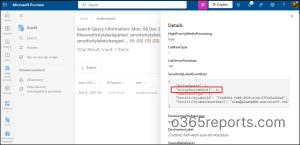
To track library default sensitivity labels, use the SharePoint Sensitivity column—files labeled by this feature show a tooltip saying “This file has been automatically labeled.” To confirm it was applied due to the library default, check the Applied sensitivity label audit log and look for ActionSourceDetails = 6 in the SensitivityLabelEventData section.
Limitations of Extended SharePoint Permissions
Here are few limitations of the feature to be aware of:
- Users cannot manually apply labels that don’t include encryption.
- Downloaded files cannot be opened offline; users must connect to the original SharePoint site.
- Downloaded files cannot be opened if the original site, folder, or file is deleted.
- Labeled files cannot be moved or copied to another SharePoint site.
- The Save As option is not supported for these files.
- Files can only be moved or copied to another library within the same site if the user has permissions to create or delete lists; the label is not retained on the copied or moved file.
- This configuration can override a previously applied label if that label doesn’t apply encryption.
- Files labeled this way aren’t shown as labeled in Content Explorer.
- Microsoft 365 Copilot can view labeled files as long as the user has ‘Read’ access in SharePoint. However, it cannot analyze or produce summaries for these protected documents.
That’s a wrap. By configuring extended SharePoint protection with default sensitivity labels, you can keep your files secure even after they leave SharePoint. With proper planning and monitoring, you can maintain strong security without impacting user productivity.
We hope this blog has provided useful insights into the extended permissions capabilities of SharePoint. Thanks for reading! Feel free to reach out in the comments section with any questions.