As organizations grow, so do their digital responsibilities. With more users, devices, apps, security threats, and data to protect, organizations need a central platform to manage it all effectively. This is exactly why the Microsoft 365 admin center exists! Let’s break down the detail.
Purpose of Microsoft 365 Admin Center
The Microsoft 365 admin center is a web-based management portal, used by admins to configure and fine-tune every part of the cloud environment. Its purpose is to give admins:
- A unified dashboard for managing users and services.
- Insights into security, service health, and adoption.
- Access to all M365 admin portals (Teams, SharePoint, Exchange, Entra ID, Viva, etc).
- Tools to configure governance, compliance, and organizational controls.
How to Access the Microsoft 365 Admin Center
Accessing the Microsoft 365 admin center is straightforward, but you must sign in with an account that has administrative permissions. Only Global Admin has full access to all settings and features in Microsoft 365, including user management, billing, and security.
Other admin roles, such as User Management Administrator, Teams Administrator, or Exchange Administrator, have limited access based on their assigned responsibilities.
The quickest way to open the Microsoft admin center directly in your browser is by using a direct URL:
When prompted, sign in with your Microsoft 365 admin credentials to start managing your organization.
Core Capabilities of the Microsoft 365 Admin Center
The left-hand navigation in Microsoft 365 admin center is designed to give IT administrators access to every essential tool required to manage and secure the Microsoft 365 tenant. Key sections include:
- Home
- Copilot
- Agents
- Users
- Teams & groups
- Roles
- Resources
- Marketplace
- Billing
- Support
- Settings
- Setup
- Reports
- Health
Each section is designed to simplify administration, improve visibility, and enhance control over your Microsoft 365 environment.
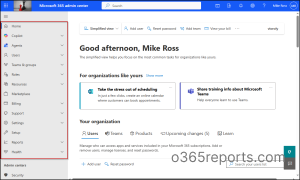
1. Home Page of Microsoft 365 Admin Center
On the Home page of the Microsoft 365 admin center, admins can view essential information at a glance, including user management, billing, and service health. It also provides quick access to common actions, M365 app updates, and upcoming changes to help keep your organization running smoothly.
2. Manage Microsoft 365 Copilot
Microsoft 365 Copilot blends advanced large language models with your Microsoft 365 data and applications to help users work smarter.
The Overview section provides a summary of Copilot deployment and usage across the organization. Administrators can view adoption metrics, performance insights, and recommendations for improving productivity with Copilot.
The Connectors subsection allows administrators to manage data connections that Copilot uses to provide intelligent responses and insights. These connectors link Microsoft 365 apps and external services, ensuring that Copilot has access to relevant organizational data.
The Billing & usage option provides detailed information about Copilot-related costs and consumption. Administrators can track usage patterns, monitor license allocation, and review billing details to ensure cost efficiency and proper resource management.
The Settings section enables administrators to configure Copilot preferences, including permissions, data access policies, and integration options. This ensures that Copilot operates securely and aligns with organizational compliance requirements.
3. Configure and Control Copilot Agents for Automation
This Agents section is focused on managing AI-powered agents and automation tools that assist with organizational tasks and workflows.
The Overview section provides a summary of all active agents within the organization. It displays key metrics such as usage statistics, performance insights, and recent activities. This helps administrators understand how agents are being utilized and identify opportunities to improve efficiency.
The All agents subsection lists every agent available in the tenant, including custom-built agents and those provided by Microsoft. Administrators can view details about each agent, such as its purpose, assigned permissions, and integration points. From here, they can also manage agent lifecycle tasks like enabling, disabling, or updating agents.
The Settings option allows administrators to configure global preferences for agents, including security policies, access controls, and integration settings.
Note: Microsoft Agent 365, a new centralized platform for managing AI agents is also rolling out in the admin center.
4. Centralized User Identity and Access Management
The Users section is the backbone of Microsoft 365 administration. It enables admins to manage users, and user-related settings in the organization.
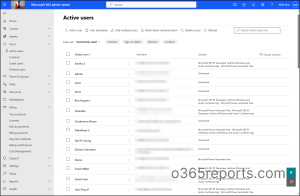
The Active users section contains all the primary accounts for people in your organization along with their assigned licenses. From here, administrators can create new user accounts, assign or remove licenses, reset passwords, and configure security settings like multi-factor authentication. It also allows editing of user details such as name, department, and contact information.
The Contacts section is used to manage Office 365 contacts who do not have M365 accounts in your tenant. It ensures that they still appear in the global address list when your users need to communicate with them. These contacts are typically vendors, partners, or clients, and adding them ensures that internal users can easily find and communicate with them.
The Guest users section lists external users who have been invited to collaborate using Microsoft 365 services such as Teams or SharePoint. These accounts are part of Azure Active Directory’s B2B collaboration model and have limited access compared to internal users. Administrators can manage permissions and control what resources these guests can access, making it ideal for project-based collaboration with external partners.
Finally, the Deleted users section shows accounts that have been removed from the organization. When a user is deleted, their account enters a soft-deleted state for 30 days, during which administrators can restore it if needed. After this period, the account is permanently deleted unless retention policies are in place.
5. Improve Collaboration Through Teams and Group Governance
Collaboration in Microsoft 365 runs on groups, and the Teams & groups section is where they are shaped.
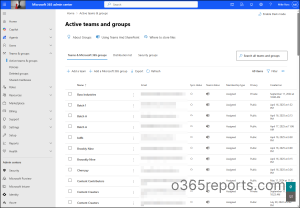
The Active teams & groups section displays all the groups currently in use, including Microsoft 365 groups, distribution lists, mail-enabled security groups, and shared mailboxes. Admins can create and manage groups, assign owners, members, and configure settings such as privacy and email options. This section is essential for organizing users into collaborative units for communication and resource sharing.
The Policies subsection allows administrators to update the available policies for groups and teams. These policies can include naming conventions, expiration settings, and guest access controls. By applying policies, organizations can maintain consistency, security, and compliance across all collaborative spaces.
The Deleted groups section lists groups that have been removed from the organization. Similar to deleted users, these groups remain in a recoverable state for a limited period (typically 30 days), allowing administrators to restore groups if needed. After this retention period, the groups are permanently deleted.
The Shared mailboxes option is used to manage mailboxes that multiple users can access and use to send and receive emails. Shared mailboxes are commonly used for departmental or team email addresses, such as support or info accounts. Administrators can add shared mailboxes, assign permissions, and configure settings without requiring additional licenses for the mailbox itself.
6. Assign Admin Roles and Permissions in Microsoft 365
The Roles section helps organizations enforce the principle of least privilege access.
The Role assignments section allows administrators to assign and manage Microsoft 365 admin roles for users based on their responsibilities. Microsoft 365 uses a role-based access control (RBAC) model, meaning that permissions are grouped into roles such as Global Administrator, Exchange Administrator, Teams Administrator, and more. By assigning these roles, organizations can ensure that users have the right level of access without granting unnecessary privileges.
The Administrative units subsection is used to create logical groupings within the organization, such as departments or regions, and delegate administrative tasks for those units. For example, an organization might create an administrative unit for the HR department and assign an administrator who can manage only HR-related users and resources. This feature is particularly useful for large organizations that need decentralized administration
7. Manage Organizational Resources in Microsoft 365
The Resources section manages workplace assets that employees use daily.
The Rooms & equipment section allows administrators to create and manage room mailboxes for meeting rooms and shared equipment. These resource mailboxes enable users to book rooms or equipment through Outlook or Teams when scheduling meetings. Administrators can configure settings such as booking permissions, automatic acceptance of meeting requests, and availability.
The Sites subsection is used to manage SharePoint sites within the organization. SharePoint sites serve as collaboration hubs where teams can store documents, share information, and work together on projects. From this section, administrators can add new sites and view sites’ external sharing settings. Clicking a site URL redirects you to the SharePoint admin center.
8. Extend Microsoft 365 Capabilities Through Marketplace
The Marketplace provides access to a wide catalog of Microsoft and third-party applications.
Admins can browse apps, purchase add-ons, deploy them across the tenant, and manage app licensing. This is the central hub for extending Microsoft 365 functionality.
9. Manage Subscription, Licensing, and Billing in Microsoft 365
The Billing section gives administrators full control over financial and assigned licenses in Microsoft 365 environments.
The Your products section provides a detailed view of all Microsoft 365 subscriptions and services purchased by the organization. Administrators can review product details, check renewal dates, and manage subscription settings such as adding or removing services.
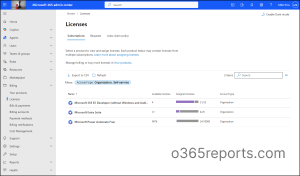
The Licenses subsection focuses on managing the licenses associated with these products. Here, administrators can assign licenses to users, track available license counts, and purchase additional licenses when needed. Proper license management ensures compliance and uninterrupted access to Microsoft 365 services.
The Bills & payments section displays all invoices and payment history for the organization. Administrators can download invoices, review charges, and confirm payment status. This section is essential for financial tracking and auditing purposes.
The Billing accounts option allows organizations to manage multiple billing profiles or accounts, which is useful for companies with different departments or regions that require separate billing arrangements. Administrators can configure account details and assign roles for billing management.
The Payment methods subsection is where administrators add or update payment options such as credit cards or bank accounts. Keeping payment methods current ensures that subscriptions renew without interruption.
The Billing notifications section enables administrators to choose who gets billing emails and invoice copies. They can also turn on the option to receive invoices as email attachments. For MCA accounts, this setting is managed inside each billing profile. If the organization pays by check or wire transfer, admins must add at least one Accounts Payable contact to receive invoices and payment reminders.
The Cost management tab helps admins with an MCA billing account track and control their Microsoft cloud spending. It shows detailed costs for services and marketplace purchases. Using this information, you can understand what’s driving your expenses and use tools like cost analysis and budgeting to better manage and optimize your overall costs.
10. Access Support and Resolve Technical Issue
The Support section allows administrators to create support tickets, track their progress, and access troubleshooting recommendations provided by Microsoft.
The Help & support section serves as the primary resource for troubleshooting and guidance. Administrators can access documentation, FAQs, and self-help articles related to Microsoft 365 services. It also provides options to contact Microsoft support directly for technical assistance or account-related issues.
The View service requests subsection allows administrators to track and manage all support tickets submitted to Microsoft. Here, you can check the status of open requests, review past interactions, and update or escalate issues if necessary. This feature ensures transparency and helps maintain continuity in resolving technical problems.
The Customer Lockbox Requests option is a specialized security feature that gives organizations control over data access during support operations. When Microsoft engineers need temporary access to customer data to resolve an issue, the organization must explicitly approve the request through this section. This ensures compliance with strict privacy and security standards.
The Microsoft Surface support provides dedicated assistance for organizations using Microsoft Surface devices. Administrators can access troubleshooting guides, warranty information, and request repairs or replacements for hardware issues.
11. Configure Tenant-Wide Policies and Organizational Settings
The Settings section is where administrators configure core organizational settings, manage domains, and integrate additional services to enhance productivity.
The Domains section allows administrators to manage the domains associated with their Microsoft 365 tenant. This includes adding new domains, verifying ownership, and configuring DNS records to ensure proper email routing and service functionality. Managing domains is essential for branding and secure communication within the organization.
The Search & intelligence subsection focuses on optimizing search experiences across Microsoft 365 apps. Administrators can configure Microsoft Search settings, manage bookmarks, and enable intelligent features that help users find information quickly and efficiently.
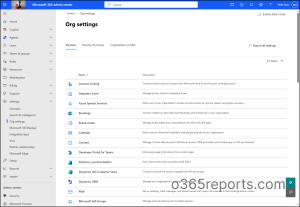
The Org settings option provides access to a wide range of organizational configurations, including security settings, privacy controls, and service-specific options. This is where administrators can enforce compliance policies, configure sharing settings, and manage global preferences for Microsoft 365 services.
The Microsoft 365 Backup feature enables administrators to manage backup and recovery options for organizational data. This ensures that critical files and information are protected against accidental deletion or data loss, supporting business continuity and compliance requirements.
The Integrated apps section allows Microsoft 365 administrators to manage third-party applications, and app permissions & consents that integrates with Microsoft 365. Here, they can enable or disable apps, configure permissions, and ensure that integrations comply with organizational security standards.
The Viva subsection provides access to Microsoft Viva, an employee experience platform that includes modules for learning, insights, and engagement. Administrators can configure Viva settings to improve collaboration and employee well-being.
The Partner relationships section is used to manage connections with Microsoft partners who assist with licensing, support, and service management. Administrators can view partner details and grant appropriate permissions for delegated administration.
The Microsoft Edge option allows organizations to configure settings for the Microsoft Edge browser, including security policies, extensions, and enterprise features that enhance productivity and compliance.
12. Streamline Deployment and Best Practices Using Setup Guide
The Setup section offers step-by-step guidance for enabling collaboration tools, onboarding new devices, and configuring essential security best practices for tenant hardening. It’s especially useful for new environments or ongoing improvements.
13. Gain Usage Analytics and Productivity Insights Through Reports
The Reports section provides deep insights into Microsoft 365 usage and adoption.
The Adoption Score section gives administrators a detailed view of how effectively Microsoft 365 tools are being utilized across the organization. It measures user behavior and technology usage patterns, such as communication, collaboration, and mobility.
The Usage subsection provides comprehensive reports on service usage, including apps like Teams, SharePoint, OneDrive, and Exchange. Administrators can track metrics such as active users, storage consumption, and feature utilization.
The Organizational messages option allows administrators to send targeted messages to users within the organization. These messages can be used to promote best practices, announce new features, or encourage adoption of specific tools.
14. Check Microsoft 365 Service Health Status to Track Performance
The Health section gives a quick snapshot of tenant reliability, including service health incidents, advisories, and alerts such as compromised account remediation.
The Service health section provides real-time information about the operational status of Microsoft 365 services such as Exchange, SharePoint, Teams, and OneDrive. Administrators can view current incidents, advisories, and historical data to understand service reliability and troubleshoot problems effectively.
The Message center subsection is where Microsoft communicates important updates, announcements, and changes to services. This includes feature rollouts, planned maintenance, and compliance-related notifications. Administrators can use this information to prepare their organization for upcoming changes and ensure smooth transitions.
The Product feedback option allows administrators to share suggestions or report issues directly to Microsoft. This feedback helps improve Microsoft 365 services and ensures that customer needs are considered in future updates.
The Network connectivity section provides tools to test and monitor the organization’s connection to Microsoft 365 services. It helps identify latency, bandwidth issues, or configuration problems that could affect user experience. This feature is essential for maintaining optimal performance and reliability.
The Software updates section offers information about updates for Microsoft 365 apps and services. Administrators can track update schedules, review release notes, and ensure that devices remain compliant with the latest security enhancements.
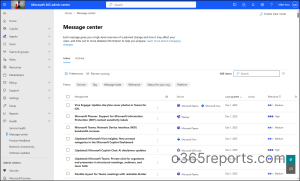
Top Panel Features in Microsoft 365 Admin Center
The top navigation bar spans the width of the admin center and provides quick access to essential tools, settings, and information.
Here’s what each icon does:
- App Launcher (9-dot icon) – Opens the Microsoft 365 app menu, letting you quickly switch between services like Outlook, Teams, SharePoint, and OneDrive. Admin users will see an additional “Admin” option to access the admin center.
- Azure Cloud Shell – Launches a browser-based command-line interface (Bash or PowerShell) for advanced management tasks. Requires appropriate permissions and Azure Active Directory configuration.
- Microsoft 365 Admin Mobile App – Provides a download link for the mobile admin app, enabling you to manage your environment on the go from iOS or Android devices.
- Notifications (bell icon)- Displays alerts and updates related to your account, services, security events, and organizational changes.
- Settings (gear icon) – Configure your personal preferences including language, time zone, display theme, notification preferences, contact settings, and password management.
- Help & Support- Access – Microsoft’s support resources, documentation, and assistance tools when you need guidance or troubleshooting help.
- Account Menu (profile circle) – Opens your account settings where you can view personal information, manage subscriptions, review security and privacy settings, control app permissions, and manage connected devices and add-ins.
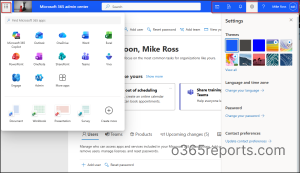
Integrated Access to Other Microsoft Service Admin Centers
The Microsoft 365 admin center serves as the central gateway to every major management portal in the Microsoft cloud ecosystem. Instead of searching for individual URLs or switching between disconnected interfaces, admins can launch all specialized portals directly from one place. This creates a seamless, organized, and efficient management experience.
From the Microsoft 365 admin center, you can quickly access: Security, Microsoft Purview, Microsoft Intune, Identity, Azure, Exchange, SharePoint, Teams, Power Platform, and other admin centers present.
While the Microsoft 365 Admin Center brings all portals under one umbrella, managing services in depth still requires jumping between multiple admin centers. Identity is in Entra, email in Exchange, collaboration in Teams, content in SharePoint, security in Defender, and so on.
This “portal hopping” can become time-consuming. This is where AdminDroid makes a huge difference.
Simplify Microsoft 365 Administration with AdmiDroid
Managing Microsoft 365 shouldn’t feel like running an obstacle course through endless portals and PowerShell scripts. AdminDroid changes the game with a unified platform that makes complex administration feel surprisingly simple. Whether you’re managing 50 users or 50,000, you get the control you need with the simplicity you want.
Key Differentiators of AdminDroid
A platform built to simplify everything you manage, and amplify everything you can do.
🚀 One Portal, Infinite Possibilities: 450+ Management Actions at Your Command
Instead of navigating through five or six different admin portals for Exchange, SharePoint, Teams, and other services, AdminDroid Management actions brings everything together. You can manage your entire Microsoft 365 ecosystem from a single, centralized hub, making daily administration faster and far less complex.
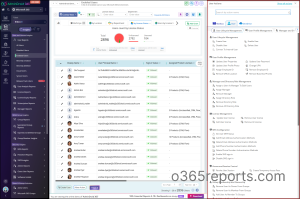
🤖 Flow Agents: Automation That Actually Works For You
Stop wasting hours on repetitive tasks. AdminDroid’s Flow Agents bring intelligent automation to your everyday workflows, letting you focus on strategy instead of busy work. Jump-start your automation journey with prebuilt workflows for common scenarios like user onboarding and offboarding. Just launch and watch them work!
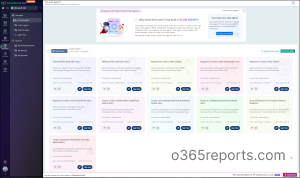
⏰ Reminders & Follow-ups: Never Miss What Matters
Your Microsoft 365 environment has countless moving parts, and AdminDroid ensures nothing important slips through the cracks. Set up automated reminders and follow-ups for critical events like password expirations, subscription renewals, license compliance deadlines, and more. Prebuilt agents get you started immediately!
🎯 Governance Portal: Your Mission Control for Microsoft 365
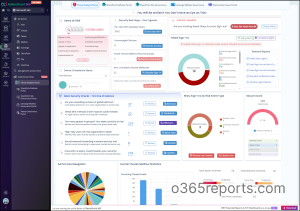
See everything. Control everything. Fix everything instantly. AdminDroid offers you with Threat Analysis portal, Exchange Mailbox portal, Teams Governance poral, SharePoint Site Governance portal, and SharePoint Defense Portal. These portals help you identify risky configurations and privilege escalations before they become breaches. You can also view permissions and settings across your environment in crystal-clear layouts, so you can identify issues and fix them with immediate management actions!
✅ Approvals: Governance That Protects Your M365 Environment
Critical actions deserve oversight, but oversight shouldn’t slow everything down. AdminDroid’s approval workflows ensure sensitive operations, like granting external access, updating security policies, or processing offboarding requests. Configure multi-stage approvals or multi-approver flows that match your organizational structure.
🔐 Delegate Access: Least-Privilege Perfection
Securely delegate specific management actions and flow agents to team members. Create virtual tenants to scope management to particular users, groups, or mailboxes. Achieve true least-privilege access while empowering your team to work independently.
🔔Smart Scheduling & Intelligent Alerts
Generate advanced reports instantly, schedule automated monitoring tasks, and set up alerts for critical events. What used to take hours of manual work now happens automatically, freeing you up to focus on strategic initiatives rather than routine administrative tasks.
AdminDroid doesn’t just help you manage, it helps you understand your entire Microsoft 365 ecosystem with clarity and depth. With access to 3,500+ pre-built reports and 100+ interactive dashboards, you get unprecedented visibility into your Microsoft 365 environment. Want to see user adoption trends across Teams? Need to track license utilization? Looking for security anomalies? It’s all there, ready to go with just one click.
Download AdminDroid Microsoft 365 management tool today to gain complete visibility and control over your Microsoft 365 environment.
The native Microsoft 365 admin center is a solid foundation, but AdminDroid takes your management capabilities to an entirely new level. With unmatched visibility, comprehensive reporting, and streamlined management actions all in one place, you’ll wonder how you ever managed without it.